How to Put a Picture on Android Keyboard: A Practical Guide
Learn how to personalize your Android keyboard by adding a photo as a background. This guide covers compatibility, image preparation, and practical steps to apply a picture while maintaining readability.


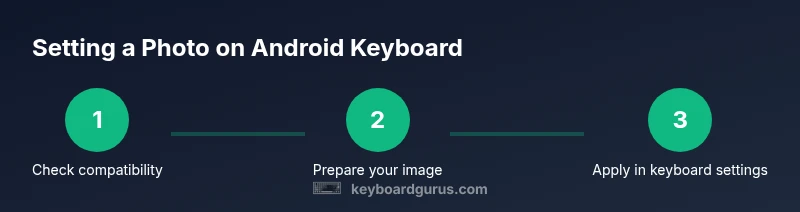
Goal: Put a picture on your Android keyboard. Most Android keyboards support a background image via Theme or Appearance settings. Start with a compatible keyboard such as Gboard or Samsung Keyboard. Open the keyboard app, navigate to Theme or Appearance, select Custom image, choose your photo, adjust brightness if available, and apply. Test in messaging apps to verify readability.
Why Android keyboards support image customization Customizing the background of your Android keyboard is a popular way to express personality, reduce eye strain, and set a consistent theme across apps. According to Keyboard Gurus, most major Android keyboards offer a theme or background option in their appearance settings. This feature lets you apply an image as a backdrop for the keys, while preserving legibility through contrast controls. When you choose a picture, prioritize images with simple foreground elements and quiet backgrounds that do not clash with the on screen keys. You will want to consider how the image looks under different lighting and in various apps since the keyboard sits above every app you use. In practice you can use a personal photo, a licensed image, or a simple pattern. The most important factor is readability and a clean layout. Not all images render identically; some keyboards blur or crop images to fit the key area. Testing across messaging and browsing apps ensures a consistent experience.
Prerequisites and compatibility Understanding which keyboards support image backgrounds saves time and prevents frustration. Major options include Gboard and Samsung Keyboard, and AnySoftKeyboard may offer background images in certain versions. Check the settings under Theme or Appearance to find a background option. Confirm that the image you want to use is in a compatible format and not too large for the app to handle. Some keyboards require extra permissions to access photos, while others rely on a built in gallery. If a keyboard does not offer this feature, it may be time to try a different app that supports background images.
Preparing the image for best results Start with a clean, high quality image. Crop or resize so that the central area remains clear when the keyboard is displayed and avoid placing text where it could interfere with keystrokes. Save a copy for testing. Consider a simple design with gentle contrast to keep letters readable. Remember that the same image can look different depending on screen brightness and the app in use, so test on multiple apps to gauge readability and keep the file size reasonable for quick loading.
How to apply a custom image in a keyboard On your chosen keyboard app, go to Theme or Appearance, select Background or Custom image, then pick your photo from the gallery or file manager. Some apps may require you to grant storage permission before you can select an image. After selecting the image, use any available controls to adjust brightness or blur to enhance legibility, then save or apply the changes. Finally, test the keyboard in messaging, email, and web browsers to confirm the image looks good in real use and does not hinder typing speed.
Alternative methods and when to switch keyboards If your preferred keyboard offers limited customization, consider trying another app that provides robust background options. While some keyboards are built into the phone and lack image options, popular third party options often include theme editors and background image support. Remember to review app permissions and privacy settings when trying a new keyboard, and only install from reputable sources to protect your data.
Accessibility and readability tips A background image should not distract from typing. Choose a photo with muted colors and high contrast between letters and the backdrop. If you notice reduced accuracy, revert to a plain background, or switch to a keyboard with stronger contrast controls. Keep color choices consistent across day and night modes to avoid eye strain during long typing sessions.
Tools & Materials
- Android device with a compatible keyboard app(e.g., Gboard or Samsung Keyboard)
- Personal image you want to use(JPEG or PNG; size should be reasonable)
- Image editor or photo gallery(To crop or resize the image)
- Permissions ready(Storage access for image selection)
- Alternative image source (optional)(License free or personal photo)
Steps
Estimated time: 25-40 minutes
- 1
Check keyboard compatibility
Open the keyboard app settings and confirm that background images or themes are supported. If the option is missing, upgrade the app or switch to a compatible keyboard.
Tip: If unsure, inspect the help section for feature availability. - 2
Prepare the image
Ensure the image is clear and cropped so key areas are not obscured by text. Save a test copy for quick toggling in settings.
Tip: Use a simple, high contrast image to preserve readability. - 3
Open theme background settings
Navigate to Theme or Appearance in the keyboard app to locate the background option. Some apps label it as Background or Custom image.
Tip: If you cannot find it, search within the app’s help docs. - 4
Select the image
Choose the prepared image from the gallery or file manager and grant storage access if prompted.
Tip: Confirm the app has permission to access photos. - 5
Adjust and apply
Adjust brightness or blur for readability if the app provides controls. Save or apply the changes.
Tip: Aim for high contrast and avoid busy images. - 6
Test across apps
Open messaging, email, and browser apps to verify readability and make any needed tweaks.
Tip: If readability is poor, try a different image or revert to default.
Got Questions?
Can I set a different image for each app?
Some keyboards support per app customization, but most apply one global image. Check per app settings if available.
Some keyboards can do per app backgrounds; otherwise the image applies everywhere.
Do I need internet to apply the image?
No, applying a local image typically doesn't require internet access after saving the photo.
No internet usually needed once the image is on your device.
Which keyboards support image backgrounds on Android?
Gboard and Samsung Keyboard commonly support background images; other keyboards vary by version.
Gboard and Samsung Keyboard often support backgrounds; others vary.
Will changing the background affect typing speed?
A background image can hinder readability; choose high-contrast and simple images.
Busy images may slow you down; keep it simple.
How do I revert to the default theme?
In the keyboard settings, select Default or Reset Theme; some keyboards require reloading the app.
Reset the theme in settings to return to default.
Watch Video
What to Remember
- Verify keyboard compatibility before starting
- Prepare the image with appropriate contrast and crop
- Test readability across multiple apps
- If not supported, switch to a keyboard that supports backgrounds