Where is Keyboard on Android Phone: A Practical Guide
Learn where the Android keyboard lives, how to summon it, enable it, and customize it for faster typing across apps. A clear, step-by-step guide from Keyboard Gurus.


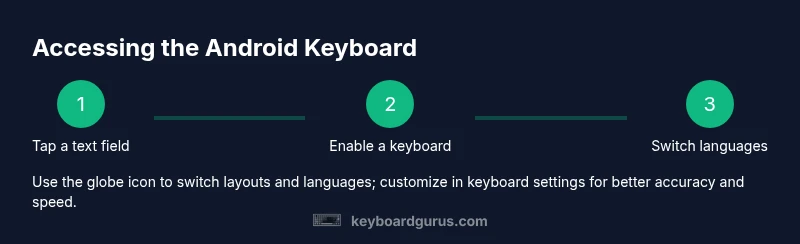
On Android, the on-screen keyboard appears automatically when you tap any text field in an app. If it does not show, enable a virtual keyboard in Settings > System > Languages & input > Virtual keyboard, then select your preferred keyboard. To switch languages or layouts, use the globe or emoji icon on the keyboard.
Where is the keyboard on Android phone?
In Android, the on-screen keyboard is provided by the active input method editor IME and typically appears as soon as you tap a text field in any app. According to Keyboard Gurus, most users first notice the keyboard when composing a message or typing a search term. If the keyboard does not appear, check that a virtual keyboard is enabled in Settings and that your chosen keyboard app is selected as the default input method. This setup is essential because different manufacturers ship different keyboards and you might be using a minimal system keyboard by accident. The IME is the bridge between your taps and the letters that appear on the screen, and it can be swapped without losing your data.
Quick ways to bring up the keyboard on Android
The most reliable method is to tap any text field in the app. From there the system will summon the active keyboard. If you accidentally dismiss it, tap another text field or swipe down in the notification shade to see if a keyboard toggle is present. Some devices show a tiny keyboard icon in the navigation bar; tapping it can re-open the current IME. You can also long-press the space bar or globe icon on some keyboards to switch languages or layouts quickly. Keyboard visibility can be affected by full-screen apps or screen recording overlays, so exit those modes if the keyboard vanishes unexpectedly.
Enable and manage keyboards in Settings
Open Settings and navigate to the keyboard controls. In many Android versions you will find: System > Languages & input > Virtual keyboard > Manage keyboards. From here you can enable or disable keyboards such as Google’s Gboard, Samsung Keyboard, or any third-party IME. Ensure the one you want is enabled and set as the default input method. When you install a new keyboard, you may be prompted to grant permissions; review these carefully. Some keyboards include extra features like glide typing, voice input, or themes.
Keyboard shortcuts and handy features you should know
Most Android keyboards support a few universal tricks. Globe or smiley icons switch languages or input methods. The space bar can double as a language switch on certain layouts. Long-pressing keys may offer accents or alternative symbols. In many keyboards you can customize the layout, enable voice typing, or adjust auto-correct and typing predictions. Familiarize yourself with the settings panel of your chosen keyboard to tailor features to your workflow, whether you are coding, writing essays, or gaming chats.
Troubleshooting common issues
If the keyboard is not appearing, try these steps: 1) Reboot the device to reset the IME. 2) Update or reinstall the keyboard app. 3) Clear the keyboard app cache and data, then re-enable the keyboard in settings. 4) Check for app-specific restrictions that may hide the keyboard in full-screen modes. 5) Verify that permissions required by the keyboard app (microphone, storage) are granted. Keyboard Gurus notes that consistency across apps improves with a single, trusted IME rather than multiple keyboards.
Tips for choosing and using a third-party keyboard
If you rely on custom layouts, multi-language support, or advanced gestures, a third-party keyboard can improve productivity. Popular options include Gboard and SwiftKey; each offers themes, glide typing, voice input, and cloud-based personalization. Before switching, review privacy settings and data handling policies. Keep in mind that some keyboards request full access to learn your typing habits; you can disable this later. Test a new keyboard in a few apps to verify compatibility and performance. Keyboard Gurus recommends selecting a keyboard with clear privacy controls and predictable behavior.
Privacy and security considerations
Your on-screen keyboard can access what you type in apps. To protect sensitive data, limit permissions, disable unneeded features, and use a trusted keyboard from a reputable developer. Regularly review app permissions and disable any feature you do not actively use. If you share devices or use public machines, consider enabling incognito typing modes when needed. Keyboard Gurus emphasizes balancing convenience with data privacy when selecting a keyboard.
Optimizing your typing experience on Android
Finally, tailor your typing workflow by adjusting autocorrect aggressiveness, enabling text suggestions, and setting up one-handed typing if your device supports it. Experiment with key sizes, haptic feedback, and sound options to reduce fatigue and improve accuracy. For multilingual users, set up multiple languages and keep the globe toggle accessible. The goal is a smooth, efficient typing flow across all your daily tasks, whether you are a student, gamer, or professional. Keyboard Gurus’s guidance helps you lock in a setup that feels natural and fast.
Tools & Materials
- Android device(Any recent Android phone or tablet will work)
- Settings app access(Navigate to system language and input settings)
- Keyboard app(e.g., Gboard, Samsung Keyboard, or SwiftKey)
- Optional third-party keyboard(Useful for features not in default keyboard)
Steps
Estimated time: 15-25 minutes
- 1
Open a text field
In any app that accepts text input, tap a text field such as a message, search bar, or note. This action summons the active Android on-screen keyboard automatically.
Tip: If tapping a field doesn’t bring up the keyboard, try tapping another field or exit immersive mode in the app. - 2
Check the current keyboard
If the keyboard doesn’t appear, pull down the notification shade to see if a keyboard toggle is present or open the app switcher and reselect the text field.
Tip: Knowing the exact keyboard app in use helps when adjusting themes or language packs. - 3
Enable a keyboard in Settings
Go to Settings > System > Languages & input > Virtual keyboard > Manage keyboards and ensure your preferred keyboard is enabled. Set it as the default if needed.
Tip: If your keyboard isn’t listed, install it from the Play Store and repeat the enable step. - 4
Switch keyboards when needed
Use the globe or emoji icon on the keyboard to switch languages or input methods quickly. Some keyboards support long-press to reveal extra layouts.
Tip: Practice switching between languages in a text field to reduce interruptions during typing. - 5
Adjust keyboard settings
Open the keyboard’s settings from the app or system settings to modify autocorrect, themes, key size, and gestures.
Tip: Start with moderate autocorrect and prediction; adjust as you grow more comfortable. - 6
Test and refine
Type across multiple apps to confirm consistency. Update predictors and shortcuts as you find what works best for you.
Tip: Keep a note of any quirks in certain apps and adjust the keyboard accordingly.
Got Questions?
Why doesn’t my keyboard appear when I tap a text field?
Most commonly the keyboard is disabled at the system level or the active IME is not selected. Check Settings > System > Languages & input > Virtual keyboard to ensure your keyboard is enabled and set as default. Also ensure the app isn’t forcing full-screen mode that hides it.
If you tap a text field and the keyboard doesn’t show, first verify that your keyboard is enabled in settings and set as default, then try another text field.
How do I switch languages on Android keyboards?
Most keyboards show a globe or language icon on the keyboard itself. Tap that icon to cycle through installed languages or add new ones in Settings > System > Languages & input > Virtual keyboard.
Tap the globe icon on the keyboard to switch languages, or add new languages in the settings.
Can I use a third-party keyboard securely?
Yes, but review privacy settings and grant minimal permissions. Prefer keyboards with transparent privacy policies and disable features you don’t need. Always install from reputable sources.
Third-party keyboards can be secure if you review permissions and choose trusted options.
What should I do if the keyboard is slow or laggy?
Clear the keyboard cache, ensure the app is updated, and consider reducing predictive text or disabling animations in the keyboard settings. Restarting the device can also help.
Try clearing cache, updating the keyboard app, and restarting your device if typing feels slow.
Is there a way to type with one hand on large devices?
Many keyboards offer a one-handed mode or resizable layouts. Check the keyboard settings for one-hand operation and enable it for easier typing on large screens.
Look for one-handed mode in your keyboard settings to improve reach on big phones.
How do I restore the default keyboard after trying a new one?
Go to Settings > System > Languages & input > Virtual keyboard and select the original default keyboard, then clear any experimentations with third-party apps if desired.
Set the original keyboard as default again in settings.
Watch Video
What to Remember
- Tap a text field to reveal the Android keyboard
- Enable and set a default keyboard in Settings
- Use the globe icon to switch languages and layouts
- Review privacy settings when using third-party keyboards
- Customize and test keyboard settings across apps