How to Fix Keyboard on Android: Step-by-Step Guide
Learn how to fix keyboard on android with a practical, safe method. This educational guide covers software fixes, input settings, safe mode testing, and when to seek further help. Keyboard Gurus provides a thorough, step-by-step approach for reliable results.


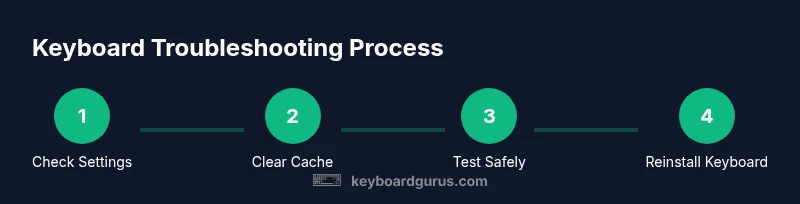
If you're wondering how to fix keyboard on android, start with simple software checks and then move to resets. Clear cache, update the keyboard app, and ensure the correct input method is selected. Restart the device, test in a few apps, and try safe mode if issues persist. Keyboard Gurus recommends a methodical, safety-first approach for reliable results.
Why Android Keyboard Issues Happen
Issues with Android keyboards are usually not mysterious. They stem from a mix of software glitches, outdated apps, conflicting third-party keyboards, or misconfigured input settings. According to Keyboard Gurus, most problems begin with something almost anyone can fix—an update not completed, a cache that’s built up over time, or a mis-selected input method. When you understand the common culprits, you can methodically eliminate them without risking data loss. This guide walks you through a practical, repeatable process to diagnose and resolve the most frequent keyboard glitches, from lag and mis-typing to completely unresponsive keys.
Quick sanity checks before you dive in
Before you jump into more involved steps, run through a few quick checks that can save time and frustration. Ensure your device is charged or connected to power, confirm you have a stable internet connection for updates and app checks, and verify you’re using the intended keyboard (for example, Gboard) rather than a misbehaving alternative. If you have recently updated Android or the keyboard app, re-test typing after a restart. These small actions address a large share of basic issues and set a solid foundation for deeper troubleshooting. As Keyboard Gurus notes, starting with software checks is often the most efficient path.
Step 1: Update and clear cache for the keyboard app
Begin by updating the keyboard app to the latest version. Open the Google Play Store, search for the keyboard (e.g., Gboard), and tap Update if available. While waiting for the update, clear the cache of the keyboard app to remove stale temporary files that can cause lag or unresponsiveness. On most devices, you’ll find this under Settings > Apps & notifications > [Keyboard App] > Storage > Clear cache. After clearing, reopen the keyboard and test typing in multiple apps to determine if the issue persists.
Step 2: Force stop and restart the keyboard
If clearing the cache doesn’t help, force stop the keyboard app and relaunch it. This recreates the app’s runtime environment and can clear transient glitches that appear during typing. Navigate to Settings > Apps & notifications > [Keyboard App] > Force stop, then reopen the keyboard from your home screen or an app that requires typing. If you don’t see Force stop, restart the device and try again. A quick restart often resolves stubborn little bugs without data loss.
Step 3: Check input methods and language settings
Misconfigured input methods or language packs can cause keys to misbehave or disappear. Go to Settings > System > Languages & input > On-screen keyboard or Virtual keyboard, then select your preferred keyboard. Confirm the correct language and layout are active, and disable any conflicting keyboards temporarily. Test typing in a couple of apps after making changes to ensure the issue is resolved. This step helps confirm whether the problem is layout-related or app-specific.
Step 4: Test with Safe Mode or another keyboard
If the issue persists, test the keyboard in Safe Mode to rule out interference from third-party apps. Safe Mode disables all non-system apps, including third-party keyboards. If the keyboard works in Safe Mode, a recently installed app is likely the culprit. If Safe Mode doesn’t resolve the problem, try installing a different keyboard from the Play Store and set it as the default input method. This comparison helps isolate whether the issue is tied to the original keyboard app.
Step 5: Reset keyboard preferences or reinstall the app
Some keyboards offer a reset to defaults option for preferences, predictive text, and dictionary entries. Look for a reset option within the keyboard’s settings; back up any custom phrases or learned words before resetting. If the reset option is not available, uninstall and reinstall the keyboard app. After reinstalling, reconfigure preferences and re-import saved dictionaries if possible. This step clears user data that could be causing persistent problems while preserving your core app data.
Step 6: Consider a broader data refresh (with caution)
If the issue still remains, you can consider refreshing related data, such as the keyboard’s local dictionary or cache across multiple apps. Some devices offer per-app data clearing (for example, in Settings > Apps > [Keyboard App] > Storage > Clear data). Remember that this can remove saved words, shortcuts, and personal dictionaries, so back up if your keyboard supports cloud syncing. This action targets deeper, persistent issues without performing a factory reset.
Step 7: When to escalate to a factory reset (last resort)
Factory resets are rarely necessary for keyboard problems and carry the risk of data loss, so treat them as a last resort. If you have exhausted every other option and the keyboard remains unusable, you can consider a device reset after backing up essential data. This ensures you retain your information while returning the device to factory conditions. If you’re unsure, consult a professional or the device manufacturer’s support resources before taking this step.
Step 8: Best practices after fixes to prevent future issues
Once the problem is resolved, adopt preventive habits to minimize future keyboard problems. Keep the keyboard app updated, periodically clear cache, avoid installing unstable beta keyboards, and maintain a clean app environment by reviewing recently installed apps. Regularly reboot your device and monitor the keyboard’s performance across multiple apps to catch issues early. These habits align with the recommendations from Keyboard Gurus for long-term stability.
Step 9: Choosing a reliable keyboard for your Android setup
Selecting a reliable keyboard is part of ongoing maintenance. Consider keyboards that offer strong privacy controls, solid predictive text, and compatibility with your device’s Android version. If one keyboard repeatedly fails, test a few alternatives to find a consistent performer. Reading reviews and prioritizing apps with frequent updates helps ensure you’re using a dependable option that matches your typing needs.
Practical tips for long-term stability
- Keep your device and apps updated to minimize compatibility issues.
- Use cloud-backed dictionaries to preserve shortcuts when clearing local data.
- Regularly test the keyboard across different apps to catch issues early.
- If you rely on a specialized keyboard (for coding or gaming), verify its compatibility with your Android device and version.
- Remember: most fixes are software-related and reversible without data loss when done carefully.
Tools & Materials
- Android device with active Google account(Ensure you can access Play Store and Settings)
- Stable internet connection(Needed for updates and app checks)
- Primary keyboard app (e.g., Gboard)(Note version and recent updates)
- Alternative keyboard app (optional)(Test with another keyboard to isolate issues)
- Charger or spare power(Keep device charged during troubleshooting)
- Pen or stylus (optional)(Navigate if touch is unresponsive)
Steps
Estimated time: 15-45 minutes
- 1
Open Settings and locate the keyboard app
Open the Android Settings app, navigate to Apps & notifications, and select the keyboard app. This identifies whether the issue is app- or system-wide and sets the stage for targeted fixes.
Tip: If you can’t find the keyboard app, use the search bar in Settings. - 2
Clear keyboard cache
In the keyboard app’s Storage section, tap Clear cache to remove temporary data that can slow or freeze typing. Clearing cache is quick and usually safe, and it often resolves lag.
Tip: Avoid clearing data unless you intend to reset preferences. - 3
Force stop and restart the keyboard
Forces stop the keyboard app and re-open it to refresh the service. This step can clear transient issues that arise during use.
Tip: If Force stop isn’t visible, restart the device instead. - 4
Update or reinstall the keyboard
Check for updates in the Play Store or reinstall the keyboard app. Updates frequently fix bugs and improve compatibility with Android versions.
Tip: After reinstalling, reconfigure shortcuts and dictionary entries. - 5
Verify input methods and language
Ensure the correct keyboard is selected and that the language/layout matches your needs. Inconsistent settings can mimic a typing failure.
Tip: Test switching layouts briefly to verify responsiveness. - 6
Test in Safe Mode or with another keyboard
Boot into Safe Mode to temporarily disable third-party apps. If the keyboard works in Safe Mode, another app is the culprit.
Tip: If Safe Mode fixes it, gradually reintroduce apps to identify the offender. - 7
Reset keyboard preferences or data
If available, reset the keyboard’s preferences to default and re-import personal dictionaries. This can resolve stubborn configuration issues.
Tip: Back up dictionaries before resetting. - 8
Consider a broader data refresh (as a last resort)
If problems persist, you may refresh related keyboard data or permissions. This is less disruptive than a factory reset but aims to clear deeper conflicts.
Tip: Only take this step after backing up important data.
Got Questions?
Why does my Android keyboard freeze or lag?
Lag typically comes from outdated apps, large caches, or conflicting keyboards. Start with a cache clear and updates and retest.
If your keyboard is slow, try clearing cache and updating the app, then test again.
Is Safe Mode effective for troubleshooting keyboard issues?
Yes. Safe Mode disables third-party apps, helping identify if another app is causing the problem.
Safe Mode can reveal if another app is behind the keyboard issue.
Should I reset my keyboard or device?
Reset keyboard settings or data if available, but avoid factory resets unless necessary.
Reset keyboard settings first; factory resets are a last resort.
How can I tell which app is causing keyboard problems?
Uninstall or disable recently installed apps one by one and test typing after each change.
Uninstall apps one by one to find the culprit.
Will clearing data delete saved words or custom dictionaries?
Clearing data resets the keyboard to default; saved words may be lost unless backed up.
Data clearing will reset your dictionary, so back up first.
Can faulty hardware cause keyboard input to fail?
Rare hardware problems are unlikely but possible; test with a different device if available.
Hardware faults are possible but uncommon; try another device.
Watch Video
What to Remember
- Test small fixes first to save time
- Isolate app vs. system-wide issues
- Safe Mode helps identify interfering apps
- Clear cache before data to protect personal files
- Back up preferences before resets