How to Keyboard in Phone: A Practical Guide
Learn how to keyboard in phone with a practical, step-by-step approach. Discover app selection, setup, gestures, and tips to type faster on mobile while protecting privacy and accuracy.


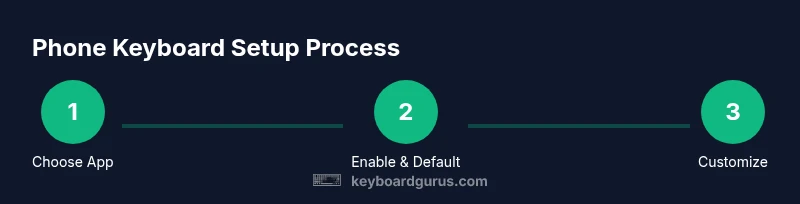
This guide shows you how to keyboard in phone by choosing the right keyboard app, enabling it in your device settings, and using essential typing techniques. You’ll learn practical steps to improve speed, accuracy, and comfort on mobile, plus customization tips and common issues to avoid. By following this plan, you’ll type more confidently on any smartphone.
Why typing on a phone differs from a full keyboard
Typing on a phone is a different experience than using a physical or external keyboard. The screen is small, keys are squeezed, and you rely on on-screen feedback and software features like autocorrect and predictive text. This is where the phrase how to keyboard in phone becomes a practical goal. According to Keyboard Gurus, most users underestimate how much layout, haptics, and word suggestions influence speed and accuracy on mobile. In practice, you’ll want to optimize grip, finger placement, and the keyboard’s settings to reduce mis-taps and boost confidence when composing messages, emails, or code snippets on the go. Expect to make mistakes as you adapt; with intentional practice you’ll notice steadier performance in a few days, not weeks.
Understanding phone keyboard layouts and modes
Mobile keyboards come in several layouts and modes designed to fit your hand and context. The standard QWERTY layout is common, but many keyboards offer one-handed modes, compact layouts, or split designs for larger devices. In addition, predictive text, auto-correct, and gesture typing can dramatically affect your experience. The goal is to find a balance between key size, spacing, and the convenience of features like emoji suggestions or sentence-level predictions. If you’re learning how to keyboard in phone, experiment with layout density and keyboard height to reduce thumb reach and improve accuracy during long messages.
How to choose a keyboard app for your needs
Choosing the right keyboard app is foundational. Look for clear privacy controls, reliable autocorrect, fast predictions, and smooth gesture typing. Consider whether you want cloud syncing across devices, multilingual support, or customizable themes. Privacy-conscious users should review which data the app collects and how it uses it. Keyboard Gurus analysis suggests prioritizing apps that offer local processing options and transparent permission requests. Try several options for a week to compare accuracy, speed, and comfort, then set your default accordingly.
Typing techniques for speed and accuracy on mobile
Speed on a phone comes from a mix of touch accuracy, muscle memory, and productive keystroke habits. Practice thumb typing with light, controlled taps and leverage glide/gesture typing if you prefer it, but always verify the predicted words before sending. When you’re composing long texts, use phrase shortcuts or text expansion snippets to speed up routine sentences. Consistently position your hands so your thumbs can reach the middle of the keyboard; this reduces fatigue and helps you maintain a steady rhythm across paragraphs.
Accessibility features and language options
Most mobile keyboards offer accessible features such as voice typing, larger keys, high-contrast themes, and alternative input methods. If you frequently type in multiple languages, enable multilingual dictionaries and switch layouts without interrupting your workflow. Voice typing can be a strong companion for drafting notes or messages while walking or multitasking. As you try how to keyboard in phone, you’ll find that language options, dictation quality, and autocorrect behavior vary between apps; choose the one that aligns with your typical writing style and needs.
Reducing errors: autocorrect, predictions, and gesture typing
Autocorrect and word predictions are your primary allies, but they can also misfire if your phrasing is unusual or you’re typing quickly. Learn to rely on the backspace key and the undo option to recover from woke mistakes, and adjust the confidence thresholds in the keyboard settings if available. Practice touch-typing without looking at the keys, then add gesture typing gradually; this technique can reduce keystrokes by enabling continuous motion from letter to letter. Regularly review your most common typos, then customize shortcuts that prevent them.
Privacy, security, and data considerations
When you install a new keyboard app, review its privacy policy and permissions carefully. Some keyboards require full access to function fully, which may raise privacy concerns for sensitive data. Prefer apps with minimal required permissions and opt for local processing of keystrokes whenever possible. Keep your OS updated, as vendor security patches can affect input methods and overall typing reliability. Your goal is to maintain speed and privacy without compromising your device’s security posture.
Maintenance, updates, and keeping your keyboard healthy
Like any app, your keyboard benefits from regular updates that improve performance, fix bugs, and enhance security. Check for updates periodically, clear cached data if you notice lag, and reset the keyboard if features misbehave after an OS update. If you notice persistent autocorrect oddities, back up your personal dictionary and consider disabling certain features temporarily to observe how typing speed and accuracy respond. Routine maintenance keeps your experience smooth and reduces frustration.
Practice plan to build typing skills on a phone
A structured practice routine accelerates mastery. Start with 10-minute daily sessions focusing on accuracy, then gradually add 5 minutes of speed drills as you grow more confident. Use typing exercises that emphasize common letter pairs, numbers, and symbols you frequently use. By designing deliberate practice with consistent feedback, you’ll translate faster results to real conversations. The key is to practice with real-world text, not just random strings, to build usable muscle memory.
Tools & Materials
- Smartphone with current OS(Ensure internet access for app updates and cloud sync if desired)
- Keyboard app(s) (e.g., popular mobile keyboards)(Try at least two to compare layout, speed, and accuracy)
- Optional Bluetooth/wireless keyboard(For occasional external typing practice or longer text tasks)
- Notepad or note-taking app(Useful for practice scripts or common phrases)
Steps
Estimated time: 30-60 minutes total
- 1
Install or select a keyboard app
Choose a keyboard app that fits your needs and install it from the app store. If you already have one, skip to step two. Consider trying two options to compare layout, feel, and speed.
Tip: Prefer apps with local processing if privacy is a priority. - 2
Enable the keyboard in system settings
Open your phone’s settings, navigate to language and input, then enable the new keyboard. You may need to grant access for features like voice typing or cloud sync.
Tip: Restart the keyboard after enabling to ensure all features load correctly. - 3
Set as default input method
In the same menu, set the chosen keyboard as the default input method. This ensures every app uses your selected keyboard unless you switch temporarily.
Tip: Practice a quick switch shortcut to test other keyboards if needed. - 4
Customize layout and features
Adjust key size, enable one-handed mode, and turn on glide typing or voice input as you prefer. Tweak autocorrect, predictions, and personal dictionary settings.
Tip: Start with moderate key size to balance accuracy and speed. - 5
Practice basic typing exercises
Begin with short sentences and common phrases to build accuracy. Use the backspace and undo functions to learn from mistakes without frustration.
Tip: Use a 10-minute daily routine to build consistent practice habit. - 6
Test across apps and adjust
Try messaging, emails, notes, and social apps to see how the keyboard behaves in different contexts. Adjust predictions and corrections as needed.
Tip: If auto-correct disrupts your voice or tone, disable or tune it temporarily. - 7
Explore accessibility options
Enable features like larger keys or high-contrast themes if you have limited visibility or motor control challenges. Add multilingual support if you switch languages often.
Tip: Keep a simple language profile for fast toggling. - 8
Review privacy and security settings
Revisit permissions and data usage settings. Turn off clipboard access if unnecessary and limit cloud-synced data to protect sensitive information.
Tip: Regularly audit permissions after OS updates.
Got Questions?
What is the best approach to learn mobile typing quickly?
Start with a keyboard that feels comfortable, enable gesture typing, and practice short daily sessions. Focus on accuracy first, then gradually increase speed.
Start with a comfortable keyboard, try gesture typing, and practice daily focusing on accuracy before speed.
Can I type faster using gestures or thumb typing only?
Gesture typing can significantly speed up input for many users, but it may take time to master. Combine with touch typing for best results.
Gesture typing speeds things up for many people, but give it time to master. Combine with traditional typing for best results.
How do I switch keyboards on iOS and Android?
On Android, install a keyboard and enable it in Settings > System > Languages & input. On iOS, go to Settings > General > Keyboard > Keyboards and add the new one.
Android: enable in Languages & input; iOS: add in Keyboard settings. Quick switch is usually available in the keyboard toolbar.
What should I do about autocorrect errors?
If autocorrect changes tone or meaning, adjust the dictionary or turn off auto-correct temporarily while you type specialized terms.
If autocorrect keeps misbehaving, tweak the dictionary or disable it for a while to type more precisely.
Is voice typing reliable for long messages?
Voice typing is convenient for long messages, but review transcripts for accuracy. It’s best when you’re multitasking and want to capture ideas quickly.
Voice typing is handy for long thoughts, just review for accuracy before sending.
How can I protect my privacy when using third-party keyboards?
Choose keyboards with transparent data policies and minimal permission requirements. Prefer on-device processing where possible.
Pick keyboards with clear privacy policies and avoid ones that ask for excessive permissions.
Watch Video
What to Remember
- Choose a keyboard app that fits your privacy and layout needs.
- Enable and set the keyboard as default to ensure consistent typing.
- Practice daily with real-world text to build muscle memory.
- Customize features to balance speed and accuracy.
- Regularly review settings for privacy and security.