How to Keyboard in Screen: A Practical On-Screen Typing Guide
Learn how to keyboard in screen across Windows, macOS, iOS, and Android with practical steps, tips, and troubleshooting. A Keyboard Gurus educational guide to efficient on-screen typing and accessibility.


This guide explains how to keyboard in screen across major devices, covering enabling the on-screen keyboard, essential tips, and troubleshooting. You’ll learn when to use it, how to optimize layout and feedback, and how to handle common issues. By the end you’ll type on screen confidently and efficiently.
What is an on-screen keyboard and why use it?
According to Keyboard Gurus, an on-screen keyboard is a software keyboard displayed on your screen that you can tap with a finger, stylus, or mouse. It enables input when a physical keyboard isn’t available, when you’re using a touch-only device, or when accessibility needs arise. If you're asking how to keyboard in screen, this guide will walk you through concepts, benefits, and practical steps.
Key advantages include accessibility, flexibility for mobile work, quiet environments, and the ability to customize layout and feedback. Limitations include slower typing speed, occasional mis-taps, and layout differences across apps. The most productive approach is to learn the basics first, then tailor the keyboard to your tasks.
How to enable the on-screen keyboard on major platforms
Windows: Open Settings > Accessibility > Keyboard and turn on On-Screen Keyboard. Use the options to dock, auto-appear, or enable a floating mode depending on your workflow.
macOS: Go to System Settings > Keyboard and enable the Keyboard Viewer or press a dedicated shortcut to toggle. This viewer mirrors your typing and helps with layout checks.
iOS (iPhone/iPad): Tap any text field to bring up the on-screen keyboard. For customization and predictive text, adjust settings under Settings > General > Keyboard.
Android: Settings > System > Languages & input > Virtual keyboard (On-screen) to enable or customize your keyboard. Try different layouts and key sizes to fit your screen.
Tips for typing efficiently on an on-screen keyboard
Even when learning how to keyboard in screen, size and layout matter. Start with a comfortable key size and a familiar layout, then adjust in your device’s settings. Use swipe typing or dictation when supported, and enable predictive text to speed up input. Practice short bursts to build accuracy before long sessions. Remember to keep your wrists relaxed and your device at a comfortable angle to reduce strain.
Accessibility features and customization
On-screen keyboards offer a range of accessibility options: larger keys, high-contrast themes, haptic feedback, split layouts for thumbs, and voice input. These features help users with motor or visual challenges type more reliably. You can tailor the keyboard to your needs by adjusting key size, layout, auto-correct behavior, and punctuation spacing. If you’re focusing on how to keyboard in screen effectively, exploring these settings can unlock significant improvements in comfort and speed.
Troubleshooting common issues
If the on-screen keyboard won’t appear, verify that the feature is enabled in system settings and that no accessibility restrictions block overlays. If keys mis-register, check for layout mismatches in apps and reset to the default layout. Inconsistent visibility can occur after software updates; restarting the device or updating the OS often resolves the problem. For lag or laggy input, ensure you’re not running heavy background processes and consider reducing motion or visual effects in settings.
Real-world use cases and scenarios
Mobile professionals often rely on the on-screen keyboard for quick notes, email replies, or form filling when a hardware keyboard isn’t available. Students use it for learning apps, while travelers type messages or search queries on the go. Gamers may employ on-screen typing for chat or quick commands when a physical keyboard isn’t accessible. Accessibility users benefit from enlarged keys, high-contrast themes, and dictation modes to maintain productivity on the fly.
Best practices for accuracy and speed
Keep hands relaxed and wrists elevated; avoid hovering over keys for long periods. Start with shorter typing sessions, then gradually increase duration as accuracy improves. Use dictation or swipe input when appropriate, and enable autocorrect and text predictions to minimize errors. Periodically review your settings to ensure layout and feedback align with your current tasks, device orientation, and screen size.
Keyboard Gurus Verdict and next steps
The Keyboard Gurus team recommends adopting on-screen typing as a versatile tool for short-to-moderate tasks and accessibility needs. When possible, pair the on-screen keyboard with a physical one for longer sessions to reduce strain and increase speed. Use platform-specific setup steps, leverage accessibility features, and practice regularly to maximize comfort and efficiency. For hands-on guidance, follow the step-by-step setup and the accompanying resources below.
Tools & Materials
- On-screen keyboard capable device (Windows, macOS, iOS, or Android)(Ensure the feature is installed and enabled on your OS)
- Access to device settings(Paths vary by OS; have quick access to Settings/System Preferences)
- Touch input, mouse, or stylus(Helpful for navigation when the keyboard is active)
- Optional external keyboard(Useful for long typing sessions or comfort)
Steps
Estimated time: 25-35 minutes
- 1
Open the on-screen keyboard
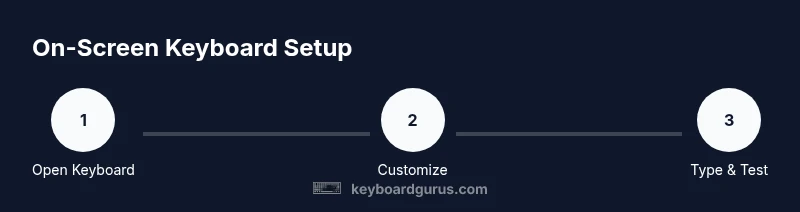
Access the on-screen keyboard via system settings or by tapping a text field to trigger the keyboard on screen. If your device supports a quick toggle, use it to enable the keyboard immediately. This step establishes the input method you’ll use for the rest of the task.
Tip: Tip: Use a quick search in settings to locate the feature faster. - 2
Choose a layout and language
Select the keyboard layout that matches your language and preferences (QWERTY, AZERTY, DVORAK, etc.). Consistency helps accuracy, especially when you switch devices.
Tip: Tip: Start with a familiar layout and switch only after you’re confident. - 3
Adjust size and position
Move or resize the on-screen keyboard so it sits comfortably within your thumb reach or finger workspace. Docked layouts work well for laptops, while floating keyboards suit smaller screens.
Tip: Tip: Keep the keyboard slightly above the baseline to reduce wrist tilt. - 4
Type with touch and use shortcuts
Begin typing by tapping keys with your finger or stylus. Use predicates like punctuation quick-taps and built-in shortcuts when available to speed input.
Tip: Tip: Enable predictive text to reduce keystrokes. - 5
Incorporate dictation or swipe typing
If your device supports it, activate dictation for long messages or swipe typing for faster input. These tools can significantly boost speed once you’re comfortable.
Tip: Tip: Practice with short phrases to build accuracy before longer sessions. - 6
Practice with a quick typing test
Run a short typing drill to gauge speed and accuracy. Focus on reducing errors before increasing speed.
Tip: Tip: Track your progress over a week to notice improvements. - 7
Close or hide the keyboard when finished
Hide the keyboard after typing to restore screen real estate and reduce distractions. If you’ll need it again soon, keep it docked or easily accessible.
Tip: Tip: Use a keyboard toggle gesture or button for quick access.
Got Questions?
What is an on-screen keyboard and when should I use it?
An on-screen keyboard is a software keyboard displayed on your screen that you tap to input text. Use it when a physical keyboard isn’t available, on touch devices, or for accessibility needs.
An on-screen keyboard is a software keyboard you tap. Use it when you don’t have a physical keyboard or when you need accessibility features.
Which devices support on-screen keyboards?
Most modern operating systems include an on-screen keyboard, covering Windows, macOS, iOS, and Android. Availability and features vary by platform.
Most devices support on-screen keyboards. Features differ by platform.
How do I enable the on-screen keyboard on Windows?
Open Settings, go to Accessibility, select Keyboard, and turn on the On-Screen Keyboard option. Some versions use Ease of Access instead of Accessibility.
In Windows, go to Settings > Accessibility > Keyboard and enable On-Screen Keyboard.
Can I customize the on-screen keyboard layout?
Yes. Most platforms allow switching between layouts (QWERTY, AZERTY, DVORAK) and adjusting key size or spacing for comfort.
You can switch layouts and adjust key size for comfort.
Is the on-screen keyboard suitable for long typing sessions?
On-screen typing is convenient for short-to-moderate tasks. For extended sessions, pairing with a physical keyboard can reduce strain and improve speed.
It's great for short tasks; for long typing, use a hardware keyboard if possible.
What accessibility features improve on-screen typing?
Look for larger keys, high-contrast themes, haptic feedback, and dictation options. These can improve accuracy and comfort.
Look for large keys, high-contrast mode, and dictation to help typing.
Watch Video
What to Remember
- Enable and customize the on-screen keyboard on your device.
- Choose a comfortable layout and size for your hands.
- Use dictation or swipe input to increase speed.
- Practice regularly to improve accuracy.
- Monitor comfort and take breaks to avoid eye strain.