How to Know If Your Keyboard Has Backlight
Learn how to determine if your keyboard has backlighting, identify its type, and confidently adjust or troubleshoot lighting with practical, step-by-step guidance.


This guide helps you confirm whether your keyboard has backlighting, identify the type, and learn how to access it. Start with visible cues like illuminated keys or edge lighting, then use function keys or software controls to test brightness. Finally, consult your model specs to finalize what you can expect from your keyboard.
What backlighting is and why it matters
Backlighting refers to illuminated keys or keyboard frames that help you see characters in low-light conditions. The lighting can be white, colored, or per-key RGB, and it can appear as an edge glow, key-through lighting, or a full keyboard wash. Backlighting matters because it reduces eye strain, speeds up typing in dark spaces, and enhances gaming aesthetics or professional workflows. According to Keyboard Gurus, backlighting is a widespread feature across many mainstream keyboards, but not every model includes it. Some ultra-compact or budget keyboards omit illumination entirely. Knowing what kind of backlight your device has helps you decide how to use it, whether you’re typing late-night essays, coding, or playing games. In the next sections, we’ll distinguish physical cues from software controls and explain how to verify backlight without disassembling your keyboard.
Many keyboards offer different lighting styles, including per-key RGB, a single-color backlight, or a subtle keyboard wash. The presence of backlight often depends on the keyboard’s target audience and price tier. While some users prize lighting for aesthetics, others rely on it for accurate key visibility in dim environments. By the end of this article, you’ll know how to verify backlight on a device you own or are considering purchasing, and you’ll understand what to expect from different lighting configurations.
Visual cues: how to tell if a keyboard has backlight
The quickest way to assess backlight is through visual cues, especially in low light. Look for glow around the edges of the keyboard, light shining through the legends on translucent keycaps, or individual keys that glow brighter than others. If you see consistent illumination across all keys, you’re likely dealing with a global backlight. If certain keys glow and others don’t, the keyboard probably uses per-key lighting. RGB keyboards may show multiple colors at the same time or cycle through colors, while white-backlit keyboards stay in a single hue. If you’re unsure, dim the room and observe the keyboard closely for even illumination or hotspots. Keyboard Gurus emphasizes verifying through multiple cues rather than relying on a single indicator to avoid misinterpretation, especially in ambient-lit spaces.
Hardware indicators: LEDs, keycaps, and layout clues
LEDs may sit above the keyboard, along the top edge, or inside the key frame. A dedicated LED strip or row often signals backlight status, while translucent legends or keycaps can reveal light when powered. Some keyboards use under-keyplate LEDs that emit through the body of the chassis, creating a soft glow around keys. Inspect the keyboard’s underside or bezel for any visible lighting circuitry or a light-up logo near the edge. If you can see any light when the device is powered on in a dark room, that’s a strong sign of backlighting. Conversely, a lack of visible LEDs in a well-lit environment doesn’t rule out backlight; you may need to test with lowered ambient light.
In addition, check the cable and power flow. If the keyboard is wireless, lighting may depend on battery level or wake behavior. If it’s wired, verify that the USB port provides sufficient power. In short, the hardware cues—LED placement, keycap transparency, and power status—combine to confirm backlighting presence and basic behavior. Keyboard Gurus notes that hardware cues are the most reliable first signal for backlight existence.
Software clues: how to trigger backlight from your OS
Software controls are a common way to manage backlighting. If your keyboard ships with a companion app or is supported by a firmware utility, open that software and look for a Backlight or Lighting tab. You may find presets (e.g., brightness, color, brightness levels) and the option to set per-key lighting versus global illumination. On many laptops or keyboards without vendor software, backlighting is controlled solely by hardware keys—usually a function key (Fn) paired with a brightness or lighting key. Try cycling brightness with that key combo. If you observe a change in illumination, you’ve confirmed dependable software or firmware control. If nothing changes, check for driver updates or firmware revisions from the manufacturer’s support site. Keyboard Gurus highlights the importance of testing both hardware toggles and software settings to avoid false positives from ambient lighting alone.
Understanding backlight types and controls: what you might encounter
Backlighting comes in several common configurations. Single-color backlight (often white or blue) provides simple visibility with a uniform glow across all keys. RGB backlighting offers per-key customization and color zones, which can be used for aesthetics, coding, or gaming overlays. Some keyboards feature a hybrid approach with a global backlight plus a few per-key accents. Lighting controls may exist as hardware toggles, a software suite, or system-level settings. If you’re shopping, distinguishing these types helps you pick one that fits your needs, whether you want simple visibility or advanced customization. Knowing which control method your keyboard uses will also guide how you adjust brightness and color under different workloads.
Troubleshooting: when backlight won’t turn on or behaves oddly
If your backlight doesn’t illuminate, start with power. Ensure the keyboard is connected, charged if wireless, and recognized by the host computer. Try a different USB port or cable to rule out power issues. Update or reinstall keyboard drivers or firmware if available, and consult the manufacturer’s support page for any known issues or reset procedures. Some keyboards automatically disable lighting to conserve power when battery levels are low; charging the device can re-enable illumination. If the keyboard still refuses to light, perform a factory reset or contact support for a hardware diagnosis. Remember to test after each step to isolate the cause and avoid unnecessary replacements. Keyboard Gurus recommends documenting the exact steps you took so support teams can reproduce the issue quickly.
Shopping tips: how to spot backlight when shopping for a new keyboard
When browsing, search product descriptions for backlight, backlit, RGB, or per-key lighting. Read reviews and Q&A sections to see real-world lighting behavior, brightness levels, and color accuracy. Pay attention to whether the product page specifies “per-key backlighting” or “global backlight,” as this affects how you’ll use the feature. If possible, check retailer photos for visible glow and shading in low light, and compare multiple models to ensure you’re getting the right level of illumination for your setup. Understanding these nuances helps you avoid overpaying for features you won’t use and ensures you buy a keyboard that offers the lighting you expect.
Final practical test: verify backlight in a real-world dim environment
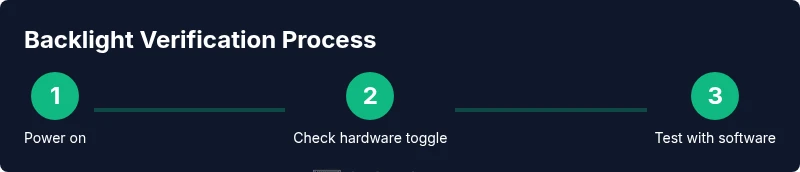
Set up a dim room or close the curtains to simulate a typical late-night work or gaming session. Power on the keyboard, trigger the backlight with the hardware toggle or software control, and observe the brightness, uniformity, and color consistency across the entire keyset. If you notice uneven lighting, hotspots, or dead zones, check for firmware updates or per-key lighting configurations in the software. Document your observations: which keys glow, how evenly they light, and how brightness levels respond to adjustments. This hands-on test provides a definitive answer about backlight status and helps you tailor lighting to your workflow.
Tools & Materials
- Device with test keyboard (laptop/desktop or external keyboard)(Essential for visual checks and testing backlight behavior.)
- Model number or exact keyboard name(Needed to verify specifications and features.)
- Manual or manufacturer site(Useful for official backlight specs and troubleshooting steps.)
- Low-light environment or dim room(Critical for accurately assessing illumination.)
- Stable power source (charger or USB port)(Backlight behavior often changes with power availability.)
Steps
Estimated time: 15-25 minutes
- 1
Power on and locate toggles
Turn on the device and look for a backlight toggle or a function-key combo. This first step establishes whether hardware controls exist and are accessible. If you discover a dedicated key, note its location on the top row or function cluster.
Tip: If you can’t immediately see a backlight toggle, try pressing Fn with a brightness key to trigger lighting. - 2
Check for dedicated backlight keys
Inspect the keyboard for a dedicated backlight key or a function-key combination (often Fn + one of the F-keys). This step helps you confirm a hardware-controlled backlight system.
Tip: Some keyboards cycle brightness through several levels; repeat the key combo to see multiple steps of brightness. - 3
Test brightness levels
Press the backlight toggle repeatedly to cycle brightness or color presets. Observe whether all keys light up together or if only certain zones illuminate. Note any distinct color changes if RGB is supported.
Tip: Test in a dim room to clearly perceive changes and avoid misinterpreting faint lighting as present. - 4
Explore software and firmware controls
Open any vendor-provided lighting software or firmware utility. If available, explore global brightness, per-key lighting, and preset options. On systems without software, rely on hardware toggles and OS-level settings.
Tip: If software exists, it can reveal features that hardware alone cannot show, such as per-key zones or color profiles. - 5
Test in a dim environment
Dim the room and re-test the lighting to confirm visibility, even distribution, and legibility of key legends. Take note of brightness levels that feel most comfortable for long typing sessions.
Tip: Avoid very bright levels for extended periods to prevent eye strain; choose a comfortable brightness range. - 6
Verify against model specs
If lighting remains uncertain, consult the keyboard’s official documentation or support site to confirm whether backlighting is supported and what controls are expected. This should settle any remaining questions.
Tip: Having the exact model name makes it easier to find correct documentation quickly.
Got Questions?
Do all keyboards have backlighting?
No. Backlighting is common but not universal. Some ultra-compact or budget keyboards omit illumination, so always check the product specifications or manual.
Not all keyboards have backlighting. Check the specs or manual to confirm.
How can I tell if the backlight is RGB or white?
If multiple keys show different colors simultaneously, you likely have RGB per-key lighting. A single color across all keys typically indicates a white or single-color backlight.
If colors vary across keys, it's RGB; a uniform color means white or single-color backlight.
Is backlight always adjustable?
Most backlit keyboards offer some level of brightness adjustment, but the availability of per-key control, color changes, or presets depends on the model and software.
Brightness and color options depend on the model and whether you have vendor software.
Where do I find backlight settings on my computer?
Windows or macOS may provide access via a keyboard utility, system settings, or the keyboard’s vendor software. If you don’t see software, try hardware toggle keys first.
Look for a keyboard app or use the hardware toggle keys to adjust lighting.
What if the backlight won’t turn on?
First ensure power is supplied (USB connection or battery). Then try a different port or update firmware. If unresolved, consult the manufacturer’s support page for model-specific steps.
Make sure you have power, try a different port, and check for firmware updates.
Can external keyboards have backlight?
Yes. Most external keyboards offer backlighting, including RGB per-key lighting, but always verify on the product page since some models omit lighting.
Many external keyboards have backlight, but confirm on the product page.
Watch Video
What to Remember
- Identify backlight presence through hardware and software cues
- Test brightness levels in dim environments for accuracy
- Differentiate per-key vs global backlighting for expectations
- Use model specs and official docs to confirm features