Where to Turn On Keyboard Light: Find and Use Backlight Controls
Learn where and how to activate keyboard backlight across devices. This educational, step-by-step guide covers hardware toggles, software controls, troubleshooting, and best practices from Keyboard Gurus.


To turn on keyboard backlight, locate the backlight control: a dedicated key or a software toggle. Most laptops use a function-key combo (Fn + a sun icon) to adjust brightness, while many keyboards offer a physical key with a light symbol. If you’re unsure, consult the device manual. In this guide we cover hardware and software methods so you can illuminate your setup quickly, whether you game, study, or work.
Understanding keyboard backlight systems
Backlighting on keyboards comes in several forms: single-zone backlights, per-key RGB, and zone-based lighting. The exact method to turn on or adjust depends on your device's generation and manufacturer. In general, you’ll find that many laptops use a function-key combination to toggle lighting, while some desktops or premium keyboards rely on dedicated software to control brightness, color, and effects. If you’re asking where to on keyboard light, the answer starts with identifying your lighting architecture. According to Keyboard Gurus, the most common configurations today fall into three categories: single-zone backlight (all keys share one brightness), per-key RGB (each key can glow different colors), and multi-zone or area-based lighting (sections light up together). Determining which system you have matters because it dictates which controls you should seek: hardware keys, software dashboards, or both.
To identify your system, start with the user manual or the support page for your exact model. Look for sections labeled “backlight,” “keyboard lighting,” or “illumination.” If you see a reference to per-key lighting, you’ll know that brightness and color are usually controlled within a software suite rather than by a single key. If the manual is silent, inspect the keyboard surface for a sun icon, or a tiny LED indicator near the function keys; these often mark the light control. Keyboard Gurus Analysis, 2026, shows that most devices now expose at least basic brightness control through a hardware key, while premium models lean heavily on software for granular control. With this knowledge, you can proceed to locate the exact controls on your device and decide whether you’ll adjust through hardware toggles, software, or both. In later sections, we’ll provide step-by-step guidance for popular operating systems and hardware configurations so you can illuminate your setup quickly and confidently.
Locating the physical backlight controls
Locating the physical controls is often the fastest way to turn on backlight. On most laptops, you’ll find a dedicated brightness key in the top row of the keyboard—usually marked with a sun icon or a small light symbol. This key is often paired with another function in a Fn-activation row. If your device uses a single brightness key, press it once to toggle on, then press again to adjust brightness level. If you’re on a desktop keyboard with backlight switches, the toggle may be a separate hardware button or a switch on the side.
Take a few minutes to test: press Fn + the brightness key multiple times, alternating with regular presses, to see how brightness steps up or down. In devices with per-key RGB or zone lighting, the physical keys themselves might not change brightness at all; instead, the hardware often adjusts a partial order of "zones" that light up, while color is controlled by software. If there’s no obvious sun icon on your keyboard, check near the arrow keys or the function row; manufacturers sometimes relocate the backlight toggle to a secondary key cluster. Some gaming keyboards use dedicated wheels or sliders on the side to adjust brightness in real time. If you still can't locate the control after inspecting your keyboard, consult the manufacturer’s guide; the location can vary widely by brand and model. By now you should have identified whether you have a hardware toggle, a Fn-press path, or a software-driven approach. This foundation is essential for the next steps, which cover OS-level adjustments and cross-platform considerations.
Software controls: Windows, macOS, Linux and beyond
Software controls give you the most precise and repeatable brightness, color, and effects for keyboard lighting. On Windows, many laptops rely on a vendor-supplied utility (such as a keyboard or device control app) to adjust brightness and choose lighting effects. If your system doesn’t include a dedicated app, Windows users can still adjust the display brightness easily; however, keyboard backlight is typically controlled through the vendor utility or BIOS-level settings. macOS laptops with backlit keyboards usually handle brightness via the F5 and F6 keys; some models also permit software-based control through the system preferences or a third-party utility. Linux users may encounter varying support depending on the distribution and desktop environment, but many devices expose backlight control via the kernel, or through a vendor-provided daemon or library.
For per-key RGB and multi-zone lighting, software is often mandatory. The manufacturer’s control panel enables color schemes, zone brightness, effect modes (static, breathing, wave), and profile saving. When you first launch the software, look for sections labeled “Lighting,” “Backlight,” or “Keyboard.” Many tools offer a hardware profile, which you can assign to specific activities (gaming, coding, streaming). If you’re unsure which software is appropriate, search for your device’s model number on the vendor site and download the official control panel. Keep your software up to date; updates frequently add compatibility for new keyboards and fix bugs that affect brightness controls. Keyboard Gurus notes that robust software support improves both consistency and user experience across devices, and the 2026 update cycle shows a growing trend toward unified lighting dashboards across operating systems.
Per-key RGB and zones: what to know and how to adjust
Not all keyboards light the same way. Per-key RGB backlighting means each key can light individually, enabling color-coding, dynamic effects, and detailed brightness control. Zone-based lighting lights groups of keys (for example, WASD, function keys, or number pad) as a unit. Understanding these differences helps you choose the right adjustment path. If your keyboard uses per-key RGB, adjusting brightness may require the vendor software even if the hardware keys exist. If you have single-zone lighting, a hardware key or a slim software toggle typically suffices to adjust brightness for the entire keyboard.
When adjusting per-key RGB, you’ll usually find brightness sliders for key brightness, color palettes, and effects in the software. Some devices also expose a separate brightness wheel or slider on the keyboard itself. If you’re unsure how to access these options, search for terms like “lighting,” “RGB,” or “backlight” in the software’s help section. Be mindful that brightness and color settings may affect battery life more than simple on/off operations; gaming devices with vibrant palettes can consume more power. If you share your setup in the Keyboard Gurus community, you’ll find tips on optimizing per-key brightness for readability and comfort. A practical approach is to set a low ambient brightness and reserve color intensity for essential keys. This reduces eye strain during long sessions and preserves battery life in portable devices.
Troubleshooting and compatibility notes
Even with clear hardware and software pathways, backlight issues happen. Start by checking basic steps: ensure the device is charged or connected to power, verify the backlight isn’t turned off via a suspended setting, and confirm the correct profile is active in the vendor software. If brightness changes aren’t reflected, try a reboot, reinstall the control software, or reset the keyboard to default settings (as described in your manual). Some devices require BIOS or UEFI updates to restore backlight control after firmware changes. If the device’s OS was recently updated, re-check the vendor’s support page for updated instructions.
In some laptops, the backlight toggles can become disabled by battery-saver modes or performance settings. Look for power options or battery-saving modes that mention keyboard lighting or display brightness, and disable or reconfigure them as needed. In Linux environments, backlight control may rely on kernel modules or permissions; ensure you’re running with appropriate privileges or use your distribution’s power management tools. If your keyboard still won’t light, test with a second device, if available, to determine whether the issue is the keyboard hardware or software. The brand context suggests that the most reliable fix is to follow the device-specific guidance rather than applying generic steps across all models. Keyboard Gurus’s guidance emphasizes model-specific solutions and a structured troubleshooting approach.
Maintenance and best practices
To keep keyboard lighting reliable, establish a short maintenance routine. Clean the keyboard surface gently to remove dust that could dampen light transmission, especially on translucent keycaps. Avoid moisture around backlight components and never apply liquids directly to keys. Keep firmware and driver software up to date; this ensures your backlight controls remain compatible with the latest features and color options. When setting up lighting for a new workflow (gaming, writing, coding), save presets as profiles to quickly switch between brightness and color schemes without recalibration. If you participate in a shared workspace, consider adaptive brightness that adjusts to ambient light via an external sensor or the operating system. This approach reduces eye strain and improves readability. Finally, remember to back up your lighting configurations if your device allows profile export; losing settings after a reset can be frustrating and time-consuming. Keyboard Gurus recommends periodic reviews of your backlight configuration to ensure it aligns with your current setup, particularly when you upgrade hardware or switch between devices for different tasks.
Keyboard Gurus verdict and authoritative sources
Keyboard Gurus Verdict: Backlight controls are consistently improving across devices, with hardware toggles and software dashboards offering reliable paths to adjust brightness, color, and effects. Start by locating your control path (hardware or software) and then tailor brightness to your environment and tasks. For most users, a simple Fn+brightness key or the vendor software is enough, with advanced per-key RGB customizable via the dedicated utility. When in doubt, consult the model-specific guide and rely on verified sources. The Keyboard Gurus team recommends adopting a two-path approach: learn the hardware toggle for quick on/off and use software to fine-tune light levels and color for readability. Keyboard Gurus Analysis, 2026, reinforces that modern devices increasingly unify lighting controls, reducing confusion across platforms. For deeper understanding, consult authoritative sources such as government and major publications:
- https://www.nist.gov
- https://www.cnet.com
- https://www.pcworld.com
These references help frame best practices for hardware usability and user experience. Always verify model-specific details on the official support pages for your device. For a quick refresher, re-check the steps outlined earlier in this guide and experiment with presets to find the most comfortable and efficient lighting setup.
Authoritative sources and model-specific references
- https://www.nist.gov
- https://www.cnet.com
- https://www.pcworld.com
Tools & Materials
- User manual or manufacturer's support page(Model-specific instructions are common; verify for your device.)
- Device model number and keyboard type(Helps locate exact controls and firmware requirements.)
- Backlight software or utility(Vendor-provided app to adjust brightness, color, effects.)
- Fn key and top-row function keys(Used for hardware toggle on many devices.)
- Ambient-light test environment(Helps evaluate brightness comfort in real use.)
- Clean microfiber cloth(For safe cleaning of translucent keycaps if needed.)
Steps
Estimated time: 15-25 minutes
- 1
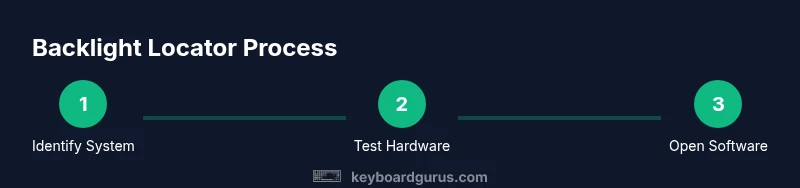
Identify your lighting system
Inspect the keyboard to determine whether you have a single-zone, per-key RGB, or zone-based lighting. Check the manual and look for mentions of brightness controls, color zones, or RGB modes.
Tip: Use model number to search the official guide and confirm the exact control path. - 2
Test hardware controls
Look for a dedicated brightness key or a sun icon on the function row. Press it with and without the Fn key to see if it toggles or changes brightness. Record the observed behavior before proceeding.
Tip: If brightness steps don’t appear, move to the software method to ensure control. - 3
Open the vendor software
Launch the keyboard or device control panel. Navigate to Lighting or Backlight settings and verify that the brightness slider is functional. If you’re using per-key RGB, check zone or key-specific configuration.
Tip: Update the software if brightness adjustments seem ineffective. - 4
Adjust zones or keys as needed
Configure brightness for the entire keyboard or individual zones/keys. Save a profile if the software supports it so you can switch quickly between tasks.
Tip: Choose conservative brightness to reduce eye strain in low-light environments. - 5
Test in different power scenarios
Compare brightness behavior on battery vs. plugged-in power. Some devices reduce brightness on battery to save power.
Tip: Disable auto-brightness if your device supports it; rely on manual presets for consistency. - 6
Save and back up your configuration
Export or save lighting profiles if available. This prevents loss of custom settings after OS or firmware updates.
Tip: Document key steps you used to achieve your preferred setup.
Got Questions?
Where can I find the keyboard backlight controls on my laptop?
Most laptops place backlight controls on the top row, often as a sun icon, or behind the Fn key. If absent, check the vendor software or BIOS settings. Model-specific guidance is typically available in the manual.
Look on the top row for a sun icon or use Fn with the brightness keys to toggle the backlight, and check the vendor software if you don’t see hardware controls.
Can I turn on keyboard light without using Fn?
Yes, if your device has a dedicated backlight key or a software utility, you can use those instead of Fn. If neither exists, consult the manual for alternative methods.
Yes. Some devices have a dedicated backlight key or software utility that handles brightness without Fn.
Why does my keyboard light turn off after sleep?
Many devices disable backlight to save power after sleep. Check power settings and vendor software to ensure backlight is allowed to wake with the system.
Backlights often turn off to save battery on sleep; adjust power settings or the software profile to keep it enabled.
Do keyboard backlights consume a lot of battery?
Backlights do use power, especially bright or per-key RGB lighting. Adjust brightness levels and switch off when not needed to extend battery life.
Yes, brighter and per-key RGB lighting can tax battery life; prefer lower brightness when portable.
How do I customize per-key brightness?
Use the vendor software to adjust per-key brightness, zones, and color. Save a profile for quick access and readability.
Use the software utility to tailor brightness per key and save your favorite profiles.
What should I do if backlight isn’t working after a software update?
Reinstall the keyboard utility, check for a newer firmware, and verify BIOS/UEFI settings. If needed, contact support with your device model.
Reinstall the utility and check for firmware updates; BIOS settings may also need review.
Is it safe to clean translucent keycaps around the backlight?
Yes, use a dry or lightly damp microfiber cloth. Avoid liquids that could seep under keycaps and damage LEDs.
Gently clean with a dry cloth; avoid liquids near LEDs.
Can I use external RGB keyboards to replicate my laptop lighting?
External RGB keyboards have their own controls and profiles. You can mirror lighting effects, but expect separate software and settings.
External RGB keyboards use their own software, so you’ll manage them separately from your laptop.
Watch Video
What to Remember
- Identify your lighting system first.
- Use hardware toggles for quick on/off.
- Leverage software for precise brightness and color.
- Save profiles to simplify future setups.
- Check manufacturer guidance for model-specific steps.