How to Get Your Keyboard to Light Up: A Comprehensive Guide
Learn practical steps to enable and customize keyboard backlighting on laptops and external keyboards. Troubleshoot hardware, software, and firmware to glow your keys for better visibility and style.


To get your keyboard to light up, confirm backlight support first. Most laptops use a function-key combo (often Fn plus a brightness key) or a dedicated backlight key, while external keyboards rely on software. Enable the light, then adjust brightness and effects. If it still stays dark, update drivers, firmware, or check power and connectivity.
Why backlighting matters
Backlit keyboards improve visibility in dim environments, reduce eye strain, and help you locate keys quickly during late-night sessions. A well-lit keyboard can also enhance typing accuracy, especially for games or coding where precise keystrokes matter. According to Keyboard Gurus, lighting up your keyboard is not just about aesthetics—it can be a practical upgrade for productivity and comfort in low-light setups. Keyboard Gurus Analysis, 2026 notes that most users rely on built-in backlight controls, but misconfigurations and outdated firmware are common culprits when lights fail to turn on. In this section, we explore why backlighting is more than decoration and set the stage for device-specific methods that follow.
What you’ll learn in this guide
This article covers how backlight works on different keyboard types (laptops, USB-C external keyboards, RGB keyboards), how to identify the control method, common pitfalls, and step-by-step methods to light up keys across devices. We’ll include tips for preserving battery life on laptops and recommendations for software utilities that unlock per-key or zone lighting. The goal is a reliable, repeatable process you can apply to any keyboard with lighting capability.
Tools & Materials
- Keyboard with backlight capability(Built-in LED backlight is present)
- Backlight control method (Fn key, dedicated button, or software)(Commonly Fn + a brightness key; varies by brand)
- Lighting software (optional for some keyboards)(OEM tools like G Hub, Synapse, Engine, or other keyboard utilities)
- Up-to-date drivers/firmware(Ensure OS and keyboard firmware drivers are current)
- Reliable power source(Plug in the laptop when testing backlight for consistent results)
Steps
Estimated time: 20-40 minutes
- 1
Confirm backlight capability
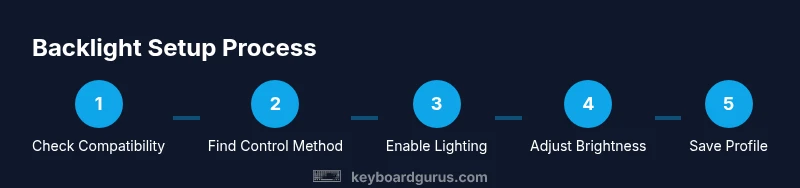
Check your device specifications or manufacturer's site to confirm the keyboard supports backlighting. For laptops, this is typically listed under keyboard features; for external keyboards, look for LED lighting or per-key RGB. If no backlight is advertised, the keyboard won't light up.
Tip: If unsure, search the model number plus 'backlight' to confirm compatibility. - 2
Locate the control method
Identify how your keyboard controls backlighting—Fn key combos on laptops, a dedicated light button on the keyboard, or software in Windows/macOS. Test common combos like Fn + F5/F6 (brightness up/down) or Fn + Space to toggle. External keyboards often rely on software sliders.
Tip: Refer to the user manual or manufacturer support page for the exact key. - 3
Enable the backlight
Use the identified toggle to turn on lighting. If the initial toggle doesn’t respond, try a different Fn key, ensure the function key lock isn’t disabled, or launch the keyboard software and enable lighting from there.
Tip: Sometimes lighting is off by default after a reboot; a quick toggle usually resolves it. - 4
Adjust brightness and style
Once lit, increase brightness to comfortable levels and experiment with effects (steady, breathing, wave, etc.). On RGB keyboards, set a preferred color profile or per-key lighting. Save or name profiles if the software supports it.
Tip: Document your favorite settings for quick recall during gaming or coding sessions. - 5
Update drivers and firmware
If lighting doesn’t respond or behaves erratically, update the keyboard firmware and system drivers. For laptops, check Windows Update or the OEM’s support site. For external keyboards, install the vendor's software and allow it to search for updates.
Tip: Use a wired connection when updating external keyboards to avoid interruptions. - 6
Check power and battery status
Low battery can affect backlight performance on laptops and some wireless keyboards. Plug in your device during testing, ensure power-saving settings aren’t dimming the lights, and disable any power profiles that reduce peripheral brightness.
Tip: Disable battery-saver mode temporarily while testing backlight brightness. - 7
Test across apps and environments
Open a few programs (IDE, document editor, game, browser) to confirm lighting remains consistent. Some software overrides lighting when the app runs in full-screen mode; adjust per-app settings if needed.
Tip: If colors look off, recalibrate using the software's color chooser and save a new profile. - 8
If lighting still won’t turn on
Troubleshoot potential hardware faults by reseating connectors (for detachable keyboards), testing on another computer, or contacting support. Document your steps and any error messages to share with customer service.
Tip: Take note of model numbers and firmware versions to speed up help requests.
Got Questions?
Why won’t my keyboard light up even though backlight is enabled in settings?
This can happen if the hardware switch is off, the keyboard firmware is outdated, or a software conflict prevents control. Start by toggling the light with the hardware key, then update firmware and drivers. If the problem persists, try a clean boot to rule out third-party software interference.
If the light won’t turn on after checking hardware, try updating firmware and drivers, then recheck the toggle in a clean boot environment.
Do all keyboards have backlighting?
No. Many budget or older models lack backlight hardware. Check the product specifications or user manual to verify backlighting support.
Not every keyboard has backlight. Check the model specs to confirm support.
How can I change LED colors on an RGB keyboard?
Use the manufacturer’s lighting software to select colors or create profiles. Some keyboards also support per-key color mapping and macro-enabled lighting effects.
Use the keyboard’s software to pick colors and set per-key lighting, then save a profile.
My backlight flickers or dims when I use certain apps. What should I do?
This is usually a software conflict. Update the lighting software, check for OS updates, and ensure no other peripheral apps are taking control of the lighting. Reboot after updates and test again.
Try updating the lighting software and OS, and close other apps that might control lighting.
Is backlighting a major drain on laptop battery?
Backlighting does draw power, especially at higher brightness. Use battery saver settings judiciously and keep profiles at practical brightness levels when running on battery.
Yes, lighting uses extra battery; keep brightness reasonable on battery power.
Watch Video
What to Remember
- Verify backlight support before troubleshooting.
- Use the correct toggle or software to enable lighting.
- Update drivers/firmware if lighting fails to respond.
- Create and save lighting profiles for different tasks.
- Power and software compatibility influence lighting reliability.