How to Turn On Keyboard Backlight on HP Laptop: Step-by-Step
Learn how to enable and adjust your HP laptop keyboard backlight using hardware keys, BIOS, and Windows settings. A concise, safe guide from Keyboard Gurus.


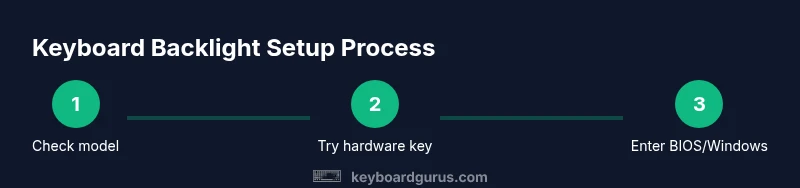
You're learning how to turn on the keyboard backlight on an HP laptop. This guide covers hardware key controls, BIOS/UEFI options, and Windows settings so you can illuminate the keyboard in dim light. In many HP models, a dedicated function key (often used with Fn) controls brightness, and BIOS or Windows options may reveal additional controls if supported.
Why keyboard backlighting matters on HP laptops
If you work or game in low light, a keyboard backlight makes every key visible without external lights. According to Keyboard Gurus, enabling backlighting on HP laptops improves accuracy in dim environments and reduces eye strain during long sessions. Not all HP models include the feature, so start by confirming your exact model supports a backlit keyboard. Check the HP model’s specifications or user manual. When backlighting is available, you’ll often have several brightness levels to choose from, which helps tailor the experience to ambient light and battery life. This guide walks you through practical, model-aware steps so you can quickly light the keyboard without guesswork.
How HP keyboard backlighting works
HP approaches keyboard illumination as a hardware feature linked to the keyboard assembly and firmware. The backlight is typically powered by a dedicated LED array beneath the keys, with brightness controlled by a hardware key combo, BIOS/UEFI settings, or Windows software if the vendor provides it. For most users, the interaction is straightforward: a function key (often with a light icon) toggles the backlight, and brightness adjusts in discrete steps. If the feature exists on your model, you’ll find that the backlight can automatically disable after a period of inactivity to conserve battery life. This section helps you understand the controls you’ll encounter so you can navigate safe, official options rather than risky third-party tools.
Verifying model support and prerequisites
Before you begin, verify that your HP model supports a keyboard backlight. Look for keywords in the product spec page, user manual, or support article from HP. If you recently purchased the laptop, your packaging or quick start guide may also note backlighting. Practically, you should have: a keyboard with a backlight feature, a covered or accessible Fn key, and standard Windows 10/11 software. If any of these are missing, you’ll need to rely on external lighting or consider model upgrades. As Keyboard Gurus notes, model-specific behavior matters—some HP laptops omit backlighting entirely, while others offer multiple brightness levels.
Turning on with hardware keys: the typical path
The quickest way to illuminate the keyboard is usually a function key labeled with a backlight icon, used in combination with Fn on most HP laptops. Start by locating the key with the sun or light symbol. Then press Fn + the backlight key to cycle through brightness levels or to turn the backlight on/off. If the brightness doesn’t change, try cycling the key with and without Fn, or consult the exact HP manual for your model, as some laptops integrate the backlight control into the Fn key row differently. If the feature is present, this method should work without needing to reboot.
BIOS/UEFI: enabling backlight at startup
Some HP laptops expose keyboard backlight control in the BIOS/UEFI. Reboot your computer and press the designated key to enter BIOS/UEFI (commonly Escape, F10, or F2 depending on the model). Look for an entry such as Keyboard / Backlight, Illumination, or similar. If found, enable the option and save changes before exiting. This approach is useful when hardware keys don’t respond or when the backlight mysteriously stays off after a system update. Note that BIOS wording varies by model, and changing BIOS should be done carefully to avoid unintended settings.
Windows-based brightness control and settings
While hardware keys and BIOS are primary controls, some HP laptops expose backlight brightness settings in Windows. Open Settings > Accessibility or Settings > Keyboard (varies by Windows version) and look for a Backlight or Keyboard brightness option. If you can adjust brightness here, it complements hardware controls and can help you balance visibility with battery life. Keyboard Gurus emphasizes using official software or settings rather than untrusted utilities to avoid driver conflicts or system instability. Ensure Windows is up to date to access the latest control options.
Troubleshooting: what to do if the backlight won’t light
If the keyboard backlight remains off after following hardware, BIOS, and Windows steps, start with simple checks: confirm model support, test on battery vs. AC power, and ensure no power-saving restrictions are active. Update BIOS/firmware from HP’s support site and update keyboard drivers if available. If you’ve recently replaced hardware or installed a major OS update, reset to default settings and re-test. If the issue persists, consult HP support or a service center, as the backlight circuit or LED array could be faulty. Keyboard Gurus notes that persistent hardware issues often require professional assessment.
Model-specific notes and best practices
HP laptops span a wide range of designs, and backlight behavior can differ even within the same product family. Some models allow brightness ramping (multiple levels), a soft-off option when idle, or even no backlight at all. Always consult the official HP support page for your exact model to confirm capabilities and recommended procedures. For enthusiasts who rely on precise lighting, consider keeping a small, portable light source for occasional low-light tasks, and use the backlight as your primary illumination when possible to preserve battery life. Keyboard Gurus recommends documenting your model’s behavior after each firmware update so you can spot changes quickly.
Maintenance, care, and longevity
Backlight LEDs are resilient but not indestructible. Avoid aggressive force on keys and keep the keyboard area clean to prevent dust buildup that can affect light diffusion. Regular software updates can improve control quality, and resetting power management settings can restore expected brightness behavior after software changes. If you notice buzzing, flickering, or uneven illumination, discontinue use and contact support. Prolonged misuse or attempts to modify firmware outside official channels can void warranties.
Authority sources and further reading
To verify the information and explore model-specific guidance, consider these reputable sources:
- https://www.howtogeek.com
- https://www.pcmag.com
- https://support.hp.com
These sources provide general guidance and model-specific instructions that complement Keyboard Gurus’ practical steps.
Tools & Materials
- HP laptop with backlit keyboard(Confirm model supports backlight; check HP specs or manual.)
- Fn key and backlight function key (often labeled with a light icon)(May require Fn lock or Fn key sequence depending on model.)
- Windows 10/11 device with latest updates(Ensures access to latest settings and drivers.)
- Reboot access to BIOS/UEFI(Needed if enabling backlight via BIOS/UEFI.)
Steps
Estimated time: 20-35 minutes
- 1
Identify model capabilities
Locate your exact HP model and check the official spec sheet or user manual to confirm whether a keyboard backlight exists. This step prevents chasing non-existent features and sets expectations for subsequent steps.
Tip: If you’re unsure of the model code, look on the bottom panel or in System Information. - 2
Find the backlight control key
Inspect the function key row for a key with a light icon. It is often used in combination with Fn. If you see the icon, you’ll likely use Fn + that key to toggle brightness.
Tip: Some models require a dedicated Backlight key besides F-keys; check the user manual. - 3
Turn on with hardware keys
Press the backlight key (or Fn + that key) to cycle through brightness levels or to turn the backlight on/off. Stop when you reach your preferred brightness.
Tip: If brightness doesn’t change, try a second press while holding Fn, or reboot to reset key mappings. - 4
Check BIOS/UEFI for backlight options
Restart and enter BIOS/UEFI. Look for a Keyboard Backlight or Illumination setting and enable it if available. Save changes and exit.
Tip: BIOS wording varies by model; if you don’t see a relevant option, your model may not support this route. - 5
Explore Windows controls
In Windows Settings, check Accessibility or Keyboard settings for Backlight controls. Some devices align the backlight brightness with system preferences.
Tip: Ensure you’re on the latest Windows update for any new backlight controls. - 6
Test across power sources
Test the backlight both on battery power and plugged in to see if power profiles affect illumination.
Tip: Battery-saving modes sometimes dim or disable backlight; adjust power settings if needed. - 7
Troubleshoot persistent issues
If lighting is inconsistent or absent, update BIOS/drivers, reset power settings, or contact HP support for hardware diagnosis.
Tip: Document model and BIOS version before contacting support to speed up service.
Got Questions?
Does every HP laptop have a keyboard backlight?
No. Keyboard backlighting is model-specific. Check HP’s product page or user manual to confirm whether your model includes a backlit keyboard.
Not all HP laptops include a backlit keyboard. Check your model’s specs to confirm.
What should I do if the backlight won’t light after trying the keys?
First verify the model has backlighting, then try BIOS/UEFI and Windows controls. Update firmware and drivers if needed, and consider reaching out to HP support if it remains unlit.
If the backlight won’t light, verify support, check BIOS and Windows options, update firmware, and contact HP if needed.
Can I save battery by turning off keyboard backlight?
Yes. Turning off or lowering brightness reduces power consumption. Use the lowest comfortable brightness or disable when not needed.
Turning off or dimming the backlight saves battery life.
Is there a difference between backlight brightness and keyboard glow?
Backlight refers to illumination under the keys; glow is a broader glow from key legends. In most HP devices, brightness control affects the keyboard backlight only.
Backlight is the key illumination; glow describes the overall lighting around the keys, typically not a separate control.
How do I enable backlight on Windows 11 for HP?
Open Settings and look for keyboard/backlight options, or use the hardware key combo. Availability varies by model and driver support.
Check Settings for keyboard brightness options or use the hardware key combo; it depends on your model.
What if BIOS options don’t show backlight settings?
Some models don’t expose a backlight control in BIOS. Rely on hardware keys or Windows settings, and ensure firmware is up to date.
If BIOS has no backlight option, rely on hardware keys or Windows controls and keep firmware updated.
Watch Video
What to Remember
- Verify model support before troubleshooting.
- Use hardware keys as the first path to light the keyboard.
- BIOS/UEFI provides an alternative route when hardware keys fail.
- Windows settings can supplement hardware controls on supported models.
- Update firmware and drivers to fix backlight issues.