How to Turn Off Keyboard Light
Learn safe, practical steps to turn off keyboard backlight on laptops and external keyboards, with shortcuts, software options, and BIOS guidance.


By the end you’ll know how to turn off keyboard light on most laptops and external keyboards. This quick guide covers common shortcuts, software controls, BIOS/firmware settings, and hardware power options so you can disable backlighting quickly and safely. We’ll note what to try first, what to avoid, and how to regain a comfortable brightness later if needed.
Understanding Keyboard Backlight Basics
Backlight systems illuminate keys to improve legibility in dim environments. Not all keyboards have the same level of control; some offer simple on/off toggles, while others provide multiple brightness levels or per-key customization. The engineering behind backlights varies by vendor: some use LED arrays with simple dimming circuits, others rely on driver software to set brightness and color. For most users, the practical result is a straightforward toggle that can be found on the function row, within a vendor app, or inside BIOS/UEFI. According to Keyboard Gurus, backlighting is a convenience feature rather than a core function, so turning it off is a safe, reversible action that can extend battery life and reduce distraction. If you’re unsure where your toggle lives, consult the manual for your device model and look for icons such as a sun, a light bulb, or a keyboard with rays.
In addition, Keyboard Gurus Analysis, 2026 highlights that most mainstream keyboards provide at least one toggle method for backlight control, underscoring the importance of knowing multiple avenues (hardware, software, BIOS) to accommodate different setups.
Quick Methods Overview
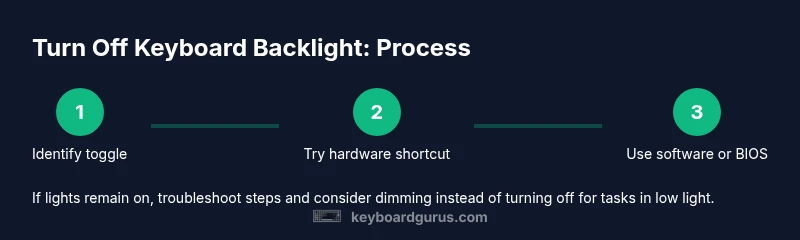
There isn’t a single universal method to turn off keyboard backlight. The most reliable approach is to try the hardware shortcut first, then consult vendor software, and finally check BIOS/UEFI settings. If you’re using an external RGB keyboard, you may also need its dedicated software to ensure all lighting channels are disabled. The benefit of understanding these methods is that you can adapt to almost any device—laptop, office keyboard, or gaming peripheral. This section lays out the general path you’ll follow in the step-by-step guidance that follows.
Method 1: Hardware Keyboard Shortcuts
Many laptops place the backlight toggle on the function row. Look for a sun or brightness icon on a key, often with a secondary label. To use, hold the Fn key (or Fn Lock) and press the brightness key repeatedly until the backlight turns off. If your device supports per-key brightness, you can cycle through levels to reach the off state. If the shortcut doesn’t respond, ensure Fn Lock is not forcing alternate behavior and consult the hardware vendor’s support page for your exact model.
Method 2: Software Controls (OS and Vendor Apps)
Windows devices often provide backlight controls through vendor-specific software (for example, Dell QuickSet, Lenovo Vantage, or HP Quick Launch). Open the software and navigate to keyboard or Backlight settings, then drag the brightness slider to the lowest setting or select Off. On Apple devices, use the keyboard brightness keys (F5/F6) in combination with the Fn key if needed, or adjust through system preferences if an app controls keyboard lighting. For external keyboards with backlighting, install and open the manufacturer’s utility to access a dedicated Backlight control. Software-based controls are especially useful when hardware shortcuts are missing or unresponsive.
Method 3: BIOS/UEFI Settings
Some laptops expose backlight controls in the BIOS/UEFI because they affect hardware power behavior. To access, restart your computer and press the vendor-specific key to enter BIOS (common options are F2, Del, or Esc). Once inside, look for Keyboard or Backlight settings, then disable the backlight or set brightness to Off. Save changes and exit. Note that BIOS options vary by vendor, and not all devices offer this control; if you don’t see a relevant option, use hardware or software methods instead.
Method 4: External Keyboards and RGB Considerations
External keyboards vary widely. Some have a built-in on/off toggle, while RGB keyboards require software to fully disable lighting channels. If hardware toggles exist, use them as with laptops. For RGB peripherals, install the manufacturer’s software and switch off all lighting or set a static black profile. Don’t forget to check any companion apps for per-key or zone-based lighting if you want a fully dark keyboard while others are dimmed.
Troubleshooting When It Won’t Turn Off
If the backlight remains on after trying the standard methods, verify whether Fn Lock is enabled, update keyboard drivers, and check BIOS settings again. A driver glitch or firmware hang can cause toggles to appear unresponsive. Boot into Safe Mode (if needed) or perform a clean boot to isolate software conflicts. If none of these steps work, consult the device’s support portal or the manufacturer’s forums for model-specific guidance.
Accessibility and Comfort Considerations
Turning off backlighting can improve focus and save power, but dim lighting can impact visibility in low-light environments. Consider using a low, steady brightness instead of full off when you need to type for extended periods. If you frequently switch between lighting needs, map multiple states (Off, Low, Medium) in your vendor software or through your BIOS. This flexibility helps you tailor the keyboard to your preference while preserving energy efficiency.
Practical Safety and Reversibility Notes
All methods described here are reversible. If you change a BIOS setting, remember you can revert it by re-entering BIOS. Always save changes and perform a quick restart to confirm the setting takes effect. If you work on a shared machine, document the steps you used so you or a colleague can re-enable lighting quickly later.
Tools & Materials
- Keyboard with backlight (laptop or external)(Ensure you know the exact model to reference correct shortcuts or software.)
- Documentation or vendor support page(Helpful for model-specific steps and hotkey mappings.)
- Manufacturer software (optional)(Dell/HP/Lenovo/etc. utilities for keyboard lighting; install if you have them.)
- BIOS/UEFI access(Needed if you plan to modify firmware-level controls.)
Steps
Estimated time: 15-25 minutes
- 1
Identify backlight control location
Inspect the function row for a sun or light icon or a dedicated toggle. If you’re unsure, consult the device manual or vendor support page for your exact model.
Tip: Look for a key with a small sun symbol or a keyboard with rays icon. - 2
Attempt hardware shortcut
If your device uses Fn, press Fn plus the brightness key repeatedly until the backlight reaches Off. If you can’t find the right keys, try Fn Lock to enable standard function keys.
Tip: Ensure you press the correct keys for your model; some brands require Fn+F9 or Fn+F3, not F1–F12. - 3
Check vendor software
Open any keyboard lighting utility installed by the manufacturer and set the brightness to Off or 0%. If multiple lighting zones exist, turn all zones off.
Tip: If software isn’t installed, search the vendor’s site for a keyboard driver or lighting utility. - 4
Explore OS-level settings
In Windows, look for keyboard lighting controls in the system tray or Settings > Devices > Typing (or your vendor app path). On macOS, use the keyboard brightness controls if available or the macOS accessibility options for display brightness.
Tip: OS-level controls may override hardware toggles in rare cases; verify after changes. - 5
Inspect BIOS/UEFI options
If you want a firmware-level toggle, reboot and enter BIOS/UEFI. Locate Keyboard/Backlight settings and set to Off, then save and exit.
Tip: Not all devices expose this option; proceed with caution and avoid changing unrelated BIOS settings. - 6
Test external keyboards
If you’re using an external RGB keyboard, verify the backlight is Off in the vendor software; check per-key or zone settings if needed.
Tip: Disconnect and reconnect the keyboard to ensure changes are recognized. - 7
Verify changes and power state
After applying a method, verify the backlight is fully off. If the device has sleep modes, test waking from sleep to ensure the setting persists.
Tip: If brightness returns after reboot, revisit BIOS and vendor software settings. - 8
Document your method
Note which method consistently turns off the backlight for your setup. This helps you re-enable it quickly later.
Tip: Keep a short note near your computer or in your support folder. - 9
Consider a fallback approach
If toggling remains unreliable, dim instead of turning off to preserve visibility while saving a bit of power.
Tip: Set a dim level that you rarely adjust to avoid repeated toggling.
Got Questions?
How do I turn off my laptop keyboard backlight using a keyboard shortcut?
Most laptops use the Fn key in combination with a brightness key (often with a sun icon). Press the appropriate Fn + brightness key until the backlight turns off. If the shortcut doesn’t work, check your model’s manual or vendor support page.
Use the Fn key with the brightness key to toggle off the keyboard backlight; if it doesn’t work, consult your manual.
What should I do if the backlight won’t turn off?
Try the software toggle in the manufacturer’s utility, confirm there’s no Fn lock enabled, and check BIOS/UEFI options. If still on, update keyboard drivers or consult the device’s support resources.
First try the software toggle, then check Fn lock and BIOS options; update drivers if needed.
Can I disable the backlight from BIOS/UEFI?
Yes, some devices offer a Backlight or Keyboard setting in BIOS/UEFI. If available, disable it, save changes, and reboot. Availability varies by vendor and model.
You can sometimes disable it in BIOS; if not visible, rely on hardware or software methods.
What should I do for RGB external keyboards?
RGB keyboards often require their own software to turn off all lighting. Disable lighting channels in the software or select a black/dark profile.
Use the keyboard’s software to turn off RGB lighting or pick a dark profile.
Will turning off the backlight affect typing in the dark?
Yes, visibility may decrease. If full off is too dark, try a dim level instead and adjust as needed.
Off may make typing harder in the dark; dimming can be a good compromise.
Watch Video
What to Remember
- Identify the correct toggle method for your device.
- Use software or BIOS if hardware shortcut fails.
- External keyboards may require their own software.
- Backlight off is safe and reversible.