How to Turn On Keyboard Light on ASUS Laptop
Learn how to turn on the keyboard backlight on ASUS laptops using hardware shortcuts and Armoury Crate. This guide covers Fn key methods, software steps, BIOS checks, and troubleshooting for reliable illumination in dim settings.


Why turning on keyboard backlight matters
In dim environments, a visible keyboard helps you type accurately and reduces eye strain. According to Keyboard Gurus, having a usable backlight on your ASUS laptop not only improves visibility but also makes colors and key legends easier to read, especially on light-colored keys. The Keyboard Gurus team found that backlight behavior can vary by model, generation, and software configuration, so it’s worth understanding the common pathways to enable it: hardware shortcuts, Windows settings, and dedicated ASUS software. This foundation will ensure you approach the rest of this guide with confidence and an understanding of why each method exists.
Beyond comfort, a reliable keyboard backlight can speed up workflow in low-light conditions, support gaming clarity, and reduce errors when typing commands or passwords. The guidance here is designed to be practical, model-agnostic where possible, and informed by real-world usage patterns observed by Keyboard Gurus analysts.
Common ASUS keyboard backlight configurations
ASUS laptops vary widely in how they expose keyboard backlight controls. Some models offer only a single brightness level, while others provide full brightness ramps and multiple lighting profiles. In many cases, the backlight is linked to a hardware key row (Fn key) with dedicated brightness icons, while other models rely on software controls within Armoury Crate or MyASUS. A few ultralight or budget lines may omit backlight entirely. Understanding the two main paradigms—hardware shortcuts and software-based control—helps you choose the quickest path and troubleshoot when things don’t respond as expected. Regardless of the method, you’ll typically see a sun icon or a keyboard illumination icon on the function row, signaling the correct keys to press.
Hardware shortcuts: Fn keys explained
On most ASUS laptops, keyboard backlight control is tied to the function keys. The common pattern is Fn combined with a brightness key (often labeled with sun icons on F3 and F4, or an adjacent F-key). Pressing Fn plus the brightness key usually cycles through brightness levels or toggles the backlight on/off. If your model uses a different pair of keys, the icon will still be visible on the keycap. If you don’t see any response, verify that the function lock is not interfering and that the correct keyboard language/layout is selected in Windows. These shortcuts are fast, require no software installation, and work offline, which is ideal for quick lighting adjustments during a game, a late-night study session, or a dimly lit room.
Software-based control: Armoury Crate and MyASUS
Armoury Crate (and the companion MyASUS app) often provides more granular control over keyboard backlight. In Armoury Crate, navigate to the Lighting or Keyboard section to adjust brightness, choose profiles, or switch between lighting effects like static, breathing, or color cycle (where supported). MyASUS can mirror these settings or offer device-specific controls depending on your model and software version. Using software allows you to tailor brightness for different scenarios (gaming, typing, dark mode) and save profiles for quick recall. Keeping the software up to date ensures you always have the latest lighting options and bug fixes.
Step-by-step: hardware shortcuts (physical keys)
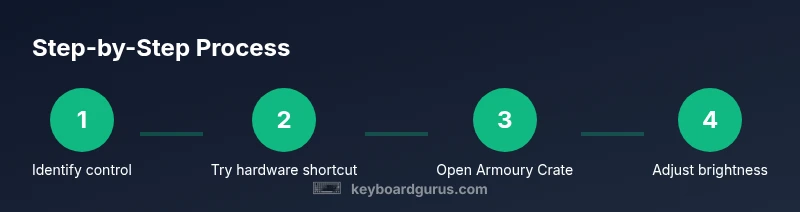
Step 1: Identify the brightness keys on the function row (look for sun icons). Step 2: Hold the Fn key and press the brightness key (e.g., Fn + F4 to brighten, Fn + F3 to dim) until you reach the desired level. Step 3: Release both keys and observe the backlight change. Step 4: If the backlight won’t respond, check that the Fn toggle is not disabled in the BIOS or Windows settings. Step 5: If you have a single press that toggles brightness, continue pressing until it cycles through all levels. Tip: If you’re unsure which keys control illumination on your exact model, consult the user manual or ASUS support page for model-specific screenshots.
Step-by-step: using Armoury Crate or MyASUS
Step 1: Open Armoury Crate and go to the Lighting or Keyboard section. Step 2: Select the keyboard backlight option and choose a brightness level or profile. Step 3: Save the profile for quick recall. Step 4: Test by typing in a dark room to confirm the contrast. Step 5: If available, switch between effects (static, breathing, color cycle) to find the most comfortable setting. Tip: If Armoury Crate doesn’t detect the keyboard backlight, update the app and drivers, then restart the laptop.
Troubleshooting when the backlight won’t turn on
If pressing hardware keys or adjusting software settings doesn’t illuminate the keyboard, start with these checks: Ensure the model supports a backlit keyboard and that the feature is enabled in BIOS/UEFI if present. Update Armoury Crate, MyASUS, and chipset drivers. Check Windows power settings to ensure adaptive brightness isn’t dimming or turning off the keyboard backlight on battery. If the light remains off, try a system restart or a clean reinstall of the lighting software. Rarely, a hardware fault can disable the backlight entirely, requiring service.
Common issues by model family
ZenBook and VivoBook lines generally use Fn-based controls with optional software profiles. ROG and TUF models typically offer richer lighting ecosystems via Armoury Crate, including RGB zones and advanced effects. Some budget models might not include backlight hardware or software controls, even if a keyboard with backlight exists in the product brochure. When in doubt, consult the exact model’s support page, and verify whether backlighting is a feature offered in your SKU.
Power considerations and battery impact
Backlight brightness consumes additional power. In most ASUS laptops, higher brightness levels will reduce battery life more quickly than lower brightness levels. If you frequently use the backlight while on battery, consider setting a lower brightness or using a preset profile for battery power. Some models automatically dim or turn off backlight to conserve energy; you can typically disable this in the ASUS software panel or BIOS if your needs demand consistent illumination. Balance the trade-off between readability and longevity of battery life.
Safety and care for keyboard lighting
Avoid exposing the keyboard to liquids or dust while the backlight is active, as residue can interact with the lighting and keys. Clean the keyboard with a dry microfiber cloth and never spray liquids directly onto the keyboard. Use the lighting features at moderate brightness to minimize heat buildup around the keyboard area. Regular software updates help prevent control glitches and ensure you retain access to brightness profiles and effects.
Accessibility considerations
Backlit keyboards can benefit users with visual impairments or those typing in low-light environments. If you find high brightness distracting, reduce glare by choosing a softer level and using a neutral color mode if available. Some ASUS models support color presets that can improve contrast for specific key legends. Always tailor brightness to your comfort and workflow needs.
Authority sources and model-specific notes
To validate your approach, consult authoritative sources and the official ASUS support resources for your exact model. The guidance in this article acknowledges model variance and provides a framework for discovery across hardware shortcuts and software controls. For additional reading and model-specific steps, see the listed sources below.
Authority sources
- How-To Geek: How to turn on your laptop keyboard backlight
- TechRadar: How to turn on your laptop keyboard backlight
- PCMag: How to turn on a laptop keyboard backlight
Note: Always verify model-specific instructions with ASUS support or your manual, as keyboard backlight controls can differ between ZenBook, VivoBook, ROG, and older ASUS models.