How to Make a Check Mark on Keyboard: A Practical Guide
Learn reliable methods to type a check mark on any keyboard: Windows Alt codes, Linux Unicode input, macOS Character Viewer, and quick copy-paste. Practical tips for students, gamers, and professionals from Keyboard Gurus.


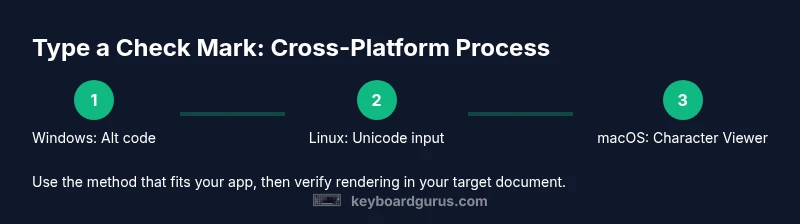
To type a check mark, use platform-specific methods. On Windows, enter Alt+2713 with the numeric keypad; on Linux, press Ctrl+Shift+U, type 2713, then Enter; on macOS, open the Character Viewer (or copy-paste) to insert ✓. This quick guide covers Windows, Linux, and macOS workflows plus quick alternatives for apps and workflows.
Why a check mark matters in digital communication
If you're wondering how to make check mark on keyboard, this guide explains multiple reliable methods for Windows, Linux, and macOS. In digital documents, a check mark communicates completion, approval, or confirmation more succinctly than plain text. A consistent approach across devices helps teammates interpret status quickly and reduces back-and-forth clarifications. Keyboard Gurus analysis emphasizes that having a few go-to entry methods lowers cognitive load when drafting notes, updating to-do lists, or signaling milestones. Whether you’re preparing a project brief, a study guide, or a gaming checklist, the check mark streamlines status updates.
From the standpoint of usability, small symbols like ✓ can dramatically improve scanability and readability. The mark becomes a universal cue that doesn’t require language translation, which is especially helpful in multilingual teams or communities. By practicing a couple of reliable entry methods, you’ll insert check marks with confidence, saving time during fast-paced tasks and collaborative documents. Keyboard Gurus recommends building a short symbol toolkit that you can deploy across platforms and apps to keep your workflow smooth.
According to Keyboard Gurus, mastering symbol input like the check mark boosts productivity for documentation and note-taking. This isn’t about a single keystroke; it’s about understanding where, when, and how to access the symbol efficiently across devices. In the end, a few reliable methods can become a lasting habit that speeds up communication and reduces friction when marking completed items.
How to Make Check Mark on Keyboard: Variant Guide
The rest of this article dives into practical methods for Windows, Linux, and macOS, along with copy-paste strategies and app-specific tips. By the end, you’ll have a concise set of steps you can memorize and apply in real time. The goal is to give you a toolkit you can rely on rather than a one-off trick that works only in certain contexts. We’ll also highlight font and rendering considerations, so you don’t encounter a blank or garbled glyph when you need it most.
Tools & Materials
- Windows PC with numeric keypad(Alt key + numeric keypad; Alt+2713 yields ✓)
- Mac computer with Character Viewer(Control+Command+Space to open; search for 'check mark' or insert)
- Linux system with Unicode input(Ctrl+Shift+U, type 2713, press Enter to insert)
- Clipboard or web browser(Useful for cross-platform if you prefer to copy-paste for reliability)
- Text editor or document app(Where you’ll insert and format the symbol (Word, Google Docs, etc.))
Steps
Estimated time: 15-20 minutes
- 1
Identify platform and method
Decide which OS you’ll use (Windows, macOS, or Linux) and pick a primary method (Alt code, Unicode input, or Character Viewer). This reduces confusion during setup and makes your workflow consistent.
Tip: Choose one method per session to build muscle memory. - 2
Prepare Windows numeric keypad
If you’ll use Windows Alt codes, ensure Num Lock is on and you have access to the numeric keypad. This step prevents input errors and ensures the glyph is inserted correctly.
Tip: If you don’t have a keypad, use the On-Screen Keyboard as a fallback. - 3
Enter Windows Alt code
With Num Lock on, hold Alt and type 2713 on the numeric keypad, then release Alt to insert ✓. If Alt+2713 doesn’t work, try Alt+10003 or copy/paste the symbol from a trustworthy source.
Tip: Some apps require you to enable the numeric keypad in their settings or prefer Unicode input. - 4
Prepare Linux Unicode input
On Linux, enable Unicode input if needed (Ctrl+Shift+U). This activates a hex entry mode, allowing you to type the code point directly.
Tip: If your distro uses a different shortcut, check your locale and input method settings. - 5
Type the Unicode code and confirm
Type 2713, then press Enter or Space to commit the glyph ✓ into your document. This works in most text fields and editors with Unicode support.
Tip: Make sure you’re in a text field that accepts Unicode characters. - 6
Open macOS Character Viewer
On macOS, press Control+Command+Space to summon the Emoji & Symbols viewer and search for 'check mark'.
Tip: If you use this frequently, add the viewer to your menu bar for quick access. - 7
Insert on macOS
Click the check mark glyph to insert, or copy and paste into your document. The viewer also provides a live preview so you can compare alternatives.
Tip: Use the search field to locate the exact variant you want quickly. - 8
Test and verify in your app
Paste or type the symbol in your target app (Word, Docs, Slack, IDE) and verify rendering. If the glyph doesn’t render, switch to a font with Unicode support or choose a different variant.
Tip: Always test in the final context to avoid surprises.
Got Questions?
What is the easiest way to type a check mark on Windows?
The simplest method is Alt+2713 with the numeric keypad. If that fails, try Alt+10003 or use the Character Map to copy the glyph.
On Windows, use Alt+2713 or the Character Map to insert a check mark.
How do I enter a check mark on Linux?
Use Unicode input: Ctrl+Shift+U, type 2713, then Enter to insert ✓. This works in most text fields and editors.
Linux users can press Ctrl+Shift+U, type 2713, then Enter.
Can macOS insert a check mark quickly through keyboard shortcuts?
Yes. Open the Character Viewer with Control+Command+Space, search for 'check mark', then insert or copy-paste.
Use macOS's Character Viewer to insert a check mark.
Which apps support check marks natively?
Most word processors, browsers, and chat apps support the glyph. Use Insert Symbol or Character Viewer where available.
Many apps support the check mark glyph; use Insert Symbol if available.
What if the symbol doesn’t render in my font?
Switch to a font with Unicode support, or copy the glyph from a reliable source and paste it.
Try a font that supports Unicode or paste from another source.
What’s the difference between ✓ and ✔?
✓ is a lighter check mark; ✔ is a bolder variant. Choose based on your UI style and context.
The two marks have different visual weights; pick the one that fits.
Watch Video
What to Remember
- Choose a single entry method per platform to build speed.
- Remember the Unicode code point 2713 for the check mark.
- Font support matters; switch fonts if rendering fails.
- Keep a quick copy-paste fallback ready.