How to Type a Square Symbol on Your Keyboard
Learn how to type square symbols (□ and ■) on Windows, Mac, and Linux using Alt codes, Unicode input, and copy-paste. This guide covers code points, shortcuts, and practical tips for reliable symbol entry across apps.


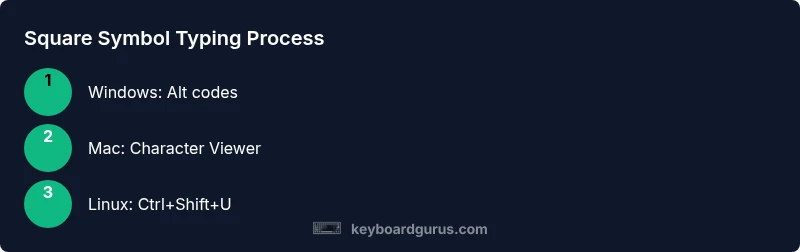
Master typing square symbols on any system with practical methods. On Windows, use Alt codes (for example Alt+9632 for a black square or Alt+9633 for a white square). On Mac, open the Character Viewer (Ctrl+Cmd+Space) and search for square. On Linux, enter Unicode via Ctrl+Shift+U followed by 25A0 or 25A1, then Enter. This quick guide shows reliable options for everyday typing.
Windows: Alt codes and Unicode input
If you’re exploring how to type square in keyboard on Windows, Alt codes provide a fast route. First, confirm you have a numeric keypad on your keyboard (or enable a simulated keypad on laptops). Hold the Alt key and type 9632 for a black square (■) or 9633 for a white square (□) using the numeric pad, then release Alt. For Unicode input, some programs accept a direct hex entry (e.g., Ctrl+Shift+U in compatible editors, then 25A0 or 25A1 and Enter). In practice, Windows users frequently keep a tiny reference sheet of codes for the two common squares. Keyboard Gurus notes that consistency across applications improves workflow, especially in documentation and notes. If you don’t see the symbol, verify the font supports the glyph and try a different font or editor. A quick tip: enable the OS on-screen keyboard to confirm the result before inserting into your main document.
Mac: Character Viewer and shortcuts
On macOS, there isn’t a single universal keyboard shortcut named for a square symbol, but you can access it quickly via the Character Viewer. Press Control-Command-Space to open the viewer, then search for “square” or “black square” and double-click the glyph to insert it at the cursor. If you frequently type symbols, consider creating a Live Text shortcut or a small macOS text replacement for your most-used squares. Keyboard Gurus emphasizes that Mac users often benefit from combining the viewer with a clipboard manager to paste symbols across apps without leaving the current flow. Keep in mind that some apps may strip or replace glyphs depending on font support; testing in your target editor helps avoid surprises.
Linux: Unicode input and compose keys
Linux users have several reliable routes to enter square symbols. The most common is Unicode input: Ctrl+Shift+U, then type the hexadecimal code 25A0 for black square or 25A1 for white square, and press Enter or Space to commit. If your distribution supports a Compose key, you can build a square by a short key sequence after enabling a suitable Compose key (for example, Compose + < + > or similar sequences). Some editors also accept the HTML entity form ■ or □ when working in web content. Keyboard Gurus analysis shows that Linux users often prefer Unicode input for its predictability across editors and terminals. Be sure your font includes the glyph; otherwise you’ll see a blank box or a fallback symbol. If your terminal uses a non-graphical font, try a font with full glyph coverage to avoid display issues.
Cross-platform: Copy-paste, HTML entities, and fonts
If you just need a square quickly, copy-paste remains the simplest method. Copy either black (▮ or ■) or white (□) square from a trusted source or a web page, then paste into your document. You can also use HTML entities: ■ for black square and □ for white square in HTML contexts. For consistent rendering, ensure your document font supports the square glyphs and test in final environments like word processors or IDEs. Keyboard Gurus reminds readers that a small reference with all preferred methods can save time during busy sessions.
Choosing the right method for your workflow
Your choice depends on the context. If you’re coding or writing in a terminal, Unicode input (Linux) or Alt codes (Windows) can be fastest. In editors with rich text support, the Character Viewer (Mac) or a clipboard approach might be more convenient. If you’re preparing slides or a design document, copy-paste from a symbol library ensures consistent rendering across fonts. Keyboard Gurus stresses aligning the method with your typical workload: quick insertion in text notes, or reliable rendering in presentations where font substitutions could lead to mismatches.
Common mistakes and troubleshooting
Common pitfalls include using a font that lacks the square glyph, which results in a missing glyph box, and attempting Unicode input in apps that don’t accept it. Alt code input may fail on laptops without a dedicated numeric keypad; in those cases, use the on-screen keyboard or an external USB keypad. When symbols appear misaligned, try a different font or adjust the font size to see if glyph metrics are causing the issue. If you still don’t see the square, confirm you’re using the correct code point (25A0 for black square, 25A1 for white square) and that you’re committing the input properly in your editor. Keyboard Gurus suggests verifying the symbol in multiple apps to rule out app-specific rendering quirks.
Accessibility and font considerations
Some fonts render square glyphs with slightly different edges, which can affect legibility in small sizes. If you’re preparing accessible documents, test contrast and glyph clarity at typical reading sizes, and consider using a high-contrast font variant for important symbols. For screen readers, ensure the symbol is accompanied by descriptive text in accessibility-friendly contexts. When embedding in code, choose a monospaced font with full Unicode coverage to avoid unexpected glyph replacements. Keyboard Gurus highlights that accessibility should drive your font and symbol choices just as much as convenience.
Practical examples: using squares in documents, code, and slides
In word processing, a square can be a bullet-like separator, a checkbox indicator, or a visual accent. In code comments or UI strings, a square symbol must render identically across environments; rely on Unicode input or copy-paste when possible. In presentation slides, keep sizes consistent (same font and line height) to maintain visual balance. When inserting into a web page, keeping the character as a literal symbol ensures the glyph is scalable with the font family you choose. Keyboard Gurus recommends testing the symbol across your most-used platforms (Windows, Mac, Linux) to ensure cross-platform consistency.
Quick-start cheat sheet: code points and shortcuts
- Windows: Black square — Alt+9632; White square — Alt+9633. If you don’t have a Num Pad, use the On-Screen Keyboard to type the codes.
- Mac: Use Control+Command+Space to open the Character Viewer and search for square; insert the glyph.
- Linux: Ctrl+Shift+U, 25A0 or 25A1, Enter.
- HTML: ■ (black), □ (white).
Final note: choosing your method for consistency
The key is consistency: pick one or two reliable methods and stick with them across your most-used apps. This reduces the cognitive load when you need to insert a square quickly and minimizes the chance of glyph mismatches due to font changes. The Keyboard Gurus team recommends documenting your preferred methods in a personal quick-reference sheet for easy access during study, work, or gaming sessions.
Tools & Materials
- Computer or mobile device with a keyboard(Essential for typing square symbols on any OS)
- Numpad or alternative keypad(Needed for Windows Alt codes on most desktops)
- Access to a Unicode input method(Windows (some editors), Linux (Ctrl+Shift+U), Mac (Character Viewer via keyboard shortcut))
- Font with full glyph coverage for squares(Ensure the chosen font supports U+25A0/U+25A1)
- Copy-paste-capable source or HTML-capable editor(Helpful for quick insertion or web content)
Steps
Estimated time: 15-25 minutes
- 1
Identify your operating system and method
Determine whether you’ll use Windows Alt codes, Mac Character Viewer, or Linux Unicode input. This choice drives your exact keystrokes and reduces trial-and-error time.
Tip: Match the method to your frequent apps (e.g., word processors vs. terminal editors). - 2
Prepare your input environment
Ensure you have a numeric keypad on Windows, or activate an on-screen keypad if needed. For Mac, open the Character Viewer via Control+Command+Space.
Tip: Having the viewer or on-screen keypad ready speeds up insertion. - 3
Enter the square code for your OS
Windows: Alt+9632 for black square or Alt+9633 for white square. Mac: locate and insert via the viewer. Linux: Ctrl+Shift+U, type 25A0 or 25A1, then Enter.
Tip: If Alt codes don’t work, try NumLock on/off or use an external keypad. - 4
Insert into your document or editor
Place the cursor where you want the square and insert the symbol. Verify it renders before finalizing.
Tip: In some editors, you may need to switch to a font that supports the glyph for proper rendering. - 5
Alternative method: copy-paste or HTML entities
If keystrokes fail, copy the symbol from a reliable source or use HTML entity forms in web content.
Tip: Keep a small clipboard history or a bookmark to a consistent symbol source. - 6
Test across contexts and fonts
Check the symbol in different documents and devices to ensure uniform appearance and legibility.
Tip: Test in the target font size and line height settings to catch rendering issues early.
Got Questions?
What is the quickest way to type a square symbol on Windows?
If you have a numeric keypad, Alt codes are fastest: Alt+9632 for black square, Alt+9633 for white square. In editors that support Unicode, you can also try the decimal or hex entry method.
Windows users with a numeric keypad can press Alt plus 9632 for a black square or 9633 for a white square; otherwise, Unicode input is an option in supported editors.
Is there a direct keyboard shortcut for a square on Mac?
There isn’t a universal keyboard shortcut. Use the Character Viewer (Control+Command+Space) to insert a square, or copy-paste from a source. Some apps allow text replacements for quick access.
Mac users insert squares with the Character Viewer, opened by Control-Command-Space, or through clipboard-friendly workflows.
Can I type a square symbol on Linux with a single keystroke?
Linux commonly uses Unicode input: Ctrl+Shift+U, then the code 25A0 for black square or 25A1 for white square, followed by Enter. A Compose key route is also possible if configured.
On Linux, you can type a square with Ctrl+Shift+U then 25A0 or 25A1, then Enter; or use a configured Compose key.
What are the Unicode code points for the square glyphs?
Black square is U+25A0, white square is U+25A1. Use these in Unicode-enabled inputs or copy-paste from a reference.
The black square is U+25A0 and the white square is U+25A1.
What if the square doesn’t render in my document?
Check the font in use; some fonts don’t include the glyph or render it differently at small sizes. Switching to a font with full Unicode coverage usually fixes it.
If the square doesn’t show up, change the font to one with complete Unicode glyphs and test at the intended size.
Are HTML entities useful for web content?
Yes. In HTML contexts, you can use ■ for black square or □ for white square to ensure consistent rendering.
In HTML, use the numeric entities 9632 or 9633 to display squares reliably.
Watch Video
What to Remember
- Know multiple entry methods for square symbols across OSs
- Verify font support to avoid missing glyphs
- Use Unicode input for cross-editor consistency
- Keep a quick reference for common square code points