How to Type the Squared Symbol on a Keyboard
Learn reliable methods to type the squared symbol (²) across Windows, macOS, and Linux, including Alt codes, Unicode input, and shortcuts. This Keyboard Gurus guide covers practical steps, tips, and troubleshooting for consistent results.


Learn how to type the squared symbol (²) across Windows, macOS, and Linux. This quick answer highlights reliable methods—Alt codes, Unicode input, built-in character viewers, and custom shortcuts—that let you insert ² quickly in documents, emails, code, and chat apps. No specialized software required, just common keyboard features. We’ll cover platform specifics and practical tips. By the end you’ll know the fastest option for your setup.
Understanding the squared symbol and its usage
The squared symbol (²) is a typographic shorthand used in mathematics, science, and certain coding contexts. While it looks small, it can be awkward to type on standard keyboards, especially without a dedicated numpad. If you're wondering how to do squared on keyboard, you're not alone—millions of students, gamers, and professionals run into this exact need during homework, engineering chats, or spreadsheet work. The good news is there are reliable techniques that work across platforms, from Windows to macOS and Linux. This section lays the groundwork: what ² is, where it appears, and why keyboard users might want a quick, dependable method. We’ll discuss cross-platform constraints (such as font support and input method editors) and set expectations for which approaches are fastest in real-world tasks. Keyboard Gurus recommends starting with the platform you use most; in practice, most people achieve fast results within a few minutes of setup.
Windows and Linux: quick entry methods
On Windows and Linux systems, there are multiple reliable routes to insert ² without hunting for a copy-paste source. The classic method is an Alt code on Windows: hold the Alt key and type 0178 on the numeric keypad, then release Alt to produce ². If you’re using a laptop without a numeric keypad, some apps let you use a virtual numpad overlay or a dedicated keypad accessory. For editors like Microsoft Word, you can type 00B2 and press Alt+X to convert the code into ². Linux users often rely on Unicode input: press Ctrl+Shift+U, release, type 00B2, then press Enter or Space to insert the character. You can also fall back to the Character Map (Windows) or a clipboard based workflow to ensure you always have a copy of ² ready to paste. These Windows/Linux approaches are platform-agnostic for many apps, but App support can vary slightly by environment.
macOS: quickest routes to squared
macOS users have a few convenient pathways to insert ². The simplest is to use the built-in Character Viewer: press Control+Command+Space to open the viewer, search for “squared” or “superscript two,” and double-click the symbol to insert it. If you frequently type ² in a particular app, you can also rely on Unicode input by entering the code point and using the system shortcut to convert, depending on the app. For many developers and document editors, copy-paste from a reliable source stays a valid fallback. The viewer approach works across most macOS-native apps and ensures consistent results when the keyboard layout changes.
Linux and cross-platform options
Beyond the platform-specific routes, Linux users often prefer Unicode input (Ctrl+Shift+U, then 00B2) or content insertion via clipboard. If you work across platforms, consider cross-platform text expansions or clipboard managers that store ² as a snippet for quick insertion. You can also map a dedicated shortcut to insert ² in your editor using tools like Autohotkey on Windows or Karabiner-Elements on macOS, which reduces friction when typing often-used symbols. These methods are especially helpful for students and professionals who switch between machines frequently.
Practical tips for reliability across apps
Not all apps handle special characters identically. For example, some web forms and code editors may escape ² or render it differently depending on the font. To improve reliability:
- Use a font with complete symbol support (e.g., common sans fonts or math-friendly fonts).
- Favor Unicode-based input when the app supports it, or rely on the viewer/clipboard approach for stubborn editors.
- If you frequently insert ², consider a clipboard manager or a small macro that inserts the character with a single keystroke.
- Always test in the target app to confirm that ² appears as intended in exported files or shared documents.
Troubleshooting common issues
If ² isn’t appearing where you expect, check these quick fixes: ensure Num Lock is on for Alt codes on Windows; verify that you’re using the correct Unicode input (00B2) in the right editor; confirm your font supports the symbol; and refresh the input method if you’re switching layouts. In some cases, a browser or editor may strip special characters; in those cases, using the Character Viewer or a reliable clipboard source can be the fastest workaround.
Tools & Materials
- Windows PC with numeric keypad(Num Lock on; use the keypad for Alt codes (e.g., Alt+0178).)
- Laptop with no numeric keypad(Use an on-screen keypad or enable a secondary keypad with Fn.)
- Mac keyboard(Use the Character Viewer (Control+Command+Space) or Unicode entry.)
- Linux PC with Unicode support(Ctrl+Shift+U followed by 00B2, then Enter.)
- Editor or app with Unicode support(Word, Google Docs, code editors—verify insertion behavior.)
- Clipboard manager or text expander (optional)(Store ² for quick paste or create a one-key macro.)
Steps
Estimated time: 40-60 minutes
- 1
Identify the best method for your setup
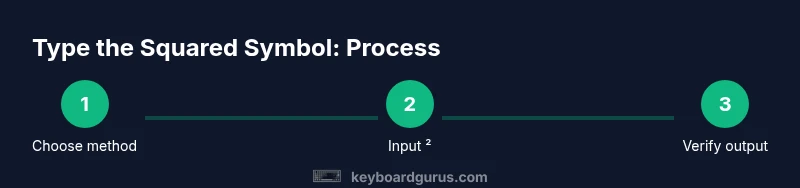
Decide whether you’ll use Alt codes, Unicode input, the character viewer, or a macro. Your choice depends on your OS, keyboard layout, and how often you insert ².
Tip: If you type ² daily, set a dedicated shortcut to save time. - 2
Enable Num Lock and locate the keypad
On Windows, ensure Num Lock is on before using Alt codes. Use the numeric keypad, not the top row digits, for accurate input.
Tip: If your laptop lacks a keypad, use a portable USB numeric keypad. - 3
Enter Windows Alt code or Word Unicode
For Windows Alt: hold Alt and type 0178, then release. In Word, type 00B2 and press Alt+X to convert to ².
Tip: In Word, Alt+X is quick and reliable for direct Unicode conversion. - 4
Use macOS Character Viewer
Open with Control+Command+Space, search for 'squared' or '²', and double-click to insert. This works across most macOS apps.
Tip: Add the viewer to your Dock for faster access during work. - 5
Use Linux Unicode input
Press Ctrl+Shift+U, type 00b2, then press Enter. The symbol will appear in your active document.
Tip: If your distribution uses a different command, check your input method editor configuration. - 6
Leverage cross-platform shortcuts
Create a macro or text expansion (e.g., a short trigger expands to ² in all apps).
Tip: Autohotkey (Windows) or Karabiner-Elements (macOS) are popular choices. - 7
Test in your target app
Paste or type ² in reports, emails, and code to ensure consistent rendering.
Tip: If the app escapes or strips symbols, switch to the Character Viewer or a clipboard source.
Got Questions?
What is the squared symbol and where is it used?
The squared symbol (²) represents a power of two or a square in math notation. It's common in science, engineering, and unit contexts. Knowing how to type it saves time in equations, formulas, and documentation.
The squared symbol stands for a square or a power of two, common in math and science. It's useful in equations and technical writing.
What is the easiest way to type ² on Windows?
The quickest method for Windows is Alt+0178 with Num Lock on. If you’re in Word or compatible editors, you can type 00B2 and press Alt+X to convert the code to ².
On Windows, use Alt+0178 or type 00B2 and press Alt+X in Word to insert ².
Can I type squared on macOS without extra software?
Yes. Open the Character Viewer with Control+Command+Space, search for squared, and insert it. This method works across most apps and is reliable when layouts change.
You can insert ² using the macOS Character Viewer accessed with Control-Command-Space.
Is there a universal shortcut that works in all apps?
There isn’t a single universal shortcut that works everywhere. Use Unicode or a viewer-based method when compatibility is uncertain, and consider a personal macro for frequent usage.
No universal shortcut works in all apps; prefer Unicode input or the viewer, or create a personal macro.
Do fonts affect whether ² renders correctly?
Most modern fonts include the ² glyph, but some display it differently or inconsistently. If you notice issues, switch fonts or use a viewer-based insertion.
Font support matters; if ² looks off, switch fonts or use a different insertion method.
How can I automate squared input across apps?
Use a macro tool like Autohotkey on Windows or Karabiner-Elements on macOS, or a cross-platform text expander to insert ² with a single trigger.
You can automate ² insertion with a macro or text expander.
Watch Video
What to Remember
- Know multiple insertion methods for ² across platforms
- Use the simplest reliable method for your workflow
- Test characters in target apps to ensure proper rendering
- Leverage macros or text expansion to speed up frequent use