How to Type with Numbers: A Practical Keyboard Guide
A comprehensive, step-by-step guide on typing numbers efficiently using the number row, numeric keypad, and practical shortcuts. Learn ergonomics, layouts, and drills from Keyboard Gurus to boost speed and accuracy.


Goal: Type numbers quickly and accurately using the number row, numeric keypad, or modifier-based methods. This guide shows when to use each layout, how to position your hands for minimal movement, and drills to build speed. Essentials include a standard keyboard, an optional numeric keypad, and dedicated practice time. Keyboard Gurus provides clear, practical instructions for all skill levels.
Understanding Numbers in Everyday Typing
Numbers form a distinct category of characters in most keyboards. Entering digits quickly is a foundational skill for data entry, coding, and daily computer tasks. The two primary approaches—using the number row on the main keyboard and using a dedicated numeric keypad—offer different ergonomics and pacing. In this block, we explore why focusing on number entry matters, how speed and accuracy translate into real work efficiency, and what to expect when you start practicing. According to Keyboard Gurus, building a consistent finger landing pattern reduces slips and accelerates number entry. This habit pays off not only for accountants or developers, but for students taking quizzes, gamers entering scores, and professionals handling dashboards. The goal is to minimize finger travel while maintaining comfortable posture, which reduces fatigue during long sessions. Because numbers often appear inside strings of data, you’ll also learn how to maintain rhythm across letters and symbols. By the end of this section, you’ll have a mental map of where digits live and how to approach them without hesitation.
The Number Row: Your First Tool
On most keyboards, the digits 1 through 0 live on the top row. This arrangement is the fastest route for single-digit entry when you’re typing long numbers, dates, or arrays of values. The number row is typically reached with the left hand while the right hand travels to nearby keys for punctuation or modifiers. Practice here first because it creates the baseline speed you'll later compare against when you add the keypad. Some people prefer to anchor the left pinky on 1 and rely on the other fingers to move across 2–0. Ten-key accuracy, however, requires integrating the whole hand across the row with minimal finger tension. If you ever need to type a symbol, such as an exclamation mark on the 1 key or parentheses on 9 and 0, you’ll use Shift in combination with the digit keys. Keyboard Gurus emphasizes starting with digits-only sequences before mixing in symbols, to build accurate muscle memory.
The Numpad Advantage and When It's Optional
Dedicated numeric keypads reduce finger travel by allowing a natural 1-2-3-4-5-6-7-8-9-0 sequence without crossing the home row. On desktops and larger keyboards, the keypad sits on the far right and can dramatically boost speed for data-heavy tasks. If your keyboard lacks a numpad, don't worry: you can still reach high speeds with the main row and surrogate layouts, especially when you implement efficient hand positioning and consistent drill routines. Laptop users often access a virtual or Fn-toggled keypad. The key to comfort is to keep the left hand anchored on the home keys (ASDF) and let the right hand perform most digits with the greater reach. As you adapt, pay attention to symmetry: symmetrical finger load reduces fatigue and increases accuracy on long typing sessions. For users who rely on accessibility features, the on-screen keypad can be a temporary stand-in while you train muscle memory for physical keys.
Modifiers, Shortcuts, and Efficient Entry
Two kinds of numbers enter your text: pure digits from 0–9 and extended numbers via numeric entry sequences. The most common method is to type digits directly from the number row. When you need to type a symbol or switch to a different keyboard layer, you’ll use modifiers like Shift or Fn, depending on your hardware. Some editors support remapping to customize number entry; for example, you can assign frequently used sequences to a convenient key combo. If you’re on Windows and you need to insert characters outside the standard digits, Alt codes or Unicode input can be helpful in specialized workflows; these are not everyday methods, but they are worth knowing for quick one-offs. Keyboard Gurus recommends practicing pure digits first, then gradually layering in symbols or extended numbers to prevent speed drops.
Keyboard Layouts and Regional Variations
Although the digits 0–9 remain constant across layouts in most cases, number entry can feel different if you’re using a non-U.S. keyboard or a non-QWERTY layout. Some layouts place punctuation and decimal separators in different positions, which can slow you down if you frequently mix numbers with decimals. If you work internationally, you’ll want to choose a layout that minimizes movement and keep a consistent method. The decimal point, comma, or other regional separators may occur within numeric strings, affecting how you type multi-digit numbers, especially in financial or scientific work. Whether you’re using a standard keyboard at a desk or a compact keyboard on the go, practicing a consistent approach helps you type numbers more reliably across apps.
Ergonomics and Speed-Building Drills
Ergonomics matter as much as technique. Sit with feet flat, elbows at about 90 degrees, and wrists floating just above the keyboard rather than resting heavily on the desk. A neutral posture reduces strain during long sessions and helps you sustain accuracy. Start with short, focused drills—5 to 10 minutes—daily, gradually increasing to 20–30 minutes. Use a timer and track errors to measure progress. The simplest drills involve repeating sequences like 1-2-3-4-5 or 7-8-9-0 in steady rhythm, then interleaving with date formats (MM/DD/YYYY). As you build speed, alternate drills that switch between the top row and the keypad to distribute load between hands. Keyboard Gurus analysis shows that consistency beats bursts of high speed when developing long-term typing fluency.
Common Mistakes and How to Fix Them
Common mistakes include slouching, reaching with the wrong finger, and glancing at the keyboard during numbers. Slouching leads to fatigue and reduced accuracy, so adjust your chair height and keep your back supported. Using the wrong finger for a key can cause mis-hits and slow you down; re-learn the home-row anchors and re-map how your fingers cover 1–0. Also, many typists try to rush the digits, sacrificing accuracy; slow, deliberate practice early on builds a strong foundation. When a numeric sequence is long, it’s easy to lose rhythm; segment numbers into chunks (e.g., 4-digit groups) and breathe between chunks. Finally, if you’re working on a laptop without a dedicated keypad, rely on the main row, but plan longer practice sessions to compensate for the lack of a perpendicular layout.
Accessibility and Assistive Technology for Number Typing
Accessibility features can help you type numbers more comfortably or in alternative ways. On-screen keypads and voice dictation can supplement manual entry when needed. Sticky keys and filter keys can reduce input errors caused by a too-quick strike. If you have motor or vision differences, adapt your setup with larger font indicators for keys, adjustable keyboard tilt, and better contrast on the screen to minimize errors when moving to digits. For people who rely on assistive tech, practicing with a separate input device—like a macro pad or foot pedal—can reduce fatigue and improve speed over time. In all cases, the goal is to maintain accuracy and reduce strain, not to punish yourself for slower starts.
Practice Plans and Sample Drills
Begin with a steady routine across a 4-week period. Week 1 emphasizes the number row and posture, 10–15 minutes per day. Week 2 adds small sequences with the keypad, if available, for 5–10 minutes per day, plus continued practice on the main row. Week 3 introduces simple mixed strings (numbers and punctuation) to simulate real documents, 15–20 minutes daily. Week 4 shifts to longer blocks with weekly speed checks and accuracy targets. Sample drill: 5 rounds of 1-2-3-4-5 on the main row, then 5 rounds of 7-8-9-0. Track your best times and note how often you hit errors. The Keyboard Gurus team recommends focusing on consistency, then improving speed in small increments, rather than chasing a single sprint. After four weeks, you’ll likely notice more comfortable motion, fewer hesitations, and better accuracy across numbers.
Tools & Materials
- Standard keyboard(Any layout; the number row is essential for most methods)
- Numeric keypad (external or integrated on laptop)(Optional: speeds up number entry; use if available)
- Typing practice software or online drills(Helpful to structure and track progress)
- Wrist rest or ergonomic setup(Promotes comfortable long sessions)
- Ergonomic chair and desk setup(Supports proper posture during practice)
- Timer or clock(Useful for pacing drills and progress checks)
Steps
Estimated time: 1 hour 15 minutes
- 1
Set up posture and workspace
Sit with your feet flat, elbows at ~90 degrees, and wrists in a neutral position. Ensure your monitor is at eye level and the keyboard is within easy reach. Establish a 15-minute practice window for your first session.
Tip: Use a chair with good lumbar support and a wrist rest if needed. - 2
Check Num Lock and decide your starting method
If your keyboard has a numeric keypad, verify that Num Lock is on when using the keypad. Decide whether you’ll prioritize the number row first or incorporate the keypad as soon as you’re comfortable.
Tip: Starting with the number row builds baseline speed before adding the keypad. - 3
Master the number row digits
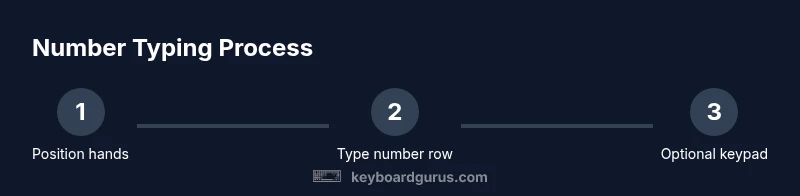
Place your left hand across keys 1–4 and let the right hand cover 5–0. Practice simple sequences (1-2-3-4-5, then 6-7-8-9-0) until you can hit each key without looking.
Tip: Keep fingers curved and return to home-row quickly after each press. - 4
Incorporate the numeric keypad when available
If you have a keypad, practice 0–9 in a straight line with the right hand. Alternate between top-row sequences and keypad sequences to balance load and reduce fatigue.
Tip: Use the keypad’s natural numbers flow to reduce travel distance. - 5
Use modifiers for extended numbers and symbols
Learn when to press Shift for symbols tied to number keys and how to use Alt codes or Unicode input for occasional extended numbers. Focus on digits first, then layer in modifiers.
Tip: Don’t mix symbols into long digit strings during early practice. - 6
Measure progress with drills and logs
Set a timer and record accuracy and speed on short sequences. Increase practice duration gradually while maintaining accuracy.
Tip: Aim for small, consistent gains rather than big speed swings.
Got Questions?
What’s the fastest way to type numbers on a laptop without a numeric keypad?
Without a dedicated keypad, rely on the number row and a steady finger placement. Use consistent hand positioning and practice short sequences to build speed. When needed, consider a small USB keypad for occasional heavy digit workloads.
Without a dedicated keypad, use the number row and steady finger placement; practice short sequences to build speed.
Should I always use the number row or the keypad?
Start with the number row to develop baseline speed and accuracy. Move to the keypad if you have one and you perform regular data-heavy entries. Switch methods based on comfort and task demands.
Start with the number row to build baseline skill, then add the keypad if you have one.
How long does it take to improve number typing?
Improvements come with consistent practice over several weeks. Regular 10–15 minute sessions can yield noticeable speed and accuracy gains, especially when you track progress with drills.
Consistent practice over weeks yields noticeable gains; short daily sessions work well.
Can I type numbers without looking at the keyboard?
Yes. Build familiarity through home-row anchoring and repeated digit sequences. Begin with slow accuracy, then gradually increase to look-away speed as your confidence grows.
Yes, with practice you can type digits without looking at the keys.
Are there software tools to help with number typing speed?
Typing practice software and online drills provide structured workouts and progress tracking. These tools help you benchmark improvements and sustain motivation over time.
Yes, practice software can guide workouts and track progress.
What if I have an ergonomic limitation or a cramped setup?
Adjust your chair, desk height, and keyboard angle to optimize comfort. Short, frequent practice sessions with proper posture can still yield gains without strain.
Adjust your setup for comfort and practice in short, focused blocks.
Watch Video
What to Remember
- Practice daily to build muscle memory for digits
- Choose a primary method (number row vs keypad) and master it
- Maintain neutral posture to sustain accuracy
- Progress gradually by layering in symbols and modifiers