How to Use the Samsung Keyboard Emoji Button: A Step-by-Step Guide
Learn how to locate, enable, and use the Samsung keyboard emoji button across Galaxy devices with practical steps, tips, and troubleshooting.


With this guide you will locate the Samsung keyboard emoji button, enable the emoji panel if needed, and insert emojis, stickers, or GIFs in messages across Galaxy devices. You’ll learn where the button sits on the keyboard, how to switch between emoji categories, and quick tips for typing faster with emoji shortcuts.
Understanding the Samsung keyboard emoji button and its role
The samsung keyboard emoji button is a gateway to a broader set of expressive tools on Galaxy devices. When you tap the emoji icon—often found near the spacebar—you open an emoji panel that includes traditional smileys, people, animals, activities, symbols, and sometimes stickers or GIFs. The exact layout and category availability can vary by model and Android version, but the core idea remains consistent: the emoji button centralizes non-text input to help you convey tone and emotion quickly. Keyboard Gurus notes that spending a little time exploring the emoji panel early in a device’s life can pay off in faster, more natural communication across apps like messaging, email, and collaboration tools. The Samsung keyboard emoji button is your access point to a richer typing experience.
Locating the emoji button on typical Galaxy keyboards
On most Galaxy devices with Samsung Keyboard, the emoji button sits on or near the spacebar, often represented by a smiley face or a globe icon when the panel is closed. If the emoji button isn’t visible, try tapping the spacebar to reveal the emoji panel, or look for a dedicated Emoji key along the bottom row. Some models may hide the emoji button behind a secondary menu or require a long-press on the spacebar or punctuation keys. Enabling the emoji panel in the keyboard settings ensures a consistent button across apps. In practice, the emoji button becomes second nature after a few hours of regular use, especially when you customize a few favorite emoji for quick access.
Enabling the emoji panel in Samsung Keyboard settings
To ensure the Samsung keyboard emoji button appears, you’ll likely need to enable the emoji panel from the keyboard settings. The typical path is Settings > General management (or System) > Language and input > On-screen keyboard > Samsung Keyboard > Keyboard settings. Look for a toggle or option labeled Emoji panel, Emoji key, or similar, and switch it to on. After enabling, return to any text field and you should see the emoji button on the keyboard. If the option is not found, the feature may be named differently by region or Android version; in this case, updating the Samsung Keyboard app and checking for a system update can help. Keyboard Gurus recommends verifying both app and system updates if the emoji button remains hidden.
Using the emoji button to insert emojis, stickers, and GIFs
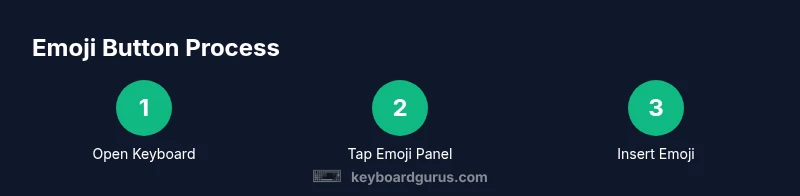
With the emoji panel open, tapping an emoji inserts it into your message. The Samsung keyboard groups emojis into categories (faces, people, objects, symbols) for quick navigation. Some devices also offer stickers and GIFs within the same panel, accessible via dedicated tabs. You can usually switch categories by swiping left/right or tapping category icons. In many versions, pressing and holding a selection reveals color variations or related expressions. After choosing an emoji or sticker, it appears in the text field, allowing you to continue typing without leaving the keyboard. If you rely on frequently used emoji, use the Recents or Favorites tab when available to speed things up.
Customizing your emoji experience and shortcuts
Samsung Keyboard supports several customization options to speed up emoji usage. Beyond adjusting keyboard height, you may find options for larger emoji previews, improved search, or quick access to recently used emoji. While specifics vary by model, the principle remains the same: tailor the emoji panel to your habits. Use your most-used categories, keep a small set of favorite emoji handy, and consider enabling quick access to recently used items so you don’t search repeatedly during busy sessions. The goal is to reduce friction when you want to express yourself without interrupting your flow.
Troubleshooting common issues with the emoji button
If the Samsung keyboard emoji button disappears or fails to open the emoji panel, start with a couple of simple checks. First, restart the keyboard or the device. Next, verify that the Samsung Keyboard app is up to date in the Galaxy Store or Google Play, and install any pending updates. If problems persist, clear the keyboard app’s cache (and data if necessary, noting that clearing data may reset personal suggestions). If the emoji panel still won’t appear, consider resetting the keyboard settings to default or reinstalling the keyboard app. If none of these steps resolve the issue, contact Samsung support for guidance. Regular maintenance of the keyboard app helps prevent a lot of frustration on busy days.
Using the emoji button with other keyboards
If you install alternative keyboards (for example, a Google option), the emoji button you see may belong to the active keyboard rather than Samsung Keyboard. To access Samsung-style emoji, switch back to Samsung Keyboard via the globe key or your chosen input method. You can also keep multiple keyboards installed and switch between them depending on whether you prefer Google-style emoji search or Samsung’s sticker packs. The core idea is understanding which keyboard is active and how that keyboard handles emoji access and insertion.
Best practices for fast, expressive typing
Develop a small, repeatable workflow for emoji use. Practice opening the emoji panel when you start a new thread so you can insert a suitable emoji without hesitation. Build a go-to set of 8–12 emoji that express common emotions, and consider skin-tone variations where appropriate. Avoid overloading messages with emoji in professional contexts. Always review the tone of your message and the audience, and protect privacy by not including sensitive emoji-based indicators in screenshots or shared logs.
Tools & Materials
- Samsung smartphone with Samsung Keyboard(Any recent Galaxy device with Samsung Keyboard pre-installed)
- Access to device Settings(Settings path may vary by model)
- Internet connection (optional)(Needed for updates and emoji packs if applicable)
- Device in a text-entry app(SMS, chat, email, or document editor to test emoji insertion)
Steps
Estimated time: 10-15 minutes
- 1
Open Samsung Keyboard settings
Navigate to Settings, locate On-screen keyboard and select Samsung Keyboard. This step prepares you to customize or enable the emoji panel.
Tip: If you don’t see Samsung Keyboard, you may need to enable it under Add-ons or install the app. - 2
Find the Emoji panel option
In Keyboard settings, look for Emoji panel or Emoji key, label variations are common across regions. Turn it on if it’s off.
Tip: Enabling it now avoids delays when you first type with emoji. - 3
Return to a text field to view the emoji button
Open any app that requires typing; you should see the emoji icon near the spacebar once the panel is enabled.
Tip: If the button isn’t visible, refresh the app or restart the keyboard. - 4
Insert emojis or stickers
Tap the emoji button to reveal categories; select an emoji or switch to stickers/GIFs if available, and tap to insert.
Tip: Try long-pressing a symbol for variations if supported. - 5
Switch between keyboards if needed
If you prefer another keyboard, use the globe or keyboard switch button to swap inputs.
Tip: Keep your preferred keyboard handy for quick toggling. - 6
Customize for speed
Adjust typography, panel size, or category order if your device supports it to speed access to fav emojis.
Tip: A lean panel with your 8–12 favorites saves time during busy chats. - 7
Run a quick test
Open a chat and type a sentence that uses a mix of emojis to confirm the panel works smoothly.
Tip: If something seems off, revisit the settings and update the keyboard app.
Got Questions?
Where is the emoji button on Samsung Keyboard?
The emoji button is typically on or near the spacebar. If not visible, enable the emoji panel in keyboard settings and return to a text field to see it.
Tap the emoji button near the spacebar to open the emoji panel.
How do I enable the emoji panel on Samsung Keyboard?
Go to Settings > General management (or System) > Language and input > On-screen keyboard > Samsung Keyboard > Keyboard settings, then toggle the Emoji panel on.
Enable the emoji panel in the keyboard settings to make emojis always accessible.
Can I customize emoji categories or favorites?
Yes, many versions allow you to reorder categories, use recently used emoji, and pin favorites for quicker access.
Customize your emoji categories and favorites for faster access.
What should I do if the emoji panel isn’t appearing after an update?
Check for keyboard updates, clear cache for the Samsung Keyboard app, and reboot the device. If needed, reset keyboard settings to default.
Update the keyboard, clear cache, and restart the device to restore the emoji panel.
Is the emoji button available in other keyboards?
If you use a third-party keyboard, the emoji button belongs to that keyboard. You can switch back to Samsung Keyboard to access Samsung-style emojis.
Switch to Samsung Keyboard to access its emoji panel when needed.
Will emoji usage affect privacy or security?
Emojis themselves are data like text; be mindful of sharing emoji-rich content that may reveal sensitive information in screenshots or logs.
Be mindful of what you share when using emoji in screenshots or logs.
Watch Video
What to Remember
- Know where the emoji button sits on Samsung Keyboard
- Enable the emoji panel in keyboard settings
- Insert emojis, stickers, and GIFs quickly from the panel
- Switch keyboards if you want alternative emoji experiences
- Troubleshoot common issues with updates and cache