Emoji in Samsung Keyboard: A Step-by-Step Guide
Master emoji usage on Samsung Keyboard with this educational guide from Keyboard Gurus. Learn access, search, insertion, and tips for faster messaging.


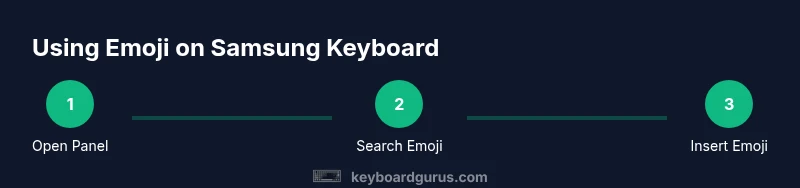
By the end you'll be able to quickly access the emoji panel on Samsung keyboards, search for characters across categories, and insert them into messages. This guide covers enabling emoji suggestions, using My Emoji, and common troubleshooting. You'll learn practical steps, keyboard settings to check, and how to tailor emoji access for messaging, social apps, and work chats.
What the emoji panel offers on Samsung keyboard
According to Keyboard Gurus, the emoji panel on Samsung keyboards is designed for speed and clarity. It brings together a broad set of symbols, faces, objects, and actions, organized into intuitive categories like smileys, people, animals, food, activities, travel, objects, symbols, and flags. The panel also keeps a running list of recently used emoji, helping you pick familiar icons without hunting through menus. For keyboard enthusiasts, the ability to search for emoji by keyword inside the panel can dramatically reduce tapping and switch context when you’re typing. The emoji set you see can vary by OS version and region, but the core idea remains the same: a centralized, scrollable catalog that makes your messages expressive in seconds. Mastery here translates to clearer tone, fewer misunderstandings, and faster typing. In professional settings, balance speed with audience awareness since some symbols may be interpreted differently across cultures.
How to access the emoji panel on Galaxy devices
To summon the emoji panel on a Samsung device, open any text field and tap the emoji icon on the keyboard toolbar. If you don’t see the emoji icon, ensure the Samsung Keyboard app is updated and emoji data is enabled in the keyboard settings. Some devices offer multiple input methods; switching to the Samsung Keyboard and rechecking the emoji icon often resolves visibility issues. If the panel still doesn’t appear, reboot the device or reapply the keyboard as the default input method. Keyboard Gurus notes that keeping the keyboard app current helps maintain a consistent emoji experience across apps and messages.
Searching and filtering emoji efficiently
The emoji search feature is a powerful time saver. Start typing a keyword such as “smile,” “cat,” or “food,” and the panel will filter results in real time. Use multiple keywords to narrow results (e.g., “smile face” or “cat with hat”). If you rely on categories, you can quickly switch between groups like People, Nature, or Objects to locate exact symbols. Remember that recent emoji adapt to your usage, so regular use will surface preferred characters faster. Skin tone modifiers and gender variants are usually accessible via a long-press on a selected emoji, offering broader expression without leaving the panel. Keyboard Gurus recommends keeping a small set of go-to emoji to reduce search time in busy chats.
Using emoji in different apps and contexts
Emoji appearance and compatibility can vary by app. In messaging apps, emojis typically render natively, but some platforms replace certain symbols with their own styles or stickers. For professional communication, consider a minimal emoji usage approach to maintain clarity in emails or formal chats while using more expressive icons in casual conversations. When sharing in social apps, test a few commonly used emojis to confirm they convey the intended emotion. The Samsung keyboard supports emoji input across most apps, but always verify how your message looks in the recipient’s app.
Personalizing emoji with My Emoji and avatars
Some Samsung keyboards offer personalization options such as avatar-based emoji or My Emoji. These features let you create a customized avatar that can be converted into stickers or used as a favorite symbol set. Using personalized emoji can speed up messaging by providing instantly recognizable icons, but be mindful of professional environments where custom avatars might be perceived as informal. If you opt into customization, periodically review your avatar visibility and privacy settings to ensure the selected visuals align with your communication goals across devices and apps.
Troubleshooting common issues with emoji on Samsung keyboard
If emoji input isn’t behaving as expected, first check for app and OS updates, then verify that the Samsung Keyboard is enabled as the default input method. Clear cache and data for the keyboard app if emoji options disappear or devices lag when opening the panel. If spells and punctuation are affected, consider resetting keyboard settings to default and re-enabling feature toggles related to emoji suggestions. For persistent issues, contact device support or consult the Samsung Keyboard help center. Regular backups of settings can prevent loss of custom emoji configurations after updates.
Best practices, speed tips, and privacy basics
To maximize speed, use the emoji search frequently instead of scrolling. Learn the common keywords for your favorite icons and practice inserting emoji into short phrases to reduce keystrokes. Keep privacy in mind: emoji data is processed alongside your text, so review app permissions and data-sharing settings if you’re concerned about how emoji suggestions are generated. Finally, test your emoji workflow across messaging, email, and social apps to ensure consistent results and a smooth typing rhythm.
Tools & Materials
- Samsung device with One UI and up-to-date Samsung Keyboard(Ensure the keyboard is set as the default input method)
- Active internet connection(Needed for updates and emoji panel data syncing)
- Updated Samsung Keyboard app(Check for the latest version in Settings > Apps)
- Quiet testing space for app comparisons(Optional but helps when comparing emoji rendering across apps)
- Backup of keyboard settings(Useful before major updates or resets)
Steps
Estimated time: 25-40 minutes
- 1
Open Samsung Keyboard in any text field
With a text field active, tap to bring up the keyboard. Confirm you can see the emoji icon on the toolbar. This prepares you to access the emoji panel quickly.
Tip: If the emoji icon isn’t visible, go to Settings > General management > Language and input > On-screen keyboard > Samsung Keyboard > Keyboard settings and enable emoji input. - 2
Tap the emoji icon to open the panel
Press the emoji icon on the keyboard’s bottom toolbar to reveal the emoji catalog. If you don’t see categories, swipe to explore different groups.
Tip: Use the search bar inside the panel to jump to specific symbols instead of scrolling endlessly. - 3
Search for the emoji you need
Enter keywords like ‘smile’ or ‘cat’ to filter results. Switch categories if your first option isn’t visible, and preview variants when available.
Tip: Try combining terms, e.g., 'smile face' for more options quickly. - 4
Insert the emoji into your text
Tap the emoji you want to insert it into your message. If you’re using a long message, add emojis in short bursts to preserve readability.
Tip: Use the backspace key to remove an unintended emoji without losing your place. - 5
Use skin tone and variant selectors
Some emoji offer skin tone or gender variants accessible via a long-press on the chosen symbol. Select the variant you prefer and continue typing.
Tip: Preview the variants before sending to ensure the tone matches your intent. - 6
Explore personalization options
If available, create or use My Emoji avatars or stickers to express yourself with a consistent visual style. Apply these in chats that support stickers.
Tip: Limit customization for professional contexts to maintain credibility when needed. - 7
Troubleshoot emoji panel issues
If emojis fail to load, check for updates, reset the keyboard, or reselect Samsung Keyboard as the default input method. Try a quick device restart if problems persist.
Tip: Document any recurring issues and report them to support with device details for faster resolution.
Got Questions?
How do I access the emoji panel on Samsung keyboard?
Open any text field and tap the emoji icon on the keyboard toolbar. If you don’t see it, update the app and enable emoji in keyboard settings.
Tap the emoji icon on the keyboard to open the panel. If it’s missing, check for updates and emoji settings.
Why can't I see emoji on my Samsung keyboard after an update?
Updates can reset some settings. Verify emoji input is enabled in Samsung Keyboard settings and ensure you’re on a compatible OS version.
Emoji might disappear after updates; re-enable emoji input and update your OS if needed.
Can I customize my own emoji on Samsung keyboard?
Some Samsung keyboards support personalized avatars or stickers. Check Settings > Keyboard for My Emoji options and follow prompts to create a personalized set.
Yes, if your device supports My Emoji or avatars, you can create and use them in chats.
Do emoji render differently in different apps?
Yes. Each app may map symbols to its own emoji style. Preview important messages in the target app if accuracy is critical.
Different apps can show emojis in distinct styles; always test in the app you’ll use most.
How can I quickly find a specific emoji by keyword?
Use the panel’s search bar and enter concise keywords like ‘thumbs up’ or ‘party popper’ to filter results fast.
Type a short keyword in the emoji search bar to find the symbol quickly.
Is emoji usage compatible with work emails on Android?
Emoji support in email apps varies. Test in your email client and use a conservative approach in formal communications.
Emojis may or may not display the same way in work emails; test before sending.
What should I do if the emoji panel lags or freezes?
Try restarting the keyboard, clearing its cache, or updating the OS. If the problem persists, contact support with device specifics.
If the emoji panel lags, restart the keyboard and check for updates; contact support if it continues.
Watch Video
What to Remember
- Master the emoji panel to speed up messaging
- Search and variants improve accuracy
- App rendering may differ; test in key apps
- Personalization can boost expressiveness