Surface Book Keyboard Layout: A Practical Guide
A data-driven look at the Surface Book keyboard layout, how it differs from standard laptops, and practical tips to optimize typing, shortcuts, and ergonomics for Windows users.


The Surface Book keyboard layout prioritizes Windows shortcuts on a compact Type Cover, with a dedicated Windows key and an Fn layer that governs media and system actions. Its key cluster balances travel and responsiveness for portable typing, but mastering the Fn layer and Windows mappings is essential for peak productivity. The layout supports efficient multitasking when you internalize the mapping between primary letters, punctuation, and secondary functions.
Understanding the surface book keyboard layout
The Surface Book keyboard layout is more than a row of keys; it’s a mobile typing surface designed to balance portability with Windows-centric productivity. The Type Cover attaches magnetically, and its overall footprint invites a slightly compressed key matrix compared to full-size laptops. According to Keyboard Gurus, the most consequential design choices are the prominent Windows key, the conventional Ctrl/Alt cluster, and an Fn layer that unlocks media controls, brightness, and backlighting. This combination makes common tasks—typing, browsing, brief multimedia edits—efficient, but it also requires a small mental map for users transitioning from other ecosystems. The initial impression is a familiar QWERTY baseline with a compact footprint, while tactile feedback helps sustain rhythm during extended sessions. A practical early win is to memorize the Windows key position and the Fn layer basics, minimizing the need to reach for the trackpad during quick actions.
Layout anatomy: keys, rows, and modifiers
Delving into the anatomy reveals that the Type Cover adheres to the standard QWERTY arrangement, yet the row offsets and the Fn layer bring subtle deviations from desktop keyboards. The Windows key remains a central pillar for task switching and system commands. Ctrl and Alt sit in familiar places, while the Fn key acts as a bridge to secondary functions—media playback, screen brightness, and keyboard backlighting. Arrow keys are compact but usable, offering adequate tactile feedback for cursor navigation without forcing you to sacrifice precious palm rest space. The right-hand cluster retains the Backspace, Enter, and Shift keys at comfortable sizes for rapid typing, while the function row pairs with the Fn key to provide quick toggles. Keyboard Gurus highlights that Windows+L to lock the device and Windows+Tab to switch apps are essential mappings for efficient multitasking, especially when you’re navigating multiple windows or documents. Understanding these layers—primary letter keys, punctuation, and Fn-augmented actions—prepares you to leverage the Type Cover effectively in daily software workflows.
Ergonomics and typing experience on the Surface Book
Typing ergonomics on the Surface Book hinge around several interacting factors: screen angle, key travel, and palm support. The Type Cover supports multiple hinge angles, enabling you to find a posture that reduces wrist strain while maintaining a comfortable reach to every key. Keyboard travel is designed to deliver enough tactile feedback to feel responsive without becoming fatiguing over long typing sessions. The keyboard’s layout, paired with a sizable touchpad, tends to support precise cursor control, which is particularly valuable when coding or editing documents. For gamers who rely on rapid key combos, the compact layout can require adaptation, especially when relying on the Fn layer for secondary actions. Practical ergonomics include maintaining a neutral wrist angle, using micro-breaks, and elevating the screen to reduce neck strain. Evolving laptop designs often emphasize palm-rest cushioning and key caps with a pleasant texture, which can influence long-term comfort and typing consistency.
Practical differences in app contexts and shortcut usage
The Surface Book’s keyboard layout presents a pragmatic set of shortcuts that shine in Windows-centric workflows. Daily tasks benefit from Windows key shortcuts, Alt+Tab for window switching, and Ctrl+C/Ctrl+V for editing. The Fn layer unlocks additional commands, enabling one-touch access to media controls, brightness adjustments, and backlighting levels. Because of the compact nature of the Type Cover, many power users rely more on keyboard shortcuts than trackpad gestures. Keyboard Gurus recommends tailoring your shortcut map to your most frequent tasks—remapping keys via Windows settings or accompanying software to reflect your preferred workflow. In productivity-heavy apps like spreadsheets and IDEs, a customized layout can save significant time by placing frequently used commands in easy-to-reach positions, reducing finger travel and cognitive load during demanding tasks.
Customization and workflow optimization
Customization is a core strength of the Surface Book keyboard experience. You can adjust the Fn behavior, tweak backlight brightness, and remap keys for recurring actions—such as making Caps Lock behave like a Control key or assigning a dedicated paste shortcut. If you heavily rely on keyboard shortcuts, upgrading to newer Type Cover revisions with improved key geometry can boost comfort and accuracy. For long-form writing, an external keyboard setup paired with a Surface Dock can complement the portable Type Cover advantage. Windows access to the on-screen keyboard and dictation remains a useful backup when physical typing is impractical. The Keyboard Gurus team emphasizes a strategic approach: invest time to build a personal layout map, test it across real tasks for a week, and then decide whether to keep or revert changes. This method yields measurable gains in speed and precision while preserving ergonomic integrity.
Future-proofing your Surface Book workflow
As software evolves, the Surface Book keyboard layout will continue to adapt through firmware updates and Windows improvements. Anticipate refinements to key travel feel, backlight consistency, and Fn-layer reliability as Microsoft and accessory partners refine the Type Cover experience. A proactive stance includes keeping drivers current, engaging in targeted typing drills, and periodically reviewing your shortcut map to align with new features in your software ecosystem. Establishing a quarterly review to adjust or add shortcuts ensures your workflow remains aligned with changing tools, whether you’re coding, drafting, or gaming. Keyboard Gurus advocates a flexible, data-informed approach: monitor personal performance, benchmark against baselines, and iterate. This mindset helps you extract maximum value from the Surface Book keyboard layout across evolving work patterns.
Surface Book keyboard layout observations by area
| Area | Observation | Impact |
|---|---|---|
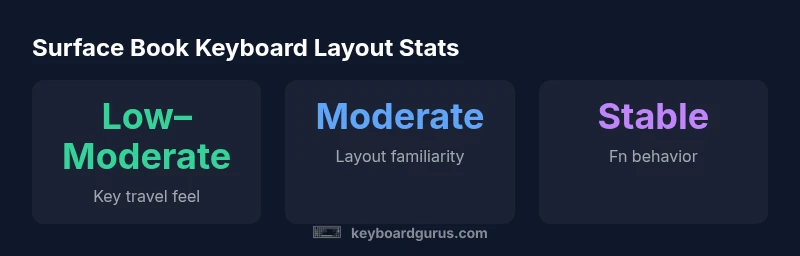
| Layout Familiarity | Windows key cluster varies by revision | Moderate learning curve |
| Fn Key Behavior | Fn toggles combine with media controls | Important for power users |
| Backward Compatibility | Type Cover versions differ by model | Check model-specific notes |
Got Questions?
Is the Surface Book keyboard layout identical across all generations?
No. There are revisions to the Type Cover that affect key spacing, travel feel, and Fn-layer behavior. Check your device’s specific model notes before adopting a long-term shortcut map.
No—different Type Cover revisions can change the feel and some mappings; verify your model's notes.
Can I remap the Windows or Fn keys on the Surface Book Type Cover?
Yes. You can remap keys using Windows settings or third-party tools. Create a map that prioritizes your most-used shortcuts and test it across typical tasks.
Yes, you can remap through Windows or tools—test it with your regular tasks.
How does the layout affect typing speed and shortcuts across apps?
The compact layout requires deliberate practice to minimize travel. Building a consistent shortcut profile for your go-to apps can dramatically improve speed and accuracy.
It takes practice, but a consistent shortcut setup helps a lot.
Are there accessibility options if the keyboard is uncomfortable?
Yes. Windows offers on-screen keyboard and dictation as alternatives. These tools help when physical typing becomes impractical.
Yes—use on-screen keyboard and dictation if needed.
Should I upgrade the Type Cover for better layout compatibility?
Upgrading can improve key travel and consistency, which helps with accuracy and comfort on long sessions. Consider this if you rely heavily on keyboard shortcuts.
Upgrading can help with comfort and accuracy if you use the keyboard a lot.
“The Surface Book keyboard layout is optimized for portable Windows workflows, but mastering its key mapping is essential to typing efficiency.”
What to Remember
- Master Windows shortcuts on the Surface Book to boost speed.
- Remap Fn and modifier keys to fit your workflow.
- Practice with the Type Cover across real tasks to reduce errors.
- Consider upgrading to newer Type Cover revisions for improved comfort.
- Use the on-screen keyboard or dictation when physical typing is impractical.
- Quarterly review of shortcuts keeps your workflow aligned with software updates.