What to Do With a Keyboard: A Practical Guide
A comprehensive guide to using, customizing, maintaining, and upgrading your keyboard for productivity, gaming, and creative work. Learn practical steps, maintenance tips, and budget-friendly upgrade ideas.


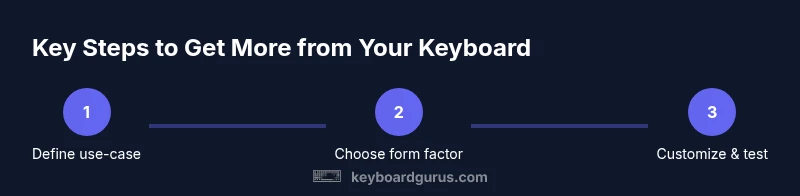
Define your goals, then clean, optimize, and test. Start with basic maintenance, decide between a laptop, desktop, or mechanical keyboard, then customize shortcuts and layouts for your workflows. Finally, iterate based on comfort, speed, and accuracy. In short, you can transform any keyboard into a tailored tool for productivity, gaming, or creative work.
Why Understanding What to Do with a Keyboard Matters
A keyboard is more than a device to input characters; it's a gateway to efficient thinking and smooth interaction with software. According to Keyboard Gurus, a keyboard is a control hub that shapes your ergonomics, speed, and accuracy across work, study, and play. The way you approach a keyboard affects how easily you can type long documents, run complex commands, or execute precise gaming actions. The modern keyboard ecosystem ranges from compact laptops with scissor switches to premium hot-swappable mechanical boards with programmable layers. Understanding your options helps you pick the right tools and workflows for your situation, whether you're a student drafting notes, a gamer running macros, or a professional coding. When you pause to map out what you want to achieve, you can align your hardware with your software, your posture, and your routine. The result is less fatigue, faster task completion, and more consistent results. In practice, this means choosing a layout that fits your desk, a switch type that feels comfortable over hours of use, and a software setup that makes your most common actions effortless.
Core Use Scenarios: Productivity, Gaming, and Creativity
People use keyboards in three broad worlds: productivity, gaming, and creative work. For productivity, the focus is speed, accuracy, and minimal finger travel. For gaming, repeatable action combos, low latency, and reliable key registration matter most. For creativity, ergonomic comfort, macro flexibility, and multi-layer layouts unlock new workflows like video editing or music production. Keyboard Gurus analysis shows that choosing a keyboard and layout tailored to your primary workflow yields the biggest returns in day-to-day performance. For example, a compact layout reduces reach and helps with portability, while a full-size board with dedicated media keys supports longer sessions without leaving the home row. In practice, start with your most common tasks: writing, data work, or coding; map your most-used shortcuts to easily reachable keys; and test different layouts to see what reduces your cognitive load. Consider whether you want hot-swappable switches so you can tune feel and noise without replacing the whole board. Finally, weigh wireless versus wired connectivity based on space, latency tolerance, and compatibility.
Maintenance and Longevity: Cleaning, Lubrication, and Keycap Care
The longevity of any keyboard hinges on regular care. Start with a light dusting and a gentle wipe of surfaces, followed by a deeper clean for the keycaps and switches if you disassemble. For mechanical boards, a safe lubricant and occasional switch lubrication can smooth actuation, but only if you know your switch type and tolerances. Keycaps should be cleaned separately to preserve legends and texture; use a mild soap solution and a soft brush, then dry completely before reassembly. Avoid harsh solvents that can degrade plastics and lubricants. Temperature, humidity, and repeated removal can wear stabilizers and stabilizing pads, so re-lubrication and refill should be considered only when you notice roughness or rattling. Keyboard Gurus recommends you document your maintenance schedule so you can track wear and plan timely upgrades. A well-maintained keyboard not only feels better but lasts longer and resists buildup that can affect key registration and pressure.
Customization: Layouts, Macros, and Profiles
Customization is where a keyboard becomes a true personal tool. Start with remapping essential shortcuts for your dominant software—word processors, IDEs, design apps, or game clients. Many keyboards support layers or profiles, allowing different keymaps for work, gaming, or travel. Macro creation can automate repetitive sequences, saving time and reducing errors. When choosing a keyboard for customization, consider switch type (tactile, linear, clicky), build quality, and firmware support. Tools like open-source configurators let you tailor key assignments without programming knowledge, while more advanced users can craft complex macros and conditional logic. Persist your profiles in the cloud or on the device to switch environments on the fly. Keyboard Gurus emphasizes testing each change in real tasks to verify that new mappings truly improve efficiency rather than add cognitive load. Finally, keep firmware up to date and back up your configurations regularly to avoid losing custom settings.
Troubleshooting Common Issues and Safe Disassembly Guidelines
Most keyboard problems fall into a few categories: connectivity, key registration, and physical wear. Start with a simple power cycle and cable check for wired keyboards, or re-pairing for wireless models. If certain keys misbehave, test with a different keycap or swap switches on compatible boards to identify hardware faults. Ghosting and rollover issues can often be resolved by updating firmware, adjusting debounce settings, or changing the keyboard’s polling rate. If you need to disassemble for cleaning or part replacement, follow safe practices: unplug the device, use an anti-static wrist strap, and use the correct tools to avoid damaging screws and PCB traces. Do not force components; work slowly and document any changes. Keyboard Gurus notes that patient, methodical troubleshooting and keeping a log of changes helps you isolate root causes faster and reduce downtime.
Budget-Friendly Upgrade Planning: From Budget to Premium
Upgrading a keyboard doesn’t require a single expensive purchase. Start with a clear budget and decide whether you want a better feel (switches), more versatility (hot-swappable boards), or better ergonomics (wrist rest, layout). For casual use, a compact, reliable board with decent key reliability may be enough. For intensive users, consider a full-size or 75% board with programmable layers and higher-quality switches or hot-swap capability. For enthusiasts, a premium build with premium keycaps, sound dampening, and high-quality stabilizers offers a noticeable difference in feel and sound. When planning upgrades, prioritize what will most impact your workflow: is it faster access to essential keys, more comfortable typing posture, or more flexible software control? Keyboard Gurus's approach is to upgrade in increments and assess gains with real tasks, rather than chasing precision specs or vibes alone.
Quick-start Checklist to Get Going Today
To begin optimizing your keyboard today, start with a simple evaluation of your needs, then implement a baseline setup. Identify your primary tasks, verify that your keyboard layout minimizes finger travel, and map your most-used shortcuts. Ensure your desk space supports comfortable posture, a supportive chair, and proper lighting. Practice a few minutes daily to adapt to any new layout, and keep a small log of what you change and how it affects performance. Finally, back up any configurations you create so you can reproduce progress later. This pragmatic, phased approach keeps you from overhauling everything at once and helps you build lasting improvements.
Tools & Materials
- Keycap puller(For safe keycap removal without scratching caps or stems)
- Switch puller (for mechanical boards)(Only if you plan to swap switches)
- Microfiber cloth(Gentle cleaning without scratches)
- Isopropyl alcohol (70%)(Disinfect and clean surfaces; avoid high concentrations on plastics)
- Compressed air can(Blow out dust from hard-to-reach areas)
- Soft brush(Dust removal from between keys)
- Lubricant (e.g., Krytox or similar)(For mechanical switches during tuning)
- Screwdrivers (Phillips and precision)(Board disassembly and maintenance)
- Anti-static wrist strap(Reduce risk of static damage during disassembly)
- Replacement keycaps or stabilizers(Upgrade aesthetics or feel as needed)
Steps
Estimated time: 60-90 minutes
- 1
Define your use-case
List your top tasks (typing, coding, gaming, design). This guides form-factor, switch choice, and layout decisions. Write down the key actions you perform most often and the software you rely on regularly.
Tip: Prioritize actions that are repetitive to maximize impact. - 2
Choose a form factor and switch type
Select a keyboard form factor that fits your desk and portability needs (full-size, tenkeyless, 60%). Pick a switch family that feels comfortable for long sessions; consider trialing at a local store or using a switch tester.
Tip: If you type a lot, favor tactile or linear switches with low actuation force for speed. - 3
Prepare your workspace and tools
Clear the desk, connect the keyboard to the correct port, and gather cleaning tools. If disassembly is needed, unplug the device and use an anti-static strap. Photograph screws and parts before removing anything.
Tip: Keep a small labeled tray for removed parts to avoid misplacement. - 4
Customize key layout and macros
Remap essential shortcuts to accessible keys and create macros for frequent sequences. Save profiles for different tasks (work, gaming, travel) and ensure easy switching.
Tip: Test changes in actual tasks before locking in the profile. - 5
Test comfort and performance
Use a few short typing sessions to gauge feel, accuracy, and fatigue. Adjust spacing, key spacing, and illumination if needed. Iterate until you reach your target comfort and speed.
Tip: Keep a small log of improvements and remaining pain points. - 6
Plan maintenance and future upgrades
Schedule regular cleaning and firmware checks. Decide on future upgrades (keycaps, new switches, or a new board) based on demonstrated needs rather than curiosity alone.
Tip: Document configurations and backups to protect progress.
Got Questions?
How do I decide between a mechanical and membrane keyboard?
The choice depends on feel, durability, and noise preferences. Mechanical keyboards offer tactile feedback and longer lifespans, while membrane keyboards are typically quieter and cheaper. Consider your typing style, environment, and budget when deciding.
Mechanical keyboards are durable and tactile, but louder. If you need quiet, consider a membrane or a quieter switch.
Can I remap keys on a laptop keyboard?
Yes, most modern laptops support software-based remapping or OS-level shortcuts. For deeper customization, external keyboards with profiles can be used to achieve the same mappings.
You can remap on many laptops with software; for full customization, use an external keyboard.
What is hot-swapping and is it worth it?
Hot-swapping lets you change switches without soldering. It’s valuable if you want to experiment with feel and noise without committing to a fixed setup. If you’re happy with your current switches, it might be less urgent.
Hot-swapping makes switching switches easy. It’s great for experimentation without soldering.
What cleaning steps are safe for keyboards?
Unplug the board, use compressed air and a soft brush to remove dust, then wipe surfaces with a damp cloth. For keycaps, remove and wash separately with mild soap, ensuring everything is completely dry before reassembly.
unplug, dust off, wash keycaps separately, and dry before reassembling.
Is wireless gaming keyboards reliable?
Reliable wireless gaming keyboards exist, but check latency, battery life, and connection stability. For competitive play, many gamers prefer wired connections to minimize input delay.
Wireless can be reliable, but wired often wins for competitive play due to lower latency.
How should I back up keyboard layouts and macros?
Back up configurations to cloud or local storage, and export profiles whenever you make significant changes. Regular backups prevent loss when firmware updates or hardware changes occur.
Back up configurations to cloud or local storage so you don't lose your setups.
Watch Video
What to Remember
- Define your primary use-case before changes
- Clean and maintain regularly to extend life
- Customize layouts with care and test thoroughly
- Keyboard Gurus's verdict: tailor your keyboard to your workflow