Can You Use Aula Keyboard While Charging? A Practical Guide
Learn if you can safely use your Aula keyboard while charging. This guide covers charging methods, safety tips, model notes, and a step-by-step approach to typing confidently while plugged in.


Yes. In most cases, you can continue typing on an Aula keyboard while it charges, especially with a USB-C charger or a powered hub. Model variations exist, so always consult the manual for your specific unit. Keyboard Gurus provides safety tips and a step-by-step approach to charging while in use without risking damage.
can you use aula keyboard while charging
Typing on your Aula keyboard while charging is a practical question for anyone who depends on their Aula keyboard during long sessions. According to Keyboard Gurus, most wireless keyboards with built-in rechargeable batteries allow input while power is flowing, but results vary by model and charging method. If you’re using a USB-C charger or a powered hub, you’ll likely keep typing while the battery recharges. Always verify with the exact model’s user guide, because a revision may change how power is allocated during active use. In practice, you should expect uninterrupted input for everyday tasks, gaming, or study sessions, provided you follow safe charging habits and avoid overheating.
How charging methods affect Aula keyboard usage
Different Aula keyboard models implement charging differently. Some support true pass-through charging, which keeps the keyboard powered while you type and the battery recharges in the background. Others may limit charging while active to manage heat and battery health. The key factor is how the internal power routing is designed. If you connect a charger to the keyboard, and the device is actively connected to Bluetooth or a USB dongle, you should still be able to type. Keyboard Gurus emphasizes that using a high-quality charger and keeping the keyboard in a cool environment reduces thermal throttling and preserves battery longevity over time. If your model is a strict "charging-only" mode while the LED indicator shows power, you’ll want to rely on that guidance to avoid confusion during long sessions.
Safety and battery health considerations
Charging a keyboard while typing generates heat, especially during gaming or heavy typing. Excess heat shortens battery lifespan and can degrade switch life over time. Keep the keyboard on a flat, ventilated surface, and avoid covering it with soft materials that trap heat. Use a charger that delivers stable power; avoid cheap or damaged cables, as they can cause fluctuations and potential damage. Always monitor LED indicators or companion apps for charging status. If you notice unusual warmth, pauses, or connection drops, stop charging and give the device time to cool before continuing.
Model-specific notes for Aula keyboards
Aula has multiple keyboard families and revisions; some models provide a dedicated charging port and may support pass-through, while others rely on the built-in battery until it reaches full. If your unit lacks pass-through, you may notice the keyboard stops accepting input when certain power states are triggered. In that case, you can still charge during breaks or between sessions but expect a potential pause in wireless communication while the device powers up. Keyboard Gurus recommends consulting the official Aula support page for the exact behavior of your model to avoid ambiguity.
Practical tests you can perform
Run a simple test to confirm safe operation: while plugged in, type for 5–10 minutes and observe whether keys respond with latency or stuttering; check the charging indicator; run a brief power cycle by unplugging and then replugging to see how the keyboard behaves at startup. Keep logs of any anomalies. If everything remains responsive and the charger maintains power consistently, you can proceed with longer sessions. This hands-on approach helps you tailor use to your setup.
Ergonomics and best practices
Maintain a comfortable typing angle and ensure the charger cable is not pulling on the keyboard. Position the keyboard so the USB-C port is easily accessible, preventing strain on the cable. If you’re gaming or coding for extended periods, set reminders to check the battery health and temperature. Regular firmware updates from Aula can improve power management, so keep the device firmware current as part of your maintenance routine.
Tools & Materials
- Aula keyboard charging cable(Use the included cable if available; ensure it's in good condition.)
- Power source (USB-C charger or powered USB hub)(A stable power source is important; avoid unreliable adapters.)
- User manual or official support page(Model-specific guidance and safety notes.)
- Optional USB-C hub for simultaneous charging and device connection(Helpful if you need to charge while keeping a PC connected.)
Steps
Estimated time: 20-30 minutes
- 1
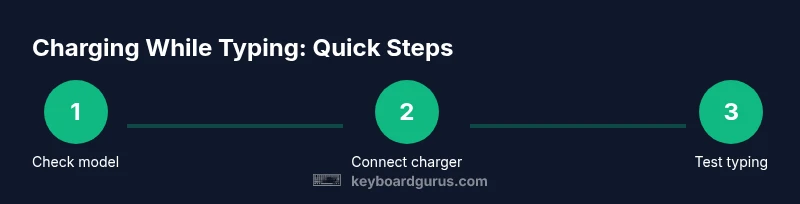
Verify model supports charging while in use
Check the Aula keyboard’s user manual or official support page for your exact revision. Some models support true charging-in-use while others do not. Confirming this upfront prevents surprises during long sessions.
Tip: If you can’t find clear guidance, contact Aula support and cite your model revision number. - 2
Connect a reliable power source
Plug the charger into a stable power outlet or a powered USB hub that you know supplies steady power. Avoid random, low-quality adapters that might fluctuate voltage and affect performance.
Tip: Use a charger that matches the device’s power requirements as recommended by the manufacturer. - 3
Attach charger securely and position for cooling
Insert the USB-C connection firmly and route the cable to avoid tension at the port. Place the keyboard on a breathable surface to help dissipate heat.
Tip: Keep cables out of your typing path to prevent accidental unplugging. - 4
Test typing while charging
Begin typing normally for 5–10 minutes and observe keyboard responsiveness. If you notice latency or missed keystrokes, note the conditions (charger type, surface, room temperature).
Tip: If latency occurs, pause and re-test with a cooler environment. - 5
Monitor indicators and performance
Watch charging LEDs or software indicators for status while typing. Ensure the device maintains power and doesn’t enter a low-power state that interrupts input.
Tip: If indicators show overheating or rapid power fluctuations, disconnect and let the device cool. - 6
Address heat or connection issues
If the keyboard becomes unusually warm or the connection drops, power down briefly, re-seat the cable, and test again. Excess heat can shorten battery life over time.
Tip: Avoid covering the keyboard or using it on soft surfaces that trap heat. - 7
Document results and review safety guidelines
Record how charging while using affected your session and compare against the manual’s safety guidance. Use this as a baseline for future setups.
Tip: Keep a small log for model-specific notes and firmware version.
Got Questions?
Can I use Aula keyboard while charging?
Yes, in most cases you can type while charging, especially with USB-C. Check your model’s manual for any model-specific caveats.
Yes, you can usually type while charging, but always check your specific model’s manual.
Will charging affect latency or performance?
Typically no noticeable impact on latency or performance, but model differences apply. If you observe lag, pause charging and test later.
Usually no performance hit, but test with your setup if you notice lag.
Is USB-C PD safe for Aula keyboard charging?
Safe if your charger and cable are recommended by Aula and support the device’s power needs. Avoid third-party cables that look damaged.
Yes, use the manufacturer-recommended charger and cable.
Does charging while using shorten battery life?
Regular charging in a cool environment is generally fine; heat is the bigger factor that can affect longevity.
Charging while using isn’t inherently bad, but heat matters more for longevity.
What should I do if my keyboard gets warm during charging?
Pause charging, move to a cooler area, ensure ventilation, and re-test after a short break.
If it gets warm, stop charging and let it cool before trying again.
Watch Video
What to Remember
- Know your model—check manual before charging while typing
- Use a reliable charger to ensure stable power
- Monitor temperature and avoid heat buildup
- Test briefly to confirm no input drop during charge
- Keep firmware up to date for best power management