Can't Type Apostrophe on Keyboard? Quick Troubleshooting Guide
Urgent guide to fix can't type apostrophe keyboard issues by inspecting layout, input methods, software, and hardware across Windows and macOS.


Most likely the issue comes from a mismatched keyboard layout or input method. Start by ensuring your OS language and input source match your physical keyboard (e.g., US ANSI). If that doesn’t help, test with an external keyboard to rule out hardware, then update drivers and firmware as needed. This rapid check helps you distinguish layout problems from software or hardware failures.
can't type apostrophe keyboard: Quick overview
If you can't type an apostrophe, you're not alone. The issue usually stems from a mismatch between the keyboard layout and the chosen input method, or from software in the way the character maps. According to Keyboard Gurus, misaligned language settings are the most common culprit. Start here: verify that the OS language and input source match your physical keyboard (for example, US ANSI on a US-English keyboard). If the problem persists, rule out hardware by testing with an external keyboard, then proceed to driver and firmware checks. Time is of the essence when you rely on punctuation for emails, code, and notes. By following a structured checklist, you can quickly determine whether the cause is layout, software, or hardware and apply the correct fix.
Common root causes for can't type apostrophe
The inability to type an apostrophe is rarely a mystery. In most cases, the keyboard layout does not match the input language, or a dead-key mechanism is enabled in certain layouts. Other frequent culprits include a hardware fault where the key itself is physically stuck or damaged, or a software remapping that changes how the apostrophe maps to a character. Less common but possible are accessibility features that intercept keystrokes, or a browser/application-specific input override. By identifying whether the issue appears across all apps or only in one program, you can narrow down the root cause quickly. Keyboard Gurus recommends starting with layout and input source checks, then moving to hardware tests if needed.
Check your keyboard layout and input method
Begin by confirming your keyboard layout matches your hardware. On Windows, go to Settings > Time & language > Language > Preferred languages and ensure the input method aligns with your keyboard (e.g., English (United States) -> US Keyboard). On
Language settings and shortcuts you should review
Many users accidentally trigger a language toggle shortcut, which swaps input methods on the fly. Common combos like Alt+Shift or Windows+Space can switch you away from the expected layout. Disable quick-switch shortcuts if they cause unintended changes. Also inspect IME (input method editor) settings that might map apostrophe to a different glyph. On Windows, you can disable or remap these shortcuts in the same Language settings area. On
Software keyboards and browser input quirks
Sometimes the issue is not the physical keyboard but software-level behavior. Chrome, Firefox, or other browsers may have extensions or built-in features that hijack punctuation. Try typing in a plain text editor (e.g., Notepad or TextEdit) to see if the apostrophe works there. If it does, disable browser extensions one by one to identify the culprit. In word processors, check auto-correct and smart quotes settings, as some configurations automatically replace straight quotes with typographic ones that may require a different keystroke. Keeping software clean and reset to defaults often restores normal apostrophe typing.
Hardware tests: external keyboard and key states
To rule out a stubborn hardware fault, connect an external keyboard (with a known-good apostrophe key) and test across multiple applications. If the external keyboard works everywhere, the problem is with your original keyboard—perhaps a worn key, spilled liquid, or a stuck switch. For a laptop keyboard, try a Caffeine-free boot and clean around the key with compressed air; never use liquids. If the key remains unresponsive, the keyboard assembly may need professional service or replacement. If the external keyboard also fails, the issue is almost certainly software or driver-related and requires further steps.
Driver, firmware, and OS updates as a fix
Outdated drivers or firmware can misinterpret keystrokes or map keys incorrectly. Check for updates in Windows Device Manager or the manufacturer's updater on
Step-by-step recovery path you can follow
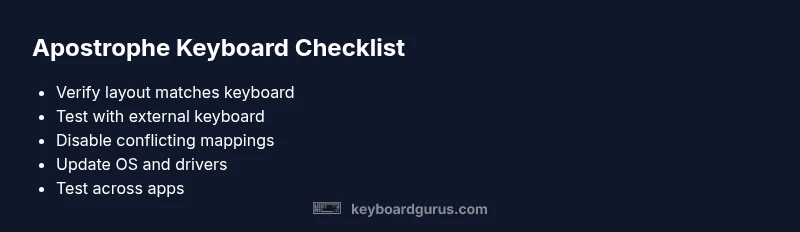
- Confirm layout matches the physical keyboard; switch to US layout if unsure. 2) Test using an external keyboard to isolate hardware. 3) Check for active dead keys or macro remappings in the OS and disable them. 4) Update OS, drivers, and firmware; restart after each update. 5) Test in multiple applications to see if the issue is app-specific. 6) If needed, reset keyboard settings to default. 7) If all else fails, consult support for a hardware inspection. 8) Document what you tested for easier diagnostics next time.
Prevention and proactive habits to avoid future issues
Maintain consistent keyboard language across your devices to prevent mismatches. Create a standard profile for work and personal use, and avoid frequent layout switches. Regularly update your system and keyboard firmware to prevent known bugs. Keep a spare external keyboard on hand for quick testing, and consider enabling a plain-text mode in editors to reduce the risk of autocorrect interference. By establishing a routine of checks, you reduce downtime and frustration when punctuation matters most.
Steps
Estimated time: 20-60 minutes
- 1
Verify layout vs. hardware
Open language settings and confirm the active input source matches your keyboard model. If they mismatch, switch to the correct layout and retest the apostrophe key in a plain text editor.
Tip: Keep a screenshot of the correct layout for quick reference. - 2
Test with external keyboard
Connect a known-good external keyboard and try typing an apostrophe across several apps to confirm whether the issue is hardware.
Tip: If external keyboard works, the problem is likely the laptop keyboard. - 3
Check software mappings
Review any active IME, macros, or keyboard remapping utilities and disable them to restore default behavior.
Tip: Temporarily disable extensions that might intercept keystrokes. - 4
Update drivers and OS
Install the latest keyboard drivers and system updates; restart after each update and retest the apostrophe key.
Tip: Back up sensitive data before major updates. - 5
Fallback and professional help
If all else fails, consider professional hardware inspection or keyboard replacement, especially for aging laptops.
Tip: Document all steps taken to share with the technician.
Diagnosis: User can't type an apostrophe on the keyboard; pressing ' does not produce ' or produces a different symbol
Possible Causes
- highMismatched keyboard layout and input method
- mediumDead key or typographic quote mapping in the active layout
- mediumHardware fault with the apostrophe key or keyboard
- lowSoftware remapping or accessibility features intercepting keystrokes
Fixes
- easySet input language and keyboard layout to US ANSI (or your physical layout) on all devices
- easyDisable dead keys or switch to a standard mapping; remove conflicting input methods
- easyTest with an external keyboard to confirm hardware status
- mediumUpdate OS, keyboard drivers, and firmware; reboot and retest
- easyCheck for and disable problematic browser extensions or app-specific mappings
Got Questions?
Why can't I type an apostrophe on Windows after updating?
Updates can reset or change language settings and input sources. Recheck the active layout, and reselect the correct input method. If the problem persists, test with an external keyboard to confirm hardware status.
Updates can reset your input method. Recheck your layout and test with another keyboard to see if the problem is hardware or software.
Will changing the keyboard layout fix all cases of this problem?
Usually yes if the issue is mapping. If the apostrophe still doesn't work after switching layouts, there may be a dead key, extension, or driver issue to investigate.
Switching layouts fixes most mapping issues; if it persists, check dead keys and drivers.
Can browser extensions cause apostrophes to type incorrectly?
Some extensions alter input behavior. Disable extensions one by one and test the apostrophe key in a new incognito window to identify the culprit.
Extensions can interfere with input; test in incognito mode to isolate.
Is this a hardware problem I can fix myself?
If the external keyboard works but the built-in one doesn't, the issue is likely hardware-related. A pro repair or replacement may be required.
If the built-in keyboard fails but an external one works, hardware repair might be needed.
When should I seek professional help?
If diagnostics indicate hardware failure or repeated driver issues after updates, consult a professional technician or the manufacturer support.
If hardware seems faulty or updates don’t help, get professional support.
Watch Video
What to Remember
- Verify layout matches hardware before diving deep
- Test with external keyboard to rule out hardware faults
- Update OS and drivers to fix mapping issues
- Disable conflicting mappings and extensions
- Seek professional help if hardware appears damaged