How to Reset a Computer Keyboard: Step-by-Step
Learn safe, step-by-step methods to reset a computer keyboard. This guide covers soft and hardware resets, OS-specific steps, testing, and troubleshooting for common issues.


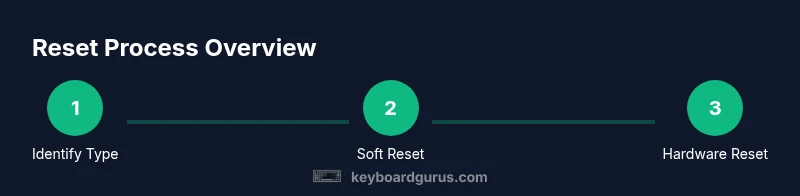
A computer keyboard reset can fix unresponsive keys or erratic input by refreshing software drivers or hardware state. Start with a soft reset (driver reinstallation and settings refresh); if issues persist, proceed to a hardware reset (button, pinhole, or battery removal). According to Keyboard Gurus, software-first fixes resolve most keyboard problems.
What is a computer keyboard reset and why it matters
A computer keyboard reset is a structured way to restore normal typing behavior by refreshing either software drivers or the keyboard’s firmware and hardware state. This approach addresses common symptoms like keys sticking, missed keystrokes, or unusual input lags that software conflicts or firmware glitches can cause. According to Keyboard Gurus, most keyboard issues are resolved with a safe reset sequence rather than replacing hardware. This section helps you understand when a reset works and when it might be excessive, so you can approach the problem methodically and avoid unnecessary costs.
In practice, resets come in two broad flavors: soft resets and hard resets. A soft reset reinitializes drivers, keyboard layouts, and related software without touching the physical hardware. A hard reset involves a hardware action such as pressing a reset button, using a small pinhole, or removing power or batteries on wireless models. The right path depends on the symptom set, device type, and whether the keyboard connects reliably to the computer during the process. Finally, keep in mind that some keyboards, especially premium mechanical ones, may have firmware updates that act like resets by re-flashing the controller. Always consult the model’s manual if you can, since steps can vary slightly by manufacturer.
Soft reset: why it’s your first move and how to do it
A soft reset tackles driver and software-related causes of keyboard problems. It is non-destructive and reverses quickly if a bad configuration or corrupted driver is at fault. Common soft reset techniques include uninstalling and reinstalling the keyboard driver, resetting key mappings, and refreshing the keyboard’s system profile. These steps work across Windows, macOS, and Linux, though the exact commands differ. The goal is to re-establish a clean, default working state without dismantling anything.
Starting with a soft reset respects efficiency and preserves personalized layouts or macros. If the issue disappears after the soft reset, you’ve avoided potential hardware risks and continued with minimal downtime. If you still notice problems, you’ll have a clear next move: a hardware reset. This approach minimizes wasted effort and reduces the chance of damaging delicate components while preserving your data and customizations when possible.
Hard reset options and when to use them
When software resets fail to fix keyboard behavior, you may need a hardware reset. Many wireless or gaming keyboards include a reset button, a recessed pinhole, or a procedure that involves removing the power source temporarily. For keyboards without a dedicated button, a complete power cycle—disconnecting USB and batteries when applicable—can achieve a hardware reset-like state. The hard reset is intended to restore factory-like defaults and can clear stubborn calibration or LED configurations. Use caution: hardware resets can erase custom profiles and lighting schemes, so you may need to reconfigure settings afterwards. If you disassemble a keyboard, follow safety guidelines and keep track of screws and components.
In all cases, if you can, refer to the device’s manual or vendor support page for the exact hardware reset instructions. Hardware resets are more invasive, so plan to reapply driver updates and re-check compatibility after completion.
Software resets: firmware updates and driver reinstallation
Firmware updates can act similarly to resets by restoring firmware defaults or correcting firmware-level bugs that affect keyboard behavior. If your keyboard manufacturer provides a firmware utility, run it exactly as described and avoid interrupting the process. Driver reinstallation often resolves lingering conflicts caused by OS updates or third-party software. On Windows, you typically uninstall the keyboard driver from Device Manager, disconnect the keyboard, reconnect, and let Windows reinstall the driver. On macOS, removing and re-adding the keyboard in System Preferences or the equivalent can accomplish a reset-like effect. Linux users can reset keyboard mappings or reload input devices via system utilities. The core idea is to purge corrupted software states and reinitialize the keyboard with clean software.
Finding model-specific reset steps: where to look
Because reset procedures vary by model, locating exact instructions is crucial. Start with the user manual that came with your keyboard or visit the manufacturer’s official support site and search for the model number along with terms like ‘reset,’ ‘factory reset,’ or ‘firmware update.’ If you rely on community forums, verify any steps against the official guide before attempting them. The model’s documentation might specify a unique key combo, a pinhole location, or a particular sequence for a safe reset. When in doubt, reach out to customer support for validation before proceeding with a hardware-based reset.
Testing after reset: verifying all functions work as expected
After performing a reset, thoroughly test the keyboard to confirm normal operation. Check every key for responsiveness, confirm that the keyboard layout matches your expected configuration, and verify function keys (like brightness, media controls, or language switching) function correctly. If you rely on macros, profiles, or lighting presets, re-enable and test them to ensure they are properly loaded. For wireless keyboards, re-pair with the computer if needed. Document any deviations from your previous setup and plan to reconfigure as necessary to maintain consistency across sessions.
Data safety and backup considerations: safeguarding your customizations
Resets—especially hardware resets—can remove custom profiles, macros, and lighting configurations. Before attempting any reset, back up your current keyboard settings when possible. Save macro files, key remaps, and lighting profiles so you can re-import them after the reset. If your keyboard software supports exporting profiles, use that feature. Keep a written note of any key remaps you rely on, as re-creating them after a reset can be time-consuming. If you maintain a gaming or professional keyboard with complex macros, consider exporting a minimal baseline configuration so you can start from a known-good state after resetting.
Troubleshooting paths and when to seek professional help
If a reset does not resolve the issue, it could indicate a hardware fault that requires service or replacement. Problems like physical key damage, inconsistent key actuation, or persistent disconnects after multiple reset attempts suggest hardware-level concerns rather than software. In such cases, it’s prudent to contact the manufacturer’s support or a qualified technician. When seeking help, provide details about the symptoms, the exact reset steps you performed, and your device model. Keyboard Gurus recommends documenting what works and what doesn’t to speed up diagnostics and avoid repeating steps that have already proven ineffective.
Tools & Materials
- Owner's manual or model-specific reset guide(Locate model instructions for hardware/software reset)
- USB cable (if testing wired mode)(Ensure reliable connection during software resets and testing)
- Paperclip or thin pin (for pinhole reset)(Only if your keyboard has a recessed reset hole)
- Access to your computer with internet(To download firmware updates or drivers)
- Backup storage (cloud or local)(For exporting macros and profiles before reset)
- Non-conductive tool kit (optional)(For careful inspection if you disassemble housing)
Steps
Estimated time: 60-90 minutes
- 1
Identify reset type
Decide whether to start with a soft reset (software) or move to a hardware reset if symptoms persist. The choice depends on the observed behavior: driver conflicts and misconfigurations usually respond to software resets, while stubborn hardware faults may require physical intervention.
Tip: Begin with a non-destructive soft reset to preserve custom settings. - 2
Back up custom mappings
Document or export any macros, key remaps, and lighting profiles. A quick note or file export makes restoring your preferred setup easier after the reset.
Tip: Use vendor software if available to export profiles before making changes. - 3
Power down and disconnect
Shut down the computer and unplug the keyboard. If wireless, remove batteries (or disconnect the dongle) to ensure a complete reset cycle.
Tip: Ground yourself to avoid static discharge when handling internal components. - 4
Perform soft reset on Windows
Open Device Manager, locate the keyboard device, and uninstall the driver. Reboot the computer and let the system reinstall the driver automatically.
Tip: Run as an administrator to ensure the uninstallation process completes. - 5
Reinstall drivers or firmware
If the issue persists, download the latest driver or firmware from the manufacturer and install it. This resets software state that could be corrupted.
Tip: Always obtain drivers from official sources to avoid malware. - 6
Test basic typing after soft reset
Reconnect the keyboard and perform a typing test across multiple apps to verify standard functionality and detect any lingering anomalies.
Tip: Test in a plain text editor to isolate input behavior. - 7
If issues persist, perform hardware reset
If your keyboard has a pinhole or reset button, follow the manual’s procedure to perform a hardware reset. If no button exists, a full power cycle can simulate a hardware reset for some models.
Tip: Be gentle when pressing or disassembling to avoid damage. - 8
Recalibrate and finalize
After reset, reconfigure macros, layouts, and lighting. Re-link the keyboard to the computer and confirm all customizations load correctly.
Tip: Document any changes for future reference.
Got Questions?
What is a computer keyboard reset and when should I perform it?
A keyboard reset refreshes software and hardware states to fix unresponsive keys or erratic input. Start with a soft reset; if problems persist, attempt a hardware reset. Always consult the model manual for device-specific steps.
A keyboard reset refreshes software and hardware states to fix issues. Start with a soft reset, and only move to hardware resets if needed.
What is the difference between a soft reset and a hard reset?
A soft reset reinitializes drivers and settings via software, without touching the hardware. A hard reset involves a physical action, such as a reset button or pinhole, to restore factory defaults and clear hardware state.
A soft reset reinitializes software; a hard reset uses hardware to restore defaults.
Will resetting delete my custom layouts or macros?
A soft reset typically preserves custom mappings, but a hardware reset or firmware reflash can erase them. Back up macros and profiles before resetting so you can restore them afterward.
Back up your macros before resetting; hardware resets can erase custom mappings.
Can I reset a wireless keyboard without losing pairing or batteries?
For wireless keyboards, a reset may involve removing batteries or re-pairing with the computer. In most cases, wireless pairing remains intact after a soft reset, but hardware resets can require re-pairing.
Wireless resets vary; you may need to re-pair after certain hardware resets.
What should I do if reset doesn’t fix the issue?
If resets don’t fix the issue, the keyboard might have a hardware fault. Contact manufacturer support or a technician, and provide symptom details and steps tried to speed up diagnostics.
If resets fail, contact support with details of the issue and what you tried.
Watch Video
What to Remember
- Back up macros before resetting.
- Start with soft resets; hardware resets are last resort.
- Test across apps to confirm full functionality.
- Consult model-specific guides to avoid mistakes.