Troubleshooting: Computer Keyboard Stops Working
Urgent, practical guide to diagnose and fix a computer keyboard that stopped working. Covers hardware checks, drivers, software conflicts, wireless issues, safety tips, and when to seek help.


Most cases of a computer keyboard stopped working stem from a loose connection or a driver glitch. Start with simple fixes: replug the keyboard (try a different USB port or switch to wired if you’re on wireless), restart the device, and verify language/keyboard settings. If the problem persists, move into deeper troubleshooting with a clear plan.
What 'computer keyboard stopped working' usually means
According to Keyboard Gurus, when a keyboard stops responding, the issue almost always boils down to a simple connection problem, a driver glitch, or a misconfigured setting. The Keyboard Gurus team found that most outages are resolved by verifying cables or wireless pairing, then updating software or drivers. This section helps you distinguish hardware faults from software conflicts and sets up a practical, step-by-step approach to regain typing control quickly. Expect a mix of quick checks, targeted fixes, and safe testing to confirm each hypothesis before moving on.
Quick checks you can do right away
Before you dive into deeper troubleshooting, perform a quick triage to rule out the most common culprits. Start with physical re-seating: unplug the keyboard, wait a few seconds, and reinsert firmly into a known-good USB port. If you’re using Bluetooth or a wireless dongle, try pairing the keyboard with another computer, or temporarily switch to a wired keyboard to see if the issue reproduces. Check for any LED indicators, Num Lock, or Scroll Lock states, as these signals can reveal whether the keyboard is being recognized by the system. Finally, confirm the system language and keyboard layout settings match your region and intended input method.
Hardware issues to rule out
Cable damage and USB hub interference are common failure points. Inspect the cable for kinks, fraying, or bent connectors; if you have a detachable cable, swap to a known-good spare. If you use a USB hub, connect the keyboard directly to the computer to see if the hub is the bottleneck. For laptops with built-in keyboards, test external keyboards to determine if the issue is isolated to the built-in device. A dirty connector or debris between keys can also cause missed keystrokes, so gently clean the plug area with compressed air.
Software and driver issues to inspect
Driver problems top the list of software-related causes. Open Device Manager (Windows) or System Information (macOS) and look for any warning icons next to keyboard devices. Update or reinstall drivers, or roll back to a previous version if the problem began after an update. Check for conflicting software (custom keyboard remapping apps, accessibility utilities like Filter Keys, or anti-keyboard-monitoring tools) and temporarily disable or uninstall them to see if typing returns. Keyboard firmware updates are less common but worth checking if you’re using a gaming or high-end mechanical keyboard.
Wireless and USB troubleshooting
Wireless keyboards rely on stable radio communication. Ensure the keyboard is paired correctly and within range of its receiver. Re-pair the device if needed and replace the batteries if it’s battery-powered. If you rely on a Bluetooth stack, switch between Bluetooth and a wired adapter to isolate interference. For wired keyboards, try different USB ports (USB 2.0 vs 3.0) and avoid shared front-panel headers that might have power or data-line issues. In both cases, a clean boot can reveal if a background service is blocking input.
Safe testing and testing environment
Always power down and unplug before manipulating internal components. Use anti-static precautions when handling any internal parts, and avoid liquids near the keyboard area. If you decide to open a non-user-serviceable device, stop immediately and seek professional help. When cleaning, use a lightly damp cloth or isopropyl alcohol on the keys only after unplugging the device and never spray liquids directly on the keyboard. These safety steps protect you and prevent further damage.
When to replace vs repair and professional help
If the keyboard shows signs of hardware failure (consistent non-detection across devices, non-functional keys, or physical damage), replacement is often more cost-effective than repair. Check warranty status and manufacturer support options; many brands offer quick replacements for defective units within a limited period. If issues persist after exhaustive DIY troubleshooting, consult a professional technician or the product’s customer service line. A failing keyboard can mask other system problems, so don’t delay seeking help if basic fixes don’t work.
Preventive tips to avoid future failures
Establish a quick routine: keep drivers updated, periodically clean the connector area, and avoid excessive force when plugging in cables. Use a simple habit to test new keyboards on a spare computer before committing to a setup, especially for gamers and professionals who rely on reliability. Regularly check for firmware updates from the keyboard maker, and document any recurring symptoms to share with support if needed. Proactive maintenance reduces downtime and preserves typing confidence.
A practical test plan you can reuse
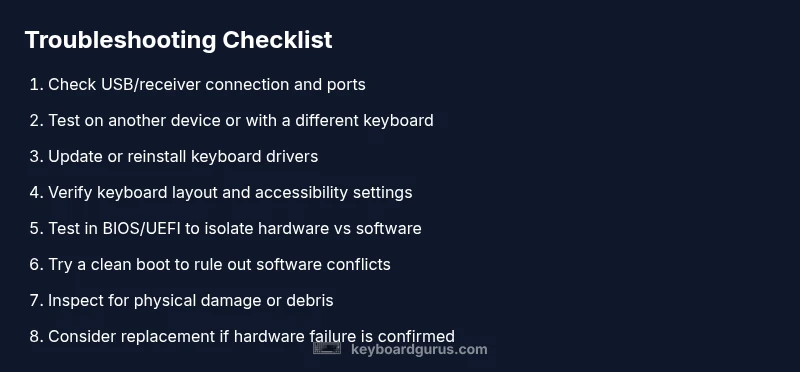
Create a reusable test plan: confirm recognition in BIOS/UEFI (for hardware-level issues), check device manager status (Windows) or keyboard settings (macOS), verify with another computer, and reassess after each fix. This structured approach helps you rapidly isolate whether the problem is hardware, driver, or software-based. By following a consistent workflow, you’ll spend less time guessing and more time restoring productive typing.
Steps
Estimated time: 15-30 minutes
- 1
Confirm physical connections
Unplug the keyboard, inspect the cable/receiver, and re-seat firmly in a known-good port. If using wireless, ensure the dongle is securely plugged in and that the keyboard is paired. Power cycle the computer to refresh hardware detection.
Tip: A fresh boot often resets USB and Bluetooth stacks. - 2
Test with an alternate device
Plug the keyboard into a different computer or use a different keyboard on the same machine. If it works elsewhere but not on the original system, focus on drivers or OS settings. If it fails on all devices, hardware replacement may be necessary.
Tip: This helps quickly split hardware vs software issues. - 3
Update or reinstall drivers
Open Device Manager (Windows) or System Information (macOS), locate the keyboard device, and install the latest driver. If a recent update caused the problem, roll back to a previous version or perform a clean install.
Tip: Always back up important data before driver changes. - 4
Check OS keyboard settings
Verify that the keyboard layout matches your region and that no accessibility feature (like Filter Keys) is swallowing input. Disable any remapping software temporarily to test typing reproduction.
Tip: A simple setting change can resolve many keystroke issues. - 5
Test in BIOS/UEFI
Restart and enter BIOS/UEFI. If the keyboard works there, the issue is software/driver-related. If it doesn’t, the problem is likely hardware.
Tip: BIOS testing isolates immediate hardware compatibility. - 6
Perform a clean boot
Boot with minimal startup programs to see if background software interferes with input. If typing returns, re-enable services one by one to identify the culprit.
Tip: A clean boot can reveal subtle software conflicts. - 7
Inspect for physical damage
Look for damaged keys, solder joints, or moisture; test non-existent keys to determine whether a hardware fault exists. If damage is found, replacement is advised.
Tip: Do not attempt risky internal repairs yourself. - 8
Replace or escalate
If no fix works, compare keyboard prices with repair options and warranty coverage. Contact the manufacturer or a professional technician for diagnosis and replacement guidance.
Tip: Warranty claims can save time and money.
Diagnosis: Keyboard stops typing or is not recognized by the system
Possible Causes
- highLoose USB/Bluetooth connection
- highOutdated or corrupted driver
- mediumIncorrect keyboard language/layout or disabled input
- lowHardware failure of the keyboard
- lowInterference from wireless dongle or USB hub
Fixes
- easyReconnect the keyboard and try a different USB port or re-pair Bluetooth
- mediumUpdate or reinstall keyboard drivers; reboot after install
- easyCheck and reset keyboard language/layout settings, and disable conflicting accessibility features
- easyTest keyboard on another device to confirm hardware issue, or replace keyboard if needed
- easyIf using a USB hub, connect directly to the computer or replace the hub
Got Questions?
My keyboard suddenly stopped working after a reboot. What should I check first?
Start with simple checks: re-seat the keyboard, try a different USB port, and confirm the input language is correct. If it still fails, update drivers or test on another device to isolate hardware vs software causes.
Try reseating, switch USB ports, and verify language settings. If it still fails, update drivers or test on another device to isolate the issue.
Can software updates cause hardware keyboards to fail?
Yes, driver or OS updates can introduce conflicts. Reinstall or roll back the keyboard driver, and test with clean boot to determine if software is the culprit.
Software updates can cause conflicts. Reinstall drivers and test with a clean boot to confirm.
How do I know if a keyboard is hardware failure vs driver issue?
If the keyboard works in BIOS/UEFI or on another computer, the issue is likely software or driver-related. If it never works across devices, hardware failure is probable.
If it works in BIOS but not in OS, it’s usually software. If it never works, hardware failure is likely.
Is cleaning with isopropyl alcohol safe for keyboards?
Isopropyl alcohol can be used sparingly on key surfaces when unplugged, but avoid excess liquid and never spray directly into the keyboard. Let it dry completely before retrying.
Use a small amount on a cloth and avoid spraying; let it dry fully before testing.
Should I replace the keyboard or consider a USB hub?
If testing shows consistent failure with multiple devices, replacement is often best. If you’re using a hub, try a direct connection to rule out hub issues.
If it fails across devices, replace it; if a hub is involved, test directly on the computer first.
What to Remember
- Check connections before deep fixes.
- Update or reinstall drivers to fix software issues.
- Isolate hardware vs software using alternate devices.
- Seek professional help if basic fixes fail.