What Causes Keyboard Keys to Stop Working? A Troubleshooting Guide
Urgent, practical troubleshooting for non-responsive keys. Learn the top causes, quick checks, a diagnostic flow, and proven fixes to restore keyboard reliability.


If keyboard keys stop working, start with quick checks to identify the likely causes. The most common issues are hardware faults, driver or software problems, and connectivity faults. Begin by testing another keyboard, inspecting cables or wireless connections, and updating or reinstalling drivers. This Keyboard Gurus guide walks you through a step-by-step diagnostic to restore reliable typing quickly.
Why keyboard keys stop working
According to Keyboard Gurus, the issue often stems from a blend of hardware wear, driver/software problems, and connectivity faults. The Keyboard Gurus team found that many incidents begin with dust buildup or accidental spills, which create intermittent contact in the key matrix and cause several keys to misregister or fail. When you consider the question, what causes keyboard keys to stop working, you’ll find the leading culprits fall into four broad categories: physical debris under keycaps, worn switch housings in mechanical keyboards, USB/Bluetooth glitches, and outdated firmware or drivers. Recognizing these categories helps you triage quickly: start with hardware checks, then move to software, and finally address connectivity. This article provides practical checks, a clear diagnostic flow, and proven fixes you can apply today to restore confident, responsive typing.
Quick checks you can perform before diving in
Before diving into deep diagnostics, perform a handful of safe, non-destructive tests to narrow down the cause. These checks are designed to be done with minimal risk and to quickly tell you whether the issue is hardware, software, or connectivity related:
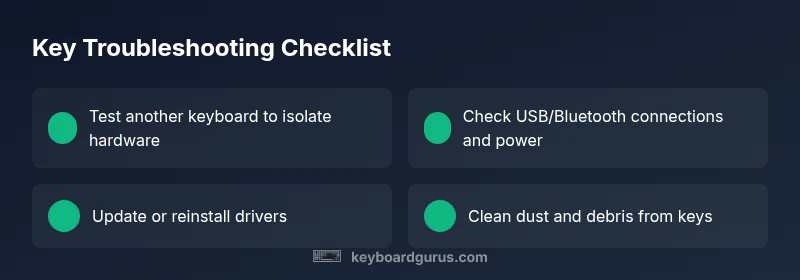
- Test with a different keyboard on the same device to see if the problem follows the keyboard or stays with the computer.
- Inspect the connection: unplug/replug USB cables, try a different USB port, or swap wireless receivers to rule out port or dongle faults.
- For spills or moisture, power off immediately, disconnect power, and allow the keyboard to dry completely before attempting to use it again.
- Clean the keyboard gently to remove dust and hair that can cause sticky or unresponsive keys, using compressed air and a soft brush.
- Update or reinstall drivers: on Windows, open Device Manager to check for driver updates or reinstall; on macOS, check System Preferences > Keyboard and related components.
- Try the keyboard on another device. If it functions there, the issue is likely software settings, a user account problem, or a device-specific config.
Diagnostic flow: symptom → diagnosis → solution
A systematic diagnostic flow helps avoid guesswork and speeds up recovery. Start with the symptom, then consider the most probable causes, and apply targeted fixes. The flow you follow should be:
- Symptom assessment: Are all keys affected or only specific ones? Is there a constant failure or intermittent behavior? Is a wireless connection involved?
- Hardware check: Inspect for visible damage, perform a clean, dry cleaning, and test with a different key switch or keyboard if possible.
- Software check: Update or reinstall keyboard drivers, check for OS updates, and review accessibility or keyboard remapping settings.
- Connectivity and power: For wired keyboards, test different ports; for wireless, replace batteries or recharge and re-pair with the host.
- Cross-device verification: Confirm whether the issue reproduces on another computer or operating system to isolate environmental factors.
If this process does not identify a fault, consult professional service. The most reliable sign to seek expert help is persistent hardware failure after all software and connectivity tests have been exhausted.
Step-by-step: quick, practical fixes you can apply now
- Swap to a known-good keyboard and confirm the symptom disappears. This confirms whether the issue is keyboard-specific or host-device related. Tip: use a keyboard you trust for testing to avoid false positives.
- Re-seat and test cables or dongles. Unplug, inspect for wear, reseat firmly, and try alternative ports. Tip: avoid USB hubs during testing as they can mask upstream issues.
- Update or reinstall drivers. On Windows, open Device Manager, right-click the keyboard, and choose Update driver or Uninstall device (then reboot). On macOS, check Software Update and System Preferences for any keyboard-related updates. Tip: back up current settings before reinstalling if you’ve customized mappings.
- Clean the keyboard. Power off, remove keycaps if you can safely do so, and use compressed air to dislodge debris. Wipe surfaces with a lightly damp microfiber cloth after dry air. Tip: avoid excessive moisture and never spray liquid directly onto the board.
- Test battery-powered or wireless keyboards. Replace batteries or recharge, re-pair with the host, and verify latency or stutter. Tip: keep a fresh pair of batteries on hand to minimize downtime.
- If all else fails, replace the keyboard. Try a different model within your budget range and preferred switch type. Tip: choose a keyboard with a reliable warranty or service plan for protection against future faults.
Safety, prevention, and professional help
- Safety first: never attempt to disassemble a powered keyboard beyond manufacturer-recommended maintenance. There is a risk of electric short or damage.
- Prevention: keep liquids away from the workspace, perform regular cleaning, and protect the keyboard from dust and debris with a cover when not in use.
- When to seek professional help: if you observe burnt smells, sizzling sounds, or obvious physical damage after a spill, or if the keyboard still fails after drivers are updated and hardware checks are completed, contact a technician or the manufacturer for service.
Key takeaways (repeatable steps you can reference later)
Steps
Estimated time: 40-60 minutes
- 1
Identify symptom and replicate
Document which keys fail and under what conditions. Try typing on a different device or a different keyboard to see if the issue persists. This helps distinguish keyboard-level faults from host software problems.
Tip: Keep a simple log of when the problem occurs to spot patterns. - 2
Isolate hardware factors
Inspect for visible damage, clean the key area, and test with another keyboard if possible. For wired keyboards, try a different USB port or cable; for wireless, replace batteries and re-pair.
Tip: Conduct all hardware tests with the device powered off when changing connections. - 3
Update or reinstall drivers
Open your system’s device manager or keyboard settings, update drivers, or remove and reinstall them. Reboot afterward to apply changes. If you’re on macOS, check for system updates that include keyboard-related fixes.
Tip: If your driver cache is corrupted, a clean reinstall often resolves the issue. - 4
Attempt software resets
Reset keyboard layouts, remappings, or accessibility features that might override normal input. Restore defaults if needed and re-test keys after changes.
Tip: Note any custom mappings you revert so you can reapply them if desired. - 5
Clean and re-test the keyboard
Perform a thorough but gentle cleaning: remove keycaps if feasible, use compressed air to remove dust, and wipe surfaces dry. Reassemble and retest all keys.
Tip: Avoid aggressive cleaning products that can damage switches or PCB traces. - 6
Decide on replacement or repair
If all fixes fail, compare the cost and warranty of repair vs replacement. Choose a model with reliable switches and a solid warranty.
Tip: Keep proof of purchase and check warranty terms before deciding.
Diagnosis: Keyboard keys stop registering or register incorrectly (intermittent or permanent).
Possible Causes
- highHardware wear or debris under keys
- mediumConnectivity faults (USB/Bluetooth)
- mediumOutdated or corrupted drivers/firmware
- lowSoftware remappings or accessibility settings
- lowSpill or moisture damage
Fixes
- easyTest with a different keyboard to isolate hardware vs. host device
- easyUpdate or reinstall keyboard drivers and check OS updates
- easyClean and reseat cables or re-pair wireless keyboards
- mediumInspect for spills and dry thoroughly; consider professional cleaning if needed
- hardReplace keyboard if hardware failure is confirmed or if issues persist after software fixes
Got Questions?
Why do some keyboards work on one computer but not another?
This usually points to a software/configuration issue on the host device, such as driver problems, conflicting keyboard mappings, or an OS setting. Testing with a different keyboard on the same computer helps confirm this.
It’s often a software issue on the computer rather than a problem with the keyboard itself.
Can spilled liquid permanently damage a keyboard?
Spills can cause short circuits or corrode contacts if not addressed promptly. Immediately power off, unplug, and dry the keyboard, then seek professional cleaning or repair if problems persist.
Liquid spills can cause lasting damage; act quickly and consider professional repair if needed.
What should I do if the keys work in BIOS but not in Windows/macOS?
If keys work in BIOS but not in the operating system, it’s likely a driver, software, or OS-level setting problem. Update drivers, test in safe mode, and check keyboard remappings.
If it works in BIOS but not in the OS, focus on drivers and software settings.
Is it safe to disassemble a keyboard to fix a loose key?
Only if you’re comfortable and the device is out of warranty. Unauthorized disassembly can void warranties and cause damage. Use manufacturer guides or seek professional service.
Disassembly can void warranties—approach with caution or get help.
How can I prevent keys from sticking in the future?
Keep the keyboard clean, avoid eating over the desk, use a cover, and perform periodic maintenance. Regular firmware updates and driver checks also help prevent software-related issues.
Regular cleaning and updates prevent many sticky-key problems.
When should I replace a keyboard rather than repair it?
If repairs exceed a reasonable cost or the keyboard has worn-out switches, replacement is often the best option. Compare price, warranty, and expected lifespan.
If repairs cost more than a replacement, consider buying a new keyboard.
Watch Video
What to Remember
- Identify whether the issue is hardware or software first
- Perform safe, incremental tests before diving deeper
- Keep drivers and OS updated to avoid known bugs
- If in doubt, prioritize professional help for potential hardware failure