Driver Logitech Keyboard Driver: Install, Update, and Troubleshoot
A complete guide to locating, installing, updating, and troubleshooting drivers for your Logitech keyboard across Windows and macOS, with practical steps, tips, and safety notes.


In this guide, you will locate, install, and troubleshoot the driver for your Logitech keyboard. We cover official Logitech drivers, Windows and macOS considerations, and common issues with USB-C, Bluetooth, and gaming keyboards. You’ll learn where to download, how to verify installation, and how to keep firmware up to date.
Understanding driver basics for a driver logitech keyboard
A driver is software that lets your computer talk to hardware. For a Logitech keyboard, the driver translates keystrokes into signals the OS can understand and may enable features like media keys, backlight, or macro profiles. When you hear about a "driver logitech keyboard," it usually means the companion software or the OS-provided driver that handles input events. According to Keyboard Gurus, keeping this software up to date is the simplest way to reduce input lag, elusive key repeats, or unresponsive keys. In practice, there are two broad paths: the generic keyboard driver that Windows or macOS installs automatically, and Logitech's own software packages, such as Logitech Options or the Unifying receiver driver. The choice depends on your model (wired, wireless, or Bluetooth), the OS you use, and whether you want extra features. The goal is reliable, consistent keystrokes across apps, games, and productivity tasks. If you're troubleshooting, start with the official driver provided by Logitech before venturing into third-party utilities.
Where to download official Logitech drivers
The safest and most compatible place to start is Logitech's official website. For a driver logitech keyboard, you want to locate the exact driver or software package that matches your keyboard model and operating system. Logitech Options and Logitech G HUB are common options for modern devices, offering configuration profiles, macro keys, and backlight control. If your keyboard uses a Unifying receiver, you may also need the Unifying software to install the proper driver. Before downloading, confirm your keyboard model and OS version, as choosing the wrong package can cause features to appear missing or the device to stop connecting at all. Keyboard Gurus’s approach is to always download directly from the manufacturer to minimize risk and ensure updates come with official support. After download, run the installer with administrative permissions and follow the prompts to complete the installation.
Windows installation path for driver logitech keyboard
On Windows, start by connecting your Logitech keyboard and opening Device Manager. Expand Keyboards, locate your Logitech device, right-click and select Update driver. Choose “Search automatically for drivers” to let Windows fetch the latest official package. If Windows cannot find a newer driver, download the official package from Logitech’s site and run the installer. After installation, restart your PC, reconnect the keyboard if needed, and test basic functions like typing, multimedia keys, and any assigned macros. If you use a Unifying receiver, ensure the receiver is properly seated and recognized by Windows. This path leverages Windows’ built-in driver management while letting Logitech supply model-specific enhancements.
macOS installation path for driver logitech keyboard
macOS users should first check System Preferences > Bluetooth (for wireless keyboards) or System Information for USB devices. If your keyboard isn’t behaving, visit Logitech’s site for macOS-compatible drivers or Logitech Options, then run the installer with administrator rights. On macOS, you may need to grant accessibility and keyboard permissions to Logitech software to enable features like media keys and custom shortcuts. After installation, log out and back in or restart to ensure macOS integrates the new driver smoothly. Testing confirms that keystrokes respond correctly in Safari, Notes, and your preferred apps.
Bluetooth vs USB connections: driver's role
The driver becomes especially important when you switch between Bluetooth and USB-C or Unifying connections. USB devices typically rely on the OS driver plus any Logitech USB drivers; Bluetooth keyboards depend more on OS pairing logic and the Logitech software for advanced features. If you notice lag or missed keystrokes, update both the OS Bluetooth stack and the Logitech driver package. For wireless keyboards, ensure the battery is charged and the pairing is active. The driver’s job is to provide reliable communication channels and enable features your keyboard supports, such as custom keys or backlighting.
Using Logitech Options and firmware updates
Logitech Options (or Logitech G HUB for gaming keyboards) lets you assign macros, remap keys, and adjust lighting. Keeping Options updated ensures you can access the latest firmware enhancements that improve stability and responsiveness. As Keyboard Gurus notes, firmware updates can fix rare edge cases with Windows 10/11 or macOS updates. Always back up profiles before updating and verify after the update that your macros still trigger as intended. If Options isn’t installed, your keyboard might still work, but you’ll miss valuable customization. Firmware updates are separate from driver updates and should be treated as part of routine maintenance.
Troubleshooting common issues with driver logitech keyboard
If keys feel unresponsive, check the driver installation status in Device Manager (Windows) or System Information (macOS). Reinstall the official driver if necessary, and confirm the keyboard is selected as the input device. For Bluetooth keyboards, remove and re-pair the device. For Unifying receivers, replace the battery and re-sync. Check for OS updates, as a system upgrade can require a driver refresh. If features like backlighting or media keys aren’t working, verify that Logitech Options is running and has permission to control the keyboard. When in doubt, revert to a clean install to reset all settings.
Firmware and peripheral software considerations
Firmware is distinct from the driver; it’s the microcode inside the keyboard that controls hardware operations. Firmware updates can fix hardware quirks and improve compatibility with newer OS versions. Always download firmware updates from Logitech’s official site or through Logitech Options. Before applying a firmware update, back up any customized profiles and ensure the keyboard has a stable power source if wireless. If a firmware update fails, stop and retry after a restart; persistent failures may indicate hardware faults. Keyboard Gurus emphasizes using official channels to minimize risk.
Best practices for maintenance and safety when dealing with drivers
Keep a small log of driver and firmware versions, dates, and OS builds to troubleshoot future issues quickly. Only install drivers from Logitech or your OS vendor, never untrusted third-party sources. Regularly check for software updates and test keystrokes after each change. For gaming keyboards, consider creating separate profiles for games and productivity to avoid feature conflicts during play. When you’re done updating, perform a quick battery check on wireless keyboards and unplug USB hubs if you notice intermittent connections.
Safety, compatibility, and long-term considerations
Installing incorrect drivers can cause erratic behavior or hardware conflicts. Always validate compatibility by checking your keyboard model and OS version on Logitech’s site. If you’re on an older Mac or PC, ensure the driver supports legacy USB or Bluetooth standards. Keep a recovery plan handy, such as a system restore point or a backup profile, in case an update breaks functionality. Keyboard Gurus suggests documenting your setup so you can reproduce a working configuration after OS updates.
Final notes on future-proofing your driver setup
As hardware evolves, Logitech periodically updates drivers and software ecosystems. Stay proactive by subscribing to Logitech newsletters or periodically visiting the support page for driver and firmware releases. Define a maintenance cadence—every few months—to review driver versions and apply recommended updates. This proactive approach minimizes disruption to typing, gaming, and productivity workflows and keeps your driver logitech keyboard performing optimally.
Tools & Materials
- Computer with internet access(For downloading drivers and verifying installation)
- Keyboard model information (model number or serial)(Helps locate the exact driver package)
- Official Logitech driver file or Logitech Options software(Download from Logitech’s official site; avoid third-party sources)
- Unifying receiver (if applicable)(Needed for some wireless kits, ensure it’s seated properly)
- USB cable or power source (for wired keyboards or charging)(Keep keyboard powered during installation)
Steps
Estimated time: 60-90 minutes
- 1
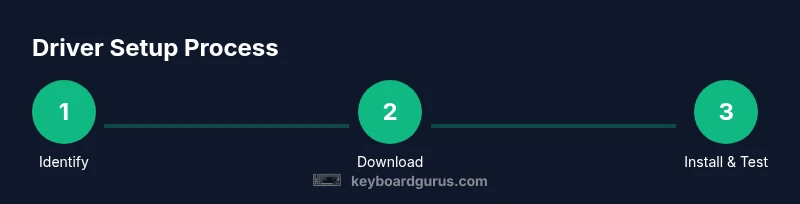
Identify keyboard model and OS
Confirm the exact Logitech keyboard model and your operating system version. This ensures you download the correct driver and any required companion software. If you’re unsure, check the underside label on the keyboard or the original packaging. Having accurate model data prevents mismatches that lead to non-functional keys.
Tip: Record the model number in a notes file for quick reference later. - 2
Check current driver status
On Windows, open Device Manager and inspect the Keyboard section for your Logitech device. On macOS, check System Information under USB or Bluetooth—verify the device is recognized. If a driver update is already available, Windows Update or macOS Software Update may apply it automatically.
Tip: Note any error codes shown during this step for later troubleshooting. - 3
Download the official driver package
Visit Logitech’s official support site and locate the driver or software tailored to your keyboard and OS. Download the file and save it to your desktop for easy access. Avoid third-party mirrors to reduce the risk of malware or incompatible installers.
Tip: Verify the download URL starts with https://logitech.com or a clearly official domain. - 4
Install the driver with admin rights
Run the installer as an administrator on Windows or provide the system password on macOS when prompted. Follow on-screen prompts to complete the installation. Do not unplug the keyboard during the process. A reboot is often required for the changes to take full effect.
Tip: Close other apps to ensure the installer has full access to system resources. - 5
Reconnect and test the keyboard
After installation, reconnect the keyboard or reboot, then test basic typing and any extra keys. Ensure system-level input is responsive across text fields, spreadsheets, and browsers. Verify special keys (volume, mute, brightness) function if your model supports them.
Tip: Test across at least two applications to confirm consistency. - 6
Install Logitech Options (optional)
If you want advanced customization, install Logitech Options or G HUB. These tools enable macros, remapping, and lighting. Ensure the software has the necessary permissions on your OS to control the keyboard.
Tip: Back up your profiles before making major changes. - 7
Update firmware if available
Check for firmware updates within Logitech Options or the official site. Firmware updates can improve stability and fix edge cases with OS updates. Follow the prompts to complete the update and avoid interrupting the process.
Tip: Ensure the keyboard remains powered during firmware updates. - 8
Troubleshoot persistent issues
If problems persist, remove the device from the OS’ Bluetooth list or unpair/re-pair the Unifying receiver. Reinstall the driver package and clear any conflicting profiles. Check for driver rollback options if a recent update caused issues.
Tip: Document the exact steps you took for future reference. - 9
Create a maintenance routine
Set a reminder to check driver and firmware versions every few months. Keep a log of updates and a backup profile in case you need to revert settings after an OS change.
Tip: Maintaining a tidy driver setup reduces future troubleshooting effort. - 10
Conclude with verification
Perform a final round of tests—typing in multiple apps, testing media keys, and ensuring accessibility options work. If everything functions as expected, you’re done. If not, consider reaching Logitech support with your model data and OS version.
Tip: Have the OS version and driver version handy when seeking help.
Got Questions?
Do I need Logitech Options or G HUB to use my Logitech keyboard features?
Not strictly. Basic typing relies on the OS driver, but Logitech Options or G HUB unlocks advanced features like macros, backlighting, and key remapping. Install them if you want deeper customization.
You don’t need Options or G HUB for typing, but they unlock extra features.
How do I identify the correct driver for my model?
Check the exact keyboard model on the underside or packaging, then match it to Logitech’s official driver page for your OS. Using the wrong package can lead to missing features or connectivity issues.
Find your model number first, then download the matching driver from Logitech.
What if the driver installation fails or the keyboard still isn’t working?
Retry with a clean install: uninstall any existing Logitech software, reboot, then reinstall from the official site. If issues persist, test with a plain USB keyboard to rule out hardware faults and contact Logitech support with model and OS details.
If it fails, remove Logitech software, reboot, and reinstall from Logitech’s site.
Can I update Logitech drivers on macOS without Windows?
Yes. macOS users should download the macOS-compatible driver or Logitech Options from Logitech’s site and follow the installer prompts. After installation, test the keyboard in multiple apps to confirm full functionality.
Mac users download the macOS driver from Logitech and test the keyboard.
Are there safety risks in updating drivers from Logitech?
Only download from official Logitech pages to minimize malware risk. Avoid third-party installers and always back up profiles before updates.
Stick to official Logitech downloads and back up your profiles.
How can I know if my driver is up to date?
Use the official Logitech software or Windows/macOS update history to verify the version. If a newer driver is available, install it and re-test the keyboard.
Check the driver version in the Logitech software or your OS update history.
Watch Video
What to Remember
- Verify keyboard model and OS before downloading drivers
- Always use official Logitech sources for drivers and firmware
- Test basic and advanced features after installation
- Back up profiles and create restore points before major updates
- Keep firmware up to date for stability and compatibility