Update Keyboard Drivers: Step-by-Step Guide
Learn how to update the driver keyboard across Windows and macOS with a clear, step-by-step approach, testing tips, and troubleshooting strategies from Keyboard Gurus.


By the end of this guide, you will be able to reliably update your keyboard drivers on Windows or macOS, verify the current version, and test for improved compatibility and performance. You’ll use official sources, back up settings, and troubleshoot common post-update issues. This quick answer sets the foundation for a smooth driver update process.
Why Update Keyboard Drivers Matters
In modern computing, the keyboard is more than a simple input device; it can carry advanced features like macro support, backlighting, and gaming modes that require software integration. According to Keyboard Gurus, keeping your keyboard drivers up to date reduces disconnects, improves hotkey reliability, and enhances compatibility with the latest operating system updates. Keyboard Gurus analysis shows that many issues reported by users—stuttering, missed keystrokes, or unrecognized keys—are frequently caused by outdated drivers or firmware. By staying current, you also gain access to bug fixes and new features from the manufacturer. This ongoing maintenance helps ensure your setup remains stable across software updates and new hardware releases. In practice, a regular driver update cycle keeps your keyboard aligned with your OS and applications, reducing the time you spend troubleshooting and increasing your confidence in daily use.
When to Update Your Keyboard Driver
Not every software update requires action, but certain situations merit an update. If your keys stop registering correctly, if you notice lag between your keystrokes and on-screen response, or if you recently installed a major OS update, check for driver updates. If you use a gaming or programmable keyboard, updates often include new macros, profiles, or toggle lighting effects that improve usability. The Keyboard Gurus team recommends periodic checks—at least every few months—and a targeted update after driver conflicts or new OS patches. Remember: updates may require a restart to take effect, so plan downtime accordingly. Finally, keep an eye on the manufacturer’s support page for warranty and security notes linked to firmware updates. If you rely on specific macros for work or gaming, verify compatibility after updating before continuing with intensive tasks.
How Windows and macOS Handle Keyboard Drivers Differently
Windows generally treats keyboard drivers as separate software packages that can be updated through Device Manager or via Windows Update, and sometimes through the keyboard maker’s own installer. macOS tends to bundle keyboard drivers into system updates, so keeping the OS current is usually the simplest path to a fully functional driver stack. Whether you use a standard USB keyboard or a high-end wireless model, both platforms support plug‑and‑play behavior, but some devices require vendor utilities for full feature support. Understanding these differences helps you choose the right update method and avoids unnecessary driver searches. Keyboard Gurus notes that consistent updates across OS versions improve long-term reliability and reduce driver-related quirks.
How to Check Your Current Driver Version
Before updating, identify the exact driver version you are currently using. On Windows, open Device Manager, expand the Keyboards section, right-click your device, and choose Properties > Driver. Note the Driver Version and Date. On macOS, go to About This Mac > System Report > USB (or Keyboard) and look for the class or device name that matches your keyboard; macOS doesn’t always expose a separate version, but you can verify firmware via the keyboard vendor’s utility if available. Recording the version numbers helps you confirm when updates are installed and whether you are running the latest release. If you have multiple keyboards, test updates on one device first to avoid interrupting critical workflows.
Step-by-Step: Update Driver on Windows (and Alternatives for macOS)
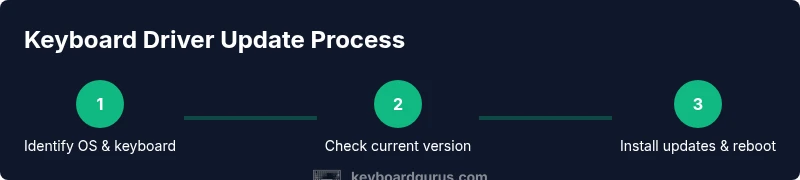
This section provides practical steps you can follow to update a keyboard driver on Windows, with notes for macOS users. Start by validating your OS and keyboard model, then locate the latest driver from the official source. Use Windows Update for standard drivers or download the installer from the manufacturer if you need firmware support or advanced features. Follow the on-screen prompts, and avoid disconnecting the keyboard during install. After installation, reboot your system and test every key, including multimedia controls and any programmable macros if supported. For macOS, apply the same mindset but rely on the macOS Software Update channel or vendor utilities when offered. If a firmware updater is provided, run it only when the device is connected and powered, to prevent bricking the keyboard.
Verifying Update and Testing Performance
Testing after updating is as important as the installation itself. Start with basic keystroke tests across different apps, then run a quick productivity or gaming session to confirm no latency or missed inputs. Check special keys, function keys, and any LED lighting effects to ensure they respond as expected. If the keyboard has a configuration utility, open it to confirm that saved profiles remain intact and that customization matches your preferences. Keyboard Gurus emphasizes documenting your test results, including any anomalies, so you can reproduce or report issues accurately if you need to seek support later.
Troubleshooting Common Issues After Update
Even a well-run update can introduce new quirks. If keys stop working or the keyboard is unrecognized, start with a rollback to the previous driver version from Device Manager or macOS recovery options. Ensure the device is properly connected and powered, and check for BIOS or firmware updates that might impact USB devices. Conflicts with other peripherals or USB hubs can also cause problems, so try a direct connection to the computer port. If macro profiles disappear, reimport or re-create them. Always consult the manufacturer’s support page for known issues and hotfixes, and consider a clean boot to isolate software conflicts. Keyboard Gurus recommends keeping a diagnostic log for future reference.
Best Practices and Safety When Updating Across Platforms
Follow a few best practices to minimize risk: back up your current configuration, create a restore point on Windows, and ensure you have a working testing plan before updating critical setups. Only install drivers from official publishers, verify digital signatures, and avoid third-party sites. If you rely on motion-heavy or macro-enhanced keyboards, consider testing in a controlled environment before daily use. Schedule updates during a window where any potential downtime won’t disrupt important work. Keyboard Gurus also suggests keeping your OS and peripheral software up to date to maximize compatibility and security over time.
Final Thoughts: Keyboard Gurus' Verdict
In our experience, staying current with keyboard drivers pays off in reliability, feature access, and fewer troubleshooting sessions. The Keyboard Gurus team recommends making driver updates a regular part of your maintenance routine rather than a one-off action after a problem arises. By following the step-by-step method outlined in this guide, you can update driver keyboard components confidently, verify the results, and avoid common pitfalls. The key is to combine official sources, careful testing, and proactive backups to protect your workflow and gaming impressions alike.
Tools & Materials
- Computer or laptop with Windows 10/11 or macOS 11+(Ensure the OS is up to date before drivers update.)
- Reliable internet connection(Needed to download drivers and verify versions.)
- Administrative privileges on the computer(Required to install or update system drivers.)
- Keyboard model and OS version(Helps locate the exact driver package and firmware.)
- Backup method (System Restore Point or Time Machine)(Prepares you to revert if something goes wrong.)
Steps
Estimated time: 20-40 minutes
- 1
Identify OS and keyboard model
Confirm your operating system version and the exact keyboard model. This speeds up the driver search and ensures you download the correct package. If you have multiple keyboards, decide which one you’ll update first to minimize workflow disruption.
Tip: Having the model and OS details on hand reduces back-and-forth with support or downloads. - 2
Check current driver version
Open Device Manager on Windows, expand Keyboards, right-click your device, and choose Properties > Driver to view version and date. On macOS, use System Information to identify the device. Capture screenshots or write down the version for reference.
Tip: Documenting the current version helps confirm post-update success. - 3
Find official driver source
Visit the keyboard maker’s official support page or use Windows Update / macOS Software Update to locate available drivers. Avoid third-party sites; only download from trusted publishers to prevent malware or incompatible software.
Tip: Always verify publisher and digital signature before installing. - 4
Install the update
Run the installer and follow prompts exactly. If you download a firmware updater, ensure the keyboard stays powered during the process. Do not unplug the keyboard mid-install.
Tip: If the installer offers a custom setup, choose standard options first to avoid feature conflicts. - 5
Restart and test basic functionality
Reboot the computer, then test all keys, multimedia controls, and any macros or profiles. Confirm backlighting or lighting effects respond as expected and that the device is recognized by the system.
Tip: Test in multiple apps to catch app-specific issues early. - 6
If problems occur, rollback or use a clean boot
If the update causes issues, revert to the previous driver version via Device Manager or macOS recovery options. A clean boot can help isolate software conflicts that interfere with the keyboard.
Tip: Keep a restore point handy so you can revert quickly.
Got Questions?
How often should I update keyboard drivers?
Update when you experience issues, after OS updates, or when the manufacturer releases a new driver. Regular checks help prevent problems before they affect your workflow.
Update when you have issues or after OS updates; regular checks help prevent problems.
Do I need to update drivers for gaming keyboards?
Yes, if updates address compatibility or new features; otherwise updates are not strictly required but can improve reliability and performance.
Yes, if the manufacturer releases updates; they can improve features and stability.
Will updating drivers affect macros or profiles?
Driver updates generally don’t erase macros, but some vendor software might reset or require re-importing profiles. Check vendor instructions after updating.
Usually not, but vendor software could reset profiles; verify after update.
What if the update breaks my keyboard?
Rollback to the previous driver version or use a restore point. If the problem persists, contact the manufacturer support for known fixes.
If issues occur, revert to the previous driver and reach out to support if needed.
Are there risks in updating keyboard drivers?
There are minor risks like temporary disconnects or failed installs. Backing up first and downloading from official sources reduces risk.
Small risks exist; back up first and use official sources.
Do Linux users need to update keyboard drivers?
Linux keyboards are typically updated through system/kernel updates. Check your distro’s docs for any vendor-specific steps.
Generally handled by the OS; consult distro docs for specifics.
Watch Video
What to Remember
- Verify OS and keyboard model before updating
- Use official sources for driver updates
- Back up settings and create a restore point
- Test thoroughly after installation
- Rollback if issues arise