Keyboard Driver Update Guide: Safe and Effective Tips
Learn to safely update keyboard drivers across Windows, macOS, and Linux, verify versions, rollback when needed, and maintain ongoing stability with practical steps and best practices.


To keep your keyboard functioning smoothly, update its driver to fix compatibility, improve performance, and unlock features. This guide covers when to update, how to check versions, safe update methods across Windows, macOS, and Linux, plus verification steps, rollbacks, and ongoing maintenance to prevent driver conflicts. Follow the steps to complete a successful update with confidence.
Why keyboard update driver matters
According to Keyboard Gurus, maintaining an up-to-date keyboard driver is more than a routine task—it's a foundational part of a reliable typing and gaming experience. A current driver improves compatibility with the latest operating system updates, reduces input latency, and ensures features like programmable keys and multimedia shortcuts work as intended. In professional settings, a stable driver can prevent unexpected freezes during long typing sessions or design work, which translates into measurable productivity gains. This section will explain how drivers interact with the OS, why manufacturers push updates, and how to recognize when an update is warranted. By prioritizing driver health, you reduce troubleshooting time and keep peripherals aligned with your workflow. Keyboard Gurus Analysis, 2026, highlights the practical benefits of regular driver checks for both casual users and power users.
OS and vendor drivers: understanding the landscape
Keyboard drivers come in several flavors: generic OS-level drivers, vendor-provided software packages, and firmware-related updates that may require separate tools. Windows often relies on USB Human Interface Device (HID) drivers built into the OS, while device manufacturers offer companion software to stream updates, key remapping, and macro profiles. macOS tends to integrate drivers at the system level, with occasional firmware updates via software updates, while Linux distributes drivers through kernel modules and package managers. Understanding which path your keyboard uses helps you choose the safest and most effective update method. Keyboard Gurus emphasizes choosing official sources and avoiding untrusted installers to minimize risk of malware or incompatible firmware.
Checking your current version and compatibility
Before updating, confirm the current driver version and the supported OS version. On Windows, you can inspect driver properties in Device Manager; macOS users can review system reports or vendor software that displays version data; Linux enthusiasts can query kernel module versions and dmesg logs for clues about driver health. Record the existing version, note any unusual behavior like ghosting or missed keys, and compare with the manufacturer’s release notes. This baseline helps you decide whether an update is necessary and provides a reference point if you need to rollback. Keyboard Gurus notes that keeping precise version history is a key habit for troubleshooting hardware-related issues.
How updates are delivered: Windows updates, vendor software, and OS-level changes
There are multiple delivery channels for keyboard driver updates. Windows Update may include HID or chipset drivers; vendor software can offer targeted updates for keyboards, including firmware and macro utilities; OS-level changes can introduce compatibility tweaks that affect input devices. Always download drivers from official manufacturer pages or trusted repositories, and verify checksum or signature when possible. This approach reduces the risk of corrupted files or malicious packages and ensures you install the correct driver for your exact keyboard model.
macOS and Linux considerations
macOS prioritizes system-integrated drivers via the operating system, with occasional firmware updates delivered through System Preferences or the App Store. On Linux, drivers are frequently managed by the kernel or through distribution-specific packages; manual installations are less common but still possible for specialized keyboards. In both ecosystems, avoid mixing drivers from unrelated vendors, and prefer vendor tools or well-known open-source projects that maintain compatibility with your keyboard. The goal is stability and predictable behavior across all your typing tasks, whether you’re coding, gaming, or typing long documents.
Safe update practices and backups
Preparation is crucial. Back up current profiles, create a system restore point if supported, and ensure you can revert to a known-good state if the update introduces issues. Prefer a clean installation path from the vendor, and close other applications to prevent conflicts during the update. If you maintain custom key mappings, export them beforehand. Post-update, test essential keys, macro keys, and any specialized lighting or profiles. Regular maintenance—checking for updates every few months or after major OS releases—keeps drivers reliable and aligned with your setup.
Common post-update issues and fixes
If you notice lag, missed keys, or unusual key mappings after an update, verify the driver version again and check for new firmware notes. A rollback to the previous version often resolves transient conflicts, especially if you installed firmware or macros alongside the driver. Ensure no conflicting software is running in the background and that your keyboard is properly recognized by the OS. Keyboard Gurus recommends documenting the exact steps you took, so you can repeat or adjust the process if similar issues arise in the future.
Security, signing, and supply chain concerns
Only download drivers from official sources and verify digital signatures to avoid tampered software. Driver installers should come from trusted vendors; beware of third-party sites offering modified packages. Regularly review vendor advisories about vulnerabilities and apply updates promptly when security fixes are released. This discipline reduces exposure to supply chain risks linked to driver components and helps maintain a secure environment for your workstation.
Maintenance mindset for long-term keyboard health
Adopt a routine that includes quarterly checks for driver updates, keeping a small log of versions and test results. Consider enabling automatic updates in controlled environments but review blindly installed updates to ensure they don’t disrupt your workflow. As Keyboard Gurues emphasizes, consistency in driver maintenance pays dividends in reliability and typing comfort over the device's lifetime.
Tools & Materials
- Computer with internet access(Needed to download drivers and access official update utilities)
- Administrative privileges(Required to install or update drivers)
- Official manufacturer software (optional)(Vendor tools can simplify updates and profile management)
- Reliable internet connection(Necessary for downloading drivers and verification data)
- Backup test keyboard (optional)(Useful for testing changes before applying to main setup)
Steps
Estimated time: 30-60 minutes
- 1
Identify OS and current driver
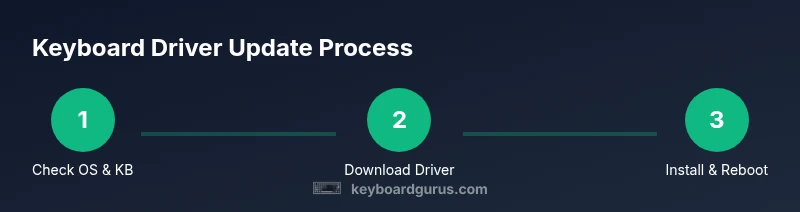
Determine your operating system (Windows, macOS, or Linux) and locate the current keyboard driver version. This helps you decide which update path to take and ensures you download the correct file for your keyboard model.
Tip: Note the exact keyboard model and the current driver version before proceeding. - 2
Back up existing profiles and settings
Export any custom key mappings or macros and, if available, create a system restore point. This creates a safe rollback point in case the update introduces issues with your personalized setup.
Tip: Store backups on a separate drive or cloud storage if possible. - 3
Download the official driver from the vendor
Visit the keyboard manufacturer's official site or trusted distribution platform to download the latest driver package. Verify the page’s authenticity and check for product/model matching before download.
Tip: Avoid third-party mirrors and verify the digital signature if provided. - 4
Close conflicting software and start the installer
Close any running keyboard utilities or macro programs to prevent conflicts during installation. Run the installer with administrative rights and choose a clean install if offered.
Tip: Disable security prompts temporarily if your system blocks installer activity; re-enable afterward. - 5
Complete the installation and restart if prompted
Finish the installation according to the vendor prompts. If the installer requests a restart, do so to finalize driver integration and ensure the OS loads the new components.
Tip: Post-restart, re-enable any security software you disabled. - 6
Verify version and test all keys
Open the keyboard properties or vendor tool and confirm the new driver version is active. Test all keys, including media and programmable keys, to confirm expected behavior.
Tip: Test typing in a few apps to catch latency or ghosting early. - 7
Troubleshoot if issues arise
If problems occur, rollback to the previous driver version and re-test. Check for known issues on the vendor support page and review any recent OS updates that might interact with the keyboard.
Tip: Keep the previous driver package handy during troubleshooting. - 8
Set up a maintenance reminder
Schedule a routine check for keyboard drivers after major OS updates or firmware releases. Maintain a simple log of versions and test outcomes.
Tip: Automated reminders help maintain consistency.
Got Questions?
What is a keyboard driver and why update it?
A keyboard driver translates keystrokes into actions the operating system can understand. Updating the driver improves compatibility, reduces input lag, and unlocks features like programmable keys or lighting profiles.
A keyboard driver makes your keyboard talk to your computer. Updating it can fix lag and unlock features you rely on.
Can I update keyboard drivers on macOS or Linux?
Yes. macOS relies on system-level drivers and firmware delivered with OS updates, while Linux manages drivers via kernel modules and package managers. Use official sources and vendor tools when available.
Mac uses system updates; Linux uses your package manager or vendor tools. Stick to official sources.
What should I do if the update causes typing lag?
First, verify the driver version and check for known issues. If problems persist, rollback to the previous driver and test again. Ensure no conflicting software is running.
If typing lags after update, roll back to the previous driver and re-test.
Do I need to restart after updating a keyboard driver?
Often a restart is required to ensure the new driver is properly loaded, especially if firmware updates accompanied the driver. Follow the installer prompts.
Restart after install when prompted to ensure the update takes effect.
Is it safe to enable automatic updates for keyboard drivers?
Automatic updates can improve stability but may surprise you with changes. Use automatic updates in controlled environments and review changes when possible.
Auto updates can help with stability, but review changes if you rely on specific configurations.
How do I rollback a keyboard driver update?
Open the device manager or vendor tool, select the previous driver version, and install it. Reboot if prompted and test. Keep a backup package handy.
Use the vendor tool to revert to the previous version and reboot.
Watch Video
What to Remember
- Check your current driver version before updating
- Use official sources for downloads to avoid malware
- Verify keyboard functionality after update and test key blocks
- Enable automatic updates where appropriate for ongoing stability