How to Adjust Keyboard Sensitivity: A Complete Guide
Learn how to fine-tune keyboard sensitivity across OS and firmware. This educational guide from Keyboard Gurus covers practical steps, testing, and troubleshooting.


In this guide, you’ll learn how to adjust keyboard sensitivity by tuning OS-level settings (like key repeat rate and delay) and, if supported, firmware or remapping options. You’ll find practical steps for Windows and macOS, plus guidance on testing and validating the results. No specialized hardware changes are required to get a noticeably more responsive typing or gaming experience.
Understanding Keyboard Sensitivity
According to Keyboard Gurus, keyboard sensitivity describes how quickly a keypress translates into input, shaping typing fluency and gaming responsiveness. It blends hardware traits like switch design and debounce behavior with software controls such as key repeat delay and repeat rate. A more sensitive keyboard feels snappier, but can also cause accidental presses; a slower setting may reduce mistakes but reduce speed. In practice, most users will notice differences when switching between moderate presets and customized values. This guide clarifies the options you have, why they matter, and how to adjust them effectively across platforms. For enthusiasts, recognizing the distinction between baseline hardware performance and software-driven response is the first step toward a personalized typing rhythm. You’ll also learn how small, deliberate changes can accumulate into a noticeably smoother experience across tasks like typing essays, coding sessions, or rapid-fire gaming.
OS-Level Adjustments You Can Make
Both Windows and macOS expose keyboard options that influence sensitivity without touching hardware. On Windows, you adjust the key repeat delay and the repeat rate, which affect how long you must hold a key before repetition begins and how fast repeated inputs occur. On macOS, the Key Repeat and Delay Until Repeat controls influence the same behavior. Linux users can access similar settings through their desktop environment's keyboard/typing preferences. Keyboard Gurus analysis shows OS-level tweaks typically deliver the largest improvements for most users, with fewer risks than firmware changes. These changes are also easily reversible, making them ideal for experimentation.
Hardware vs Software: Where to Tweak
Hardware considerations include switch type, actuation distance, and debounce behavior, which determine the raw responsiveness of key presses. Software controls encompass operating system settings, firmware options, and remapping utilities that alter input behavior without altering the physical switch. For most readers, starting with OS-level adjustments yields quick wins, while firmware tweaks are worth considering if you own a configurable keyboard with an accessible firmware interface. Understanding this distinction helps set realistic expectations: hardware improvements can provide a baseline, while software adjustments fine-tune the feel and predictability of inputs in daily use and competitive play.
Windows: Adjust Repeat Delay (Baseline) and How It Feels
Windows users can influence sensitivity by changing the Repeat Delay, which governs how long a key must be pressed before it starts repeating. Tuning this setting is often enough to reduce accidental repeats when typing fast, especially on compact keyboards. The key is to balance the Delay with the Repeat Rate, which determines how quickly subsequent repeats occur. Start with a moderate Delay and adjust the Rate to taste, then test with long typing tasks and quick gaming bursts to verify consistency. If you rely on on-screen keyboards for accessibility, these parameters can also influence how smoothly input is captured in assistive scenarios.
macOS: Key Repeat and Delay Until Repeat
macOS provides a clean, centralized way to adjust input responsiveness. The Key Repeat slider controls how rapidly a held key repeats, while the Delay Until Repeat slider sets how long you wait before repetition starts. This pairing mirrors Windows behavior but uses macOS terminology. A balanced combination often yields comfortable typing speed with minimal accidental repeats during fast keystrokes. After adjusting, type a paragraph and then run a quick gaming drill to confirm the behavior remains stable under longer sessions.
Firmware and Remapping Options
If your keyboard supports firmware-level tweaks, you can adjust features like actuation distance, debounce settings, and per-key remapping. Firmware updates can broaden these capabilities, but they also carry risk if misapplied. Prefer manufacturer-provided utilities and follow backup procedures before making changes. For users who already understand their hardware’s capabilities, firmware tweaks offer precise control over how input is registered, which can be crucial for high-speed typing or competitive play. Pair firmware changes with OS settings to maintain consistency across apps.
Testing and Validation: Concrete Checks
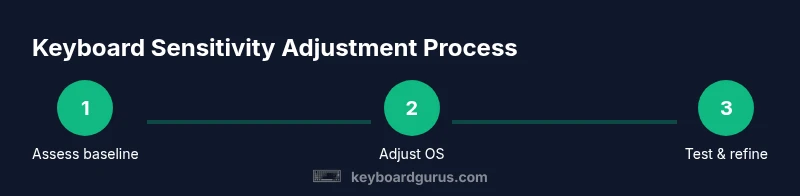
After making adjustments, verify changes with targeted tests: type long-form paragraphs to gauge typing comfort, run a fast-tinger test to check input stability, and play a short game to observe how input feels under burst actions. Document the baseline before changes and compare it with post-change results. If you notice new inconsistencies, revisit the settings in small increments. The goal is reproducibility across tasks, not a single momentary improvement. With a consistent routine, you’ll build a reliable feel that scales from casual work to intense sessions.
Common Pitfalls and Troubleshooting
Common issues include over-tuning in a way that increases input blur, creating unintended repeats during typing, or experiencing drift in perceived sensitivity after a firmware update. Always back up existing configurations before experimenting and keep a clear log of values you tested. If you notice worsened accuracy, revert to a previous stable state and re-test with a more conservative adjustment. Keyboard Gurus emphasizes patient, incremental changes and thorough testing to avoid counterproductive resets.
Quick Validation and Final Thoughts
A systematic approach to validation—baseline capture, staged adjustments, and multi-scenario testing—helps ensure the new sensitivity configuration works across different tasks. After you finalize a set of values, maintain a short diary of your daily keyboard use to spot drift over time. The Keyboard Gurus team recommends recording your preferred thresholds and revisiting them if you upgrade hardware or alter your typical workflow. Consistency builds confidence, and a well-tuned keyboard enhances both productivity and enjoyment.
Tools & Materials
- Computer (Windows or macOS)(System with administrator access to change keyboard settings)
- Physical keyboard(One you want to optimize (wired or wireless))
- Documentation or user manual(Useful for firmware options and OEM utilities)
- Internet access(For firmware updates and software utilities)
- Notes app or journal(Record baseline values and changes)
- Firmware update utility (if supported)(Only use if your keyboard supports firmware-level changes)
- Remapping software (optional)(Used for per-key mappings when firmware is limited)
Steps
Estimated time: 30-45 minutes
- 1
Prepare the environment
Gather your baseline data, collect current settings, and ensure you have a restore plan if something goes wrong. Close extraneous apps to avoid interference during testing.
Tip: Document existing values and save screenshots of current OS settings. - 2
Back up current settings
Export or note down the exact values for key repeat delay and rate, as well as any firmware or remapping configurations you may use. This creates a safe rollback point.
Tip: Keep a separate record for Windows and macOS if you dual-boot. - 3
Decide the scope (OS vs firmware)
Choose whether you will adjust input behavior at the OS level or through firmware/remapping. OS-level tweaks are usually safer and easier.
Tip: If you’re unsure, start with OS-level changes first. - 4
Open Windows keyboard settings
Navigate to the keyboard settings area and locate the Repeat Delay option. This is the first knob you adjust to influence responsiveness.
Tip: Change only one variable at a time to isolate effects. - 5
Adjust Windows Repeat Delay
Move the Delay slider toward a shorter or longer value based on your current typing comfort. Shorter delays react faster but may feel twitchy.
Tip: Test with long-form typing to see if you experience more or fewer accidental repeats. - 6
Adjust Windows Repeat Rate
Tweak the Rate to control how quickly repeats occur after the initial delay. Higher rates can improve rapid input capture but may cause overshoot.
Tip: Pair this with a stable Delay for balanced results. - 7
Open macOS Keyboard preferences
In System Preferences, access Keyboard and locate Key Repeat and Delay Until Repeat. Adjust to taste, then test with a mix of typing tasks.
Tip: Use macOS’ built-in accessibility options if you need additional tweaks. - 8
Explore firmware/remapping (if available)
If your keyboard supports firmware, connect the device and explore actuation distance, debounce, or per-key mappings. Proceed only if you have backups.
Tip: Make small, incremental changes and test extensively. - 9
Test, document, and refine
Run typing tests and short gaming drills to evaluate the changes. Document the results and refine until you reach a comfortable balance.
Tip: Maintain a change log to track which settings work best for different tasks.
Got Questions?
Can I adjust keyboard sensitivity on macOS?
Yes. macOS offers Key Repeat and Delay Until Repeat settings accessible via System Preferences > Keyboard. Adjusting these controls can improve typing speed and reduce accidental repeats.
Yes. macOS has built-in options to tune sensitivity through Key Repeat and Delay Until Repeat.
Is it safe to edit firmware or remap keys?
Firmware or remapping changes are generally safe when done with manufacturer-provided tools and backups. Always follow official guidance and avoid unsupported mods.
Firmware tweaks are usually safe if you back up first and follow the device’s guidelines.
Will adjusting sensitivity affect all apps?
In most cases, OS-level changes apply system-wide across applications. Some apps may override input behaviors, so verify in your most-used programs.
Most settings apply across apps, but some programs can override input behavior.
What if my keyboard doesn't have adjustable repeat rate?
If hardware lacks control, rely on OS settings or remapping software that can emulate the desired behavior. Firmware options may still exist for some models.
If there’s no hardware control, use OS settings or remappers to approximate the effect.
Gaming vs typing: where should I start?
Gaming often benefits from slightly faster input response, while typing typically needs balance to avoid overshoot. Start with a middle-ground value and adjust per task.
Gamers might prefer a faster response; typists usually do better with balanced settings.
How do I test sensitivity after changes?
Use a combination of typing tests and short gaming drills, compare with your baseline, and adjust in small increments.
Test with real tasks and keep notes to compare before and after.
Watch Video
What to Remember
- Start with OS-level tweaks for the biggest impact
- Understand the difference between Delay and Rate
- Test across typing and gaming tasks
- Back up before changing settings
- Document results for future consistency