How to Manage Keyboard Settings
A comprehensive, step-by-step guide to manage keyboard settings across Windows, macOS, and Linux. Learn to tailor layout, shortcuts, accessibility, and profiles for different tasks with proven workflows from Keyboard Gurus.


Master keyboard settings across popular OSes by configuring layout, key repeat, shortcuts, and accessibility options. This quick guide shows you how to plan profiles, implement changes, and verify results for Windows, macOS, and Linux. Whether you code, game, or write reports, consistent settings reduce friction and boost accuracy every day.
Understanding the scope of keyboard settings
Keyboard settings cover more than just layout. They include input methods, language switches, key repeat rate, backlighting preferences, shortcut behavior, accessibility features, and application-specific mappings. For a cohesive typing experience, you must align hardware (the physical keyboard) with software (the OS and apps). According to Keyboard Gurus, the first step is to map your typical workflows and decide which changes will have the biggest impact on daily tasks. This means identifying your primary activities: coding, gaming, writing, or data entry, and then prioritizing settings that reduce friction in those tasks. Keep in mind that changes in one area can affect others: for example, enabling a global shortcut can interfere with application shortcuts if not carefully scoped. As you plan, note that many operating systems let you create profiles for different scenarios—home, work, gaming—and switch between them with a click or a keyboard shortcut. The goal is a predictable, repeatable experience across your devices.
Planning profiles by use-case
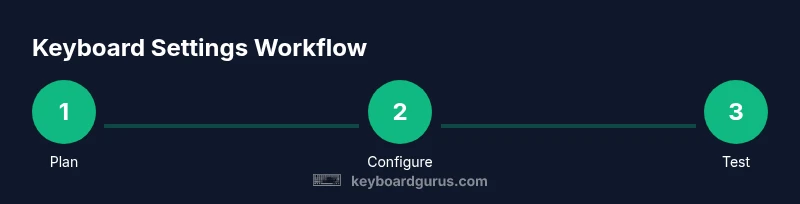
To start managing keyboard settings effectively, define profiles for common use cases—work, gaming, coding, and travel. This planning phase helps you decide which tweaks matter most, whether it’s switching layouts, adjusting key repeat rate, or enabling accessibility shortcuts. Keyboard Gurus analysis shows that most users gain the greatest efficiency by separating workflows rather than applying one monolithic configuration. Create a short list of preferred actions for each profile: the layout you want, the default shortcuts you rely on, and the accessibility features you’ll enable. Keep these profiles simple at first; you can refine them after testing. Document the exact steps you’ll take to switch profiles, so you can reproduce them consistently across devices. Finally, consider security implications: profile changes should not weaken password- or data-protection practices.
Adjusting layout and key assignments
Layout decisions include choosing QWERTY vs. alternative layouts, mapping rarely used keys, and deciding on neutral or language-specific configurations. Start with a baseline layout you’re comfortable with, then progressively remap keys that hamper your speed. When remapping, avoid altering essential system keys (like Ctrl/Alt, Cmd/Windows) in a way that conflicts with OS shortcuts. For gaming or creative work, you might reserve a set of keys for macros or quick-access actions. A good practice is to document every remap with the rationale and intended usage to prevent drift over time. Use per-application overrides for critical tools to avoid global conflicts, and test each change in context (editor, IDE, browser, game) before finalizing.
Managing key repeat rate, delay, and debounce
Key repeat rate and delay directly influence how efficiently you type long strings or code. Start with moderate delay and repeat settings to avoid accidental duplicates during fast typing. If you notice missed characters or repeated keystrokes in gaming or data entry, adjust debounce or repeat rate carefully. Some keyboards provide hardware-level debouncing; if not, rely on OS-level settings and test across apps you use most. Document your baseline values so you can revert if you encounter issues. Remember that different keyboards (mechanical vs membrane) may respond differently to the same settings, so test on your primary input device.
Configuring shortcuts and app-specific mappings
Global shortcuts apply system-wide, while app-specific mappings tailor actions within a single program. Start with a small, non-conflicting set of shortcuts that you actually use; avoid redefining common shortcuts that many apps rely on. When enabling app-specific mappings, check for conflicts with your OS shortcuts and other programs running in the background. For example, a video editor might benefit from a single-key toggle or a macro for common sequences, while a text editor benefits from intuitive navigation shortcuts. Keep a changelog of mappings for each app to simplify troubleshooting and onboarding new devices.
Language input and layout options
Switching between languages and input methods is a common task for multilingual environments. Plan a clean workflow for language switching: a physical key, a hotkey combination, or a quick-access panel. Some OSes offer language-specific layouts that map letters to different keyboards; ensure you choose the most efficient option for your primary languages. If you type in multiple languages, consider using a dedicated input method editor (IME) with a lightweight switcher instead of toggling entire layouts. Keyboard Gurus notes that consistent language switching reduces errors in documentation and code comments.
Accessibility features: sticky keys, filter keys, and more
Accessibility options—like Sticky Keys, Filter Keys, and High-Contrast modes—can dramatically reduce fatigue and errors for some users. Enable only the features you actually need; excessive accessibility toggles can complicate workflows. Test sticky keys with your most frequent sequences to ensure they don’t interfere with fast typing or gaming; adjust activation keys and hold times to your comfort level. If you rely on assistive tech, verify that your keyboard settings integrate smoothly with your screen reader or magnification tools. Document any conflicts and the workarounds you adopt for future reference.
Profiles syncing across devices and backup
Maintaining consistent keyboard settings across devices requires a reliable backup and sync strategy. Decide whether you’ll export/import profiles, use cloud-sync, or rely on OS profiles that sync automatically. If you frequently switch between laptops and desktops, a robust backup plan ensures you don’t lose custom mappings or shortcuts. Regularly test syncing after OS updates, and keep a portable backup of your configuration for emergencies. Keyboard Gurus recommends scheduled checks: verify that profiles on all devices reflect the latest tweaks and that no device retains an outdated, fragmented setup.
Testing, validating, and refining changes
After implementing settings, test across representative tasks: typing, coding, gaming, and media editing. Validate that shortcuts trigger as intended, layouts map correctly to your current language, and accessibility features behave predictably. Collect feedback from daily use and adjust gradually to avoid regressions. Maintain a small, repeatable test script for future changes: minimum input tasks, expected outputs, and easy revert steps. Finally, schedule a quarterly review of all keyboard settings to ensure they stay aligned with your evolving workflows and hardware.
Tools & Materials
- Computer with your OS (Windows/macOS/Linux) access(Ensure admin rights for saving system-wide changes.)
- Keyboard manual or vendor software (if available)(Some keyboards ship with companion apps for key remapping.)
- Documentation of current settings(Take screenshots or export current profiles before changes.)
- Backup method (cloud or external drive)(Useful for restoring previous configurations.)
- Test keyboard (primary input device)(Useful if you have multiple keyboards to compare layouts.)
Steps
Estimated time: 60-90 minutes
- 1
Define goals and use-cases
Identify your primary activities (coding, writing, gaming) and list the top 3-5 tasks that most impact your productivity. This sets the direction for layout, shortcuts, and accessibility choices. Create profiles for each use-case to keep changes organized.
Tip: Document the exact actions you perform most; this anchors future remaps. - 2
Audit current settings
Review existing keyboard settings on each OS you use. Note layout, repeat rate, language switches, and shortcuts you rely on. Take screenshots or export current profiles to create a baseline you can revert to if needed.
Tip: Check for conflicting shortcuts across apps—these are common sources of friction. - 3
Create a baseline layout
Choose a comfortable baseline layout (QWERTY is standard; consider Dvorak or Colemak if you’re curious) and map essential keys first. Keep important system keys intact and avoid over-remapping during the initial pass.
Tip: Test typing speed with the baseline before adding remaps. - 4
Configure global shortcuts
Set a small set of global shortcuts that you actually use and avoid conflicts with OS-level shortcuts. Document each shortcut’s purpose and where it’s active (all apps or only specific ones).
Tip: Start with 3-5 shortcuts and expand later as you gain confidence. - 5
Implement app-specific mappings
Add mappings for critical apps (IDE, editor, design tool, game). Ensure they don’t conflict with global shortcuts. Test each app in isolation and then in a typical cross-app workflow.
Tip: Keep a changelog to track app-specific changes. - 6
Set language and input methods
Configure language switchers and input methods to match your workflow. Choose quick-access triggers and test language toggles during real tasks. Verify layouts align with the languages you use most.
Tip: Use a single, reliable switcher to minimize errors. - 7
Enable accessibility features
Turn on only the accessibility features you need (Sticky Keys, Filter Keys, High-Contrast). Test how these interact with your typing speed and shortcuts, and adjust activation times and keys accordingly.
Tip: Disable features that cause unintended activations during fast typing. - 8
Set up profiles for syncing
Decide on a sync strategy (cloud sync, export/import, or OS-based profiles). Prepare to test cross-device consistency by applying the same profile on a second device and comparing results.
Tip: Keep a master profile as the source of truth. - 9
Test, verify, and refine
Run through representative tasks on each device. Note any discrepancies, conflicts, or inefficiencies, and adjust gradually. Schedule periodic reviews to keep configurations aligned with your needs.
Tip: Create a short quarterly maintenance routine.
Got Questions?
How do I start managing keyboard settings from scratch?
Begin by outlining your primary tasks (coding, writing, gaming) and choosing a baseline layout. Then add short, non-conflicting global shortcuts and test across your most-used apps. Keep a changelog for future reference.
Start by listing your main tasks and choosing a baseline layout, then add a few global shortcuts and test them in your software.
Can I have separate profiles for work and home?
Yes. Create distinct profiles for different environments, each with its own layout, shortcuts, and accessibility settings. Sync or export these profiles so you can quickly apply them on any device.
Yes—make separate work and home profiles and sync them across devices.
Will changing shortcuts affect games or IDEs?
Global shortcuts can interfere with applications. Prefer app-specific mappings for critical tools and keep global shortcuts limited to non-conflicting actions. Test each change in its target app.
Yes, global shortcuts can clash with apps; use app-specific mappings when possible and test thoroughly.
How can I keep keyboard settings consistent across devices?
Choose a sync method (cloud or export/import) and apply the same master profile on each device. Regularly verify that all devices reflect the latest changes.
Use a master profile and sync it to all devices; verify consistency regularly.
What accessibility features should I enable?
Enable only the features you truly need, such as Sticky Keys or Slow Keys, and tailor activation timings to your typing speed. Avoid enabling multiple features that could hinder performance.
Turn on only the accessibility features you actually need and adjust timings to fit your speed.
Watch Video
What to Remember
- Plan by use-case to prioritize changes.
- Test changes in context to avoid conflicts.
- Document remaps and maintain a changelog.
- Enable only necessary accessibility features to avoid friction.
- Regularly review and refresh profiles across devices.