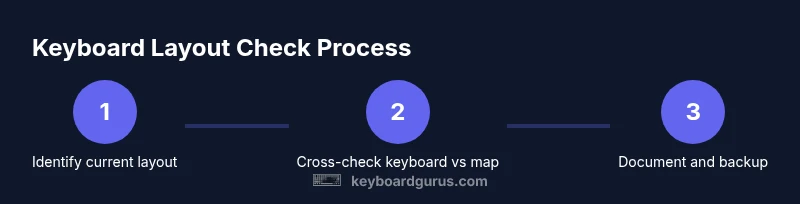
How to Check Keyboard Layout
Learn to verify your active keyboard layout across Windows, macOS, Linux, Android, and iOS with clear steps, tests, and practical troubleshooting tips for reliable typing.


This guide helps you confirm the active keyboard layout on your device and ensures your physical keys match the software mapping. You will learn quick checks, OS-specific steps for Windows, macOS, Linux, iOS, and Android, plus how to test with real typing tasks. Understanding layout mismatches prevents mis-typed commands, improves typing comfort, and reduces workflow friction for gamers, students, and professionals.
Understanding keyboard layout and why verify it matters
A keyboard layout defines how physical keys map to characters on screen. When the physical keys don’t align with the software mapping, you may press a key and see a different character appear. This can disrupt work, learning, and gaming, especially when you switch devices or share keyboards. How to check keyboard layout—the process you’ll follow in this guide—helps you confirm that the keycaps and the digital mapping match your expectations. According to Keyboard Gurus, confirming layout consistency reduces typing errors and streamlines workflows for students, gamers, and professionals. The goal is not merely to know the name of the layout but to verify the actual behavior of keystrokes in your environment. A robust check also helps when traveling with a laptop or using external keyboards across different operating systems.
In practice, a layout check combines quick visual verifications with hands-on tests. You’ll compare what you press with what appears on the screen, validate language and regional settings, and, if needed, remap keys or add a new layout. This approach is useful for anyone who types regularly, from coders to writers, and for those who customize their keyboards for accessibility or gaming. The technique scales from a single machine to multi-device setups, ensuring a consistent experience in diverse contexts.
In this guide you’ll learn the core concepts, quick checks, and step-by-step OS-specific procedures to determine and lock in the correct keyboard layout. You’ll also find practical testing tips and safety notes for changes that affect shortcuts and accessibility.
Tools & Materials
- Computer or mobile device with operating system controls(Ensure you can access system settings or preferences)
- Official layout diagram or printable keymap(A reference showing what each key should produce under the target layout)
- External keyboard (optional)(Useful for cross-device comparison and portability tests)
- A short typing test sample (e.g., pangrams)(Use phrases like 'the quick brown fox' to test punctuation and letter placement)
- Documentation or online resources for your language/region(Helpful for cross-checking language-specific characters)
Steps
Estimated time: 15-25 minutes
- 1
Open system settings and locate keyboard options
Begin by opening the device’s settings and locating the area that controls input or keyboard settings. This initial step establishes where the active layout is declared. You’ll want to confirm you’re viewing the layout configuration rather than just a language pack. This context is essential to understand how keystrokes translate into characters on screen.
Tip: If you can’t find it, use the search bar in settings and type 'keyboard' or 'input'. - 2
Check the primary layout indicator or active keyboard
Look for the primary layout indicator, language label, or keyboard entry that shows which layout is currently active. On many devices, this appears in the taskbar, menu bar, or quick settings. The goal is to know the exact layout name (e.g., US QWERTY, UK, or AZERTY) that maps to keystrokes.
Tip: Some devices show a tiny flag icon; hover or click to reveal the full layout name. - 3
Match physical keys to on-screen mapping using a test
With the layout visible, press a sequence of keys that covers common letters, punctuation, and numbers. Compare the characters produced on screen with your expectations from the layout diagram. If discrepancies appear, note which keys map incorrectly and where the mismatch lies.
Tip: Use a pangram like 'Sphinx of black quartz, judge my vow' to test a broad range of letters. - 4
Test with different layouts (if you use more than one)
If you regularly switch between layouts (e.g., US and UK), repeat the test for each layout. This ensures the system switches correctly and that the correct keys emit the expected characters in each mode. Some systems require a keyboard switch to trigger the mapping change.
Tip: After switching, re-run the same key sequence to confirm consistency. - 5
Validate language/region settings and input methods
Check language preferences, input methods, and regional formats to confirm alignment with the desired layout. Inconsistent language settings can cause subtle mapping differences, especially for diacritics and accented characters.
Tip: Make sure the input method matches the layout you intend to use most often. - 6
Document the confirmed layout and mapping
Record the final layout name, any related language settings, and the devices where this mapping is active. Keeping a short log helps if you need to re-establish the setup later or troubleshoot issues across devices.
Tip: Include the OS version and keyboard model if you’re managing multiple devices. - 7
If mismatches persist, consider remapping or adding a new layout
When the mapping still doesn’t align with expectations, explore remapping options or adding an alternate layout. This step may involve third-party tools or built-in editor features and should be done carefully to avoid breaking shortcuts.
Tip: Always back up existing key mappings before making changes.
Got Questions?
Why does my keyboard layout not match the keys I press?
A mismatch typically happens when the OS is set to a different layout than the physical keyboard. It can also occur after a system update, a language change, or when a separate input method is active. The fix is to verify the active layout and align it with the physical keyboard.
A mismatch happens when the system layout and keyboard don’t match. Check the active layout in settings and align it with your physical keyboard.
How do I change the keyboard layout on Windows?
Open Settings, go to Time & Language, then Language & Region, and select Add a keyboard or the desired layout under Preferred languages. Remove any layouts you don’t need. After you add a layout, switch using the taskbar input indicator.
Open Settings, add or remove a layout under Language options, then switch with the input indicator.
Can I remap keys permanently without breaking shortcuts?
Permanent remapping is possible with built-in editors or third-party tools, but it can affect shortcuts. Create a backup, test in a safe environment, and document the changes. Avoid removing keys critical to your workflow.
Yes, but proceed with caution and back up before changing shortcuts.
Is keyboard layout testing important for gaming?
Yes. In games, shortcut keys and hotkeys rely on predictable mappings. Verifying your layout reduces misfires in commands and improves response time.
Crucial for accuracy and speed in games; make sure your mappings are consistent across tasks.
What should I do about non-Latin layouts or diacritics?
Non-Latin layouts require specific language settings and possible diacritics handling. Ensure you use the correct input method and reference a layout diagram for accuracy. If necessary, enable an alternate layout for special characters.
If you work with non-Latin scripts, set up the right input method and verify diacritics work as expected.
Watch Video
What to Remember
- Verify active layout in system settings
- Match key presses to on-screen mappings
- Test across layouts if you switch between them
- Document final mapping for consistency
- Remap cautiously and back up existing configurations