How to Tell Keyboard Layout: A Practical Guide
Learn how to identify keyboard layouts quickly, compare QWERTY, AZERTY, DVORAK, and other common arrangements, and verify with OS settings and reference layouts.


To tell a keyboard layout, you can compare the key arrangement to known layouts (QWERTY, AZERTY, DVORAK, Colemak) and verify with OS input settings. Start by locating the home row and punctuation cluster, then check the top and bottom rows for distinctive key placements. This quick method helps you confirm layout on a new keyboard, fix typing issues, and configure shortcuts accurately.
Why understanding keyboard layout matters
Understanding keyboard layout is essential for efficient typing, software localization, and hardware compatibility. If you travel or work with multilingual teams, mismatched layouts can cause typos and slow down work. According to Keyboard Gurus, knowing how to tell keyboard layout helps you customize shortcuts, choose appropriate keycaps, and troubleshoot input issues without guessing. A layout defines the position of letters, punctuation, and function keys; even subtle differences (like where the tilde key sits) can dramatically change typing speed. In this section, we outline why it's worth spending a few minutes learning to identify layouts, plus the most common layouts you’ll encounter and how to spot them quickly.
Beyond personal comfort, correct identification reduces onboarding time when switching devices and improves accuracy in tasks that rely on precise keystrokes, such as programming, design, and data entry. Keyboard Gurus emphasizes that a systematic approach—observing the home row, the number row, and the punctuation cluster—will usually reveal the layout with little guesswork. This knowledge is also useful for troubleshooting: if macro shortcuts don’t behave as expected, the issue is often a layout mismatch rather than a software bug.
In short, knowing how to tell keyboard layout empowers you to type confidently anywhere, adapt to different locales, and customize your setup for peak efficiency. The effort pays off in reduced errors, faster workflows, and fewer frustration moments when collaborating across teams or when traveling with devices that may default to another region.
Tools & Materials
- Keyboard (any physical keyboard)(Ensure you can view all keys clearly; a compact or nonstandard keyboard may require extra care.)
- Reference layout images or printouts(US QWERTY, UK, AZERTY, DVORAK, Colemak are good starting references.)
- Computer or mobile device with internet access(Needed to check OS language/keyboard settings and online references.)
- Pen and notebook(Useful for jotting down findings and key differences.)
- Camera or smartphone for photos(Capture layouts that are unclear for later comparison.)
- Ruler or measuring tool (optional)(Helpful if you need to compare key sizes across keyboards.)
Steps
Estimated time: 15-25 minutes
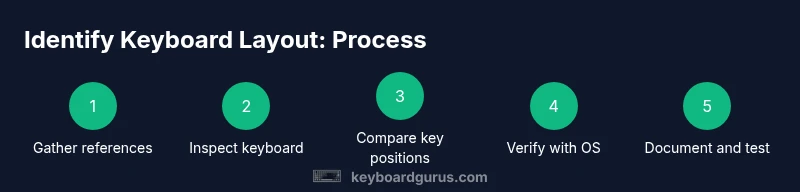
- 1
Gather reference layouts
Collect reliable images or diagrams of the main layouts you expect to encounter (US QWERTY, UK QWERTY, AZERTY, DVORAK, Colemak). Having a visual reference makes the comparison straightforward and reduces guesswork.
Tip: Keep a digital folder of each layout you reference so you can compare side-by-side. - 2
Inspect the physical keyboard
Look at the keyboard in front of you and identify the home row letters. For example, in US QWERTY the home row is ASDF JKL; and the spacebar stretches across the bottom. Note any deviations like extra letters (ð, ç) or language-specific keys.
Tip: Take note of any unusual symbols or letters you see on the keys. - 3
Compare key positions to known layouts
Line up the first row of letters and the home row with your reference images. Pay special attention to the digits row, punctuation keys, and the presence or absence of specialized keys (like the tilde ~ or the euro € key).
Tip: Small differences in a single key can signal a different layout (e.g., Z vs. Y, or the presence of ß). - 4
Check the bottom row and modifiers
Examine the modifier keys (Shift, Ctrl, Alt, Command) and their spacing. Some layouts relocate the control keys or have a different left-side modifier cluster (common in Mac layouts).
Tip: If the keyboard has a Windows-style left Ctrl, it’s likely a Windows/US or compatible layout. - 5
Verify with OS keyboard settings
On your computer, open the language or keyboard settings and see which layout is active. If it matches your visual observations, you’ve identified the layout. If not, toggle through options and re-check the keys as you type.
Tip: OS settings often show both the input method and the locale; use both to confirm. - 6
Document and test
Take clear notes of the layout identity and, if possible, perform a quick typing test to verify you can type typical words correctly. Use a text sample that includes tricky punctuation or language-specific characters.
Tip: A short typing test helps confirm that your recognition translates into correct typing.
Got Questions?
What is a keyboard layout?
A keyboard layout is the arrangement of keys that determines which characters are produced by each key. Common layouts include QWERTY, AZERTY, DVORAK, and Colemak, each with distinctive letter positions and punctuation. Understanding layout helps with typing accuracy and efficient shortcuts.
A keyboard layout is how the keys are arranged to produce characters, with popular options like QWERTY and AZERTY.
How can I tell if my keyboard is DVORAK or QWERTY?
Look at the home row letters: in DVORAK, vowels are on the home row (A, O, E, U, I) with consonants surrounding them; in QWERTY the home row is different (ASDF JKL;). Compare several keys to the reference layout to be sure.
DVORAK puts vowels on the home row, unlike standard QWERTY.
Can I change my keyboard layout in software?
Yes. Most operating systems let you add and switch between keyboard layouts or input methods. After enabling a second layout, you can switch with a shortcut or menu option.
You can add and switch layouts in your OS settings.
What should I do if I need a regional layout with special characters?
Choose a region-specific layout (e.g., French AZERTY, German QWERTZ) or use a long-press input method for diacritics. You can also create custom layouts or use software that maps keys to your preferred characters.
Use region-specific layouts or diacritic input methods to type special characters.
Is layout knowledge important for gaming or programming?
Yes. Correct layout awareness helps with accurate keybindings, hotkeys, and shortcuts. If you frequently switch between layouts, configure software shortcuts to correspond to your active layout.
Knowing your layout helps avoid mis-typed shortcuts in games and code editors.
Watch Video
What to Remember
- Identify the home row to anchor recognition
- Compare letters, digits, and punctuation clusters across layouts
- Always verify with OS settings before locking in a layout
- Document findings to avoid repeat checks