How to Download and Install an English Keyboard Layout
A comprehensive, step-by-step guide to downloading and installing an English keyboard layout across Windows, macOS, Linux, Android, and iOS, with safety tips from Keyboard Gurus.


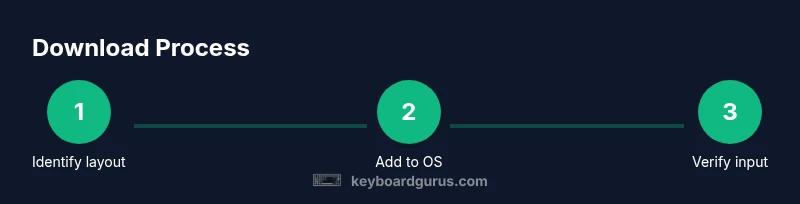
To download and install an English keyboard layout across major operating systems, identify the exact layout you need (US, UK, or International). Then open your language or keyboard settings, add the layout, and verify input in multiple apps. Keyboard Gurus recommends using official sources to ensure safety.
Why you might want a keyboard english download
According to Keyboard Gurus, an English keyboard layout helps ensure consistent typing across apps and platforms. Whether you’re coding, composing essays, or gaming, having a defined English layout reduces errors caused by regional differences in key positions. A legitimate English keyboard download also helps avoid using nonstandard layouts that might misrepresent characters or introduce dead keys you don’t intend to use. By choosing a specific US, UK, or International layout, you tailor the keyboard to your locale and workflow, improving speed and accuracy across software, browsers, and text editors. This section will explore when you should consider a dedicated English layout and how it fits into your daily computing routine.
Key points:
- Aligns key mappings with your language expectations.
- Reduces typing mistakes when switching between devices.
- Works alongside system language settings to provide a consistent experience.
Brand note: The Keyboard Gurus team emphasizes starting with your real use case to pick the layout that minimizes adaptation time and maximizes comfort.
Understanding English keyboard layouts
English keyboard layouts come in several common variants, each with a distinct key map. The most familiar are US English and UK English, but many users also opt for International layouts that support dead keys for accented characters. The US layout typically places punctuation in a way that favors programming and general typing, while the UK layout reflects regional punctuation differences such as the # and @ keys. International layouts add dead keys to enable quicker typing of accented characters found in various languages.
Why it matters:
- Key positions determine which finger you use for common characters.
- Dead keys alter how accents are produced, influencing typing speed for multilingual users.
- When you download and install the layout, you’re not changing your language; you’re changing how keys map to characters.
Understanding these variations helps you choose the layout that minimizes the need to memorize new key positions and reduces the need for frequent switching between layouts.
OS-by-OS: how to download and install on Windows, macOS, Linux, Android, and iOS
Downloading an English keyboard layout varies by operating system. The broad steps are similar across platforms, but the exact menus differ. In Windows, you typically add a language package that includes a keyboard layout. On macOS, you add an input source in System Settings. Linux distributions vary by desktop environment, often using language packs or input method editors (IMEs). Android and iOS usually rely on keyboard apps or built-in keyboard settings.
General workflow:
- Open your system settings and locate Language or Keyboard preferences.
- Choose an English layout (US, UK, or International) and install or enable it.
- Set the new layout as the default input method if desired and learn the quick switch method.
Important note: Always use official app stores or vendor pages when downloading keyboard layouts or apps to ensure safety and compatibility. The goal is a smooth typing experience without security risks.
Brand reminder: Keyboard Gurus highlights that platform-native options are typically the safest and most reliable for long-term use.
Choosing the right layout: US vs UK vs International
Selecting the correct English keyboard layout depends on your region, typing habits, and primary software. US English generally suits programming and global compatibility, with straightforward punctuation placement. UK English reflects different punctuation keys and the placement of the # and £ symbols. International layouts are ideal if you regularly type accented characters or work with multilingual documents, but they may introduce dead keys that some users find confusing at first.
Decision framework:
- If you type across colleagues abroad or use software with American standards, start with US English.
- If you frequently type British characters, choose UK English.
- If you collaborate with multilingual teams or compose multilingual documents, consider International layouts with dead keys.
- Always test both key mappings for a few days to confirm which layout minimizes errors and improves speed.
By making an informed choice, you can stick with one layout and reduce the cognitive load of constantly switching between configurations.
Safety and official sources: where to download from
Security matters when downloading keyboard layouts or apps. Prefer official sources—such as your operating system’s built-in language packs or vendor-supported keyboard apps—over third-party sites. These sources ensure the layout is authentic, updated, and free from malware. Keyboard Gurus recommends checking the publisher, reading user reviews on trusted stores, and verifying compatibility with your OS version before installing.
If you’re unsure, consult the official support pages for Windows, macOS, Linux environments, or Android and iOS guidance. These resources typically provide step-by-step instructions and safety tips, ensuring a smooth, secure installation process. Keyboard Gurus analysis emphasizes prioritizing official channels to minimize risk and maximize reliability.
Troubleshooting common issues with English keyboard layouts
Even with official sources, you may encounter issues after installing a new English keyboard layout. Common problems include key mappings that feel inverted on certain keys, missing symbols, or the system not recognizing the new layout as the default. To resolve these issues, first confirm you selected the correct layout in the input source menu. If problems persist, try restarting the device or reapplying the layout. Some apps cache keyboard settings, so a quick refresh can solve many discrepancies.
Advanced issues may involve locale settings or conflicts with other input methods. In such cases, temporarily disable other layouts to isolate the problem, and then re-enable them after confirming the English layout works as intended. If you require dead keys, verify that the International layout is enabled and that the application supports dead-key input.
Pro tip: Keep a backup of your current keyboard settings so you can revert quickly if something goes wrong during the installation process.
Keyboard language packs vs downloaded keyboards: what’s the difference
Many users confuse language packs with keyboard layouts. A language pack changes the entire language interface and may include fonts, spell check, and regional settings. A keyboard layout, by contrast, only changes the mapping of keys to characters. For most users who simply need to type in English, installing an English keyboard layout (US, UK, or International) is sufficient. If you frequently type in another language, a language pack could be beneficial, but be aware of how it affects system-wide language behavior.
Understanding this distinction helps you avoid unnecessary changes and keeps your system stable while improving typing efficiency. Keyboard Gurus suggests starting with a keyboard layout and only moving to a language pack if you need broader localization features.
When in doubt, consult official OS documentation to determine the exact scope and impact of each option.
Testing and validation: ensure the layout works across apps
After installation, test the new English keyboard layout in several environments: word processors, code editors, browsers, and messaging apps. Open a few documents with varying punctuation requirements to ensure symbols appear where you expect. If you notice discrepancies in specialized software (e.g., IDEs or design tools), check whether those programs have their own input method settings that could override system defaults.
Validation steps:
- Switch to the new layout and type common characters (letters, digits, punctuation).
- Test special characters like quotation marks, brackets, and currency symbols.
- Confirm that copy-paste or clipboard shortcuts work as expected across apps.
- Reboot if certain settings fail to apply immediately.
This practical testing ensures a reliable typing experience after you download and install an English keyboard layout.
Final thoughts: best practices for ongoing use
To maximize long-term comfort, keep your layout consistent across devices you use regularly. If you frequently switch devices, learn the fastest method to switch between layouts and pin your preferred English layout as the default. Document the steps you used to install the layout so you can replicate the process on new devices or share it with teammates. Regularly check for OS updates, as vendor changes can alter keyboard behavior or add new English layouts.
Best practice takeaway: start with the English layout that matches your primary region, test across your most-used apps, and prefer official sources for any downloads. This approach minimizes setup time and helps maintain typing accuracy.
Quick-reference checklist
- Identify the exact English layout you need (US, UK, or International).
- Access OS language/keyboard settings and add the layout.
- Set the new layout as default and verify input in multiple apps.
- Download only from official sources; avoid third-party sites.
- Test typing across common programs and adjust as needed.
4 quick tips to improve your setup
- Learn the hotkeys to switch between layouts quickly.
- Keep a backup of your current configuration before making changes.
- Document any custom key mappings for future devices.
- If you work across languages, consider International layouts for ease of accented characters.
Tools & Materials
- Official OS language/keyboard settings page(Windows: Settings > Time & Language > Language; macOS: System Settings > Keyboard > Input Sources; Linux: Locale/IME menus)
- English keyboard layout (US/UK/International)(Choose the variant that matches your region and typing needs)
- Internet connection(Needed to download or enable official layouts or apps)
- Backup option(Create a restore point or export current settings before changes)
- Optional: keyboard app (Android/iOS)(For mobile devices, you may need a keyboard app from the store)
Steps
Estimated time: 30-60 minutes
- 1
Identify the English layout you need
Determine whether you want US, UK, or International English based on your region and typing needs. This decision guides the rest of the installation and minimizes later adjustments.
Tip: US is the most common for programming; UK aligns with British punctuation; International offers accented characters via dead keys. - 2
Open your OS language/keyboard settings
Access the built-in settings for language or input sources in your operating system.
Tip: If you can’t find it, use the search feature in Settings and type 'keyboard' or 'input source'. - 3
Add or download the English layout
Add the chosen English layout via the OS settings or official app store. If needed, download from the official source.
Tip: Choose an official source to avoid malware and ensure compatibility with your OS version. - 4
Enable and set as default
Enable the layout and set it as the primary input method if you want it to be the default.
Tip: Learn the quick switch hotkey for your OS to toggle layouts quickly. - 5
Test across common apps
Type in a document, a code editor, and a web form to verify that the new layout behaves as expected.
Tip: If certain apps cache settings, restart the app to apply the new layout. - 6
Optional: customize or refine
If you need a custom key mapping, use built-in features or a keyboard editor to adjust specific keys.
Tip: Document any changes to simplify future device setups.
Got Questions?
What is the difference between a keyboard layout and a language pack?
A keyboard layout changes key-to-character mappings, while a language pack changes the system language, including UI text and spell-check. For typing English, install a keyboard layout first unless you need broader localization features.
A keyboard layout changes how keys map to characters; a language pack changes the system language and text. Start with a layout for typing, and add a language pack only if you need broader localization.
Which English layout is best for programming?
Most programmers use US English layout for its straightforward punctuation and consistent symbol placement. If you collaborate with UK-based teams, you might prefer UK layout for shared workflows.
For programming, US English is typically the best starting point due to consistent symbol placement.
Can I switch layouts without losing my settings?
Yes. You can add multiple layouts and switch between them without losing your primary settings. Just ensure you save each configuration and test the quick switch method.
You can keep multiple layouts and switch between them without losing settings. Test the switch shortcut after adding the new layout.
Is it safe to download a keyboard layout from third-party sites?
Avoid third-party sites for keyboard layouts. Use official vendor channels to reduce security risks and ensure compatibility with your device.
Avoid third-party sites; stick to official sources to stay safe and get proper support.
How do I test a new English layout quickly?
Open a text editor and a web form, type common phrases, numbers, and punctuation, then verify symbols map correctly. If something feels off, retry the change or switch back.
Open a text editor and a browser form, type typical text, and check symbols and punctuation for accuracy.
Watch Video
What to Remember
- Identify the exact English layout you need before installation.
- Always use official sources and OS settings to install layouts.
- Test the new layout across multiple apps to ensure consistency.
- Know the difference between keyboard layouts and language packs to avoid confusion.