How to Set Keyboard Language: Step-by-Step Guide for All
Learn how to set keyboard language across Windows, macOS, Linux, and mobile devices with clear steps, troubleshooting tips, and best practices for multilingual typing.


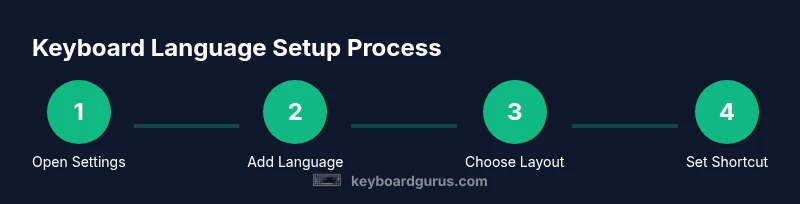
You can set keyboard language by adding your preferred input language in your operating system settings, selecting the correct keyboard layout, and enabling a quick switch method. Start by choosing the language, then map your keys to your layout, and set a keyboard shortcut. Keyboard Gurus provides step-by-step guidance for Windows, macOS, Linux, and mobile devices. This article explains how to do it on major platforms.
Why setting keyboard language matters
Typing in multiple languages is a common reality for students, programmers, gamers, and professionals. When you learn how to set keyboard language, you gain the ability to switch between scripts without breaking your workflow. According to Keyboard Gurus, choosing the right language and layout reduces mistakes, speeds up composition, and improves accessibility for multilingual teammates. Language settings influence autocorrect, font rendering, and spell-check behavior, so selecting a consistent pairing of input language and keyboard layout is a foundational skill. In practice, this means you can type accents, diacritics, and non-Latin characters with confidence across documents, chat apps, and code editors. If you start by listing your most-used languages, you’ll design a switch method that minimizes cognitive load and keeps you focused on tasks that matter. This section lays the groundwork for platform-specific steps that follow.
Remember: consistency matters. A stable language setup keeps your typing predictable, which in turn boosts speed and accuracy over time.
Tools & Materials
- A computer or mobile device(Windows PC, macOS, Linux, iOS, or Android with language input support)
- Active internet connection(Optional for downloading additional language packs on some platforms)
- Access to system settings(You will modify Language/Input options and possibly restart services)
- A list of languages you use most(Helpful for planning which languages to add first)
Steps
Estimated time: 20-40 minutes
- 1
Open language settings
Navigate to your device’s main Settings app and locate the Language, Region, or Keyboard section. Open the language options to see current inputs and layouts. This initial step confirms you’ll be adding or adjusting languages rather than changing only display language.
Tip: Use the search bar in Settings to jump directly to “Language” or “Keyboard.” - 2
Add a new input language
Select the option to Add a language or input method, then choose the language you need from the list. This creates a new input source separate from your default language and prepares the system to accept the corresponding keyboard layout.
Tip: Choose a language you will actually type in to avoid clutter in the switch menu. - 3
Select a keyboard layout
For each language, pick an appropriate keyboard layout (for example US-QWERTY, UK, AZERTY, or a regional variant). This mapping determines which key outputs correspond to each character.
Tip: If you use diacritics often, consider layouts that make those characters easier to reach. - 4
Set a quick switch method
Configure a keyboard shortcut or on-screen toggle to switch between languages. Common options include Alt+Shift, Windows+Space, or a dedicated language switch key. This enables fast, in-context language changes during work.
Tip: Choose a shortcut you can reach without changing hand position. - 5
Test the language switch
Open a text editor or browser and type a few sentences in each language to confirm the mapping matches your expectations. Adjust layouts if you notice mis-typed characters or swapped accents.
Tip: Test with typical text you use in your daily tasks. - 6
Configure per-app behavior
Some platforms allow different language settings per app or per window. If you work with code, chat, and documents, decide whether the switch should follow the app or stay global.
Tip: Per-app settings help avoid unexpected language changes during critical tasks. - 7
Enable language indicators
Show input indicators (like an icon or bar) to remind you which language is active. This reduces errors when typing in a foreign language.
Tip: If you type in mixed languages, a visible indicator prevents guessing the wrong layout. - 8
Apply changes and restart if needed
Save your settings and, if prompted, restart the device or log out and back in to ensure the new language inputs take effect. This finalizes the configuration.
Tip: A quick reboot is often enough to apply changes on older systems.
Got Questions?
What is the difference between language input and keyboard layout?
Language input defines the set of characters and scripts you can type, while a keyboard layout maps physical keys to those characters. You can have multiple layouts per language and switch between them as needed.
Language input decides what you can type; the keyboard layout decides which keys produce which characters.
Can I use different languages on different apps?
Many operating systems support per-app or per-window language settings. This helps you type in the correct language within a specific document or chat without changing the global default.
Yes, some systems let you tailor language settings per app.
Will changing language affect autocorrect or spellcheck?
Autocorrect and spellcheck often adapt to the active input language. If you switch languages, these features may switch dictionaries accordingly, so your typing remains accurate.
Yes, expect dictionary changes when you switch languages.
How do I remove a language I no longer need?
Go back to language settings, select the language, and choose Remove or Delete. Some systems require confirming the action or removing associated keyboard layouts first.
You can remove languages from Settings, but back up your preferred layouts first if unsure.
Why isn’t the language switch shortcut working?
Check that the shortcut isn’t reserved by another app, that the language and layout are installed, and that the feature is enabled in settings. A restart can also resolve conflicts.
If it’s not working, recheck the shortcut and ensure the language is installed.
Is it possible to have multiple layouts per language?
Yes. You can assign different layouts to the same language to accommodate varying typing needs, such as Latin script and accented variants, and switch between them as needed.
Absolutely—you can have more than one layout per language.
Watch Video
What to Remember
- Add and map your languages before typing,
- Use intuitive shortcuts to switch languages quickly
- Test across common apps to ensure consistent behavior
- Enable a visible language indicator to avoid layout mistakes
- Restart when prompted to apply all changes