Where Keyboard Settings Live: Your Complete Guide
Learn where keyboard settings live across Windows, macOS, Linux, and browsers. This practical guide helps you adjust layout, language, shortcuts, and accessibility features for a smoother typing experience.


This guide helps you locate where keyboard settings live across major platforms and apps, enabling you to adjust layout, language, shortcuts, and accessibility options quickly. By following the steps, you’ll save time and reduce setup friction. According to Keyboard Gurus, knowing these paths keeps you productive and minimizes frustration.
Understanding where keyboard settings live
In modern computing, keyboard settings are scattered across different menus by platform. The goal of this guide is to show you where to find them, what to adjust, and how to test changes. The phrase where keyboard settings live will recur as you explore each OS, because consistency is built through familiar categories: Input sources, Keyboard layouts, Shortcuts, and Accessibility. According to Keyboard Gurus, recognizing these categories before editing saves time and reduces misconfigurations. Start by thinking about your use case: bilingual work, programming, gaming, or ergonomic improvement. This mental model makes it easier to locate the exact panel you need, without digging through unrelated options. If you’re on a company device, some options may be restricted; in that case, you’ll need permission or IT support. With a clear map, you’ll navigate to the right panel in minutes rather than hours.
Beyond the basics, consider how often you switch contexts—typing in code, composing in a language-learning app, or gaming. Each context benefits from slightly different settings, and the process you use should be repeatable. Keyboard Gurus advocates documenting those pathways so you can revert changes quickly if something goes awry. The emphasis is on practical, testable steps rather than guesswork.
Quick paths by operating system
Finding where keyboard settings live is easier when you follow the OS-specific path. Here are the common routes you’ll use most often:
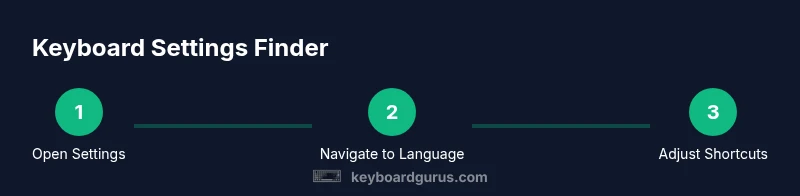
- Windows: Open Settings, then Time & Language, then Language. Within that area you’ll manage keyboard layouts and input methods. If you prefer quick access, try typing 'keyboard' into the Start menu search and jump directly to the panel.
- macOS: Open System Settings (or System Preferences in older versions) and select Keyboard. This panel lets you modify key repeat behavior, shortcuts, dictation, and input sources.
- Linux: On GNOME-based desktops, Settings > Keyboard covers layout and shortcut options. If you’re on KDE or other environments, look for a Keyboard or Input Devices module in System Settings.
- Chrome OS: Settings > Device > Keyboard allows you to adjust inputs and shortcuts across the Chromebook.
- Mobile platforms: iOS and Android have their own keyboard sections in Settings, typically under General or System, for languages and keyboards settings.
By following these routes, you’ll quickly reach the core areas to tailor the experience to your needs.
Key settings to adjust
These are the core knobs you’ll typically tweak when working with keyboard settings:
- Language and input sources: add languages, switch between layouts, and set a preferred input method to reduce friction during multilingual work.
- Keyboard layouts and shortcuts: choose your layout (e.g., QWERTY, AZERTY), and map or disable shortcuts that conflict with your apps.
- Typing and accessibility: adjust key repeat delay, repeat rate, and enable features like Sticky Keys or Slow Keys to support accessibility.
- Autocorrect and text suggestions: configure spelling corrections and smart prompts to maintain typing accuracy.
- Device-specific options: some keyboards offer vendor software to customize macros, lighting, and profiles; consider enabling those if your workflow relies on specialized keys.
Understanding these categories helps you build a dependable workflow across devices.
How to locate shortcuts quickly
Shortcuts are the fastest way to perform frequent tasks, but they can be tricky to customize. Try these quick methods:
- Use the OS search: type keyboard or shortcuts in Windows or macOS search to reach the right panel.
- Inspect the menu bars: many apps display keyboard shortcuts in their Edit or Preferences menus, which helps you align system and app shortcuts.
- Create a personal hotkey sheet: write down the most-used shortcuts and their new mappings to avoid cognitive load during work or gaming.
With practice, you’ll memorize your most-used combinations and reduce reliance on mouse navigation.
Gaming keyboards and driver software
If you use a gaming keyboard, vendor software often controls buttons, macros, and lighting. You’ll want to install the official software from the keyboard vendor and explore per-profile settings, macro commands, and onboard memory profiles. Even if your OS provides default keyboard settings, vendor software can override or complement them. Always test each change in the context where you’ll use the key (coding, gaming, or content creation). In many cases, you’ll switch between a work profile and a gaming profile to optimize performance.
Keyboard Gurus also notes that updates to vendor software can reset settings, so document changes after installation and keep backups of profiles.
Troubleshooting common issues
Not all changes stick, or you might notice unexpected behavior after a restart. Some frequent issues include misapplied layouts following a system update, language packs not installing correctly, or shortcuts conflicting with app shortcuts. If this happens, revert to a known-good baseline, re-add the keyboard language, and reconfigure one setting at a time to isolate the problem. Clearing cached preferences or resetting the keyboard settings can help in stubborn cases, but make sure you back up profiles first. When in doubt, test on a fresh user account to determine whether the problem is user-level or system-wide.
Quick validation checklist
- Confirm the active keyboard layout matches your chosen language in the system tray or menu bar.
- Verify shortcuts work in the apps you use most.
- Test key repeat delay and speed in a text editor.
- Check accessibility options are enabled if you rely on Sticky Keys or Slow Keys.
- If using vendor software, ensure profiles load correctly when you log in.
A quick checklist helps you validate changes without overhauling your setup every time.
Keyboard Gurus insights
At Keyboard Gurus, we emphasize practical, testable steps. The guide to where keyboard settings live centers on building a repeatable process you can execute on any device. Our analysis highlights that understanding categories and testing changes in real-world tasks reduces frustration and speeds up workflow. By documenting changes, you empower yourself to revert quickly if something breaks, which is a habit we advocate for all keyboard enthusiasts and professionals. The more you practice, the more confident you’ll become at tailoring your setup to specific tasks.
What if you still can't find them?
If your device is managed or locked down, you may not see the expected panels. In this case, contact your IT administrator and request access or a sanctioned workaround. For personal devices, consult the vendor’s support pages or community forums for device-specific guidance. You can also try a hardware reset that preserves your data and test again. Remember, the aim is to align the keyboard behavior with your daily tasks, not to fight the system.
Further reading and best practices
While this guide focuses on the typical locations of keyboard settings, your needs may require deeper customization. Bookmark OS help pages, official vendor docs, and Keyboard Gurus knowledge base for step-by-step instructions, templates, and troubleshooting tips. Regularly reviewing your keyboard configuration ensures you stay aligned with new tasks, software updates, and gaming profiles.
Tools & Materials
- Computer or device with admin rights(Windows/macOS/Linux capable; ensure you can access system settings)
- Internet connection(Needed to download vendor software or OS updates if required)
- Keyboard(Preferably the primary input device you’ll configure)
- Vendor keyboard software (optional)(Used for macro/profile configuration on gaming or mechanical keyboards)
- Documentation or notes(Record current settings and any changes for rollback)
Steps
Estimated time: 15-25 minutes
- 1
Open Settings
Launch the settings panel on your device. This is the entry point for all keyboard-related adjustments and will vary by OS. Opening settings first keeps you organized.
Tip: Use a keyboard shortcut to reach settings faster (e.g., Windows key + I on Windows). - 2
Navigate to Language/Input
Find the language or input section where keyboards and layouts are managed. This is where you add new layouts or languages.
Tip: If you don’t see the language option, use the search bar in Settings. - 3
Add or select a keyboard layout
Add the desired layout (e.g., QWERTY, Dvorak) or switch the active layout to match your current task.
Tip: Set a preferred layout as default to reduce accidental switches. - 4
Adjust shortcuts
Review and customize shortcuts that affect your most-used apps. Disable conflicts with system shortcuts when needed.
Tip: Document any changes to prevent confusion later. - 5
Configure key repeat settings
Tweak delay and rate for comfortable typing and cursor control; this often improves coding speed and reduces mistakes.
Tip: Test in a text editor to feel the difference immediately. - 6
Enable accessibility options
Turn on features like Sticky Keys or Slow Keys if you need additional support for keyboard use.
Tip: Keep accessibility on only as long as you need it to avoid interference with daily work. - 7
Test changes
Open a sample document and verify that typing, shortcuts, and layout switching behave as expected across contexts.
Tip: Focus on real tasks (coding, writing, gaming) to validate usefulness. - 8
Backup current configuration
Export or save your current profile so you can revert quickly if something breaks.
Tip: Keep a separate backup for major changes. - 9
Install/vendor software if needed
If using a gaming keyboard, install the vendor software and create at least one profile.
Tip: Test each profile with the intended workflow, not just in a mono-task scenario. - 10
Document and reflect
Record what you changed, why, and how it impacts your work. Schedule a periodic review.
Tip: Use a simple change-log template for consistency.
Got Questions?
Where can I find keyboard settings on Windows 11?
Open Settings, go to Time & Language, then Language. From there you can manage keyboard layouts and input methods. Use the search bar to jump directly to the panel.
Open Settings, then Time & Language, then Language, and manage your keyboard there.
Can I change the keyboard layout without changing the language?
Yes. You can add a layout and set it as the default while keeping your current language. This is useful for switching between typing in different languages or layouts quickly.
You can add a layout and switch to it without changing your language.
Do all programs respect OS keyboard settings?
Most programs respect OS keyboard settings, but some apps may override them with their own preferences or shortcuts. If you see a mismatch, check the app’s settings.
Most apps follow OS settings, but some have their own shortcuts or layouts.
Is there a way to reset keyboard settings to default?
Yes. You can reset through the OS reset options or reinstall vendor software that governs the keyboard, then reapply your preferred settings.
You can reset via OS options or vendor software and reconfigure from scratch.
What about gaming keyboards with macros?
Vendor software typically controls macros. OS keyboard settings may not affect macro behavior. Configure profiles within the vendor software for precise control.
Macros are usually set with the vendor software, not the OS.
How do I prevent auto-switching of keyboard language?
Check the input sources and language bar, remove conflicting languages, and ensure the primary layout is set as default.
Remove conflicting input sources and set a stable default layout.
Watch Video
What to Remember
- Identify the OS path to keyboard settings before editing.
- Add or switch layouts to match language needs.
- Test shortcuts after changes to ensure compatibility.
- Use vendor software for gaming keyboards when available.
- Document changes for quick rollback if needed.