How to Do Keyboard Settings: A Comprehensive Guide
Master keyboard settings across OS and apps with a clear, step-by-step guide covering remaps, macros, lighting, and profiles for work, gaming, and accessibility.


By following these steps, you will confidently tailor keyboard settings across your device: adjust key remaps, repeat rate, backlight profiles, and macros. This guide covers system-wide options, app-specific profiles, and best practices to prevent conflicts. You’ll learn how to create, save, and switch between presets for gaming, typing, and accessibility, ensuring your keyboard behaves exactly as you want.
Why proper keyboard settings matter
According to Keyboard Gurus, the right keyboard settings can dramatically improve typing comfort, reduce fatigue, and optimize productivity across tasks. When you tailor the keyboard’s behavior to your routine, you spend less time fighting accidental keys, waiting for delays to register, or hunting for shortcuts. Proper settings also reduce repetitive strain by matching repeat rates and debounce to your typing speed, so keystrokes register consistently. Ergonomic modifications extend beyond comfort: they enable faster command entry, fewer mistakes, and a smoother workflow across documents, code, design tools, and games. In professional environments, consistent keyboard behavior supports accuracy in data entry, programming, and creative work. Keyboard Gurus emphasizes that the starting point is a clear picture of your typical tasks: typing-heavy writing, spreadsheet crunching, or rapid-fire gaming. By aligning hardware capabilities with software expectations, you create a predictable, reliable input system that minimizes surprises and increases confidence in every session.
Understanding the layers: system, app, and profile scope
Keyboard settings live in multiple layers, and understanding where changes take effect helps you avoid unintended results. System-wide settings apply to every input field across the operating system, ensuring a baseline behavior. Application-specific profiles override the system defaults for particular software—great for gaming, IDEs, or creative apps where certain keys deserve different actions. Finally, device-level or vendor profiles can live inside hardware software for macro editing and lighting control. When planning changes, start with the layer that matches your goal: a universal tweak (system) or a task-focused tweak (per-app). Also consider how profiles interact: enabling two conflicting macros or remaps can cancel out or create unpredictable keystrokes. A well-structured approach uses a baseline profile for general work, a second profile for gaming, and optional per-app tweaks for your most-used programs. This layered strategy helps maintain consistency while giving you the flexibility you want.
Common keyboard settings and what they do
Keyboard settings typically fall into a handful of categories: key remapping, key repeat rate and delay, debounce handling, macros, and lighting controls. Remapping lets you assign a different action to a key or key combo, which can speed up workflows or accommodate accessibility needs. Adjusting repeat delay and rate changes how quickly a held key repeats, which matters for typing speed and gaming accuracy. Debounce settings help prevent accidental double-registrations from hardware contact. Macros and profiles group sequences of keystrokes into a single button press, ideal for repetitive tasks. Lighting controls focus on brightness, color profiles, and effects, which can reduce eye strain or aid visibility in dark environments. Finally, always balance new configurations with practical limits to avoid conflicts with existing shortcuts. Keyboard Gurus notes that a thoughtful blend of these features leads to a more efficient, comfortable keystroke experience.
How to access and adjust system-wide keyboard settings
To adjust system-wide settings, locate the keyboard panel in your operating system’s control center. On Windows, you’ll typically find options under Settings > Time & language > Typing or Accessibility, where you can adjust the repeat delay and rate and enable or disable key features like Sticky Keys. On macOS, open System Preferences > Keyboard to tweak Key Repeat, Delay Until Repeat, and modifier key behavior, then explore Input Sources for language-related changes. Linux users can access keyboard settings through their desktop environment’s settings panel, which often mirrors the Windows and macOS options but may require additional tweaks via xinput or setxkbmap for advanced remapping. After changes, test by typing in a neutral document, and confirm that essential shortcuts still function. The goal is to establish a dependable baseline that feels natural during long sessions.
How to create and manage application-specific profiles
Application-specific profiles tailor keyboard behavior to individual programs. Start by identifying your most-used apps (e.g., IDEs, design tools, games) and deciding which keys should behave differently in each. Use vendor software or OS features to create a profile for each app, mapping keys and macros to the task at hand. For example, a coding environment might map a compile command to a single key, while a design app could remap navigation shortcuts for efficiency. Remember to name profiles clearly and assign them to the corresponding application, so switching contexts remains seamless. If the keyboard hardware supports profiles stored in the device, back them up regularly to prevent loss after firmware updates. This approach preserves your productivity kit across work, play, and study.
How to configure macros and remapping safely
Macros compress multi-step actions into one keystroke, saving time on repetitive tasks. When creating macros, start with simple sequences and test in a neutral editor before using them in critical workflows. Keep macros logically grouped to avoid conflicts with existing shortcuts, and document their purpose for future edits. If you rely on macros for gaming, ensure they don’t inadvertently trigger system-wide shortcuts; consider disabling macros outside the game profile. For remapping, avoid replacing keys that perform essential OS functions like Alt, Ctrl, or Delete, unless you intend to restructure your entire shortcut system. Regularly back up configurations before making large changes, so you can revert if something goes wrong. Remember, fewer, well-chosen macros are often more reliable than sprawling, overlapping mappings. The Keyboard Gurus team emphasizes preserving core shortcuts to maintain predictable behavior across tasks.
Lighting, shortcuts, and accessibility tweaks
Lighting can aid visibility and reduce eye strain, especially during long sessions or in dim rooms. Create brightness and color profiles that reduce glare while highlighting frequently used keys. Shortcuts can be displayed through on-screen cues or tactile feedback if your keyboard supports it, helping learnability and speed. Accessibility tweaks include remapping keys to more comfortable positions, enabling high-contrast palettes, and using larger modifiers for easier reach. When selecting profiles for accessibility, prioritize clarity and simplicity over extravagance. After implementing lighting and accessibility changes, test with real tasks to ensure you aren’t overwhelmed by flashing colors or confusing cues. A calm, readable setup improves both accuracy and comfort.
Testing, saving, and switching between presets
Establish a robust testing routine by trying each profile with representative tasks: writing, data entry, coding, and gaming. Save each profile with a descriptive name and version timestamp, then back up to external storage. Switch between profiles during a live session to ensure responsiveness, and watch for unintentional key sequences. If a change causes unexpected behavior, revert to the last known good profile and reapply tweaks incrementally. Regularly review profiles to keep them aligned with evolving workflows and software updates. Saving, testing, and switching with discipline reduces the risk of disruptive recalibrations during important work.
Troubleshooting common issues and pitfalls
When keyboard settings don’t behave as expected, first verify that the correct profile is active. Conflicts between macros and remaps are common culprits; disable one change at a time to isolate the issue. If a key becomes unresponsive, check debounce and repeat rate settings, and ensure the key is not physically sticking. Firmware updates can reset profiles, so back up before updating. Some keyboards require vendor software to apply macros or lighting profiles; if the software isn’t running, changes may not take effect. Finally, keep a baseline profile so you can always return to a stable starting point. The Keyboard Gurus team recommends documenting each adjustment and maintaining a clean, versioned set of presets to avoid confusion during troubleshooting.
Tools & Materials
- Keyboard with configurable keys and macro support(If your keyboard lacks software support for profiles, focus on OS-level changes.)
- Computer or device (Windows/macOS/Linux)(Access to settings panels and vendor software.)
- Keyboard configuration software (vendor or open-source)(Needed for per-key remaps, macros, and lighting profiles.)
- Documentation or quick reference sheet(Useful for recording mappings and macro purposes.)
- Backup storage (external drive or cloud)(Store saved profiles and firmware notes.)
Steps
Estimated time: 90-120 minutes
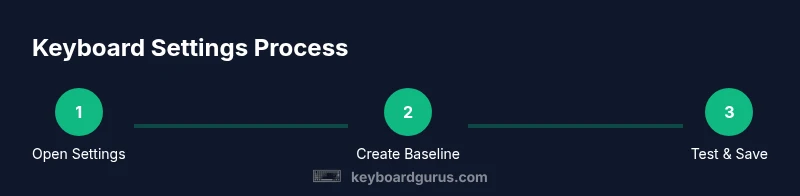
- 1
Open the keyboard settings panel
Launch the OS or vendor software settings panel to access keyboard configuration options. This establishes the workspace for creating, editing, and saving profiles. Understanding the entry point helps you navigate efficiently later.
Tip: If you can't find the panel, search for 'keyboard' in the system settings or the vendor app. - 2
Create a baseline profile
Create a default profile that represents your standard workflow. This baseline ensures you have a stable starting point before layering task-specific tweaks. Keep naming consistent for easy recovery.
Tip: Name it 'Baseline' and export a backup copy before making changes. - 3
Remap essential keys
Map only a few high-value keys to improve efficiency, avoiding core shortcuts. Test remaps in a neutral document to verify accuracy and avoid inadvertent actions during work.
Tip: Document the remaps to simplify troubleshooting later. - 4
Adjust repeat rate and delay
Set the key repeat delay and rate to match your typing speed. A too-fast repeat can cause mistakes; too-slow slows you down. Calibrate using a test paragraph.
Tip: Aim for a natural cadence that feels like your fingers own the keyboard. - 5
Set up per-app profiles
Create a profile for your most-used apps with tailored mappings. This minimizes context switching friction and ensures consistent behavior across tasks.
Tip: Limit per-app profiles to the most impactful apps to avoid clutter. - 6
Program macros and shortcuts
Add macros for repetitive tasks, grouping steps into a single keystroke. Test each macro individually and monitor for conflicts with existing shortcuts.
Tip: Keep macros short, readable, and well-documented. - 7
Configure lighting and accessibility options
Adjust brightness, color profiles, and effects to fit your environment. Activate accessibility tweaks such as high-contrast palettes or larger modifier keys where helpful.
Tip: Choose non-distracting lighting and clear contrast for long sessions. - 8
Save, test, and switch profiles
Save all changes, run end-to-end tests, and switch profiles to confirm quick and reliable transitions. Keep a changelog for future updates.
Tip: Always maintain a backup before major profile changes.
Got Questions?
What is the difference between system-wide and per-app keyboard settings?
System-wide settings apply across the OS and affect all apps, while per-app profiles customize behavior within a specific program. This separation helps maintain consistency while enabling task-specific optimizations.
System-wide affects all apps; per-app settings are selective.
Can I revert to the original factory keyboard layout?
Yes. Most operating systems offer a reset option to factory defaults, and you can reapply saved profiles afterward.
You can reset to default and reapply your profiles.
Do all keyboards support macros and per-app profiles?
Many keyboards support macros and profiles, but features depend on hardware and vendor software. Check compatibility before committing.
Most keyboards support macros, but features vary by device.
What is a safe workflow for testing new keyboard settings?
Test changes in a controlled document, back up first, enable changes one at a time, and keep a revert plan in case something goes wrong.
Test changes step by step with a backup.
How long does it take to customize keyboard settings?
Time varies by keyboard and complexity. Plan for roughly 60-120 minutes for a thorough setup, with shorter sessions for minor tweaks.
Expect an hour or two for thorough setup.
Is it safe to remap keys on a laptop keyboard?
Remapping is generally safe if you back up profiles and avoid compromising essential shortcuts. Use documented methods.
Generally safe if you back up and avoid core shortcuts.
Watch Video
What to Remember
- Create a baseline profile before changes.
- Test each change in isolation to gauge impact.
- Back up profiles to prevent loss.
- Label profiles clearly for quick switching.
- Document changes for future updates.