Where Are Keyboard Settings in Windows 11: A Complete How-To
Learn exactly where Windows 11 stores keyboard settings, how to adjust layouts, input methods, autocorrect, and the on-screen keyboard, with a step-by-step guide from Keyboard Gurus.


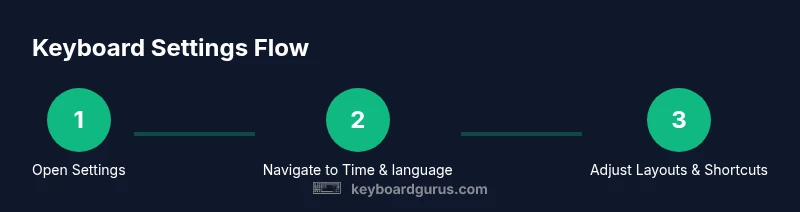
You’ll locate and customize all Windows 11 keyboard settings from Settings. Open Settings, go to Time & language > Typing and Hardware keyboard, then adjust language layouts, autocorrect options, key repeat, delay until repeat, and the on-screen keyboard. This Keyboard Gurus guide provides exact paths, keyboard shortcuts, and quick fixes for a smoother typing experience.
Quick orientation: Where keyboard settings live in Windows 11
According to Keyboard Gurus, Windows 11 groups most keyboard-related options under the Settings app, with crucial controls split between Time & language and Accessibility sections. The goal is to let you tailor typing behavior, language input, and the hardware keyboard to your daily tasks. In recent builds, Microsoft has consolidated many options for faster access, but locating the right pane still requires knowing the main navigation hubs: Settings, then the submenus for Language, Typing, and Keyboard. Becoming fluent with these hubs makes it easy to switch layouts, adjust key repeat rates, and enable the on-screen keyboard for touchscreen devices. If you’re coming from Windows 10, you’ll notice small layout shifts, but the underlying structure remains familiar. Keyboard Gurus emphasizes that investing a few minutes to map these paths pays off in steadier typing across applications.
Access paths: Settings app, Control Panel, and accessibility options
In Windows 11, the Settings app is the central hub for most keyboard configuration. Start at Settings > Time & language, where you’ll see Typing, Keyboard, and Language-related options. For legacy controls still tucked away, you can occasionally find related items under Accessibility > Keyboard, such as Sticky Keys or Filter Keys. Keyboard-related options in the Settings app include language layouts, input methods, autocorrect and text suggestions, and on-screen / touch keyboard settings. While Control Panel remains accessible, Microsoft has gradually deprecated most of its keyboard options there, directing users to Settings. Keyboard Gurus notes that relying on Settings first reduces confusion and ensures updates don’t reset hidden preferences.
Core categories you’ll configure
The primary categories you’ll work with are Typing, Language & region, Hardware keyboard, and On-screen keyboard. Typing governs autocorrect, text suggestions, and auto-capitalization. Language & region lets you add or remove keyboard layouts and input methods. Hardware keyboard houses physical keyboard settings like repeat rate and delay before repeat. On-screen keyboard exposes settings for touchscreen typing, sizing, and visibility. Understanding these categories helps you tailor your setup for coding, gaming, or writing tasks, and makes it easier to restore defaults if something goes awry. Keyboard Gurus suggests a quick audit: list your essential languages, pick the layouts you use most, and verify that your preferred shortcuts survive OS updates.
Working with keyboard layouts and language packs
Adding or removing keyboard layouts is a common need for multilingual users or gamers using alternate key mappings. In Settings > Time & language > Language & region, you can Add a language and choose the specific keyboard layout. After adding, set a preferred input method and remove layouts you rarely use to reduce clutter. Some users rely on language packs for punctuation or regional input quirks; those can be downloaded within the same menu. Keyboard Gurus highlights that keeping only the active layouts reduces confusion and minimizes accidental language switches during work or play. Always test a new layout in a familiar app to verify that your favorite shortcuts still work as expected.
Hardware keyboard settings you can tweak
Under Settings > Time & language > Typing > Hardware keyboard, you’ll find options to adjust Repeat delay and Repeat rate, which influence how quickly a held key repeats. You may also encounter a setting for Cursor blink rate in some builds. If your keyboard is a gaming model or has specialized keys, you can often configure those through the device’s own software, but Windows provides a solid baseline: moderate keystroke repeat, moderate delay, and predictable repeat behavior. Keyboard Gurus recommends testing changes in a text editor to ensure there are no surprises when typing long documents or coding sessions. If you rely on precise key timing for gaming, consider keeping a separate profile with different repeat settings for gaming vs. typing tasks.
On-screen keyboard and touch keyboard customization
The on-screen keyboard is essential for touch-enabled devices and accessibility. In Settings > Accessibility > Keyboard or Settings > Ease of Access > Keyboard, you can enable the on-screen keyboard, adjust its size, and decide whether it should show automatically. Touch keyboard options include keyboard layout choices, emoji panel, and handwriting alternatives. For compact devices, enabling the on-screen keyboard can speed up data entry when a physical keyboard isn’t convenient. Keyboard Gurus notes that turning on the on-screen keyboard temporarily helps when diagnosing whether a problem is hardware- or software-related.
Shortcuts and language switching
Keyboard shortcuts speed up workflow when switching between input methods. Windows 11 commonly uses Win + Space to cycle through installed layouts, while Alt + Shift remains a long-standing alternative. If you frequently switch languages, consider pinning your preferred input methods to the taskbar for one-click access. You can also customize shortcuts through Advanced keyboard settings or via language options within Settings. Keyboard Gurus emphasizes that consistent shortcuts reduce friction and help maintain momentum across apps, especially during multi-language writing tasks.
Privacy, data safety, and auto-correct choices
Typing and personalization settings typically include data-sharing and diagnostics preferences. Review options like “Typing personalization” and diagnostic data collection to balance accuracy of autocorrect with privacy. In Windows 11 you may see options to let Windows improve input recognition, which can be helpful for long-term accuracy but may involve sending typed content to Microsoft. Keyboard Gurus advises customizing these settings to your comfort level and periodically reviewing preferences after major OS updates to ensure your changes persist.
Troubleshooting common keyboard settings issues
If your settings aren’t applying, first verify you’re on the correct language and that the intended layout is enabled. A common issue is a layout that appears in a list but isn’t set as default, leading to unexpected characters when typing. Check for recent updates that might reset preferences, and ensure your language bar is visible if you expect to switch layouts quickly. If an option seems missing, search within Settings for the exact term (e.g., “Advanced keyboard settings”) to locate the control. For on-screen keyboard problems, ensure accessibility settings aren’t suppressing it, and test with another app to rule out app-specific behavior. Keyboard Gurus suggests using a system restore point before making sweeping changes.
Best practices and testing your changes
Conclude by validating each adjustment with real-world use. Open a document, a chat, and a code editor to confirm layouts, autocorrect behavior, and shortcut functions align with your preferences. If something feels off, revert specific changes rather than restoring all defaults. Create a small test plan: switch layouts, toggle autocorrect, adjust repeat rate, and verify on-screen keyboard visibility. Repeat this test weekly or after OS updates to catch regressions early. Keyboard Gurus reminds readers that methodical testing prevents surprises in critical workflows and keeps typing feeling natural across apps.
Tools & Materials
- Windows 11 PC(Device running Windows 11 with up-to-date build.)
- Keyboard (physical or on-screen)(Used to test configuration changes.)
- Admin access or a local admin account(Required for some advanced settings or policy changes.)
- Stable internet connection(Useful for updates or language packs.)
- System restore point or backup(Recommended before making major changes.)
Steps
Estimated time: 25-40 minutes
- 1
Open Settings
Open the Windows 11 Settings app from the Start menu or by pressing Win + I. This is your central hub for all keyboard-related configuration, including language, layout, and accessibility options.
Tip: Use Windows search to jump to “Typing” or “Advanced keyboard settings.” - 2
Navigate to Time & language
In Settings, select Time & language to access language, keyboard, and typing controls. This is where most keyboard customization lives in Windows 11.
Tip: Look for a sub-section labeled Typing for quick access to common keyboard options. - 3
Add or adjust keyboard layouts
Under Language & region, add a keyboard layout if you need a new language input or switch the default layout to your primary one. Remove unused layouts to reduce clutter.
Tip: After adding a layout, set it as default and test in a text editor. - 4
Configure hardware keyboard settings
In Typing > Hardware keyboard, adjust Repeat delay and Repeat rate to match your typing style. Test by typing in a document to ensure the flow feels natural.
Tip: If you type a lot, a slightly slower repeat rate can reduce mistakes. - 5
Enable and customize the on-screen keyboard
If you use touch input, enable the On-screen keyboard from Accessibility settings and customize size, layout, and visibility options.
Tip: Test on a touchscreen device to ensure readability and ease of use. - 6
Set up input method shortcuts
Configure how you switch between input methods, commonly using Win + Space. Ensure shortcuts align with your workflow.
Tip: Avoid overlapping shortcuts with other apps to prevent conflicts. - 7
Test and back up your changes
Run a short typing test across apps to verify layouts, autocorrect, and shortcuts. Create a restore point or backup in case you need to revert.
Tip: Keep a note of the changes you made for easy rollback.
Got Questions?
Where are keyboard settings located in Windows 11?
Keyboard settings are primarily found in Settings > Time & language, under Typing, Language & region, and Hardware keyboard. The On-screen keyboard and accessibility options are also available under Settings. If you need legacy controls, some items may appear in Accessibility or require searching for specific terms.
You’ll find keyboard settings in Settings under Time & language, then Typing, Language & region, and Hardware keyboard. For accessibility options, check the Keyboard section there as well.
How do I add a new keyboard layout in Windows 11?
Go to Settings > Time & language > Language & region. Click Add a language, select a language, and choose the desired keyboard layout. After adding, set it as your default input method and remove unused layouts to avoid confusion.
In Settings, add your language and choose the keyboard layout you want, then set it as default and tidy up old layouts.
How can I switch between keyboard layouts quickly?
Use the built-in shortcut Win + Space to cycle through installed input methods. You can customize or disable shortcuts in Advanced keyboard settings if needed.
Press Win plus Space to switch layouts, or customize the shortcut in settings if you prefer another key combo.
How do I enable the on-screen keyboard in Windows 11?
Open Settings > Accessibility > Keyboard, or Settings > Ease of Access > Keyboard, and turn on the On-screen keyboard. Adjust size and visibility to fit your screen.
Turn on the On-screen keyboard in the accessibility settings, then adjust its size and position as needed.
Can I reset keyboard settings to default?
Yes, you can reset by returning to the specific setting page and selecting Restore defaults where available, or by creating a system restore point before making changes.
You can reset individual keyboard settings back to default on their pages, or restore a system restore point if you want a full revert.
What should I do if a language pack is missing after an update?
Check Windows Update for pending language pack downloads, re-run the Add a language process, and ensure the language is set as the active input method. If needed, contact IT for enterprise devices.
If a language pack disappears after an update, re-add it under Language & region and verify it’s set as active.
Watch Video
What to Remember
- Master Settings hubs for keyboard tweaks
- Add or remove layouts to tailor input methods
- Test changes with real tasks before finalizing
- Keep a restore point before major changes
- Use shortcuts to switch layouts efficiently