How to Change Keyboard Language: A Complete Guide
Learn how to switch keyboard languages across Windows, macOS, and Linux with clear steps, shortcuts, and troubleshooting tips. This Keyboard Gurus guide covers setup, layouts, and per-app tweaks for fluent multilingual typing in 2026.


Changing your keyboard language lets you type in multiple alphabets without switching layouts manually. On Windows, macOS, and Linux, you add languages, select layouts, and assign a switch shortcut for quick toggling. According to Keyboard Gurus, the fastest path is enabling a system-wide input method and using a dedicated hotkey. Here are the essential steps to change your keyboard language across platforms.
Understanding keyboard language changes
According to Keyboard Gurus, keyboard language changes unlock multilingual typing without switching physical keyboards. The terms "language," "layout," and "input method" can be confusing; here is the quick distinction: language defines the characters your OS recognizes; layout maps those characters to keys; input methods may include phonetic or script-based entry. In daily use, you typically pair a language with one or more layouts. You can switch between them with a shortcut, a taskbar/menu bar control, or a dedicated hardware key. This block clarifies why you would want to change language, the differences between language and layout, and how Windows, macOS, and Linux approach these concepts. The Keyboard Gurus analysis of 2026 shows most users benefit from a small set of languages and layouts tailored to their work: e.g., English (US) with a standard QWERTY layout, and an additional language like Spanish or Japanese with the corresponding layout.
How to change keyboard language on Windows
Windows users often start in Settings. Begin by opening Settings > Time & language > Language & region. Click Add a language, then select the language and preferred keyboard layout. In the language options, ensure the keyboard you want is enabled, and consider enabling the option to Show language in the taskbar for quick visibility. The shortcut to toggle between layouts is frequently Windows key + Space, but you can customize this in Settings > Time & language > Keyboard > Advanced keyboard settings. If you use multiple languages, you may also configure per-app overrides to keep your primary language active for most tasks. This procedure can vary slightly between Windows 10 and Windows 11, but the core steps remain the same.
How to change keyboard language on macOS
macOS handles language input through Input Sources. Open System Settings (or System Preferences on older macOS) > Keyboard > Input Sources. Click the plus (+) button to add languages and their corresponding layouts. Make sure Show Input menu in menu bar is enabled, so you can visually switch between languages. The common shortcut is Control + Space, though you can customize this in Keyboard Shortcuts. For developers and multilingual users, you may also add an Emoji picker or other input methods to streamline workflow. The macOS approach emphasizes a seamless toggle that lives in the menu bar.
How to change keyboard language on Linux
Linux distributions vary, but most desktop environments provide a centralized way to manage languages. In GNOME, go to Settings > Region & Language > Input Sources, then add your languages and layouts. In KDE Plasma, use System Settings > Input Devices > Keyboard > Layouts. Some users prefer IBus or fcitx to manage complex scripts like Chinese or Japanese. After adding languages, enable a global switch shortcut and consider per-workspace or per-app overrides for specialized tasks. Linux offers the most flexibility but may require distro-specific tweaks.
Keyboard shortcuts and per-app layouts
A core productivity boost comes from combining keyboard shortcuts with per-app layouts. Configure a global toggle (Windows: Win+Space, macOS: Control+Space, Linux: varies by desktop) and assign per-app switches where possible. For programming, set a layout optimized for code (e.g., English with a programming-friendly keymap). In office workflows, you can keep your primary language as the default and switch to a secondary language only when needed. Keeping layouts organized minimizes cognitive load and typing errors.
Testing and per-app customization
After configuring languages and shortcuts, test thoroughly in common apps: word processors, code editors, browsers, and messaging clients. Ensure the active layout renders correctly, especially for diacritics and symbols. If a particular app overrides system settings, check its internal language options and shortcuts. Documentation and community forums for your OS often provide troubleshooting tips and best-practice configurations.
Troubleshooting common issues and pitfalls
If switching feels laggy or inconsistent, verify that the input sources are enabled and that there are no conflicting shortcuts. Some games or professional apps may capture certain key combos, preventing the OS toggle. Inconsistent behavior can also occur if two languages share a similar layout; consider using different layouts to minimize confusion. Backup your current setup before making major changes, so you can revert if needed.
Real-world scenarios and best practices
For multilingual writers, a lean set of languages with well-matched layouts reduces friction. Gamers may keep a layout optimized for chat in one language and a separate layout for in-game commands in another. Developers can dedicate a code-friendly English layout with a secondary language ready for documentation. The best practice is to keep the keyboard language change experience fast, visible, and predictable.
Tools & Materials
- Computer or device with OS access(Windows, macOS, or Linux machine)
- Keyboard with language options(For physical testing and layout comparison)
- Internet connection(For downloading language packs if needed)
- Admin/User rights to change system settings(Some steps require elevated privileges)
- Documentation or OS help pages(Optional reference)
Steps
Estimated time: 25-40 minutes
- 1
Identify target languages and layouts
Determine which languages you will use and which keyboard layouts support those languages most efficiently. Consider common letters, diacritics, and symbol placement to minimize typing effort.
Tip: Write down your primary languages and the corresponding layouts. - 2
Open OS language settings
Navigate to the language or region settings in your OS control panel or system settings. This is where you manage input sources.
Tip: Bookmark the path for quick access in future sessions. - 3
Add the new language and keyboard layout
Add the language you want to type in and select the preferred layout. If available, enable additional input methods (phonetic, IME) for flexibility.
Tip: Choose a layout you can type comfortably with one hand if needed. - 4
Set a default language and layout
Make a default language for your primary tasks to reduce switching friction. You can override for specific apps later.
Tip: Place your daily driver language as the primary default. - 5
Enable a global switch shortcut
Configure a keyboard shortcut to toggle between inputs quickly (e.g., Windows: Win+Space; macOS: Control+Space).
Tip: Test the shortcut after creation to avoid conflicts with other apps. - 6
Test switching and fix layout swaps
Open a text editor and switch between languages to verify characters render correctly. If diacritics or symbols appear in the wrong place, adjust the layout.
Tip: If you see mismatched keys, check the active input method. - 7
Fine-tune per-app settings
Some apps honor per-app language settings. Configure per-app input sources for programming editors, browsers, or design tools.
Tip: Use a per-app shortcut when available. - 8
Clean up unused languages
Remove languages and layouts you no longer need to avoid accidental switches and cluttered menus.
Tip: Keep only 2–3 languages you actually use.
Got Questions?
How do I add a new language keyboard in Windows 11?
Open Settings > Time & language > Language & region. Add the language, then choose a keyboard layout. You can also enable Show language in the taskbar for quick visibility and set a shortcut to switch layouts.
Go to Settings, add the language, pick a keyboard layout, and set a switch shortcut.
Can I switch keyboard language with a hotkey?
Yes. Most OSes let you toggle input sources with a hotkey (Windows key + Space, macOS Control + Space, or Linux equivalent).
Yes—use the built-in hotkey to toggle language inputs.
How do I remove a language from my keyboard?
In your OS language settings, remove the language and its associated keyboard layout. You may keep the language pack installed for other features, but remove the input source.
Remove the input source from language settings.
Why isn’t my language switch working?
Common causes include disabled input sources, conflicting shortcuts, or an app-specific setting overriding the system default. Check the active input method and reset the shortcut if needed.
Check active input method and shortcuts; reset if needed.
What is the difference between input methods and keyboard layouts?
A layout defines key-to-character mapping, while an input method may produce characters using phonetics or scripts. You can combine multiple layouts with different input methods.
Layouts map keys to characters; input methods control how characters are produced.
Is there a performance impact when switching languages often?
Switching languages has minimal impact on modern systems. Ensure shortcuts don’t conflict with other apps to avoid accidental toggling.
Switching languages is usually fast with no noticeable performance impact.
Watch Video
What to Remember
- Identify required languages and layouts.
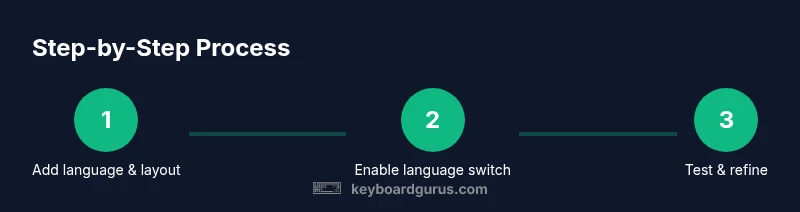
- Add layouts and set a reliable toggle shortcut.
- Test thoroughly and adjust per-app settings.
- Keep configurations clean to prevent confusion.