How to Get Keyboard Out of French Mode: A Practical Guide
Learn how to switch your keyboard from French AZERTY back to your preferred layout across Windows, macOS, Linux, and ChromeOS with clear steps, quick checks, and best practices.


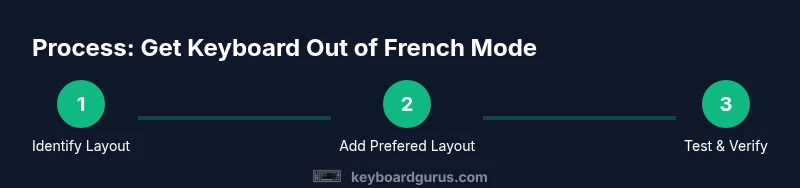
In this guide you’ll learn how to get a keyboard out of French mode by restoring your preferred layout (e.g., US QWERTY) across Windows, macOS, and ChromeOS. You’ll locate the active input source, switch to your desired layout with simple key combos, and verify the change. Keyboard Gurus provides practical steps to avoid common misconfigurations.
The French Mode: What It Is and Why It Might Happen
When people talk about 'French mode' on a keyboard, they usually mean the AZERTY layout, not the QWERTY layout used in many English-speaking regions. This mode changes where letters and symbols appear, and it can slip on and off due to a stray keystroke, software update, or an active input source. According to Keyboard Gurus, many users encounter this after a system update or when a language toggle is triggered, leaving typing with accented characters or swapped key positions.
In practice, French mode isn’t a hardware fault; it’s a software setting tied to your operating system’s language and input source configuration. The goal of this guide is to answer how to get keyboard out of french mode and restore a layout you’re comfortable with. Throughout, we’ll focus on clear, system-specific steps, quick checks, and best practices to avoid triggering the switch again. We’ll also cover how to maintain consistency across apps and peripherals, so your typing stays predictable across work, study, and gaming.
Detecting Your Current Layout and Language Settings
Before you change anything, confirm which layout is active and where it’s defined. On Windows, the taskbar language indicator usually shows EN, FR, or a flag icon; on macOS, the input menu appears in the menu bar as a flag; on Linux desktops like GNOME or KDE, you’ll see a layout indicator in the panel. If you see FR or a French flag, you’re likely in French mode. Note that some apps use their own keyboard shortcuts or override input sources, so you may see differences inside a browser or word processor even when the system layout looks correct. Take a moment to type a quick test sentence to verify your assumption.
Brand context: As Keyboard Gurus notes, even experienced users miss subtle indicators. A quick visual check prevents accidental changes later and reduces debugging time.
Windows: Reverting from AZERTY to your preferred layout
Open Windows Settings (Windows key + I) and navigate to Time & Language > Language & region. Add the English (United States) keyboard under Options, then set English (United States) as the default input method and remove the AZERTY/French layout if undesired. Use Windows key + Space to toggle between inputs, then sign out or restart if the change doesn’t apply. Finally, test typing to confirm the US keyboard is active. Optional: adjust the language bar to display your current input.
Tip: If Windows is managed by policy, you may need admin rights to install or remove keyboards.
macOS: Switching input sources
Open System Settings (or System Preferences) > Keyboard > Input Sources. Click the + button and add English (U.S.) or your preferred layout. Remove unnecessary inputs to avoid clutter. Use the Input Menu in the menu bar to switch manually, or enable a keyboard shortcut (for example Control + Space) to toggle between sources. Log out and back in if changes don’t take effect immediately. Test by typing and checking accented characters.
Pro tip: Keep a minimal set of inputs to reduce confusion and avoid accidental switches during gaming or video calls.
Linux and ChromeOS: Quick toggles
Linux distributions vary, but many GNOME-based systems share a common path: Settings > Region & Language > Input Sources. Add English (US) and remove the unwanted layout. On ChromeOS, go to Settings > Device > Keyboard and set the US layout as default, then use the configured shortcut to switch input sources. If you’re using X11, you may need to install an XKB layout and modify keyboard options. After changes, log out and back in to ensure the new layout loads properly.
Note: Different flavors (Fedora, Ubuntu, Debian, Arch) may name options differently; adapt steps accordingly.
Practical Troubleshooting Tips and Common Pitfalls
- Pro_tip: Back up your current settings before making changes; some policies lock layouts and revert automatically. - Warning: Some shortcuts can toggle layouts themselves; learn the ones you use most to avoid surprises. - Note: Per-app settings may override system input; verify accents and punctuation in a few apps. - Pro_tip: If accents disappear after a change, enable dead keys or an accent input in your new layout. - Note: If admin restrictions block changes, use an on-screen keyboard to type while you request policy adjustments.
Verification: Confirming the Correct Layout Is Active
After switching, run a quick typing test across multiple apps. Type plain letters, punctuation, and common accented characters to verify, for example: a, é, @, and $. If the output matches your expectations, you’re ready to continue. Remember that some software may cache keyboard layouts; closing and reopening applications can help. Document your steps for future reference.
Long-term best practices: maintain a stable keyboard layout
Establish a default layout for your daily workflows and remove unused languages to keep the input list clean. Create a short, memorable shortcut to switch inputs, then save this in a quick-reference guide. If you work across OSes, consider a cross-platform keystroke utility to bind layouts to specific apps. Keyboard Gurus emphasizes consistency and testing to avoid future misalignment.
Tools & Materials
- Computer with Windows, macOS, or Linux(Ensure admin rights if you need to modify system languages.)
- Internet connection(For downloading language packs or updates if needed.)
- Backup of current keyboard settings(Screenshots or export of language configuration.)
- User credentials for OS settings(Required on managed devices.)
- On-screen keyboard (optional)(Useful if you can’t change settings immediately.)
Steps
Estimated time: 15-25 minutes
- 1
Identify current layout
Check the system indicators (taskbar on Windows, menu bar on macOS, or panel on Linux) and type a quick sentence to confirm whether the FR/AZERTY layout is active. This prevents unnecessary steps if you’re already in the correct layout. Reference indicators: FR flag or EN label.
Tip: If unsure, take a screenshot of the current input indicator for later comparison. - 2
Open Windows settings
Press Windows key + I to open Settings, then navigate to Time & Language > Language & region. This is where you’ll manage input sources and remove unwanted layouts.
Tip: If Settings is blocked by policy, contact IT or use an approved alternative like the control panel. - 3
Add the desired keyboard
Under Preferred languages, click English (United States) and choose Options. Add a keyboard and select United States. This creates a clean default you’ll rely on across apps.
Tip: Prefer the standard US layout; avoid regional variants unless you need them. - 4
Set default and remove AZERTY
Set United States as the default input method and remove AZERTY/French layouts if you don’t need them. Keeping only the necessary layouts reduces accidental switches.
Tip: Always ensure you can still type required symbols after removal. - 5
Test Windows toggle
Use Windows key + Space to switch between inputs and type a sentence to verify the correct layout is active.
Tip: If the change doesn’t take effect, sign out/in or restart the system. - 6
Mac: add input source
Open System Settings > Keyboard > Input Sources, click +, and add English (U.S.). Remove extra inputs to keep a clean list.
Tip: Enable a keyboard shortcut like Control + Space to switch efficiently. - 7
Mac: test and switch
Test typing in multiple apps and use the Input Menu to switch sources to ensure consistency.
Tip: Some apps may override; verify in a browser and a word processor. - 8
Linux: update input sources
Settings > Region & Language > Input Sources. Add English (US) and remove unnecessary layouts; log out/in to apply.
Tip: GNOME vs KDE paths vary; adjust steps to your desktop environment. - 9
ChromeOS: default layout
Settings > Device > Keyboard. Set US as default; learn and configure the shortcut to switch inputs if available.
Tip: ChromeOS tends to lock to the last used layout; a quick toggle helps. - 10
Verify across apps
Open a browser, text editor, and messaging app to confirm consistent behavior; check accented characters if you rely on them.
Tip: Keep a simple checklist for future reference. - 11
Document changes
Write down the exact steps you used and capture screenshots for future reference; store in a knowledge base or notebook.
Tip: A quick reference saves time if you switch devices. - 12
Maintain a clean setup
Periodically review your input sources and prune unused layouts; re-order the list to keep essentials on top.
Tip: Revisit whenever you update the OS to avoid regression.
Got Questions?
What is 'French mode' on keyboards and how do I know I’m in it?
French mode refers to the AZERTY keyboard layout or a French input source active on the system. You know you’re in it when your letters and symbols don’t match the standard layout you expect. Check the OS input indicator and perform a quick typing test to confirm.
French mode is the AZERTY layout or a French input source active on the system. Look at the input indicator and test typing to confirm.
Will changing the keyboard layout affect typing in French accents?
Yes. Switching layouts changes how you input accented characters. If you frequently type accents, enable a layout or shortcut that preserves comfortable access to them, or use Alt codes or dead keys if your new layout supports them.
Switching layouts can change how you enter accented characters; plan for accent input in your new layout.
Can I temporarily switch layouts without changing system settings?
Many systems support a quick toggle between inputs via a keyboard shortcut. Use the OS toggle (Windows: Windows key + Space, macOS: Control + Space if enabled) to switch without deep changes.
Yes, you can toggle layouts quickly with a shortcut.
Why do some apps show the wrong layout after switching?
Some apps override system input sources or cache layout settings. If this happens, restart the app or the system, and verify the layout inside the app’s own settings if available.
Apps can override or cache layouts; restart the app or system to fix.
How do I remove extra keyboard layouts permanently?
Go to the OS language settings, locate the input/source list, and remove the layouts you don’t use. Keep at least the ones you need for your daily tasks.
Remove unused layouts from your language settings and keep only what you need.
Is there a risk to data when switching layouts?
Switching layouts doesn’t affect data, but it can disrupt typing in real time if you’re mid-task. It’s best to switch when you’re ready and test in a few apps afterward.
Layout changes don’t delete data, but can disrupt current typing.
What should I do if I’m on a managed device with restricted settings?
If you can’t change layouts due to policy, contact IT for approved steps or request a temporary override. Document your findings for future reference.
Contact IT for policy-approved steps if you’re on a managed device.
Watch Video
What to Remember
- Identify the active layout before changing anything.
- Add and set a clear default layout on each OS.
- Use OS shortcuts to switch layouts quickly and reliably.
- Test across multiple apps to ensure consistency.
- Document changes for future troubleshooting.