How to Change the Language of Your Keyboard
Learn how to change the language of your keyboard across Windows, macOS, and Linux with step-by-step guidance, shortcuts, and troubleshooting from Keyboard Gurus.


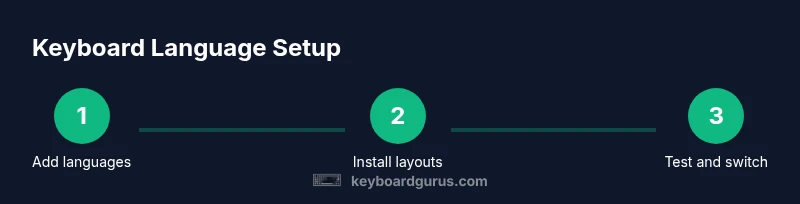
You will learn how to add and switch keyboard languages across Windows, macOS, and Linux, including shortcuts and troubleshooting. Start by checking your OS supports the language, install the layout, and use a quick toggle to switch as needed. This improves multilingual typing and productivity. In this guide, you'll see steps for each major platform and tips to avoid common misconfigurations.
Understanding keyboard language and layouts
The phrase how to change the language of your keyboard refers to adjusting both the input method (which characters are produced) and the keyboard layout (where those characters sit on the keys). According to Keyboard Gurus, language settings map directly to input methods and layouts, so a single language can support multiple layouts (for example, US vs UK keyboards). This distinction matters when you type in different languages, because you may need to access accented characters, symbols, or entirely different key mappings. A well-structured setup keeps workflows smooth across documents, chats, and code. Whether you work in English, Spanish, or a mix of languages, understanding the relationship between language packs and keyboard layouts helps prevent frustrating typing errors and dead keys. The goal is to have a predictable, easy-to-switch system that aligns with your daily tasks and the apps you use most.
Quick compatibility check and prerequisites
Before you begin, confirm your operating system version supports the language(s) you plan to add. Most modern systems offer broad language packs and layouts, but some less-common scripts may require additional downloads or updates. Keyboard Gurus analysis shows that ensuring an OS has the latest updates minimizes compatibility hiccups. Check whether you’ll need administrator privileges to install new input methods, what the default input method order is, and whether any apps you rely on remember the last-used layout. If you’re on an organization-managed device, verify with IT whether custom policy restrictions could block new language packs. Finally, decide which languages and layouts you want to keep readily accessible for quick switching.
Windows: add and switch keyboard languages
Windows provides a straightforward path to add languages and keyboard layouts. Start by opening Settings > Time & Language > Language & Region, then click Add a language to install the target language and choose the preferred keyboard layout (for example, US International or Spanish). After installation, you can set the default input method and add multiple layouts. Use Win + Space to toggle between layouts or customize shortcuts via Settings > Accessibility or Keyboard settings. If you rely on specific punctuation or diacritics, test each layout to confirm it produces the expected characters in your everyday apps.
macOS: add input sources and switch layouts
macOS keeps input sources organized under System Settings > Keyboard > Input Sources. Add the language and the keyboard layout you need (e.g., Spanish, French, or German). You can enable a shortcut to switch input sources—typically Command + Space or Control + Space, depending on your macOS version and configured shortcuts. To optimize speed, arrange recent layouts higher in the list and enable the “Show Input menu in menu bar” option for quick visual confirmation. If you use apps with custom keyboard shortcuts, consider creating app-specific overrides to avoid conflicts.
Linux: GNOME and KDE language management
Linux distributions vary by desktop environment, but GNOME and KDE share a similar approach. In GNOME, go to Settings > Region & Language > Input Sources, then add your language and layout. In KDE, access System Settings > Input Devices > Keyboard > Layouts, add a layout, and set a default. Both environments let you switch layouts via a keyboard shortcut (often Super/Windows key + Space or a configurable combo). If you’re using a minimal window manager, you may need to install language packs from your package manager and configure the input method engine (IME) for complex scripts.
Shortcuts and rapid switching across platforms
A fast workflow depends on reliable shortcuts. Windows commonly uses Win + Space; macOS often uses Command + Space (or Control + Space if you customize); Linux users may rely on Super/Windows + Space or a user-defined combo. Consider also adding a visible indicator in the system tray/menu bar to track which layout is active. For multilingual teams, document the preferred order of layouts and standardize short names so everyone shares a common mental model when switching while typing.
Troubleshooting common issues and caveats
If a newly added layout doesn’t appear in the quick switch list, verify you completed all installation steps and restarted the app or device if required. Some languages have both a language pack and a separate keyboard layout; ensure you’ve installed both. In certain apps, input methods can be overridden by app-specific shortcuts or sandbox restrictions, so test in multiple programs. If symbols appear in the wrong spot after a switch, double-check that you’re using the intended layout and that you haven’t accidentally enabled an input method designed for a different script. Finally, if your language changes disappear after a reboot, review policy constraints on managed devices and re-apply the layouts.
Testing, best practices, and ergonomic notes
After configuring layouts, test common tasks across your typical apps: word processing, messaging, coding, and spreadsheets. Ensure punctuation and accented characters render correctly, and confirm that hotkeys do not conflict with other shortcuts. For multilingual work, keep a clear layout order (e.g., English, Spanish, French) and rename layouts descriptively (e.g., EN-US, ES-ES, FR-FR) to avoid confusion. Consider labeling physical keyboards or using color-coded key caps to help teammates quickly adapt to the layouts used in shared spaces. Regularly revisit settings after OS updates to maintain smooth switching.
Tools & Materials
- Computer or laptop with Windows/macOS/Linux(Ensure you have admin privileges if installing language packs)
- Internet connection(Needed to download additional language packs on some systems)
- Optional external USB keyboard(Useful for testing layouts without affecting main keyboard)
- Language packs or input methods(May be installed during steps)
Steps
Estimated time: 20-40 minutes
- 1
Decide target languages and layouts
Identify the languages you’ll use most and determine which keyboard layouts best support those languages. Create a short list of layouts to install (for example, EN-US, ES-ES, FR-FR). This planning reduces decision fatigue later and helps keep your settings organized.
Tip: Tip: Write down the exact layout codes you plan to use to avoid confusion later. - 2
Open the OS language settings
Navigate to the system language or input settings in your operating system. This is the centralized place to manage languages and layouts. On Windows, macOS, and Linux, this is typically labeled “Language,” “Keyboard,” or “Input Sources.”
Tip: Tip: If you can’t find the option, use the OS search to locate “input,” “keyboard,” or “language.” - 3
Add the target language and layout
Begin by adding the language pack, then select the keyboard layout you want to use. Some languages require you to choose regional variants (e.g., US vs UK). Ensure both the language and the layout are installed.
Tip: Pro tip: for multilingual typing, add more than one layout now to avoid later interruptions. - 4
Set the default input method and order
Arrange the layouts so your primary language sits at the top of the list. This defaults the typing behaviour to your primary language, with other layouts available via quick switch.
Tip: Pro tip: keeping a short, logical order reduces mis-typing when switching layouts on the fly. - 5
Create and test a switch shortcut
Configure a keyboard shortcut to toggle between layouts. Test it by typing in a document and switching back and forth to confirm correct character output.
Tip: Pro tip: choose a shortcut that does not conflict with your most-used shortcuts in your favorite apps. - 6
Test across essential apps
Open word processors, email clients, code editors, and messaging apps to verify that each layout behaves consistently. Pay attention to punctuation, diacritics, and symbol positions.
Tip: Warning: some apps may override system shortcuts; adjust app-specific settings if necessary. - 7
Document and label layouts
Create a small reference sheet listing each layout’s name and what language it corresponds to. If you share devices, consider labeling physical keyboards or adding color-coded keycaps to reduce confusion.
Tip: Pro tip: labeling aids onboarding for teammates who share the same device.
Got Questions?
Do I need to restart my computer after adding a language or layout?
Usually no restart is required; changes typically apply immediately, though some apps may need to be reopened. If a layout doesn’t appear, sign out and back in or restart the app.
No restart is usually necessary after adding a language or layout; try restarting the app if you don’t see changes.
Can I have multiple keyboard layouts active at the same time?
Yes. You can add several layouts and switch between them using a designated shortcut or menu. Organize layouts so your most-used language is first.
Yes, you can switch between several keyboard layouts using a shortcut or menu.
Will changing the keyboard language affect the system language?
No. Changing input methods affects only keyboard layout and character output, not the system language or regional settings.
No, input language changes don’t alter your system language.
What should I do if a layout produces unexpected characters?
Verify you installed the correct layout and are using the intended language pack. Some apps may override inputs; test across a few programs and adjust if needed.
Check the layout and language pack, and test in multiple apps to pinpoint where the issue occurs.
Are there any costs to add new languages?
Most built-in language packs provided by modern operating systems are free. Some niche languages or specialized input methods may require additional downloads.
Most language packs come free with your OS, though some niche methods may cost extra.
How can I test my layouts quickly after setup?
Open a document and type common phrases in each language, then switch layouts to ensure symbols and accented characters match expectations.
Test by typing representative phrases in each language and switching layouts to confirm accuracy.
Watch Video
What to Remember
- Add multiple layouts to cover your languages.
- Use clear shortcuts to switch layouts quickly.
- Test across key apps to ensure consistency.