How to Remove the French Keyboard: A Practical Guide
Learn how to get rid of the French keyboard across Windows, macOS, and mobile. This educational guide from Keyboard Gurus walks you through disabling layouts, removing shortcuts, and testing typing to ensure you only use your preferred input.


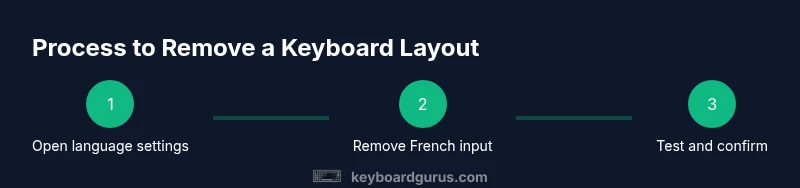
You can remove the French keyboard layout from Windows, macOS, and mobile devices by deleting the French input source from each platform's language settings. If you're asking how to get rid of french keyboard, this quick overview covers the main steps: disabling the layout, removing shortcuts, and testing typing to ensure you only use your preferred keyboard.
Why You Might Want to Remove The French Keyboard
Whether you type primarily in English or another language, keeping multiple keyboard layouts can lead to accidental switches and wasted time. According to Keyboard Gurus, removing the French keyboard can reduce confusion and streamline your workflow for bilingual or English-dominant environments. The question how to get rid of french keyboard often comes up for students, gamers, and professionals who want a clean, predictable typing experience. By removing the French input source, you’ll minimize unintentional changes when you press shortcuts like Alt+Shift or the Windows key plus space. This section explains the mindset behind removing a layout and why a clean input setup matters for speed and accuracy across a variety of tasks.
You’ll also see how this choice fits into broader keyboard management—balancing efficiency and flexibility. If your goal is to simplify your desktop and avoid errors during fast typing, this guide provides concrete steps you can follow, regardless of whether you’re using Windows, macOS, or mobile platforms. The aim is to help you maintain a consistent typing environment and reduce cognitive load when switching between apps, documents, and coding tasks. The principle is simple: streamline your input methods to match how you work today.
What You’ll Need Before You Start
Before you begin, gather a few essential items to ensure a smooth removal process. You’ll want admin access on the devices you modify, backup options to save current settings, and a clear plan for the default input you want to keep. In practice, you’ll need to access language or input settings on each device and confirm that the French keyboard is no longer available as a selectable option. Having documentation or a quick reference handy can help you avoid accidentally removing the wrong layout. If you’re unsure about any step, take a moment to review the steps described below and refer back to this guide on how to get rid of french keyboard. This preparation helps prevent misconfigurations and ensures you stay in control of your typing environment.
Windows: Remove The French Keyboard Layout
On Windows, your French keyboard is typically added as a language input method. To remove it, open Settings and navigate to Time & Language > Language & Region (or Language). In the preferred languages list, select French (France) and choose Remove. If the French keyboard appears under “Keyboards” rather than languages, go to Settings > Time & Language > Typing and remove the French input source there. After removal, restart affected apps to ensure changes take effect. If you still see a French key layout, double-check that no shortcuts trigger layout changes and remove any shortcuts assigned to language switching. This is a practical part of addressing how to get rid of french keyboard on Windows, so you maintain a single, predictable typing experience.
macOS: Remove The French Keyboard Input Source
Macs handle keyboards as input sources. Open System Settings (or System Preferences on older macOS versions) and go to Keyboard > Input Sources. Select French (France) and click the minus sign to remove it. Ensure your primary input source (like U.S. or a preferred layout) remains at the top and is marked as active. If you use Spotlight or universal shortcuts to switch inputs, review those shortcuts in Keyboard settings to prevent accidental switches. After removing the French keyboard, quit System Settings and test typing in a few apps to confirm your removal. This approach aligns with how to get rid of french keyboard on macOS, giving you a consistent typing setup across the OS.
iOS and Android: Remove The French Keyboard From Mobile Devices
On mobile devices, you can usually remove the French keyboard from the language or keyboard settings. For iOS, go to Settings > General > Keyboard > Keyboards, then swipe left on French and delete. On Android, Settings > System > Languages & input > Virtual keyboard > Gboard (or your keyboard app) > Languages, and remove French. If you rely on multilingual keyboards for quick switching, consider keeping a single primary layout and adding a separate keyboard only if you truly need it. Removing the French keyboard on mobile helps prevent accidental input while typing emails or messages on the go.
If you share devices with colleagues or family, this can also reduce cross-user layout confusion and improve typing consistency across contexts.
Testing and Validation: Ensure The Change Sticks
After you finish removing the French keyboard, test by opening a few apps that you use most often—word processors, code editors, and browsers—and type a sentence to ensure only your active layout responds. Look for any residual shortcuts that flip layouts and reassign them if needed. If you notice an unexpected character swap, revisit language settings and confirm there are no stale input sources. Regularly re-check after system updates, since some updates can reintroduce language options or alter defaults. With careful testing, you’ll confirm that the changes have stuck and that you’re not inadvertently switching back to the French layout.
Common Pitfalls and How to Avoid Them
One of the most frequent mistakes is removing a layout but forgetting the shortcuts that switch input methods. Another pitfall is leaving an alternate input source in a hidden menu or hidden profile, which can reappear after a reboot. To avoid this, document your configuration, disable or re-map shortcuts, and keep your primary layout as the only default. Keyboard Gurus consistently emphasizes validating across devices and platforms to maintain a clean setup. If you follow these best practices, you’ll minimize friction and ensure your workflow remains uninterrupted by unnecessary layout changes.
Beyond Removal: Managing Multiple Layouts Without Clutter
If you occasionally need other layouts, consider keeping a minimal set and switching only when necessary. For many users, a single primary layout reduces cognitive load, while a secondary layout can be added temporarily for specific tasks. This balanced approach aligns with Keyboard Gurus recommendations: keep what you truly need and remove what you don’t. When you do keep multiple layouts, configure a straightforward toggle method that’s easy to remember and unlikely to be triggered by accident. This approach helps maintain a clean, efficient workspace without sacrificing linguistic flexibility.
Keyboard Gurus Practical Checklist: Final Quick Review
- Confirm the French keyboard is removed from all devices you use regularly.
- Verify that your preferred layout is the default across Windows, macOS, and mobile.
- Review shortcuts to ensure you won’t accidentally switch layouts during work.
- Test typing in multiple apps to validate consistency.
- Document changes for future reference and troubleshooting.
Final Thoughts: The Keyboard Gurus Verdict
The Keyboard Gurus team recommends a deliberate approach to input management. By removing the French keyboard layout and focusing on a single, stable primary layout, you’ll reduce errors, speed up typing, and streamline your setup for productivity. This method is practical, scalable, and aligned with best practices in keyboard optimization. If you’re dealing with longstanding multilingual requirements, consider a targeted, controlled approach that balances straightforward removal with occasional, purposeful additions.
Tools & Materials
- Admin access to device settings(You may need admin rights to modify language and input options on some systems)
- Backup of current keyboard settings(Export a copy or take screenshots of existing layouts before changes)
- Documentation of OS steps(Keep a quick-reference for Windows, macOS, iOS, and Android directions)
- A working primary keyboard layout(Ensure you know which layout will be your default after removal)
- Optional: secondary keyboard for occasional use(Only keep if you truly need an alternate input method)
Steps
Estimated time: 30-60 minutes
- 1
Open language/input settings
Access the language or keyboard settings on each device you plan to modify. On Windows, you’ll find this under Time & Language; on macOS, go to System Settings; on iOS and Android, locate Keyboard or Languages settings. The goal is to reach the area where input methods are managed so you can identify the French layout.
Tip: If you can’t locate the setting, use the platform search bar and type 'keyboard' or 'language' to jump to the right page. - 2
Find the French input source
Scan the list of installed keyboards to locate the French layout (often labeled French, Français, or FR). Ensure you’re distinguishing between keyboard layouts and language packs. This step is crucial to avoid accidentally removing something you still need.
Tip: If you use bilingual typing, label or save your primary layout to avoid confusion later. - 3
Remove the French input source
Select the French keyboard and remove or delete it from the input sources list. Confirm removal and verify the French layout no longer appears as an option in the input menu. This action is the core of removing the French keyboard.
Tip: On some systems you may need to drag the layout out or click a minus sign; ensure you aren’t removing the wrong input source. - 4
Clean up shortcuts for switching layouts
Review any keyboard shortcuts that toggle between layouts and disable or reassign them to prevent accidental switches. This helps maintain a clean environment after the removal and reduces the chance of reverting back to French input by accident.
Tip: Choose a simple shortcut for your primary layout, if you need one, and document it for future reference. - 5
Set your preferred layout as default
Move your preferred layout to the top of the list and set it as the default for all apps. Make sure this layout remains active across system reloads and user sessions to avoid surprise switches.
Tip: If your device supports per-app layouts, enable a universal default to keep consistency. - 6
Restart or sign out (if required)
Some devices require a sign-out or restart for changes to take full effect. Perform the sign-out or restart as advised by the OS to ensure the French keyboard is fully removed.
Tip: Save work before signing out or rebooting to prevent data loss. - 7
Test typing across key tasks
Open a few apps (word processor, browser, code editor) and type a sample sentence to verify the active layout responds correctly. Check for any residual characters or shortcuts that still trigger layout changes.
Tip: Use a quick-access text field to test punctuation and symbols unique to the removed layout. - 8
Document and back up the configuration
Document the final input setup and keep a backup of the language settings. This helps with future troubleshooting and ensures your team can replicate the configuration if needed.
Tip: Store screenshots or export a settings file for disaster recovery.
Got Questions?
What is the French keyboard layout called and how does it differ from US layouts?
The French layout, often known as AZERTY, differs from US layouts by the arrangement of several letters and symbols. Removing it means you won’t accidentally switch to AZERTY when typing in English. If you need the layout later, you can re-add it via your OS language settings.
The French AZERTY layout has a different key arrangement from US layouts. If you ever need it again, you can re-add it through language settings.
Will removing the French keyboard delete languages from my system?
No. Removing a keyboard layout hides it from the input menu but does not uninstall language packs. You can re-add the French input source anytime if you need it again.
No, it only hides the layout; language data stays intact, and you can re-add it later.
How can I switch back to the French keyboard if I need it temporarily?
You can re-add the French input source through the language or keyboard settings when needed and reuse it for specific tasks. Blocking hard switches can help keep your default layout stable.
You can re-add it from language settings whenever you need it.
Do keyboard shortcuts need reconfiguration after removal?
Yes. Review and reassign any shortcuts that toggle layouts to prevent accidental switches. A clean mapping helps keep your primary layout active.
Yes—adjust shortcuts to prevent accidental switches.
Is a reboot required after removing the French keyboard?
Reboots aren’t always required, but they can help ensure the changes take effect system-wide. If you don’t see the update immediately, a quick restart is a safe next step.
A restart can help make sure the change sticks.
Can I remove the layout only for specific apps?
Most OS setups apply input sources globally, not per app. You’ll typically remove the layout for the entire system, then use your primary layout everywhere unless you use specialized per-app settings.
Usually layouts are system-wide, not app-specific.
Watch Video
What to Remember
- Remove the French keyboard across devices to reduce accidental switches.
- Test thoroughly to confirm only the primary layout remains active.
- Document changes for quick reference and troubleshooting.
- The Keyboard Gurus team recommends maintaining a single primary layout for clarity.