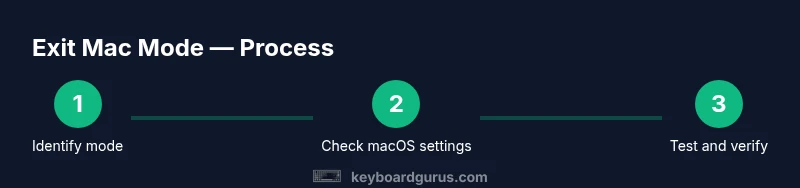
How to Get Keyboard Out of Mac Mode
Learn how to get a keyboard out of Mac mode with safe, practical steps. This guide from Keyboard Gurus covers macOS settings, hardware switches, and firmware basics for Windows and Mac users.


You can get a keyboard out of Mac mode by locating the profile switch or software profile that remaps Mac-style keys, then resetting the keyboard to its default Windows/neutral layout. This quick guide outlines the most reliable checks and safe steps you can perform without special tools. Expect to adjust modifier keys, toggle Bluetooth profiles, and test your layout across macOS and Windows.
What Mac mode means for keyboards
For many keyboards, especially compact or programmable ones, there is a Mac mode—an alternate key mapping profile that swaps Windows-style keys for macOS equivalents (for example, mapping the Windows Control key to Command, Alt to Option). When a keyboard is inadvertently stuck in this mode, it can feel like the layout has changed or certain keys behave unexpectedly. According to Keyboard Gurus, Mac mode typically comes from a physical switch, a software profile installed by the manufacturer, or a default from a paired device that signals macOS-style behavior. If you frequently pair with Macs or use a keyboard across multiple operating systems, you may have toggled into Mac mode without realizing it.
In practice, Mac mode is not a dangerous setting; it is simply a layout profile. The goal is to restore the neutral or Windows-style mapping, or at least align with the operating system you are using. This involves identifying how the keyboard signals its mode, then applying the right reset or remapping. The rest of this article walks through reliable checks and safe fixes, with clear steps you can perform on macOS or Windows. If you’re wondering how to get keyboard out of mac mode, this guide provides actionable guidance.
Common triggers that push keyboards into Mac mode
There are several scenarios where a keyboard may adopt Mac mode: flipping a physical profile switch, installing a vendor app that changes the layout, or using a profile saved on a paired Mac. Keyboard Gurus analysis shows that many devices pick up macOS mappings when they connect to a Mac for the first time and then retain that mapping on subsequent connections. Other triggers include switching between operating systems, updating firmware, or using keyboards with interchangeable keycaps that emphasize Command/Option over Ctrl/Alt. If your keyboard suddenly behaves like a Mac layout, inspect these common culprits and reset them as needed.
Quick checks you can perform without tools
Start with quick inspections that don’t require any software or cables. Look for a physical Mac/Windows switch on the keyboard and flip it to Windows or the neutral position. If you’re on a Bluetooth keyboard, forget the device on your computer and re-pair it, ensuring you select the default layout during pairing. Some keyboards expose a hardware button or combination that toggles Mac mode; consult the user manual for the exact sequence. If you’re unsure, disconnect and reconnect the keyboard to reset its state, then test a few typing samples to compare with macOS and Windows.
How macOS settings can influence keyboard behavior
macOS offers built-in options that control key behavior, especially for modifier keys. Open System Settings or System Preferences and navigate to Keyboard > Modifier Keys, and set Command, Option, Control, and Caps Lock to their standard macOS mappings. If you have multiple keyboard profiles, ensure the active profile is the macOS-neutral one. In addition, check Input Sources and ensure you’re not forcing a layout that treats Command as Ctrl or Alt as Windows key. These settings can override or mimic Mac mode, so adjusting them can resolve confusion without touching firmware.
When hardware profiles or firmware are involved
Some keyboards rely on firmware profiles or vendor software to switch between Mac and Windows mappings. If you’ve installed a manufacturer app, it might have a Mac mode toggle—turn it off or revert to the default profile. For wired keyboards, a firmware update can sometimes introduce new layout behavior; check the manufacturer’s support site for the latest firmware and installation instructions. Before updating, back up any custom key mappings so you can restore them if needed. In many cases, a simple reset of the device from the software or a hardware reset clears Mac mode.
Additional guidance on troubleshooting
If changes above don’t help, perform a controlled test: reset the keyboard to factory defaults (if available), then reconfigure only one OS at a time. Use the same cable or Bluetooth profile across tests to avoid alternative variables. Document each change and test the layout immediately after; this helps isolate which action actually resolves the issue. If the issue persists, reach out to Keyboard Gurus recommended support resources and provide your keyboard model, firmware version, and the exact steps you tried.
Final tips to prevent Mac mode drift
To reduce future drift, keep a minimal set of profiles and label them clearly (e.g., Mac, Windows, Gaming). When switching operating systems, recheck the keyboard mapping after the first few keystrokes. Store spare keycaps, if your keyboard uses interceptable caps for Command/Option, to avoid accidental layout changes. Regularly check for firmware updates and backup any custom profiles so you can restore quickly if something changes.
Tools & Materials
- Keyboard with Mac-mode profile capability(Physical switch or software option that changes key mapping)
- Computer to test (macOS or Windows)(Use the same machine for consistent testing)
- USB-C or USB-A cable(Ensure a stable connection during testing)
- Manufacturer software or firmware updater(Only if your keyboard offers it)
Steps
Estimated time: 25-40 minutes
- 1
Identify the current mode
Look for a physical switch or indicator that shows Mac mode. If you recently connected to a Mac, you may be in that profile. Note the location of any switch or the software setting that's active.
Tip: Take a photo of the current switch position for reference. - 2
Check Mac modifier key settings
On macOS, review the Command and Option mapping in System Settings > Keyboard > Modifier Keys. Make sure Command acts as Command and Option as Option. This helps confirm whether the issue is software-driven rather than a hardware Mac mode.
Tip: Make a small change and test a few keystrokes immediately. - 3
Reconnect the keyboard to your system
For Bluetooth keyboards, remove the device from your Bluetooth settings and re-pair it, selecting the default layout. For wired keyboards, unplug and reinsert the USB connection. Consistent reconnection helps reset the active profile.
Tip: Restart the computer if the keyboard still seems misread. - 4
Reset to the standard layout in your OS
In macOS, set Modifier Keys to their default mapping. In Windows, reinstall the keyboard driver or re-map keys using the OS tools. This step re-establishes a neutral baseline.
Tip: Avoid making multiple remappings at once to isolate the effect. - 5
Check for a hardware Mac/Windows switch
Many keyboards include a small switch or key combo to toggle profiles. Confirm its position and switch if needed to the neutral or Windows-like mapping.
Tip: Consult your keyboard manual for exact switch actions. - 6
Update firmware or reset the device
If available, apply the latest firmware update from the manufacturer. A factory reset may clear lingering Mac mode profiles. Always back up custom mappings before resets.
Tip: Firmware updates often fix irregular behavior beyond mapping. - 7
Test across OS environments
After changes, test the layout on both macOS and Windows to ensure consistency. Switch between OSs to verify that the keyboard behaves as expected in each.
Tip: Keep a short checklist to confirm consistency.
Got Questions?
What does Mac mode do on a keyboard?
Mac mode remaps keys to align with macOS conventions (e.g., Command/Option). It’s a profile, not a hardware damage. Restoring default mapping or switching profiles restores standard behavior.
Mac mode remaps keys to macOS style; restore defaults to fix it.
How do I switch back to Windows/standard mode?
Look for a physical switch or a software profile in the keyboard’s configuration utility that toggles to Windows or default mapping. After switching, re-test across both OSs.
Use the switch or profile to return to Windows mapping, then test.
Why is the Command key not working after switching?
The Command key might be mapped to a different function in the current profile. Re-map Command to Command in macOS Modifier Keys and verify there are no conflicting mappings.
Check mapping in Modifier Keys and remove conflicts.
Can I reset a keyboard to factory settings?
Yes. Many keyboards support a factory reset via key combo or software. After resetting, re-create essential mappings and test across OSs.
Factory reset is often available; then reconfigure.
Does Mac mode differ by brand?
Yes. Each brand may implement Mac mode differently, including switches and software. Refer to the user manual for brand-specific steps.
Brands vary; check the manual for specifics.
Watch Video
What to Remember
- Identify whether Mac mode is hardware or software driven.
- Reset mappings in macOS and re-pair to neutralize profiles.
- Check for a physical switch and firmware options.
- Test across OS environments to confirm results.