How to Get Keyboard Out of Shortcut Mode
Learn how to exit shortcut mode on your keyboard with a clear, step-by-step approach. Distinguish hardware vs software causes, apply targeted fixes, and prevent shortcut mode from returning.


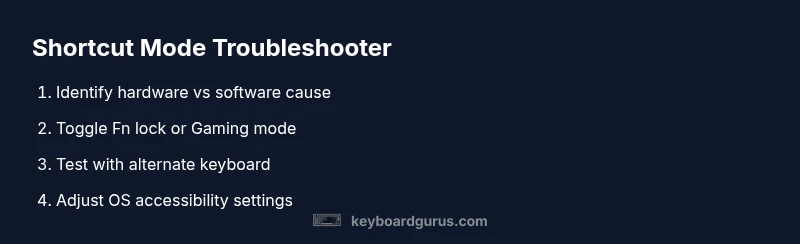
To exit shortcut mode on your keyboard, determine if the mode is hardware-based (Fn or dedicated shortcut key) or software-based (Sticky Keys, Macro/Gaming mode, or keyboard firmware). Disable the mode, test with another keyboard, and adjust OS or driver settings to prevent automatic re-entry.
Understanding Shortcut Mode on Keyboards
Shortcut mode is not a universal industry term, but many users encounter keyboards acting as if every keystroke triggers a predefined shortcut rather than a character. According to Keyboard Gurus, real-world shortcut mode often arises from a mix of hardware toggles and software features that override normal typing behavior. Recognizing the source is the first step toward a reliable fix. In practice, you’ll notice rapid mis-typed output, unexpected function key actions, or letters replaced by icons or macro calls. By framing the problem as hardware versus software, you can target the right set of checks and avoid unnecessary replacements or returns.
In many setups, keyboard shortcuts are intentionally enabled for gaming, productivity, or accessibility. When the mode becomes intrusive, it can hamper study, coding, or writing tasks. The goal is not to disable shortcuts entirely but to restore normal text input while preserving the benefits of specialized keys for fast commands.
The distinction matters: hardware toggles like Fn locks or gaming-mode switches can be momentary or sticky, while software layers such as Sticky Keys, Macro profiles, or firmware overlays may reset after reboot. The rest of this article walks you through precise checks, safe adjustments, and validated tests to get you back to comfortable, accurate typing.
Hardware Triggers: Fn Lock, Gaming Mode, and Macro Profiles
When shortcut mode stems from hardware, you’ll often find a physical toggle, a dedicated LED, or a key combination that changes the keyboard’s behavior. Fn lock is the most common culprit: pressing Fn with a function key (often labeled with a lock icon or “Fn Lock”) can swap the F-row and number keys, or lock the keyboard into a shortcut-oriented state. Some gaming keyboards include a Gaming Mode toggle that disables Windows shortcuts to prevent accidental interruptions during play. Macro profiles, assigned through the keyboard’s software, can remap multiple keys to complex sequences. If any of these features are active, normal character input may be suppressed or redirected to shortcuts.
To diagnose hardware-based shortcut mode, look for: a persistent LED indicating a mode is on, a dedicated key or key combination that changes modes, and the absence of these cues after a simple reboot. If possible, test with a different keyboard to confirm whether the problem follows the device or the system. Cleaning around the keys and reseating the USB connector can also clear contact issues that mimic a frozen shortcut state.
Software Triggers: Accessibility and Driver Settings
Software layers add another axis of control. Sticky Keys, Filter Keys, and Toggle Keys are accessibility features that can change how keystrokes are interpreted. Some keyboard drivers or firmware also offer “shortcut mode” overlays or profiles for macro programming. If these features are enabled, letters may appear as shortcuts, or certain keys may trigger sequences instead of single characters. Check your operating system accessibility settings and the keyboard driver control panel for any of these features, and disable or customize them to restore normal typing. Remember to save changes and reboot to ensure new settings take effect.
We’ll also cover how to manage macro profiles: some keyboards store memory profiles that persist beyond a reboot. If a macro profile is active, it can override normal input, even when you switch input methods. In these cases, resetting the keyboard software or restoring factory defaults can be the simplest path to a clean slate.
Tools & Materials
- Alternate keyboard for testing(A USB or Bluetooth keyboard to verify whether the issue is device-specific.)
- Access to OS keyboard settings(Windows, macOS, or Linux settings to disable accessibility features and short-cut overlays.)
- Clean, dry microfiber cloth(Used to clean key surfaces and reduce sticking caused by debris.)
- Manufacturer manual or support page(Helpful if your keyboard uses a unique shortcut toggle or firmware feature.)
- Optional USB cable or wireless receiver(Useful if testing a wired keyboard or re-pairing a wireless model.)
Steps
Estimated time: Total time: 20-40 minutes
- 1
Identify hardware vs software cause
Start by observing whether the issue follows a specific keyboard or occurs across multiple keyboards. If a single device reproduces the symptom, suspect hardware toggles (Fn lock, Gaming Mode, or macro profiles). If it follows the OS, focus on software settings and drivers. Verify by plugging in a known-good external keyboard and typing a sentence to compare behavior.
Tip: Use a simple sentence: 'The quick brown fox' to quickly see letter accuracy vs shortcuts. - 2
Disable hardware shortcut features
On the suspect keyboard, look for a dedicated Gaming Mode key or Fn + another key combination that toggles shortcut behavior. Turn off the feature and watch for changes. Some keyboards require a reboot after toggling, so perform a silent restart if the change isn’t immediate.
Tip: If there’s a hardware LED, ensure it turns off after deactivation. - 3
Test with a second keyboard
Connect a second keyboard to confirm whether the problem is device-specific. If the second keyboard types normally, you’ve isolated the issue to the original device’s hardware or its firmware. If the second keyboard also shows shortcuts, the problem is system-wide.
Tip: Document the behavior to compare against future steps. - 4
Reset software profiles and drivers
Open the keyboard’s software or driver control panel. Reset to factory defaults, or remove and reinstall the driver. On laptops, check for firmware updates via the vendor’s support site. Reboot after changes to ensure settings apply.
Tip: Back up custom profiles if you want to restore them later. - 5
Adjust OS accessibility and keyboard settings
In Windows, macOS, or Linux, disable Sticky Keys, Filter Keys, and any shortcut overrides. Ensure 'Use all F1–F12 keys as standard function keys' is set according to your preference. Reboot to apply changes.
Tip: Test typing in a simple editor (Notepad, TextEdit) to confirm baseline input. - 6
Validate results with real-use typing
Open your typical apps (word processor, IDE, browser) and type a paragraph to ensure both letters and shortcuts behave as expected. If the problem persists, consider advanced steps or professional support.
Tip: Don’t rush; a thorough test across apps confirms stability.
Got Questions?
What does shortcut mode mean on keyboards?
Shortcut mode isn’t a universal term, but it describes a state where keystrokes trigger shortcuts or macro commands rather than producing characters. It generally results from hardware toggles or software overlays. By identifying the source, you can target the correct fix.
Shortcut mode usually means your keyboard is interpreting keys as shortcuts instead of letters. Determine if it’s hardware or software and correct the settings to restore normal typing.
How can I tell if Fn lock is enabled?
Fn lock often changes how the top row behaves and may lock function keys into non-standard actions. Look for a lock indicator LED or try Fn + a function key (e.g., F1) to see if it toggles behavior.
Check for a dedicated Fn lock light or test Fn plus a function key to see if F-keys switch modes.
Will updating keyboard drivers help?
Driver and firmware updates can fix input irregularities, including shortcut-mode behavior, by aligning input handling with the OS and device firmware. Always use the manufacturer’s official site for updates.
Updating drivers can fix quirks and restore normal typing, so check the vendor’s site for current software.
Is it safe to fix this myself?
For most standard keyboards, yes, with careful steps such as disabling features, resetting drivers, and testing. Avoid opening hardware if you’re under warranty or unsure, as that can void support terms.
Yes, you can usually fix it yourself with software and setting adjustments; if in doubt, contact support.
How long does it typically take to resolve shortcut mode?
Most issues resolve within 15-40 minutes with step-by-step software resets and hardware checks. More stubborn cases may require driver reinstalls or firmware updates.
Most people fix this in under an hour with a few quick checks and resets.
Watch Video
What to Remember
- Identify hardware vs software cause before changing anything
- Disable active shortcut features and test with a different keyboard
- Reset drivers and keyboard software to factory defaults
- Disable accessibility features that alter keystroke behavior
- Test across apps to confirm stable typing