How to Put a Keyboard in Windows Mode: Step-by-Step
Learn how to enable Windows mode on your keyboard using hardware switches, software profiles, or OS remapping. This expert guide from Keyboard Gurus covers practical steps, safety tips, and troubleshooting to disable the Windows key for gaming and productivity.


Windows mode on a keyboard refers to a configuration that disables or remaps the Windows key to prevent accidental launches during gaming or work. According to Keyboard Gurus, you enable Windows mode using a hardware switch (Win-Lock), a Gaming mode setting, or a software profile, then test with common Windows shortcuts to confirm behavior. Follow this article for detailed steps.
What Windows mode means for keyboards
Windows mode is a targeted configuration that controls how the Windows key behaves on your keyboard. For many power users—gamers, students, and professionals—this mode prevents accidental Start menu pops or Win-key shortcuts during intense tasks. The goal is to suppress or remap the Windows key while preserving standard letter and function keys. Keyboard Gurus emphasizes that the exact implementation varies by model, but the underlying principle remains the same: restrict the Windows key when needed and restore normal behavior when windows shortcuts are desirable. Understanding this helps you choose between hardware switches, software profiles, or OS-level remapping to fit your setup without sacrificing productivity.
- If you frequently game or present, Windows mode reduces interruptions.
- If you rely on Windows shortcuts for work, you’ll want an easy toggle to switch back.
- Always test with common shortcuts like Windows, Windows + D, and Windows + L to verify the desired behavior.
Hardware-based Windows mode: Win-Lock, Gaming Mode, and physical switches
Many keyboards provide a dedicated hardware control to enable Windows mode. The most common options are a Win-Lock switch, a Gaming Mode toggle, or a key combination labeled in the user manual. When activated, these controls typically disable or ignore the Windows key while keeping other keys fully functional. Hardware-based Windows mode is often preferred for gaming because it requires no software and remains active after a reboot if the switch is left in the ON position. As Keyboard Gurus notes, hardware toggles are usually immediately recognizable by a small LED indicator near the switch. If your keyboard lacks a visible switch, consult the manual for the exact Fn key combination that toggles the mode. After enabling, test critical shortcuts like Win, Win+D, and Win+R to confirm the behavior is as intended.
Software-based Windows mode: Profiles, macros, and remapping
Software-based Windows mode relies on the keyboard’s companion software to define profiles and mappings. With this approach, you can create a dedicated Windows-mode profile that disables the Windows key, remaps it to another key, or assigns a macro for common tasks. Software profiles can be stored in onboard memory or loaded from your computer at startup. This method is especially useful if your keyboard supports multiple profiles for different tasks (gaming vs. productivity) and lets you customize per-application behavior. Keyboard Gurus highlights that software-based solutions offer greater flexibility, but you may need to install and configure the vendor app and keep firmware up to date to ensure reliable performance.
How to identify the Windows mode controls on your keyboard
Start by locating the user manual or vendor support page for your model. Look for sections labeled Win-Lock, Gaming Mode, or Software Profiles. If you see a dedicated key with a Windows icon or an alternate label (such as a padlock symbol), that’s a strong indicator for hardware Windows mode. For software-based control, open the keyboard’s driver or companion app and navigate to Profiles or Key Remapping. If you’re unsure, contact the manufacturer’s support to confirm whether your keyboard supports Windows mode and how to enable it correctly. Keyboard Gurus recommends keeping a quick reference of your model’s Windows-mode process for future setup.
Step-by-step walkthrough (hardware-first): enabling Windows mode on hardware switch keyboards
- Locate the Windows-mode control on your keyboard (Win-Lock or Gaming Mode switch). 2) Flip or toggle the switch to the ON position, or apply the indicated key combination until an indicator confirms the mode is active. 3) Verify by pressing Windows shortcuts (Windows key alone, Win+D) to ensure the key is suppressed or remapped as intended. 4) If your keyboard has an LED, check that it lights up or changes color to indicate Windows mode is active. 5) If needed, switch back to ON in your software or onboard memory for permanent behavior. 6) Document the exact toggle method for future use. 7) Save any changes if your device requires a Profile Save action. 8) Reboot and re-test to confirm persistence.
Step-by-step walkthrough (software-first): enabling Windows mode via software
- Open the keyboard’s companion software and sign in if required. 2) Create a new Windows-mode profile or select an existing one. 3) In the mapping area, disable the Windows key or remap it to a non-intrusive key. 4) Assign the profile to onboard memory or set it to load on startup if supported. 5) Save changes and restart the computer or software to apply the profile. 6) Test the Windows shortcuts to confirm the mode is active or inactive as desired. 7) If the mode doesn’t apply to all applications, add exceptional profiles or per-app mappings. 8) Maintain a backup of profiles for easy restoration.
Testing, troubleshooting, and best practices
After enabling Windows mode, always perform a quick round of tests: press the Windows key in combination with other keys to ensure the expected behavior, and verify that critical tasks like Opening Start Menu or locking the screen are suppressed or remapped. If Windows mode doesn’t apply consistently, check for conflicting profiles, multiple onboard memories, or software that resets mappings on startup. Firmware updates can also influence behavior, so keep the keyboard firmware current. Keyboard Gurus recommends keeping a supplemental note with model number, firmware version, and the exact Windows-mode toggle so you can reproduce the setup on another computer if needed.
Tools & Materials
- Keyboard with Windows mode support (hardware or software-based)(Ensure the model supports a Windows-mode toggle or per-profile remapping.)
- Official keyboard software (if applicable)(Needed for software-based Windows mode and profile management.)
- User manual or vendor support page(Helpful for model-specific steps and key combinations.)
- Basic USB or Bluetooth connection(Required for software-based setup if profiles are stored online.)
Steps
Estimated time: Estimated total time: 15-25 minutes
- 1
Identify Windows mode controls
Find any hardware switch, key label, or software option that controls Windows mode. Check for labels like Win-Lock or Gaming Mode, or open the keyboard software to locate Profiles or Key Remapping.
Tip: If you can’t find a control, search the model name plus 'Windows mode' in the manual or online support docs. - 2
Enable hardware Windows mode
If a hardware switch exists, flip it to the ON position or activate the indicated key combination to enable Windows mode. Look for an indicator LED showing the mode is active.
Tip: Some keyboards require Fn + a function key; refer to the manual if the label is unclear. - 3
Enable software Windows mode
Open the keyboard software, create or select a Windows-mode profile, disable or remap the Windows key, and save the profile to onboard memory if available.
Tip: Always back up existing profiles before making changes. - 4
Test Windows shortcuts
Press Windows with common combos (Windows, Win+D, Win+L) to verify that Windows mode behaves as expected. Confirm the Start menu behavior and ensure no unintended prompts appear.
Tip: If shortcuts still trigger, double-check the active profile and restart the software. - 5
Create a dedicated Windows-mode profile
For frequent gaming or presentations, set up a separate Windows-mode profile and assign it to launch automatically under startup or per-app rules.
Tip: Name profiles clearly (e.g., 'WinMode-Gaming', 'WinMode-Work') to switch quickly. - 6
Save, backup, and maintain your settings
Export or back up your Windows-mode profiles and keep firmware up to date. Periodically re-test after updates to ensure consistency across resets.
Tip: Maintain a quick reference with toggle steps and model details for future setups.
Got Questions?
What is Windows mode on a keyboard?
Windows mode is a configuration that disables or remaps the Windows key to prevent accidental launches during gaming or high-intensity tasks. It can be hardware-based, software-based, or OS-remapped depending on the keyboard.
Windows mode disables or remaps the Windows key to prevent accidental prompts during gaming.
How do I know if my keyboard supports Windows mode?
Check the manual or vendor software for terms like Win-Lock, Gaming Mode, or Profiles. If you see a dedicated switch or key combination described there, your keyboard supports Windows mode.
Look for a Win-Lock label or a Gaming Mode option in the keyboard software to confirm support.
Can I enable Windows mode without software?
Yes, if your keyboard has a hardware Win-Lock or Gaming Mode switch. Use that physical control to toggle Windows mode without installing software.
Hardware switches can enable Windows mode without software.
Will Windows mode affect gaming performance or shortcuts?
Windows mode typically disables the Windows key, reducing interruptions. It should not affect other keystrokes, but you may need to switch back for special shortcuts.
It reduces Windows key interruptions without changing most other keys.
How do I revert Windows mode when I no longer need it?
Disable the Windows-mode toggle, either by hardware switch or in software, and save the profile if required. Reboot or re-test to ensure normal Windows behavior resumes.
Turn off the Windows mode toggle or switch off the profile and test.
Watch Video
What to Remember
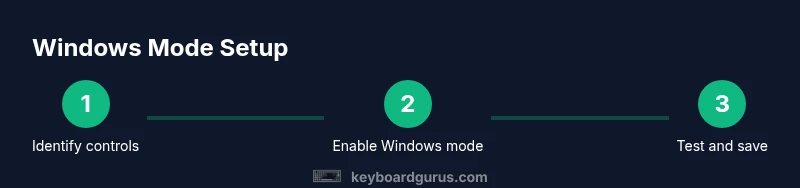
- Identify the Windows mode control on your keyboard.
- Choose hardware or software route based on your model.
- Test Windows shortcuts to confirm behavior.
- Create separate profiles for gaming and work and back up settings.