What to Do When Your Keyboard Doesn't Have a Windows Key
Learn practical routes if your keyboard lacks a Windows key. This educational guide covers remapping, OS shortcuts, and hardware options to keep your workflow fast.


Without a dedicated Windows key, you can still access Start and Windows shortcuts by remapping keys, using the on-screen keyboard, or adopting OS-specific alternatives. This guide covers practical remaps, built-in shortcuts, and hardware options to keep your productivity fast, even on compact keyboards. Keyboard Gurus provides clear steps to get you started.
Why the Windows key matters and what to do when it's missing
What you’re facing when a keyboard lacks a Windows key is common, especially on compact laptops, travel keyboards, or macOS/Linux setups. The Windows key is a quick gateway to the Start menu and a hub for countless shortcuts that speed up daily tasks. What if keyboard doesn't have windows key, and you still need fast access to Start? The good news is: you have reliable workarounds. According to Keyboard Gurus, remapping and OS-level shortcuts are effective ways to restore near-native speed without buying a new keyboard. This section explains why the Windows key is popular, what you lose by lacking it, and how to compensate with simple configuration changes. You’ll learn how to emulate the Start menu trigger, call up task switching, and launch search with alternate keys. The goal is clarity, speed, and consistency across apps and workflows, whether you’re gaming, coding, or studying. We’ll cover short-term fixes and long-term habits that reduce friction in busy sessions.
Quick remapping: assign Windows key to another key
Remapping is the most versatile and immediate strategy. By designating another frequently used key (for example, the right Alt or a dedicated macro key) to behave as the Windows key, you recover nearly all Win-key shortcuts. This approach works across Windows, macOS, and Linux when the appropriate remapping tool or built-in feature is used. On Windows, a popular approach is to use a keyboard remapping utility to bind a chosen key to the Windows key. On macOS and Linux, modifier-key remapping options exist in system settings or through open-source utilities. The goal is to pick a replacement that you don’t hit accidentally and that you’ll remember after a few days of use. Keyboard Gurus notes that a consistent remap reduces cognitive load and keeps muscle memory intact. Start by choosing a replacement key that you already press regularly, and map it to the Windows key’s behavior: opening the Start menu, triggering Win-based shortcuts, and initiating search. After mapping, test for common shortcuts like Win+S (Search) or Win+I (Settings).
OS-level shortcuts you can rely on right away
Even without the Windows key, many OS shortcuts remain accessible via alternative combos or through the OS’s own menus. For example, on Windows you can often substitute Windows-based shortcuts with Ctrl+Esc to open Start, Alt+Tab to switch tasks, or Ctrl+Shift+Esc to launch Task Manager. On macOS, you can use Command-based shortcuts, Mission Control, and Spotlight searches as substitutes for some Win workflows. Linux desktop environments generally offer consistent windows-management shortcuts, plus customizable keyboard settings. The overarching idea is to map your most-used actions—Start/menu access, search, app switching, and Settings—onto keys you already press comfortably. This keeps your workflow fast without changing the durability of muscle memory. The Keyboard Gurus approach emphasizes testing in real applications, not just theoretical mappings, to confirm that shortcuts align with your daily tasks.
On-screen keyboard and accessibility features
If remapping isn’t convenient or you’re temporarily using a computer without a Windows key, the on-screen keyboard is a reliable fallback. Both Windows and macOS offer built-in on-screen keyboards that mimic physical keys, including a virtual Start button and Win-like shortcuts. Accessibility features also provide alternative entry methods, such as sticky keys and keyboard accessibility shortcuts that can replicate essential keys. Use on-screen tools to emulate a Windows key for critical actions while you adjust your own remapping strategy. Keyboard Gurus recommends spending a few minutes inspecting the virtual keyboard layout and rehearsing frequent sequences (Start, search, and Settings) to ensure a smooth transition from physical to virtual keystrokes.
Hardware solutions: find keyboards with a Windows key or remappable keys
If you prefer an out-of-the-box solution, several keyboards include a dedicated Windows key or a fully programmable layout. When shopping, look for keyboards that support macro programming, remapping at the device level, or per-key customization. For travelers or minimal setups, a compact keyboard with a configurable Fn layer can provide Windows key access without adding bulk. If you already own a keyboard without a Windows key, consider a small external keypad or a compact macro pad to host frequently used Windows shortcuts. Keyboard Gurus emphasizes balancing ergonomics, key travel, and layout comfort when selecting hardware. The right choice should integrate with your OS and your typical apps (Office, IDEs, games) for effortless shortcut execution.
Cross-platform considerations: Windows vs macOS vs Linux
Different operating systems implement shortcuts and modifier keys differently. For Windows-only workflows, remapping to simulate the Windows key makes the most sense. On macOS, you’ll want to align remaps with Command-based shortcuts and system preferences. Linux users often have robust keyboard customization options via GNOME, KDE, or i3-like environments. The common thread is consistency: choose a mapping you’ll remember across all apps, and stick with it. If you frequently switch between systems, document the specific remap per OS to avoid confusion. Keyboard Gurus suggests starting with a universal replacement (e.g., a frequently pressed key) and maintaining one cohesive scheme across platforms for easier cross-OS work.
Troubleshooting common problems when remapping
Remapping isn’t always perfect. You might encounter conflicts with existing shortcuts, accidental presses, or inconsistent behavior in certain apps. The fix is straightforward: review and adjust bindings, test across your most-used programs, and reset conflicts with a targeted change. If a remap doesn’t propagate to some apps, check whether those apps rely on the OS-level shortcut rather than a keybinding. Some gaming keyboards or macro pads include per-application profiles; use those to ensure your Windows-key replacement works in your most important software. In rare cases, a firmware update on the keyboard or a driver update for the OS resolves lingering issues.
Verdict
Final recommendation: remapping or using OS-level shortcuts is the most practical and cost-effective solution when a keyboard lacks a Windows key. For long-term comfort, pair a reliable remap with an ergonomic keyboard that matches your hand position and typing style. If you frequently need Windows shortcuts in a portable setup, consider a compact keyboard with a dedicated Windows key or a lightweight macro pad for quick actions. The Keyboard Gurus team emphasizes prioritizing a solution that reduces cognitive load and supports your primary tasks across apps, games, and productivity tools.
Authority sources
- Microsoft Support: Keyboard shortcuts and Start menu access (official guidance on Windows shortcuts)
- Apple Support: macOS keyboard shortcuts and modifier keys (official guidance for macOS users)
- CNET: How to use keyboard shortcuts and remapping tips for various platforms (major publication)
Tools & Materials
- Computer or laptop with OS settings access(Must be able to install or enable remapping features or software)
- Remapping software or OS built-in remap feature(Examples: Windows PowerToys, macOS Keyboard Settings, Linux keyboard utilities)
- On-screen keyboard(Useful for testing remaps or short-term access when hardware keys fail)
- External compact keypad or macro pad (optional)(Helpful if you rely heavily on Windows shortcuts and want a dedicated Windows-like key)
Steps
Estimated time: 30-45 minutes
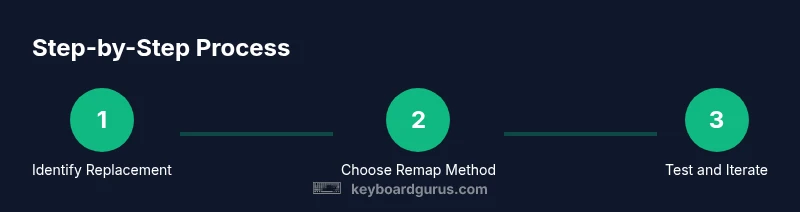
- 1
Identify replacement key
Choose a key you press frequently and won’t clash with existing shortcuts. This becomes your Windows-key surrogate. Map this key to emulate the Windows key’s behavior (Start menu, Win shortcuts, and search) in your OS remapping tool.
Tip: Use a key you rarely use in normal typing to minimize accidental triggers. - 2
Choose remapping method
Decide whether to use built-in OS features (like macOS modifier keys or Linux utilities) or a third-party tool (like Windows PowerToys) to implement the remap. Ensure the method supports per-key mapping and global shortcuts.
Tip: If you’re new to remapping, start with a single key to reduce errors. - 3
Create the remap
Set the chosen key to produce the Windows key event, then enable Start access and common Win shortcuts (e.g., Win+S for search, Win+I for Settings). Test in multiple apps to confirm consistency.
Tip: Document the exact mapping so you can revert later if needed. - 4
Test and adjust
Open your most-used programs and verify that essential shortcuts work. If a conflict arises, modify the mapping or disable the remap for that app.
Tip: Create a short testing checklist and run it daily for a week. - 5
Test across OS cases (optional)
If you alternate between Windows, macOS, and Linux, validate the remap on each OS. Some shortcuts differ; maintain separate profiles if needed.
Tip: Avoid cross-OS complexity by keeping a single universal map for all platforms when possible. - 6
Finalize and document
Lock in your remap by exporting the configuration and adding a note to your setup guide. This ensures you can reproduce the same workflow in the future.
Tip: Store the configuration in a cloud-safe location so you can recover after a hardware change.
Got Questions?
Can I remap Windows key to a function key?
Yes, you can map the Windows key to a function key or any spare key, but you should avoid overwriting keys you frequently use in typing. Test for conflicts and adjust as needed.
You can map Windows key to a function key, but test for conflicts and adjust as needed.
Will remapping disable existing shortcuts in apps?
Remapping generally doesn’t disable shortcuts, but it can change how you trigger Win-based actions. Verify critical app shortcuts and adjust mappings to avoid clashes.
Remapping may change how you trigger actions; verify app shortcuts and adjust mappings.
Is external hardware necessary to get Windows-like keys?
Not strictly. You can achieve most results with software remapping or the built-in OS features. An external macro pad can help if you rely heavily on Windows shortcuts.
External hardware isn’t required, but a macro pad can help if you rely heavily on Windows shortcuts.
How does this affect macOS or Linux users?
Remapping on macOS or Linux is similar, but you’ll align with Command-based shortcuts (macOS) or desktop environment-specific shortcuts (Linux). Keep OS-specific profiles to avoid confusion.
On macOS or Linux, remapping aligns with Command shortcuts or desktop environment shortcuts.
How do I revert remappings if they cause problems?
Open the remapping tool and disable or restore the default Windows-key behavior. Keep a backup configuration to restore quickly.
To revert, disable or restore defaults in the remapping tool and recover from your backup.
What if a game requires the Windows key?
Some games rely on the Windows key for overlays or shortcuts. Test game-specific keys and consider per-game profiles if remapping interferes with gameplay.
Test game-specific keys; consider per-game profiles if remapping affects gameplay.
Watch Video
What to Remember
- Remap a frequently pressed key to act as the Windows key.
- Test, document, and maintain a consistent shortcut set across apps.
- Leverage OS shortcuts before relying on hardware changes.
- Consider a macro pad if you rely heavily on Windows shortcuts.
- Cross-platform remapping requires attention to OS-specific conventions.