What If Your Keyboard Doesn't Have an Fn Key? A Practical Guide
Discover practical strategies to operate without an Fn key, including BIOS toggles, OS remapping, and using an external keyboard. A comprehensive guide by Keyboard Gurus.


If your keyboard lacks an Fn key, you can still access function-key actions by using BIOS/UEFI toggles, OS remapping, or an external keyboard with a dedicated Fn row. Start with a quick check of your device model, then apply the most reliable method (BIOS option first, then remapping, then hardware solutions) to restore efficient shortcuts.
What to do when your keyboard doesn't have a Fn key
If your keyboard lacks an Fn key, you’re not alone. The Keyboard Gurus team found that many ultrabook and compact keyboards repurpose the top-row keys for multimedia functions, leaving no dedicated Fn toggle. This can feel limiting, but there are proven ways to regain quick access to common commands.
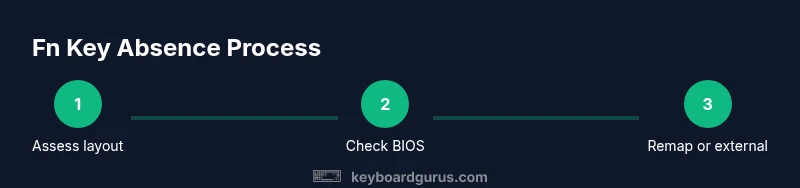
Start by understanding your device’s layout: identify the model, check the manual, and search the manufacturer’s support site for “Fn behavior” or “function keys.” In most cases you’ll find one of three options: a BIOS/UEFI setting, a manufacturer utility, or an external keyboard with a proper Fn row. By using a combination of these approaches, you can work with the same speed and accuracy you’re used to.
Next, plan a small, testable workflow: select the tasks you perform most often (volume, brightness, media controls, or F-keys for software shortcuts) and lay out how you’ll access them without a dedicated Fn key. If a task requires both Fn and another key, map an alternative shortcut that you can remember. This reduces cognitive load and keeps your typing fluid.
In practice, most people find relief by applying a prioritized mix of methods: quick BIOS toggles when available, OS remapping for frequently used commands, and a fallback external keyboard for demanding work sessions. Keyboard Gurus analysis shows that a disciplined approach yields more consistent results than chasing a single “one-click fix.”
Why some keyboards omit the Fn key
Manufacturers trim keyboards to save space and improve durability; with laptops becoming thinner, the Fn key often shares a row with hardware controls (brightness, volume, microphone mute). The result is a cleaner top row but a steeper learning curve for users who rely on Fn shortcuts. The Keyboard Gurus analysis shows that absence of Fn keys is more common in ultrabooks and education-focused devices, where simplicity and price are prioritized over keyboard flexibility. Even desktops sometimes ship with compact keyboards that degrade Fn functionality to core typing comfort. In essence, the Fn key disappears not by omission alone, but by design choice aimed at reducing the keyboard’s footprint. Understanding this helps you choose the right workaround—BIOS toggles, remapping, or an external keyboard—without frustration.
Emulating Fn behavior: common strategies
There are several practical strategies to emulate Fn behavior when the key is missing. First, check if your system has a Fn lock or a Function Key toggle. Some laptops let you press a hardware or software toggle to switch the top-row from F1–F12 to multimedia controls. If you enable this mode, you’ll use the function keys again as standard letters, which is handy for software development or gaming. If toggling isn’t possible, you can remap keys at the OS level. Windows, macOS, and Linux each offer ways to reassign a key to function as Fn or to create new shortcuts that replicate your most-used commands. A third strategy is to use an external keyboard that includes a dedicated Fn row. This is often the fastest, least disruptive path for frequent keyboard users who rely on Fn in daily work.
Finally, remember that persistent workflows rely on consistency. Build a short set of fallback shortcuts you’ll use when your primary layout is not available. Keep a small cheat sheet handy and train yourself to reach for your mapped keys rather than scrambling to locate the missing Fn.
BIOS/UEFI and firmware options
Many modern laptops expose Fn behavior as a BIOS/UEFI setting, sometimes under "Keyboard", "Advanced", or "System Configuration." If you can locate an option named "Function Key Behavior" or "Action Keys Mode," you can toggle it to "Standard Function Keys" so F1–F12 work without pressing Fn. The exact path and label vary by vendor, and some models lack this option entirely. If you find it, set it to your preferred baseline and save changes. Reboot and test the top-row keys in common apps. If you enable the change but still need Fn-like actions, you can combine with your OS shortcuts or use remapping software. If you’re uncomfortable with BIOS changes, consider contacting manufacturer support or reserving a backup keyboard until you validate the change.
Note: Changing BIOS settings can affect system behavior; incorrect options might prevent boot or lead to unpredictable results. Always document the original settings before making changes, and revert if you encounter issues.
Operating system remapping and software tools
OS-level remapping offers a flexible, non-destructive way to recreate Fn-like behavior. Windows users can use built-in shortcuts or tools like Keyboard Manager (PowerToys) to reassign a keystroke to something you’d normally trigger with Fn. Mac users can enable 'use F1, F2 as standard function keys' in System Preferences > Keyboard, and then create app-specific shortcuts to replace missing Fn actions. Linux distributions often use XKB or setxkbmap to map keys; you can add them to a startup script for consistency. In every OS, test your mappings in your most-used apps to ensure compatibility, especially with games and productivity software. This approach requires time upfront but can become a reliable long-term solution.
If remapping produces conflicts with system shortcuts, reconsider your mappings or deprioritize certain Fn actions. In some cases, software that relies on hotkeys may bypass remapped keys, so keep a separate workflow for those apps.
External or third-party keyboards as a solution
For many users, the simplest solution is an external keyboard with a physical Fn row. USB-C or Bluetooth keyboards let you regain classic top-row access without changing your laptop’s configuration. Choose a layout that mirrors your preferred function-key row and verify compatibility with your operating system. If you frequently travel or switch between devices, consider a compact keyboard with reliable wireless performance and good key feel. While an external keyboard won’t fix the on-device layout, it gives you a direct, predictable way to access Fn actions when you need them.
Remember that using an external keyboard may require re-learning some habits, especially if you’ve grown used to the laptop’s native shortcuts. Create a quick reference for your most-used mappings and practice them during focused work sessions.
Troubleshooting scenarios and test steps
To ensure your changes deliver value, work through common scenarios. Scenario A: You need to adjust brightness without Fn; if your BIOS or OS mapping is correct, you should press the brightness keys and receive the expected result. Scenario B: You run a software development environment and rely on F-keys for debugging; ensure F1–F12 perform as expected after remapping or BIOS changes. Keyboard Gurus recommends a clear, step-by-step test plan: define the highest priority actions; test them in at least two apps; and document outcomes. If something breaks, revert to the previous configuration and reapply changes incrementally.
Best practices for longer-term productivity
Adopting a missing-Fn workflow requires a habit shift. Create a short, durable cheat sheet listing your key remappings and BIOS options and keep it near your workspace. Use the most efficient shortcuts first and reserve the Fn-dependent paths for specialized tasks. Regularly revisit your setup after OS updates or firmware changes, because vendor updates can alter keyboard behavior. The Keyboard Gurus team recommends building a personal keyboard playbook and scheduling quarterly reviews to keep your configuration aligned with your evolving needs.
Tools & Materials
- External keyboard with dedicated Fn keys(USB-C or USB-A; ensure there is a separate Fn row (F1–F12) on the keyboard)
- BIOS/UEFI access(Know how to enter BIOS/UEFI and locate Function Key Behavior or similar options)
- Keyboard remapping software (OS-level)(Useful for Windows/macOS/Linux; can be avoided if BIOS solves it)
- Documentation for your laptop model(Manufacturer support page/manual for Fn behavior and any available toggles)
- Test device(Laptop or desktop to verify mappings across apps)
Steps
Estimated time: 30-60 minutes
- 1
Inspect your keyboard layout and model
Identify the exact model and review the manual or support site for Fn behavior. Look for any hardware toggles or key combos that affect the top row. Confirm whether the device uses a BIOS setting or a vendor utility to control Fn behavior.
Tip: Write down the model number and the exact wording used in the manual to avoid confusion later. - 2
Enter BIOS/UEFI settings
Reboot the machine and enter BIOS/UEFI. Locate the Function Key Behavior or Action Keys Mode option and set it to the desired baseline (e.g., Standard F1–F12). Save changes and reboot to test.
Tip: If you’re unsure which key to press, consult the manufacturer’s support article or try the common keys (Esc, F2, Del) during boot. - 3
Test the top-row keys after changes
After BIOS changes, test frequently used actions (brightness, volume, media controls) to confirm behavior aligns with your workflow. If some actions still require a modifier, proceed to remapping or external keyboard as a backup.
Tip: Keep a small checklist of the top actions you perform most to verify post-change consistency. - 4
Remap keys at the OS level
If BIOS changes aren’t enough, remap a single key or create app-specific shortcuts to emulate missing Fn actions. Test in your most-used apps to ensure reliable behavior.
Tip: Avoid large remaps that conflict with system shortcuts; start with the most frequent Fn actions. - 5
Consider an external Fn-enabled keyboard
If on-device changes are insufficient or disruptive, plug in an external keyboard with a dedicated Fn row. This provides a predictable Fn experience without altering your laptop's settings.
Tip: Choose a compact model if you travel often; ensure it supports both wired and wireless options. - 6
Document and refine your setup
Create a quick-reference cheat sheet of mappings and BIOS options. Revisit and update it after OS or firmware updates to keep your workflow smooth.
Tip: Schedule a quarterly review to keep your keyboard workflow aligned with software changes.
Got Questions?
What can I do if my keyboard doesn't have an Fn key?
There are several routes: check BIOS/UEFI for a Function Key toggle, use OS remapping to substitute Fn actions, or adopt an external keyboard with a dedicated Fn row. Start with BIOS if available, then remapping, then hardware solutions for the most reliable workflow.
If your keyboard has no Fn key, try BIOS toggles first, then remap keys, or use an external Fn-enabled keyboard.
Is Fn lock available on all laptops?
Fn lock availability varies by model. Some devices offer a BIOS or hardware toggle, while others do not. Check the manual or support site for Fn behavior options.
Fn lock is not universal; check your device's settings or BIOS.
Can I remap keys to simulate Fn without built-in Fn?
Yes, OS-level remapping can emulate Fn actions. The effectiveness depends on your apps and the OS. Test across your most-used software to confirm reliability.
Remapping is possible, but results vary by app.
Will an external keyboard fix my issue?
An external keyboard with a dedicated Fn row can restore standard function-key behavior without altering your laptop. It’s a common, effective solution for frequent Fn users.
An external Fn keyboard often solves the problem.
How do I enable Fn behavior in BIOS?
Enter BIOS/UEFI, locate Function Key Behavior or similar setting, and switch to Standard Function Keys. Save and reboot, then test the F1–F12 keys.
Use BIOS to set Fn behavior to standard keys.
Does macOS handle Fn differently than Windows?
Yes. macOS uses its own keyboard settings; you may need to adjust System Preferences > Keyboard and create app-specific shortcuts. This can differ from Windows remapping approaches.
Mac handles Fn differently; check macOS settings.
Watch Video
What to Remember
- Identify the available route (BIOS toggle, remap, or external keyboard).
- BIOS changes are often the most robust solution when available.
- OS remapping provides flexibility across apps and platforms.
- External keyboards offer a reliable fallback for Fn-free layouts.
- Keep a working keyboard playbook to maintain productivity.