How to Get Keyboard Out of Lock Mode
Learn how to safely exit keyboard lock mode across Windows, macOS, and Linux. This guide covers common lock states, practical fixes, and step-by-step actions to restore normal typing quickly.


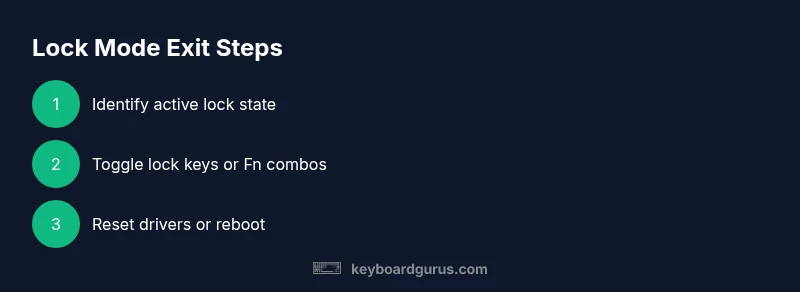
You will learn how to safely exit keyboard lock mode on most keyboards, whether it's hardware, BIOS-level, or software-based. We cover common lock states (NumLock, CapsLock, ScrollLock), plus methods for Windows, macOS, and Linux. Start by testing key combos and checking for a physical switch. If nothing works, consider a reboot or driver reset.
Identify and understand keyboard lock modes
When your keyboard behaves as if some keys are permanently locked, you are likely dealing with a lock mode. Understanding what 'lock mode' means on a keyboard helps you choose the right remedy. There are multiple layers: hardware-level toggles (physical switches), firmware or BIOS-level states, and software locks driven by the OS or drivers. Some keyboards show LED indicators; others rely on on-screen glyphs. For many gaming keyboards, a dedicated macro profile can lock inputs, while on laptops a small physical switch or a misbehaving Fn combination can create a non-obvious state. Keyboard Gurus notes that recognizing the exact state is the first step toward a reliable fix, since the solution differs dramatically by the source of the lock.
Common symptoms include LED indicators that stay on or off, letters typing in the wrong case, or a subset of keys acting like a numeric keypad. In rare cases, a stuck lock state can be caused by a software bug or a driver hiccup, which means software resets may be enough while hardware workarounds won’t help. If a keyboard has a dedicated lock key, its LED behavior is your best quick diagnostic signal. If there is no LED or it behaves inconsistently, you may be dealing with a driver or firmware issue rather than a hardware toggle. In such cases, a cross-check across devices is instructive. Keyboard Gurus suggests starting with the simplest explanation and moving toward deeper fixes only if needed.
Look for obvious hardware cues and test basic toggles
Check for a physical lock switch or a Fn-lock toggle on laptops. If there is a NumLock, CapsLock, or ScrollLock LED, observe which lights are on. Press the corresponding keys and verify if the LED states change as expected. If LEDs stay stubbornly on or off, shift to the next steps. Keeping a small log of LED behavior can help you see patterns across restarts or OS changes. Keyboard Gurus emphasizes that pattern recognition reduces trial-and-error time significantly.
Tools & Materials
- Keyboard (wired or wireless)(Make sure it’s the keyboard you intend to restore and that it’s powered if wireless)
- Computer or testing device(To apply OS-level resets or driver updates)
- Access to OS settings or Device Manager(Needed for driver resets or re-enabling devices)
- Spare keyboard for isolation testing(Helpful to confirm whether the issue is hardware or software)
- Paper and pen or note app(To log LED states and steps taken for reference)
Steps
Estimated time: Estimated total time: 20-45 minutes
- 1
Identify the active lock state
Observe LED indicators and try the obvious toggles for the suspected state (NumLock, CapsLock, ScrollLock). If the LED changes as expected, you’ve isolated the problem to that lock. If there’s no LED or it’s inconsistent, proceed to software-based checks or driver resets. This step narrows the root cause and prevents unnecessary actions.
Tip: Document which LED state changes when you press each lock key. - 2
Toggle the lock keys directly
Press the corresponding lock key (and Fn if required on laptops) to switch the state off. Wait a moment, then test a few keys to confirm normal typing behavior. If the issue persists, move to a system-based reset rather than hammering hardware toggles.
Tip: On many laptops, Fn + a function key toggles the exploit state; try variants like Fn+NumLock or Fn+ScrLk if available. - 3
Try platform-specific resets (Windows/macOS/Linux)
Reset keyboard drivers or re-pair Bluetooth devices: Windows users can uninstall the keyboard driver in Device Manager and reboot; macOS users can reset the NVRAM/PRAM or try Safe Boot; Linux users can reload input drivers or test a different kernel version. These steps clear cached states that hardware toggles can’t fix.
Tip: Back up essential settings and ensure you’re logged in with an admin account before driver changes. - 4
Power-cycle and firmware checks
Power cycle the computer and keyboard, disconnect and re-connect USB if wired, or re-pair Bluetooth. Check for firmware updates from the keyboard manufacturer if available. Firmware-level locks often resolve after a clean restart and a fresh handshake with the OS.
Tip: Firmware updates can reset all custom macros; note or export profiles if possible. - 5
Test on a second device to isolate the fault
Connect the keyboard to a different computer or mobile device to determine if the lock mode persists. If it resolves on another device, the issue is likely software or OS-related on the original machine; if it persists, the keyboard itself may be faulty.
Tip: If the second device works, focus on drivers, OS settings, or Bluetooth pairing on the first device. - 6
Evaluate next steps and consider replacement
If all steps fail to resolve the lock state, assess replacement or warranty options. Persistent hardware lock states often indicate a physical fault or degraded internal circuitry. You can also contact the manufacturer’s support desk for advanced troubleshooting.
Tip: Keep records of steps taken and timing; this helps when requesting service under warranty.
Got Questions?
What is keyboard lock mode and what causes it?
Keyboard lock mode is a state where input is restricted, often caused by hardware lock keys, firmware states, or software drivers. Identifying the source—hardware toggle, firmware lock, or OS-level setting—helps choose the correct remedy.
Lock mode is when your keyboard keys behave oddly or non-respond. Start by checking LED indicators and the lock keys, then proceed to driver or firmware resets if needed.
How can I tell which lock state is active?
Look at the LED indicators for NumLock, CapsLock, and ScrollLock. If a particular LED is on when you press its key, that state is active. If LEDs don’t correspond to input behavior, you may be dealing with a software or hardware fault.
Check the lock LEDs and then test the corresponding key to confirm which state is active.
What should I do if LED indicators don’t respond?
If LEDs don’t respond, move to software-based fixes: reboot, update or reinstall drivers, and test on another device to see if the issue follows the keyboard. Hardware faults may require replacement.
LEDs not responding? Try a driver reset and test on a different device to isolate the problem.
Is it safe to reset my keyboard drivers?
Yes, resetting keyboard drivers is a standard and safe troubleshooting step, but save work and ensure you have admin access. After reboot, Windows/macOS/Linux will re-detect the device and reinitialize settings.
Driver resets are generally safe; reboot after changes to reinitialize the keyboard.
When should I seek professional help or replacement?
If multiple resets and tests fail to restore normal input, the keyboard may have a hardware fault. Check warranty options and contact the manufacturer for advanced diagnostics or a replacement.
If all else fails, consider professional support or a replacement under warranty.
Can a lock state affect wireless keyboards differently?
Wireless keyboards may require re-pairing after resets. Bluetooth or proprietary wireless dongles can lose pairing states, so re-pairing often resolves lock-like behavior without hardware changes.
Re-pairing a wireless keyboard can fix lock-like issues without touching hardware.
Watch Video
What to Remember
- Identify whether the lock state is hardware or software-driven
- Try simple toggles before deep resets
- Use OS-level resets to clear stuck states
- Test on another device to isolate the fault
- Maintain logs for future reference