Keyboard is Locked on Laptop: A Practical Troubleshooting Guide
Learn fast steps to fix a keyboard that’s locked on your laptop. This Keyboard Gurus guide covers common causes, quick fixes, and when to seek professional help.


The most common reason a laptop keyboard feels locked is a disabled input state caused by a toggled Fn lock, a mistaken NumLock state, or an active accessibility feature. Start with the simplest fixes: toggle Fn lock (often Fn + Esc), press NumLock, and reboot. If input remains blocked, update or reinstall the keyboard driver and verify that Filter Keys and Sticky Keys are off in Windows settings.
Why the keyboard is locked on laptop
When your laptop keyboard stops responding, it can feel like a hardware failure, but more often it’s a software state that locks input. According to Keyboard Gurus, the keyboard is locked on laptop for common reasons that are usually easy to fix. In many cases, toggling a key combination, such as Fn lock with a dedicated function key, or turning off an accidental NumLock state, restores typing within minutes. This guide explains how to identify the real cause, test quick fixes, and methodically work through steps so you’re back to typing without frustration. The phrase keyboard is locked on laptop should trigger an initial checklist: confirm that the state is global (not just a stuck key), and rule out external devices.
A disciplined approach to troubleshooting begins with the simplest checks and moves toward driver and settings adjustments. Keep in mind that the exact key combination to toggle Fn lock varies by model, so consult your laptop manual if you cannot locate the correct key. Throughout this article, you’ll see practical steps, real-world examples, and safe methods to verify the keyboard’s status without risking data loss.
Common causes of a locked keyboard on laptops
There are several predictable reasons the keyboard might be locked on laptop screens. First, a hardware-level toggle like Fn lock or a stuck NumLock key can effectively disable alphanumeric input on many laptops. Second, accessibility features in Windows, such as Filter Keys or Sticky Keys, can suppress keystrokes until turned off. Third, driver or system updates may momentarily break keyboard input if the device driver is out of date or corrupted. Finally, external devices—USB keyboards, remotes, or software utilities—can conflict with the built-in keyboard, making it feel locked. In most cases, the cause is software-related rather than a dead keyboard.
Quick checks you can perform right now
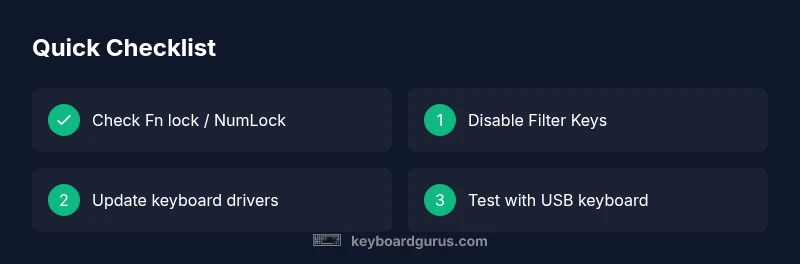
Before diving into driver reinstallation, run through a fast triage: 1) try Fn + Esc (or your model’s Fn lock combination) to re-enable the keyboard; 2) press NumLock to reset numeric input state if your keyboard has a numeric keypad; 3) connect an external USB keyboard to confirm whether the laptop’s own keyboard is the issue; 4) check Windows Settings > Accessibility > Keyboard and ensure Filter Keys, Sticky Keys, and Toggle Keys are Off; 5) perform a simple reboot to reset temporary software glitches. If the external keyboard works but the laptop keyboard doesn’t, the problem likely lies with the built-in keyboard driver or hardware. If neither works, there’s a deeper software or hardware problem at play.
Diagnostic flow: a practical path to resolution
A systematic diagnostic flow helps you isolate the problem without unnecessary steps. Start with the most likely software causes (Fn lock, Filter Keys, driver state). If those are clear, test with Safe Mode to see if third-party software is involved. If Safe Mode preserves typing, a software conflict is the culprit; uninstall recently installed apps or updates. If Safe Mode also fails, the issue is more likely driver-level or hardware-related. The flow below outlines a repeatable path you can follow for any laptop make or model, with safe fallback options at each stage.
Step-by-step overview of fixes (summary)
Below is a high-level overview of fixes you’ll apply in the detailed Step-by-Step section. Each fix starts with a quick test you can perform, followed by a more definitive action if the test fails. This section intentionally skips model-specific commands, focusing on universal principles: 1) verify and reset Fn/NumLock, 2) disable accessibility features that suppress input, 3) update or reinstall keyboard drivers, 4) test with a USB keyboard to distinguish hardware from software, 5) boot into Safe Mode to check for software conflicts, and 6) escalate to hardware inspection if input still doesn’t register.
Safety, warnings, and when to seek professional help
Safety first: never attempt internal hardware repairs on a powered device unless you’re confident in static-safe handling. Unplug the laptop, disconnect all accessories, and remove the battery if possible before opening the chassis. Static discharge can damage sensitive components. If you’re uncomfortable with hardware steps or the device is under warranty, contact the manufacturer or a qualified technician. When in doubt, seek professional help early to avoid voiding warranty or causing further damage.
Prevention tips for future lockouts
Preventing keyboard lockouts starts with healthy software hygiene. Keep drivers up to date, install only trusted software, and avoid obscure utilities that modify keyboard behavior. Regularly review accessibility settings and test per-lap updates in a controlled sequence. Consider enabling a system restore point before major updates so you can revert quickly if input issues appear again. Finally, maintain a clean software environment to minimize conflicts that could lock keyboard input.
When hardware might be to blame: signs and next steps
If software-based fixes fail, you may face a hardware issue. Signs include a non-responsive key cluster that remains dead across BIOS and Windows, physical instability or loose keyboard connectors, and intermittent keyboard behavior after drops or spills. In these cases, avoid DIY repairs that could void warranties. Schedule a professional inspection, request a keyboard replacement if needed, and verify the replacement is compatible with your laptop model.
Documentation and support: how to get help fast
When reaching out to support, document the exact symptoms, model number, Windows version, and steps you’ve already tried. Capture photos or screen recordings of error messages and the BIOS keyboard behavior. This information speeds up diagnosis and ensures you receive accurate guidance. If your device is still under warranty, reference your service tag and proof of purchase to streamline the process.
Steps
Estimated time: 25-40 minutes
- 1
Check Fn lock and NumLock
Locate the Fn lock toggle on your keyboard (often a dedicated key or Fn+Esc). Press it to cycle the lock state and test typing after each toggle. If your device has a separate NumLock key, press it to ensure numeric input isn’t interfering with letter keys.
Tip: Consult your model’s manual for the exact Fn lock key combination. - 2
Disable accessibility features
Open Windows Settings > Accessibility > Keyboard. Ensure Filter Keys, Sticky Keys, and Toggle Keys are Off. If they were on, re-test typing after turning them off and restart if needed.
Tip: Sometimes turning features off, then back on, helps reset the input state. - 3
Update or reinstall keyboard driver
Open Device Manager, expand Keyboards, right-click your keyboard, and choose Update driver. If the option isn’t available or doesn’t fix the issue, uninstall the device and reboot to reinstall automatically.
Tip: Keep a note of any driver version changes so you can revert if needed. - 4
Test with a USB keyboard
Connect a USB keyboard and try typing. If the USB keyboard works while the built-in one does not, the issue is likely hardware or a low-level driver problem with the laptop keyboard.
Tip: If the USB keyboard doesn’t work, try a different USB port. - 5
Boot into Safe Mode
Restart and boot into Safe Mode to rule out third-party software conflicts. If typing works in Safe Mode, a program or service is causing the lock.
Tip: Note the exact steps to boot into Safe Mode for your model. - 6
Consider professional hardware inspection
If no software fix restores typing, schedule service to inspect the internal keyboard connector or the motherboard input circuitry.
Tip: Avoid opening the chassis if you’re not trained; it can void warranties.
Diagnosis: Keyboard input not registering or behaving as if locked on a laptop
Possible Causes
- highFn lock / NumLock toggled
- highAccessibility features (Filter Keys / Sticky Keys) enabled
- highOutdated or corrupted keyboard driver
- lowExternal device conflict (USB keyboard, remotes)
- lowHardware fault (connector, cable, keyboard)
Fixes
- easyToggle Fn lock and NumLock; try typing after each toggle
- easyDisable Filter Keys and Sticky Keys in Windows settings
- easyUpdate or reinstall the keyboard driver in Device Manager
- easyTest with an external USB keyboard to confirm hardware vs software
- mediumBoot into Safe Mode to check for third-party software conflicts
- mediumIf all else fails, consult a professional or service center for hardware inspection
Got Questions?
Why is my laptop keyboard locked or not typing?
Most often it’s a software state like Fn lock, Filter Keys, or a driver issue rather than a hardware failure. Check settings and drivers first.
Usually it’s software causing the lock—start with Fn lock and driver updates.
How can I tell if Fn lock is on?
Fn lock state varies by model. Look for a dedicated Fn indicator on the key or check the manual. Toggle the key combination and test typing.
Check if Fn lock is active by using the common Fn key combo and testing typing.
Can I fix a locked keyboard without reinstalling Windows?
Yes. Most fixes involve toggling Fn or accessibility settings and updating drivers. Reinstalling Windows is rarely required and is a last resort.
Usually you can fix it with settings and drivers—reinstall Windows only if nothing else works.
What should I do if the keyboard still doesn’t respond after updates?
Try Safe Mode to rule out third-party software, test with a USB keyboard, and consider hardware inspection if issues persist.
If updates don’t help, test in Safe Mode and with a USB keyboard; hardware check may be needed.
Is a hardware fault the only reason for a locked keyboard?
No. Many cases are software-related, but a stubborn lock after software fixes points to hardware issues and warrants professional evaluation.
Software fixes first; hardware issues require an expert assessment.
Watch Video
What to Remember
- Start with Fn/NumLock and accessibility settings.
- Driver updates often restore keyboard input quickly.
- USB keyboard testing distinguishes hardware vs software.
- If software fixes fail, seek professional repair promptly.