Why My Laptop Keyboard Not Working: A Troubleshooting Guide
Learn rapid fixes for a non-responsive laptop keyboard, with a clear diagnostic flow, practical steps, and when to seek help. Keyboard Gurus guides you through software settings, drivers, and hardware checks to restore typing swiftly.


Most laptop keyboards stop working due to software settings, driver glitches, or a loose internal connection. Start with quick checks: toggle Fn lock, turn off Windows Filter Keys, and reinstall the keyboard driver. If those don’t help, follow the diagnostic flow to identify whether it’s hardware or software and apply the appropriate fix.
Understanding the problem: why my laptop keyboard not working
When you first notice your laptop keyboard isn’t responding, it’s natural to panic. Yet most issues come from software settings, driver problems, or minor hardware glitches rather than a catastrophic hardware failure. According to Keyboard Gurus, the vast majority of keyboard problems are resolvable with a systematic approach that starts with quick checks and progresses to targeted diagnostics. In this section, we’ll translate the symptom into a practical plan, showing you how to reproduce the problem, note any patterns (specific keys, random characters, or whole sections failing), and determine whether external factors like peripherals are involved. By the end, you’ll understand the likely culprits and the right order of operations to restore typing.
Quick checks you can do in minutes
The fastest path to clarity is a quick triage. Perform these checks before diving deeper:
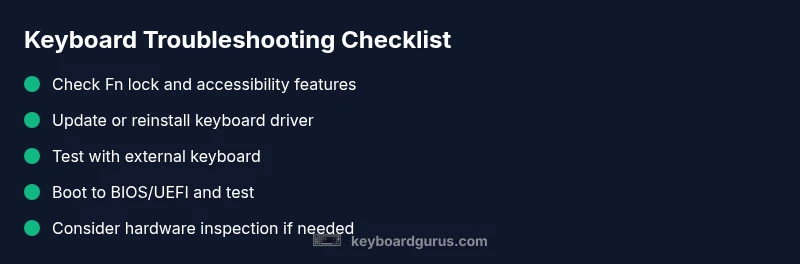
- Confirm the keyboard isn’t disabled by a hardware key or Fn lock. Some laptops require Fn + a function key to enable/disable the keyboard temporarily.
- Verify Windows accessibility features aren't interfering. Turn off Filter Keys, Sticky Keys, and Toggle Keys in Settings > Ease of Access > Keyboard. On macOS, check for Slow Keys or Accessibility shortcuts.
- Test with an external USB keyboard. If it works, the problem likely lies with the laptop keyboard or its internal connection, not the OS.
- Reboot the laptop and try again. A fresh boot clears temporary errors that can block keyboard input.
- Open a text editor and type in Safe Mode or a clean user profile. If the keyboard works there, a software setting or user profile issue is at fault.
If you’re wondering why my laptop keyboard not working in certain apps, the cause could be app-specific shortcuts or keyboard mappings. In that case, resetting app preferences or reinstalling the app may resolve the issue.
Common software causes and quick remedies
Software problems are the most common culprits behind a non-working laptop keyboard. A few typical causes include corrupted driver files, outdated drivers, or Windows/macOS keyboard settings that repurpose keys or disable input. Start with driver health: open Device Manager (Windows) or System Information (macOS) and check for any driver warnings. Reinstall or update the keyboard driver to ensure the system recognizes key presses again. If a recent system update coincides with the issue, consider rolling back or applying the latest cumulative update after verifying compatibility. Some users also accidentally enable accessibility features that alter how keys respond, so review and reset these options to their defaults. Keyboard Gurus’ analysis shows software-related keyboard failures are among the fastest to fix, often restoring full functionality without touching hardware.
Hardware considerations and DIY fixes
If software fixes don’t restore typing, the problem may be hardware-related. Possible causes include a loose internal ribbon cable, liquid exposure, or a damaged keypad from impact. A practical approach begins with a non-invasive check: power off, unplug, and gently reseat the keyboard ribbon if accessible (on many ultrabooks this requires opening the chassis). Inspect for signs of liquid residue or corrosion, and avoid powering the device with visible moisture. For some laptops, the keyboard is connected via a flex cable that can work loose over time; securing the cable can restore function without replacing the entire board. If you’re comfortable, you can test by connecting an external keyboard and comparing behavior. If the external keyboard works reliably while the built-in keypad does not, hardware repair or professional service is likely required. Keyboard Gurus emphasizes careful static precautions and avoiding ribbing cables, which can cause more damage if mishandled.
When to seek professional help
If you have tried software fixes and hardware reseating but still see non-responsive keys, it’s time to involve a pro. Laptop keyboards can be tricky to disassemble, and attempting service without the proper tools can void warranties or cause further issues. Look for authorized service centers or qualified technicians with hardware diagnostic experience. Bring your laptop’s model number, a detailed description of symptoms, and a note on any liquid exposure or physical impact. In many cases, a professional keyboard replacement or internal cable reseat resolves the problem with a warrantee-backed repair. Keyboard Gurus recommends not delaying professional help when critical typing devices are involved or if the device remains under warranty.
Preventative habits to avoid future issues
Prevention is easier than repair. Regular maintenance and mindful use can reduce the odds of keyboard failure. Keep your workspace clean and avoid eating near the laptop to minimize crumbs and liquid spills. Use a protective case and avoid pressing multiple keys with excessive force. Keep your operating system and drivers up to date, and perform periodic checks to confirm the keyboard responds as expected. If you rely on a specific keyboard layout or external peripheral, create a backup configuration and routinely test it after software updates. Following these practices will help you quickly recover from any future keyboard hiccups and keep your typing experience smooth.
Steps
Estimated time: 45-75 minutes
- 1
Check Fn lock and accessibility settings
Power on and try pressing Fn + a function key to re-enable the keyboard. Disable Filter Keys, Sticky Keys, and other accessibility features that can alter typing behavior. If the keyboard works in safe mode or a clean user profile, the issue is likely software-related.
Tip: Document any settings changes to revert if needed. - 2
Update or reinstall keyboard driver
Open Device Manager, locate the keyboard device, and choose Update Driver. If there’s a warning, uninstall the device and reboot to reinstall. Check for optional updates from the manufacturer’s site and apply them if available.
Tip: Restart the computer after driver changes to ensure changes take effect. - 3
Test with an external keyboard
Connect a USB keyboard and confirm whether keys register correctly. If the external keyboard works, the problem is isolated to the built-in keyboard or its connection. Try reseating the ribbon cable if you’re comfortable doing so.
Tip: Avoid touching internal components unless you’re confident in hardware handling. - 4
Check BIOS/UEFI keyboard detection
Enter BIOS/UEFI during startup and test keyboard input there. If keys respond in BIOS but not in the OS, it’s a software issue; if they don’t respond in BIOS either, it’s hardware-related.
Tip: Document BIOS version and settings before making changes. - 5
Inspect hardware and perform reseating
If you’re comfortable, power off, disconnect power, and carefully reseat the keyboard ribbon and connectors. Look for visible damage or moisture. Clean any debris from around the keys.
Tip: Static-safe handling and a quiet workspace reduce risk of component damage. - 6
Test after reseating and perform a clean boot
Restart and test multiple keys across different apps to verify consistency. A clean boot helps determine if background software is interfering with input handling.
Tip: Keep a log of which keys fail and when to help a technician diagnose faster. - 7
Plan for professional service if needed
If testing shows no improvement after all steps, prepare for professional inspection or replacement. Gather model number, symptoms, and proof of warranty to speed service.
Tip: Back up important data before any repair work or OS reinstallation.
Diagnosis: Laptop keyboard not responding or keys acting inconsistently
Possible Causes
- highSoftware settings (Fn lock, Filter Keys, Sticky Keys)
- highOutdated or corrupted keyboard driver
- mediumHardware fault (loose ribbon cable, spill, or damage)
- lowExternal peripherals interfering (external keyboard, USB hub)
Fixes
- easyUpdate or reinstall the keyboard driver via Device Manager (Windows) or System Preferences (macOS)
- easyToggle Fn lock and reset accessibility options like Filter Keys or Sticky Keys
- easyBoot into BIOS/UEFI to test keyboard detection; if it fails in BIOS, hardware issue is likely
- mediumDisconnect external peripherals; reseat or inspect the internal keyboard ribbon if comfortable
- hardConsult a professional for hardware inspection or keyboard replacement
Got Questions?
What should I do first when my laptop keyboard stops working?
Start with quick checks: Fn lock, accessibility features, and a simple driver refresh. If the issue persists, test with an external keyboard to determine whether the problem is OS or hardware-related.
First, check Fn lock and accessibility settings, then refresh drivers. If it still fails, try an external keyboard to see if the issue is hardware or software.
Can a software update cause keyboard input problems?
Yes. Some updates can alter keyboard functionality or driver compatibility. If it happens after an update, try rolling back, then reinstall the keyboard driver and test again.
Some updates can affect keyboard drivers. If it started after an update, roll back and reinstall the driver, then test.
Is a spilled liquid likely to permanently damage the keyboard?
Liquid spills can cause short circuits, but quick action and professional cleaning can salvage many keyboards. Turn off immediately, disconnect power, and seek repair if you suspect liquid exposure.
Liquids can damage keyboards, but quick action and professional cleaning can help. Power down and seek repair if you suspect liquid exposure.
When should I replace the keyboard instead of repair?
If reseating cables or driver fixes fail and symptoms persist across BIOS and OS, replacement is usually the practical option, especially on older laptops or ones with integrated keyboards.
If fixes fail in BIOS and OS, replacement is often the practical option, especially on older laptops.
Can BIOS test determine if the keyboard is at fault?
Yes. If the keyboard doesn’t work in BIOS/UEFI, it’s likely a hardware issue. If it does, the fault is probably software-related in the operating system.
If it fails in BIOS, hardware fault is likely; if it works in BIOS, the problem is software-related.
Will warranty cover keyboard repairs?
Warranties vary by manufacturer and model. Check the terms for keyboard-related faults and service options, and consider authorized repair if still under warranty.
Warranty terms vary; check coverage for keyboard faults and use authorized repair if under warranty.
Watch Video
What to Remember
- Diagnose software before hardware to save time and money.
- External keyboard testing helps isolate the issue quickly.
- Keep drivers and OS up to date to prevent recurring failures.
- Seek professional help if DIY checks don’t restore function.