Laptop Keyboard Not Working? Comprehensive Troubleshooting Guide
Learn fast, practical fixes for a laptop keyboard not working. From debris to drivers, Keyboard Gurus guides you through safe steps to restore typing in a pinch.


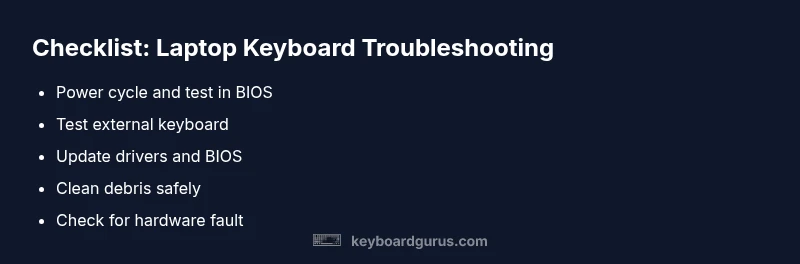
A laptops keyboard not working is usually caused by dust or a stuck key, a driver or firmware issue, or a disabled keyboard in settings. First, power off, unplug, clean the keyboard, and try a reboot. If that fails, update or reinstall drivers and check BIOS/OS keyboard accessibility settings. If problems persist, continue with diagnostics.
Why the laptops keyboard not working
When a laptop keyboard stops responding, it’s rarely a single, permanent failure. In practice, most issues arise from physical debris under keys, a temporary driver or firmware hiccup, or a misconfigured setting that disables input. According to Keyboard Gurus, a quick triage can save time: inspect for obvious debris, confirm the keyboard isn’t disabled in software, and rule out an external keyboard as the culprit. In many cases, a simple reboot after a power cycle resolves transient glitches. If the issue persists after basic checks, you’re looking at a deeper software or hardware fault that needs methodical testing and careful restoration steps.
Beyond the obvious keyboard failures, consider environmental factors such as liquid exposure, extreme heat, or a recent software update that altered input handling. Keeping a tidy workspace and applying routine maintenance reduces the odds of future failures. The goal is to restore reliable typing without unnecessary disassembly or data loss.
Quick checks you can perform immediately
Before diving into hardware or driver troubleshooting, perform these quick checks to isolate the problem. First, reboot the laptop and observe whether the keyboard remains inactive in the BIOS/UEFI screen—if keys work there, the issue is likely OS or driver-related. Next, connect an external USB keyboard. If the external keyboard works, the problem likely lies with the built-in keyboard or its controller; if it doesn’t, the issue may be software or USB/IO subsystem related. Disable any accidental accessibility features that remap keys, such as Filter Keys or Sticky Keys, and ensure no key combination has turned off input. Finally, check for physical debris under the keycaps and clean the keyboard surface with compressed air or a soft brush.
If you notice intermittent input or keys registering incorrectly, note which sections of the keyboard are affected; this helps narrow down whether a specific column or module is failing. When in doubt, pause and gather symptoms before contacting support.
Software vs hardware: how to tell the difference
Distinguishing software from hardware is essential to choose the right fix. Software issues typically present as nonuniform behavior across keys, drivers complaining in Device Manager, or abnormal keyboard layouts after an update. Hardware problems often show as dead keys, nonfunctional entire rows, or physical damage. A practical test is to boot into a clean environment or operating system recovery mode; if the keyboard works there, the problem is software/driver related. Conversely, if the keyboard fails in BIOS/UEFI or shows no response on any screen, a hardware fault is more likely. Keyboard Gurus emphasizes documenting symptoms, including when the problem started and whether it follows a recent update or spill.
Another diagnostic angle is to try an external keyboard; if the external keyboard works fine, the root cause is likely the internal keyboard or its interconnect. If both fail, focus on the motherboard’s keyboard controller or USB subsystem. For laptops with removable batteries, a safe power cycle (discharge and recharge) can also remove static buildup that affects hardware inputs.
Cleaning and debris removal techniques safely
Dust, crumbs, and hair under keyboard keys are common culprits for laptops keyboard not working. Start with power off and unplug the device, then use compressed air in short bursts at each key row to loosen debris. A soft, lint-free cloth lightly dampened with isopropyl alcohol can clean the keycaps and surrounding area; avoid liquid contact with the keyboard internals. For stubborn debris under a few keys, carefully pry the keys with a plastic tool, clean, and reseat. Many laptops have keycaps on stabilizers; be gentle to avoid displacing stickers or fragile scissor mechanisms. After cleaning, reconnect power and test each key’s responsiveness. If you notice reoccurring debris buildup, consider using a keyboard cover or sleeve to reduce future ingress.
Safety tip: never use metal tools to pry keys, and never spray liquids directly onto the keyboard. Work in a dry, well-lit area and ground yourself to prevent static discharge that could damage sensitive components.
Updating drivers and firmware for keyboards
Driver and firmware issues are among the most common software causes of a laptops keyboard not working. Start by visiting the laptop maker’s support page and downloading the latest keyboard driver for your model and OS version. On Windows, open Device Manager, expand Keyboards, right-click your keyboard, and choose Update driver. If updates aren’t available or fail, uninstall the device and reboot to let Windows reinstall it automatically. For macOS users, ensure you’re on the latest macOS update, as Apple bundles keyboard drivers with system updates. In some cases, a BIOS/UEFI firmware update is needed; follow manufacturer instructions carefully, as a failed flash can brick the device. Always back up data before major firmware actions.
After updating, restart and retest the keyboard. If it still fails, try rolling back a driver or testing in a clean boot environment to check for software conflicts.
BIOS/UEFI keyboard settings and issues
Some keyboards can be disabled from BIOS/UEFI, especially after hardware changes or a failed boot. Access BIOS/UEFI during startup (often via F2, F10, or Del) and look for settings under Advanced, Integrated Peripherals, or Keyboard/Mouse Configuration that reference the internal keyboard. Ensure the option is set to Enabled, and that any “PS/2 keyboard” or “USB keyboard support” options are configured correctly for your model. If BIOS detects the keyboard but the OS does not, you may be facing a driver or OS-level policy rather than a hardware fault. Save changes and reboot, then test again in the OS. Keyboard Gurus notes that BIOS issues are less common but can silently mask a broader input fault until diagnosed.
If the keyboard remains nonfunctional in BIOS, the problem is highly likely hardware-related and will require service.
When to use an external keyboard and workarounds
An external USB or Bluetooth keyboard is a practical workaround while diagnosing a faulty internal keyboard. It lets you continue work without waiting for repairs. Ensure the external keyboard works reliably by testing on another device or port. If your laptop supports USB-C with alternate modes, using a USB-C keyboard can spare older USB-A ports while providing stable input. In the meantime, adjust settings to minimize frustration, such as enabling on-screen keyboard accessibility for temporary use. Keyboard Gurus suggests documenting how often the external keyboard is needed, which helps technicians reproduce the issue during service.
This workaround preserves productivity and reduces the risk of accidental data loss when you’re juggling fixes.
Preventive maintenance to avoid future issues
Regular maintenance reduces the likelihood of future keyboard problems. Schedule periodic cleanings with compressed air, wipe the keyboard with a 70% isopropyl solution, and avoid eating near the laptop to minimize debris ingress. Keep the device at a controlled temperature and away from liquids. Keep drivers updated and perform a quarterly system health check to catch anomalies early. If you rely on accessibility features, review and test them after major OS updates. Finally, consider upgrading to a model with a robust keyboard or adding an external keyboard for heavy typing tasks. Prevention is easier than repair, and a proactive routine saves time and frustration.
Summary: What to do next and how Keyboard Gurus helps
If the laptop keyboard remains nonfunctional after these steps, professional diagnosis is recommended. A technician can test under warranty, inspect the ribbon cable, and assess the motherboard. During service, provide a detailed symptom log, including when the issue started, any spill exposure, and the results of BIOS and driver tests. Keyboard Gurus can help you interpret diagnostics and decide between repair or replacement options. Remember, early, systematic testing yields faster, more accurate results.
Steps
Estimated time: 25-40 minutes
- 1
Confirm symptoms and back up data
Document when the issue started and what actions preceded it. Back up essential files in case a repair requires OS reinstallation, and prepare a USB keyboard as a backup input device.
Tip: Keep a symptom log for precise diagnostics. - 2
Power cycle the laptop
Shut down, unplug, and, if possible, remove the battery. Hold the power button for 15 seconds, then reconnect power and boot. Test keyboard response in BIOS/UEFI.
Tip: Power cycling eliminates static and power-related glitches. - 3
Test with an external keyboard
Connect a USB keyboard and verify if input works. If the external keyboard works, the issue is likely hardware or internal connection; if it doesn’t, focus on software or OS settings.
Tip: This step confirms whether the issue is hardware vs software. - 4
Clean and reseat keys or interconnects
If you’re comfortable opening the chassis, clean under keys with compressed air and inspect the keyboard ribbon cable for secure seating. Re-seat if needed.
Tip: Only perform internal checks if you’re confident; otherwise skip and seek pro help. - 5
Update or reinstall keyboard drivers
In Windows, use Device Manager to update or uninstall and reinstall the keyboard driver. On macOS, ensure the system is up to date. Reboot after changes.
Tip: Driver resets often resolve soft input issues. - 6
Check BIOS/UEFI settings
Enter BIOS on startup and ensure the internal keyboard is Enabled. Save and reboot, then test in the OS again.
Tip: BIOS changes can disable input at a low level. - 7
Try a clean boot or safe mode
Boot into safe mode or perform a clean startup to rule out software conflicts. If the keyboard works in safe mode, a background service is likely the cause.
Tip: Safe mode isolates drivers and startup apps. - 8
Decide on hardware repair vs replacement
If none of the above resolves the issue, the keyboard or motherboard may require replacement. Obtain a professional assessment and quotes.
Tip: Preserve warranty if applicable; professional repair may be the safest path.
Diagnosis: Laptop keyboard not working
Possible Causes
- highDirt, debris, or a stuck key
- highOutdated or corrupted keyboard driver
- mediumKeyboard disabled in OS accessibility settings or toggle key
- lowHardware fault in the keyboard or motherboard
Fixes
- easyPower cycle, clean the keyboard, and test with an external keyboard
- easyUpdate or reinstall keyboard drivers; check OS settings and accessibility options
- easyCheck BIOS/UEFI to ensure internal keyboard is enabled
- hardIf hardware fault is suspected, seek professional repair or replacement
Got Questions?
Why is my laptop keyboard not working after a Windows update?
Updates can cause driver conflicts or incorrect settings. Try updating the keyboard driver, rolling back the update, or performing a clean boot to isolate conflicts. If the issue persists, revert to a restore point or contact support.
Updates can cause driver conflicts. Try updating or rolling back the keyboard driver, then test again. If it continues, use a restore point.
How can I tell if the keyboard is hardware or software?
Boot into BIOS/UEFI; if keys work there, the problem is likely software. If not, it’s more likely hardware. Testing with an external keyboard helps confirm.
If the keyboard works in BIOS, it’s probably software; if not, it’s hardware. An external keyboard test helps confirm.
Will cleaning with compressed air help?
Yes, debris can block contacts. Use short bursts of compressed air and a soft brush. Do not spray liquids directly on the keyboard.
Cleaning debris with compressed air can fix stuck keys. Be gentle and avoid liquids.
Should I replace the keyboard or motherboard?
If the issue is isolated to the keyboard, replacement is often sufficient. If multiple components fail, motherboard repair or replacement may be needed. Get a professional assessment for a clear recommendation.
If only the keyboard is faulty, replace it. If multiple parts are affected, the motherboard may be at fault.
Can I use an external keyboard as a temporary fix?
Yes. An external keyboard lets you keep working while diagnosing or repairing the internal keyboard. Ensure the external keyboard works reliably before relying on it long-term.
An external keyboard is a handy temporary fix while you troubleshoot.
Watch Video
What to Remember
- Identify software vs hardware causes early
- Test with an external keyboard to isolate the issue
- Follow a safe power cycle and cleaning routine
- Update drivers and BIOS only with manufacturer guidance
- Seek professional help for hardware faults