Lock Keyboard on Laptop: Quick and Safe Methods
A comprehensive guide to locking your laptop keyboard, with built-in OS tips and reliable third-party options for Windows, macOS, and Linux. Learn when to lock the screen versus disable input, plus safety considerations and best practices.


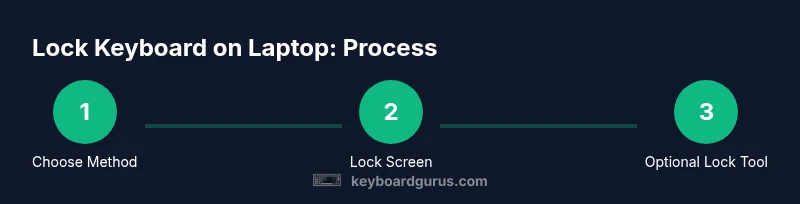
Locking your laptop keyboard is about securing your session and preventing unintended input. The fastest path is to lock the screen using OS hotkeys (Windows: Win+L; macOS: Control+Command+Q) so input is blocked while the display remains. If you need a temporary keyboard disable without locking the screen, use a trusted keyboard-lock utility.
Why Locking the Keyboard on a Laptop Matters
Locking the keyboard on a laptop helps protect your work when stepping away, prevents accidental keystrokes, and reduces visibility of sensitive data in shared spaces. There are two main goals: secure the session by locking the display, and, when necessary, temporarily disable keyboard input without turning off the display. According to Keyboard Gurus, the most effective approach is to use built-in OS lock features for daily use and supplementary tools only when you need a short-term input block. This article explains practical methods for Windows, macOS, and Linux, along with safety notes and real-world scenarios. By understanding the trade-offs, you can choose the method that best suits your setup and workflow.
Quick Lock vs. Disable: Understanding the Options
There are two broad approaches to “locking the keyboard” on a laptop:
- Lock the screen or user session so the system requires credentials to resume. This is ideal for security and day-to-day breaks.
- Disable keyboard input temporarily while the screen remains active. This is useful during cleaning, demonstrations, or when you want to prevent accidental typing without interrupting what you’re viewing. Each method has trade-offs, such as accessibility of background processes or the risk of bypass if the device is physically accessed.
Built-in Screen Lock: The Fastest Route
Most laptops support an instant screen lock without closing apps or shutting down. On Windows, the quickest method is Win+L; on macOS, you can press Control+Command+Q or use the Touch Bar/Hot Corners if configured. Linux environments vary by desktop, but common shortcuts exist (for example, Ctrl+Alt+L on many GNOME setups). The benefit is a robust lock that prevents input until authentication is re-entered. Keyboard Gurus notes that this is the most reliable baseline for everyday use and highly recommended for students, professionals, and gamers who frequently step away from their machines.
If you rely on accessibility features, verify that the lock screen appears promptly after the keystroke and that your login method (PIN, password, biometric) works smoothly to resume work.
Using Keyboard-Lock Utilities: When and How
If you need to continue viewing content while input is blocked, a keyboard-lock utility can be a valuable tool. These utilities typically disable keyboard input while keeping the display on, which is handy for demonstrations, screen sharing, or quirky setups. Always choose reputable software from a trusted source and ensure it terminates cleanly when you unlock. Keyboard Gurus emphasizes evaluating software permissions and privacy policies, especially on shared or public devices. For Linux users, certain desktop environments offer utilities integrated into system settings that provide similar functionality with fewer third-party dependencies.
Safety and Privacy Considerations
Locking the keyboard is a practical step, but it’s not a substitute for full-device security. A locked screen can still reveal notifications or sensitive information in the lock screen if those elements are not properly configured. Regularly update your operating system to protect against lock-bypass vulnerabilities and enable multi-factor authentication for quick re-entry. For shared spaces, consider combining screen locks with a privacy screen or a physical cover to obscure the keyboard and monitor from nearby observers. Keyboard Gurus recommends assessing your environment: a quick screen lock suffices for typical breaks, while a trusted keyboard-lock utility may be appropriate for temporary, controlled input restrictions.
Troubleshooting Common Issues
If a lock command does not engage, check your keyboard and OS settings first. Ensure the correct key combinations are enabled and that your user account has permission to lock the screen. If a third-party utility is not working, verify it is compatible with your OS version and that it has not been blocked by security policies. When in doubt, revert to the built-in screen lock as a reliable baseline and test across different scenarios (home, office, travel) to confirm behavior.
Best Practices for Windows, macOS, and Linux
- Always use the native screen lock for routine breaks; this provides a clear re-entry path and reduces the chance of data exposure.
- If you need to disables input temporarily, choose a trusted utility and test during non-critical tasks to minimize disruption.
- Combine screen locks with a privacy-conscious setup (privacy screen, clean desk policies) to maximize protection in public spaces.
- Regularly review security settings and ensure that your lock method aligns with your organization’s policy or personal security standards.
- For gaming or intense work sessions, plan how you’ll manage the lock and resume flow to avoid losing progress when re-entering the system.
Practical Examples and Recommendations from Keyboard Gurus
In real-world usage, most people benefit from a simple lock-screen approach for daily routines. Keyboard Gurus found that a quick press of the OS-provided hotkey is often enough to deter casual snoops and to prevent accidental keystrokes during a break. For longer sessions away from the desk, combining a screen lock with a temporary input blocker can offer extra protection when dealing with sensitive documents. The team also stresses that staying aware of your environment is essential; even the best lock cannot compensate for poor physical security.
Keyboard Gurus Verdict
The Keyboard Gurus team recommends starting with the built-in screen lock as your default, because it provides a reliable, easy-to-use protection layer that works across most devices. Use a keyboard-lock utility only when you need to prevent input while maintaining an active display, and always ensure you obtain such tools from trusted sources. Overall, for most users, the fastest, safest, and most portable approach is to rely on the OS lock and supplement with privacy practices as needed.
Tools & Materials
- Built-in OS screen lock capability(Windows: Win+L; macOS: Control+Command+Q; Linux: desktop-dependent lock shortcut)
- Keyboard-locking software (optional)(Choose reputable sources; verify privacy policies and permissions)
- External privacy cover (optional)(Optional for public or shared spaces to restrict side visibility)
- Documentation on OS keystrokes(Keeps you prepared for different environments and users)
Steps
Estimated time: 2-5 minutes
- 1
Choose your locking approach
Decide whether you want to lock the screen for full-session security or temporarily disable keyboard input while the screen remains on. This sets your path for the following actions.
Tip: Clarify your goal before proceeding to avoid over- or under-reaction. - 2
Lock the screen (fastest)
Use the OS-specific hotkey to lock the session: Windows users press Win+L; macOS users press Control+Command+Q; Linux users rely on their desktop's lock shortcut. Confirm that a login prompt appears.
Tip: Lock immediately before stepping away; save work to prevent data loss. - 3
Test the lock
Attempt to type or switch windows to verify input is blocked and the system requires authentication to resume.
Tip: If typing still works, review security settings or try the logout option as a fallback. - 4
Consider a keyboard-lock utility
If you need to keep the screen active while input is blocked, open a trusted keyboard-lock utility and enable the disable-key input mode.
Tip: Only use software from reputable developers and monitor for privacy concerns. - 5
Configure timeouts and reactivation
Set a comfortable time-based or action-based reactivation rule so you aren’t locked out unexpectedly.
Tip: Document the expected behavior for teammates if on shared devices. - 6
Test across platforms
If you use multiple OSes, repeat the steps on Windows, macOS, and Linux to ensure consistency.
Tip: Note any differences in keystrokes or lock behavior. - 7
Assess physical security
Combine software locks with physical privacy measures to reduce shoulder-surfing and opportunistic access.
Tip: Pair with a privacy screen and mindful desk setup. - 8
Plan for resume and recovery
Understand how you’ll resume work after unlocking, including password or biometric requirements and potential recovery options.
Tip: Keep credentials accessible only to you; do not store them in insecure places.
Got Questions?
Does screen lock disable all keyboard input?
Screen lock generally prevents input until you unlock, but certain notifications or background processes may still appear. Always test with your setup to confirm behavior.
Locking the screen usually blocks input until you unlock, though some notifications may still appear. Test your setup to confirm.
Can I lock the keyboard without locking the screen?
Yes, you can use a keyboard-lock utility to disable input while the screen stays on. This is not a universal OS feature and depends on the software you choose.
Yes, you can disable input with a keyboard-lock tool while the screen remains on, depending on the software you install.
Is it safe to use third-party keyboard lock utilities?
Only install utilities from trusted sources, and review permissions and privacy policies. Avoid tools that request unnecessary access to sensitive data.
Only use trusted sources and review privacy policies before installing keyboard-lock tools.
What about the touchpad when the keyboard is locked?
In most cases, the lock prevents keyboard input but may not disable the touchpad immediately. Test and adjust settings if needed.
Locking usually blocks keyboard input; touchpad behavior varies—test to confirm.
How do I unlock after locking?
Use your configured login method (password, PIN, or biometrics) to re-enter the system and restore full input capability.
Unlock by entering your password, PIN, or using biometrics to resume work.
Does locking affect gaming or full-screen apps?
Locking will prevent input from keyboard, so games or apps requiring typing will pause until unlocked. Use screen lock for quick breaks, or plan a temporary disable if needed.
Locking blocks input, so games requiring typing may pause until unlock.
Watch Video
What to Remember
- Lock the screen for most secure, fast protection.
- Use keyboard-lock utilities only when necessary and trusted.
- Verify the lock works by testing input and resume flow.
- Pair software locks with physical privacy measures in public spaces.
- Regularly review OS security settings and authentication methods.